

This integration is for a Box enterprise (Business, Business Plus, or Enterprise). It does not apply to a personal Box account. There is no browser consent screen.
What Oleria discovers
Once connected, Oleria continuously discovers and maps the following from the Box enterprise:- Accounts - managed users and external collaborators, including login, name, status (active or inactive), enterprise role, last login, confirmed alternate email, and the multi-factor authentication (MFA) exemption flag. When at least one discovered folder has an open shared link, Oleria also includes Anyone with the link.
- Roles - Enterprise Admin, Enterprise Co-Admin, and Enterprise User.
- User groups - enterprise groups, including the built-in all-users group, and their membership.
- Resources - the enterprise root folder (All Files), plus every folder that is shared directly (a collaboration added on that folder) or has a shared link. The root folder always appears, even with no sharing, as the starting point for the folder tree. Folders that only inherit sharing from a parent folder, and folders with no sharing, are used only to reach shared folders and do not appear as resources.
- Access - who can reach which folder:
- users collaborating directly on a folder, with their permission level (for example Editor or Viewer)
- groups collaborating directly on a folder, with their permission level
- Non-human identities (NHIs) - Box App Users, the machine accounts Platform Apps use to act on the enterprise, and the Platform App’s own Service Account, which Oleria uses to connect.
- AI agents - Box AI Studio agents, including whether each agent is enabled, when your Box plan includes AI Studio and the Platform App can read agents. Otherwise Oleria skips agents without failing the sync.
- Activity - Box admin events such as logins, user status and role changes, new users, group membership changes, folder collaboration and sharing changes, shared-link changes, new apps, revoked app tokens, and MFA enabled, disabled, or verified. Activity requires report access, see Prerequisites.
Folder permission levels such as Editor, Viewer, and Uploader appear on folder access, not under Roles. Only Enterprise Admin, Enterprise Co-Admin, and Enterprise User appear under Roles. Box does not expose per-user MFA enrollment beyond the exemption flag, or single sign-on (SSO) enforcement, so Oleria reports those as unavailable rather than inferring them. MFA changes still appear in Activity.
Prerequisites
- A Box enterprise you want Oleria to inventory (not a personal account).
- Admin or co-admin access to the Box Developer Console and Admin Console.
- A Platform App with Server Authentication (Client Credentials Grant), authorized for the enterprise.
- App Access Level set to App + Enterprise Access, so the Service Account can see managed users, not only its own App Users.
- Application scopes Read and write all files and folders, Manage users, Manage groups, and Manage enterprise properties. These cover discovery and every remediation action. Add Manage AI if you want AI agents and your Box plan includes AI Studio.
- An admin or co-admin who can Run new reports and access existing reports, if you want Activity. Without this, Oleria still connects and syncs accounts, groups, roles, and folders. Activity is skipped rather than failing the connection.
After you create or change the Platform App, authorize it in the Admin Console (Apps -> Platform Apps Manager -> Server Authentication Apps). Box does not let an unauthorized app authenticate.
Create a Platform App in Box
Oleria connects as the Service Account Box creates for the Platform App, not as an employee’s login.1
Create the Platform App
Sign in to Box and open the Developer Console. Select Create New App, choose a Platform App, and set authentication to Server Authentication with Client Credentials Grant.
2
Set access and scopes
On the Configuration tab:
- Set App Access Level to App + Enterprise Access.
- Grant the application scopes in Prerequisites.
- Copy Client ID and Client Secret from OAuth 2.0 Credentials. Copy Enterprise ID from General Settings.
3
Authorize the app
On the Authorization tab, submit the app for admin approval if you are not an admin. In the Admin Console, open Apps -> Platform Apps Manager -> Server Authentication Apps and authorize the app for your enterprise.
Connect Box to Oleria
1
Open the integration
Go to your Oleria workspace, select Integrations -> select Box.
2
Complete the connection form
Fill in the connection form: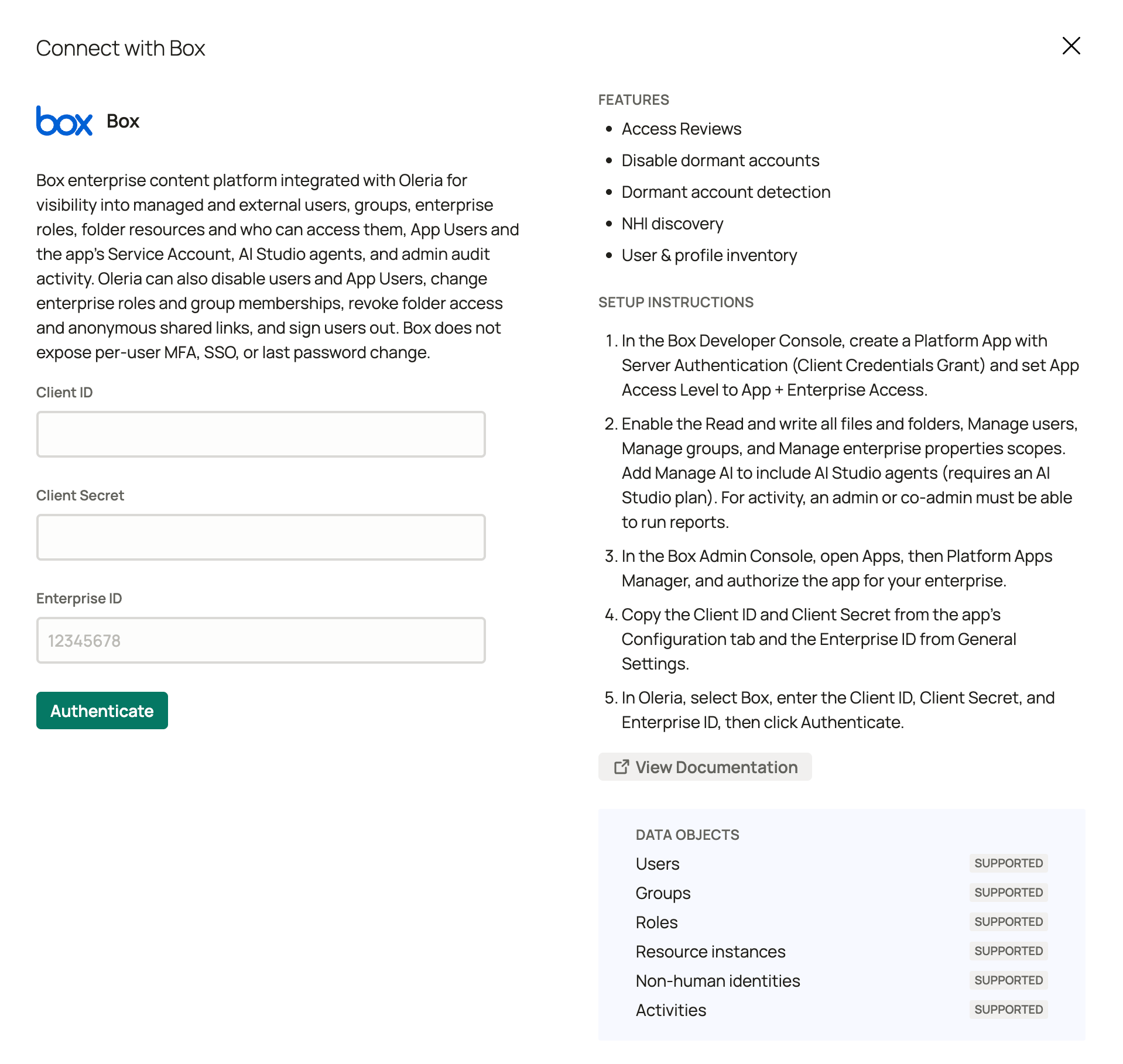
3
Save the integration
Select Authenticate. Oleria validates the credentials against Box before saving.
Verify the integration
Confirm the Box instance appears in your Oleria workspace’s connected integrations. After the first sync completes, you can review the discovered accounts, roles, groups, folders, folder access, NHIs, and AI agents in Access Inventory. Activity backfills afterward if the Service Account can run reports.If you rotate the Client Secret in Box, or an admin revokes the app, reauthorize the app in the Admin Console if needed, then edit the integration in Oleria, paste the new secret, and select Update.
Folder discovery starts at the enterprise root and walks the folder tree. The first sync on a very large enterprise can take longer than other object types.
Remediation actions
Standard integrations are configured read-only. If you enable remediation for Box, Oleria uses the same Platform App. Grant the scopes in Prerequisites on that app.Oleria does not remove a user from the Box enterprise. Box would convert that account to a free personal Box account, which is not reliably reversible. The Enterprise Admin role cannot be granted or removed through Oleria.
What this integration does not cover
- Inherited folder access - access a folder inherits from a parent folder is shown on the parent folder only.
- Anyone with the link on specific folders - Anyone with the link appears as an account, but not as access on each open-link folder.
- Folder hierarchy - parent and child folder relationships are not shown.
- Folder permission levels as roles - Editor, Viewer, Uploader, and similar levels appear on folder access, not under Roles.
- Files - Oleria inventories folders, not individual files.
- SSO and per-user MFA - Box does not expose these for this integration, except the MFA exemption flag on accounts.
- Box Sign, Box Shield, Box Relay, and other add-on products - not covered.