

What Oleria discovers
Once connected, Oleria continuously discovers and maps the following from your 1Password account:- Activities - audit events, sign-in attempts, and item usage reported through 1Password’s Events Reporting API. Requires the Events Reporting API token.
- Users - every user in your 1Password account, read through the SCIM bridge. Requires the SCIM bridge credential.
- Groups and their membership - requires the SCIM bridge credential. Oleria returns membership only for groups listed on the Manage groups tab in 1Password - see Known limitations.
- Vaults and items - requires the optional Service Account credential, and only for vaults the service account was explicitly granted access to.
- Non-human identities (NHIs) - credential-bearing items in your vaults (API keys, passwords, SSH keys, database credentials). Requires the Service Account credential. Oleria reads item metadata only (title, category, timestamps) - never the secret field values.
- Vault access, with permissions - which users and groups can access each vault, and what they can do there (view, edit, manage). Requires the Service Account credential.
Prerequisites
- The Owner or Administrator role in your 1Password account - required for all three credentials below (creating an Events Reporting API token, reading SCIM bridge credentials, and creating a Service Account). A 1Password Business or Enterprise plan is also required for Events Reporting, Service Accounts, and automated provisioning.
- Your 1Password Events Reporting region (United States, Europe, or Canada) - you’ll need this when connecting in Oleria.
- SCIM (automated user provisioning) already set up on your 1Password account, either 1Password-hosted or a self-hosted bridge. Oleria reads the same bridge URL and bearer token your identity provider already uses - it doesn’t set up SCIM for you.
- Optional: willingness to grant a Service Account Read access to specific vaults, if you want Oleria to discover vaults, items, NHIs, and vault access permissions.
Create an Events Reporting API token in 1Password
This credential covers Activities (audit events, sign-in attempts, item usage). Requires the Owner or Administrator role.1
Open Events Reporting
Select Integrations in the sidebar. In the Events Reporting section, select Other, since Oleria isn’t a listed SIEM platform.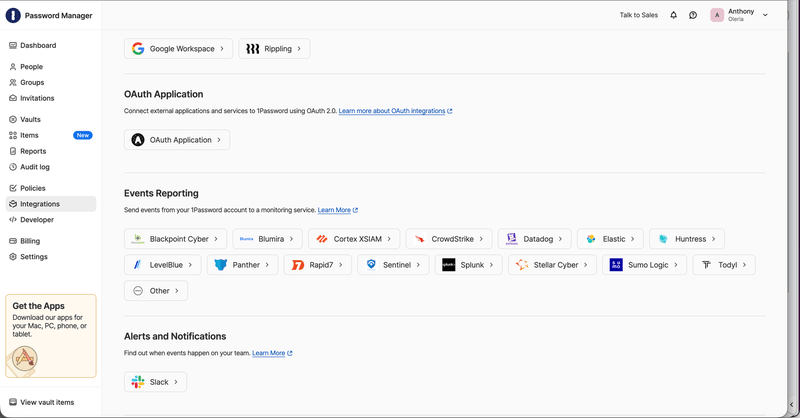
If your account already has integrations configured, selecting Integrations may open directly to a Directory view instead.
2
Name the integration
Enter a descriptive name, for example 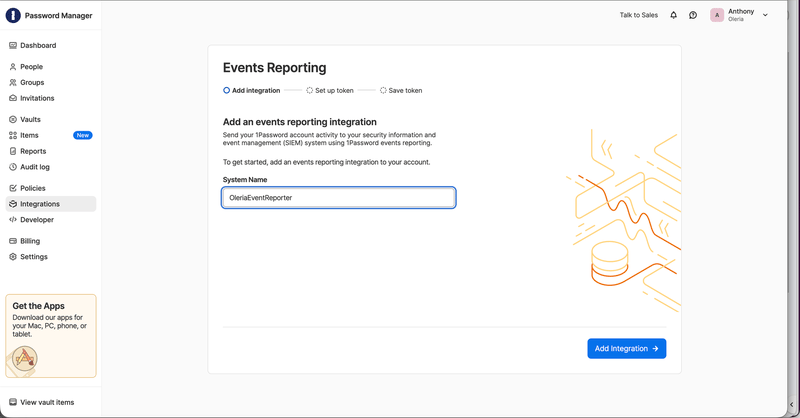
OleriaEventReporter, then select Add Integration.3
Configure the token
Enter a Token Name, set Expires After (30, 90, 180 days, or Never), then turn on all three Events to Report toggles - Sign-in attempts, Item usage events, and Audit events. Select Issue Token.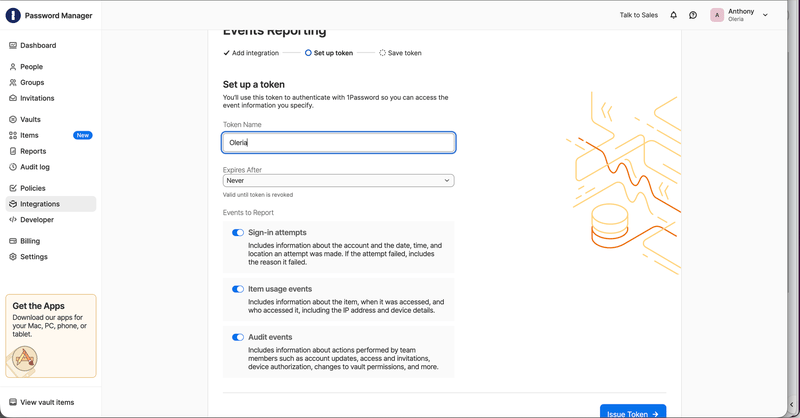
4
Save the token
Copy the generated token immediately, or select Save in 1Password to store it securely.
5
Note your Events Reporting region
Confirm which region your 1Password account reports events from - United States, Europe, or Canada. You’ll select this region when connecting in Oleria.
Get your SCIM bridge credentials
This credential covers Users and Groups, and is required. Oleria reads from the same SCIM bridge your identity provider already uses for user provisioning - it does not create a separate SCIM connection. Requires the Owner or Administrator role.1
Find your SCIM bridge URL and bearer token
In 1Password, go to Integrations, then select your identity provider (for example, Okta). The Credentials card shows the SCIM URL (select Copy) and the Bearer token row.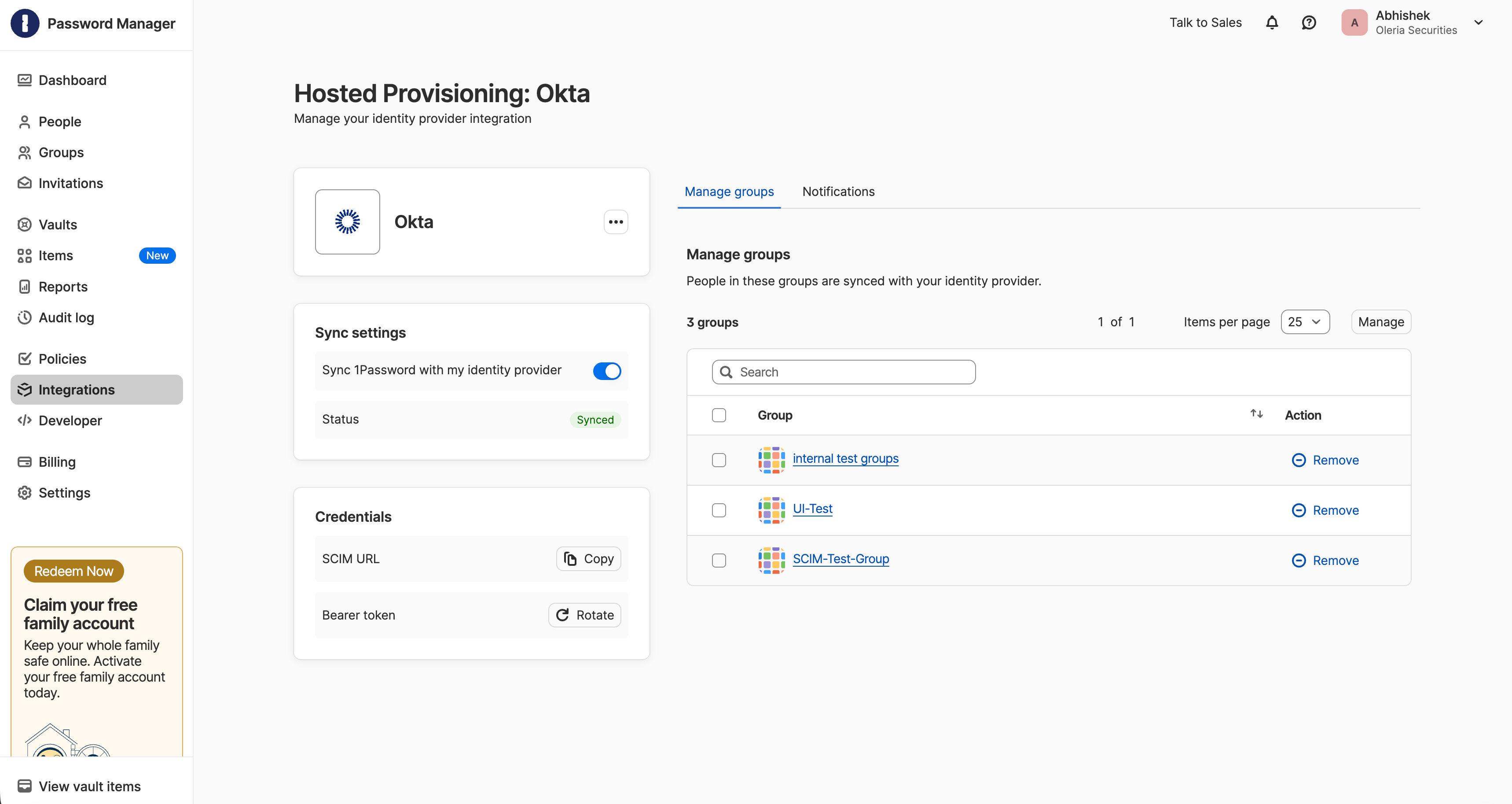
- Hosted provisioning: the URL is shown directly on this page, typically in the form
https://provisioning.1password.com/scim/v2. - Self-hosted bridge: this page may not show the bridge URL directly. Get it from your identity provider’s 1Password app configuration (for example, the Okta 1Password app’s Provisioning settings), or from whoever deployed the bridge.
2
Check the Manage groups list
On the same page, select the Manage groups tab (shown in the screenshot above) to see which groups are listed there - these are the groups and memberships Oleria’s SCIM sync will return. To add a hand-made group, select Manage. See Known limitations for which groups can’t be added.
Create a Service Account in 1Password (optional)
Only required if you want Oleria to discover vaults, items, non-human identities, and vault access with permissions. Requires the Owner or Administrator role; by default only these two roles can create Service Accounts, though an Owner or Administrator can delegate that ability to other users.1
Open the Service Account wizard
Sign in to 1Password, select Developer in the sidebar, then open the Directory tab. Under Access Tokens, select Service Account.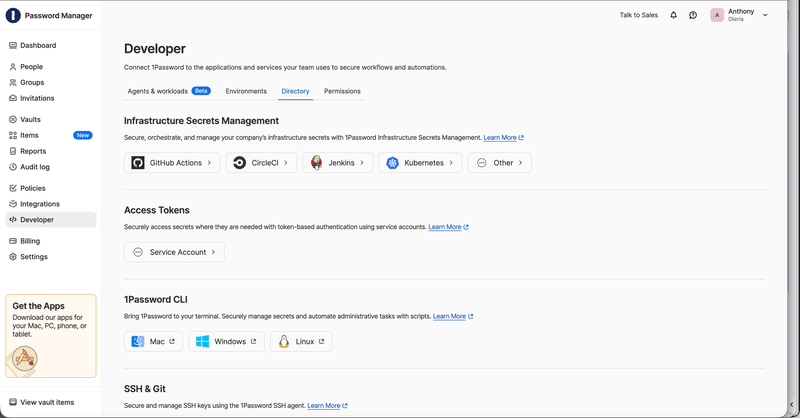
2
Name the service account
Enter a descriptive name, for example 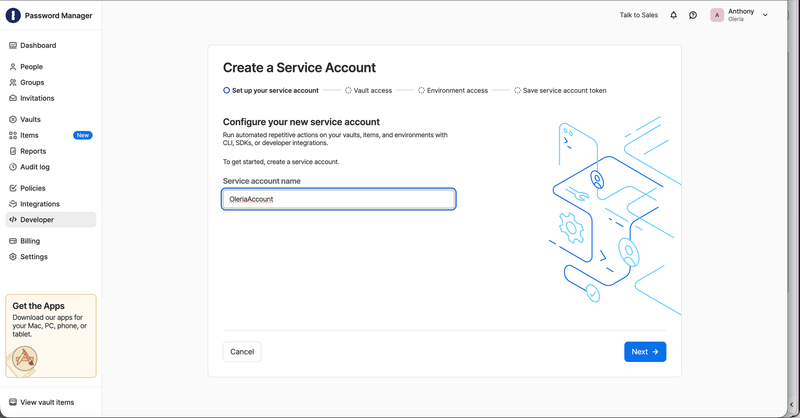
OleriaAccount, then select Next.3
Grant vault access
Select every vault you want Oleria to inventory and set Read access for each, then select Next.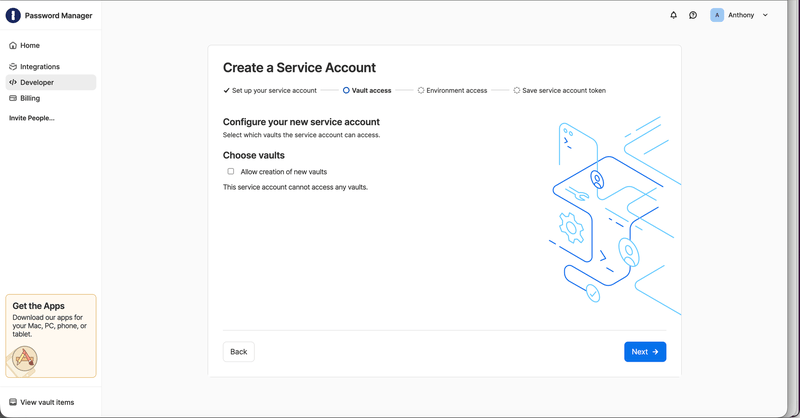
Leave Allow creation of new vaults unchecked - Oleria only needs read access to inventory existing vaults. Oleria reads item metadata only and never requests secret field values.
4
Grant environment access
If the wizard shows an Environment access step, you can leave it unselected and select Next - Oleria doesn’t use Environments.
5
Save the token
Select Create Account, then copy the generated authorization token immediately, or select Save in 1Password to store it in a vault.
Connect 1Password to Oleria
1
Open the integration
Go to your Oleria workspace, select Integrations -> select 1Password.
2
Complete the connection form
Select Continue and fill in the connection form:
Events Region, Events API Token, SCIM URL, and SCIM Bearer Token are all required. The Service Account Token is the only optional field.
3
Save the integration
Select Authenticate to save the integration. Oleria checks the Events API Token, SCIM URL, and SCIM Bearer Token against 1Password before saving. If 1Password rejects any of them, Oleria shows an error and doesn’t save the integration.Keep the Events API Token and SCIM Bearer Token somewhere safe, such as an item in 1Password. Oleria asks for both again whenever you edit the integration, and 1Password can’t show either one again.Oleria doesn’t check the Service Account Token when you save. A wrong or revoked Service Account token stops the whole sync, not just vault discovery, and the integration can still show as connected. Confirm the data after the first sync, as described in Verify the integration.
Verify the integration
Confirm the 1Password instance appears on the Connected tab of your Oleria Integrations page. After the first sync completes, check that activity, users, and groups actually appear - and, if you connected a Service Account, that vaults, items, NHIs, and vault access appear too. A failed sync doesn’t always show as an error on the integration right away. If new 1Password data stops appearing, edit the integration, re-enter the Events API Token and SCIM Bearer Token, and select Update. Oleria re-checks both and shows an error if 1Password rejects either. Oleria can’t re-check the Service Account Token this way, so if both pass, check that the Service Account hasn’t been deleted or revoked.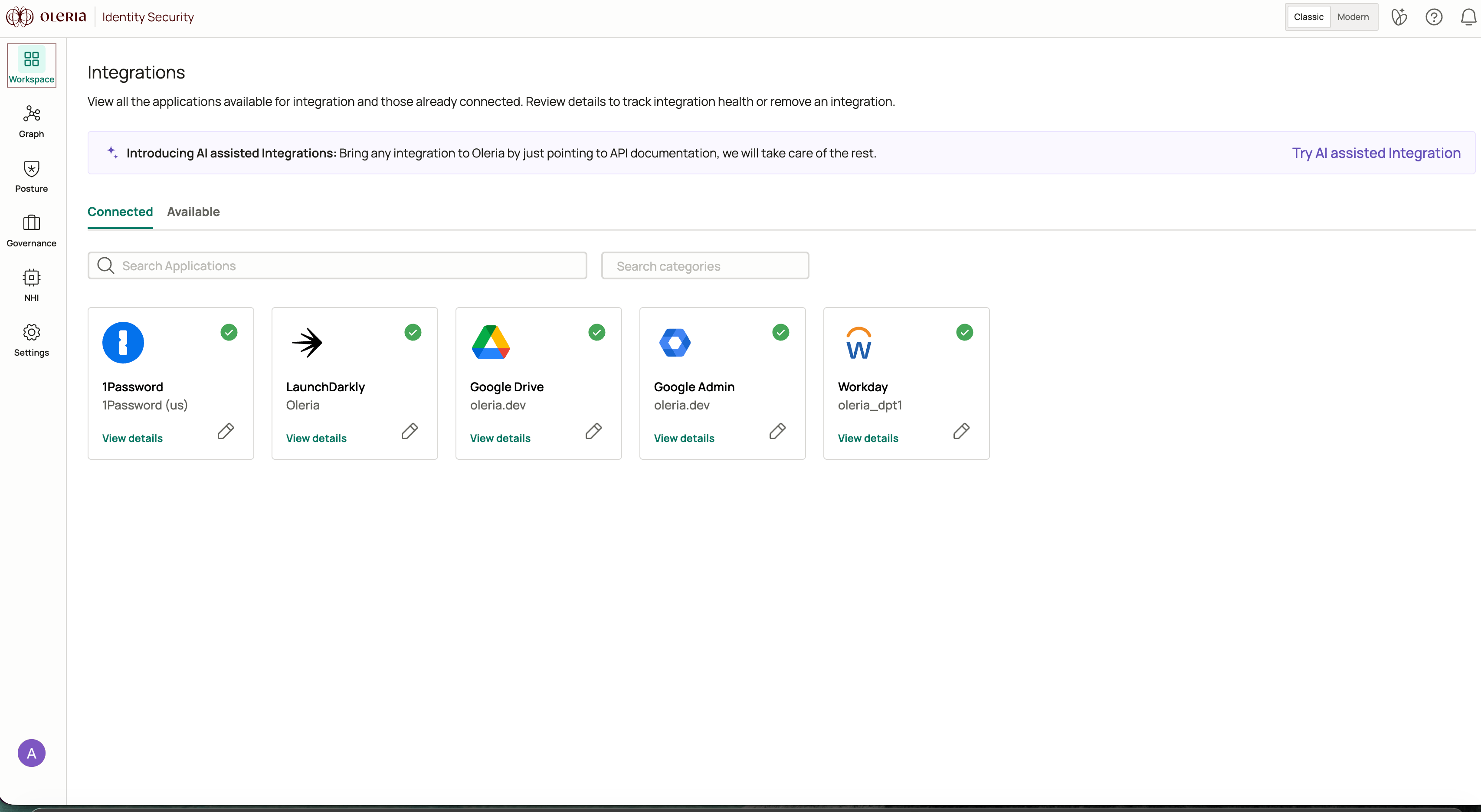
If you rotate any credential, edit the integration in Oleria, enter the new value, and select Update. The next sync runs with the new credentials.
- Oleria doesn’t display saved tokens, so every edit requires the Events API Token and SCIM Bearer Token again, even if you’re changing a different credential.
- Leave Service Account Token blank to keep the saved one. You can’t remove a saved Service Account Token by editing the integration - see Known limitations.
- If you delete or revoke the Service Account in 1Password, create a new one with Read on the same vaults, enter its token, and select Update. Otherwise syncing stops for all 1Password data.
- The SCIM bearer token is shared with your identity provider’s provisioning setup - rotate it in both places together.
Known limitations
- 1Password limits which groups come with membership. This is a 1Password API constraint, not an Oleria gap. 1Password’s SCIM API only returns groups listed on the Manage groups tab under Integrations > [your identity provider]. Hand-made groups appear there only after an admin adds them with Manage. Built-in groups (Owners, Administrators, Recovery, Team Members) can’t be added, and 1Password has no API that returns their members. If a Service Account is connected and one of these groups has vault access, Oleria still shows the group by name but can’t show its members.
- Vault coverage depends entirely on what the Service Account was granted. Oleria only discovers vaults, items, NHIs, and vault-access edges for vaults the Service Account has Read access to, one vault at a time. A vault created after the Service Account was set up, or one an admin forgot to include, won’t appear until someone grants access from that vault’s own Manage screen - not from the Service Account’s own page, which only shows a read-only list.
- You can’t remove a Service Account by editing the integration. The only way to stop vault discovery is to remove the integration and connect it again without a Service Account Token. Removing an integration deletes its 1Password data from Oleria, and active access reviews and investigations that use it lose their context - see Removing an integration. After you reconnect, delete the Service Account in 1Password to revoke its vault access. Don’t delete or revoke it while it’s still saved in Oleria - that stops syncing for all 1Password data.