
What Oleria discovers
- Users - user accounts in your Sage Intacct company.
- Roles - the roles assigned to each user.
- User groups - Sage Intacct user groups.
Prerequisites
- A Sage Intacct account with access to the Developer Portal.
- An Intacct Web Services license username.
- Admin privileges in Sage Intacct.
- Admin access on the Oleria platform to add a new integration.
Create a Web Services user in Sage Intacct
If the company already has a Web Services user defined for your application, skip to Create an app in the Sage Developer Portal.1
Add a Web Services user
Have an admin user sign in to the company and go to Company -> Admin -> Web Services Users -> Add. Create a new Web Services user and assign the necessary privileges.
The username must be in the format
<username>@<environment> to work with the REST API.2
Confirm the Web Services user
Go to Company -> Admin -> Users, roles, and groups -> Web Services users. To view the user’s details, select View in the user’s row. Note the Web Services user ID exactly as it appears, because you’ll enter it later and it’s case-sensitive.
Create an app in the Sage Developer Portal
1
Open the Developer Console
Go to the Sage Developer Console.
2
Create a new application
Select Applications in the navigation menu, then select Create new application to start setting up your app.
3
Select the API type
Select API - REST as the API type for your application.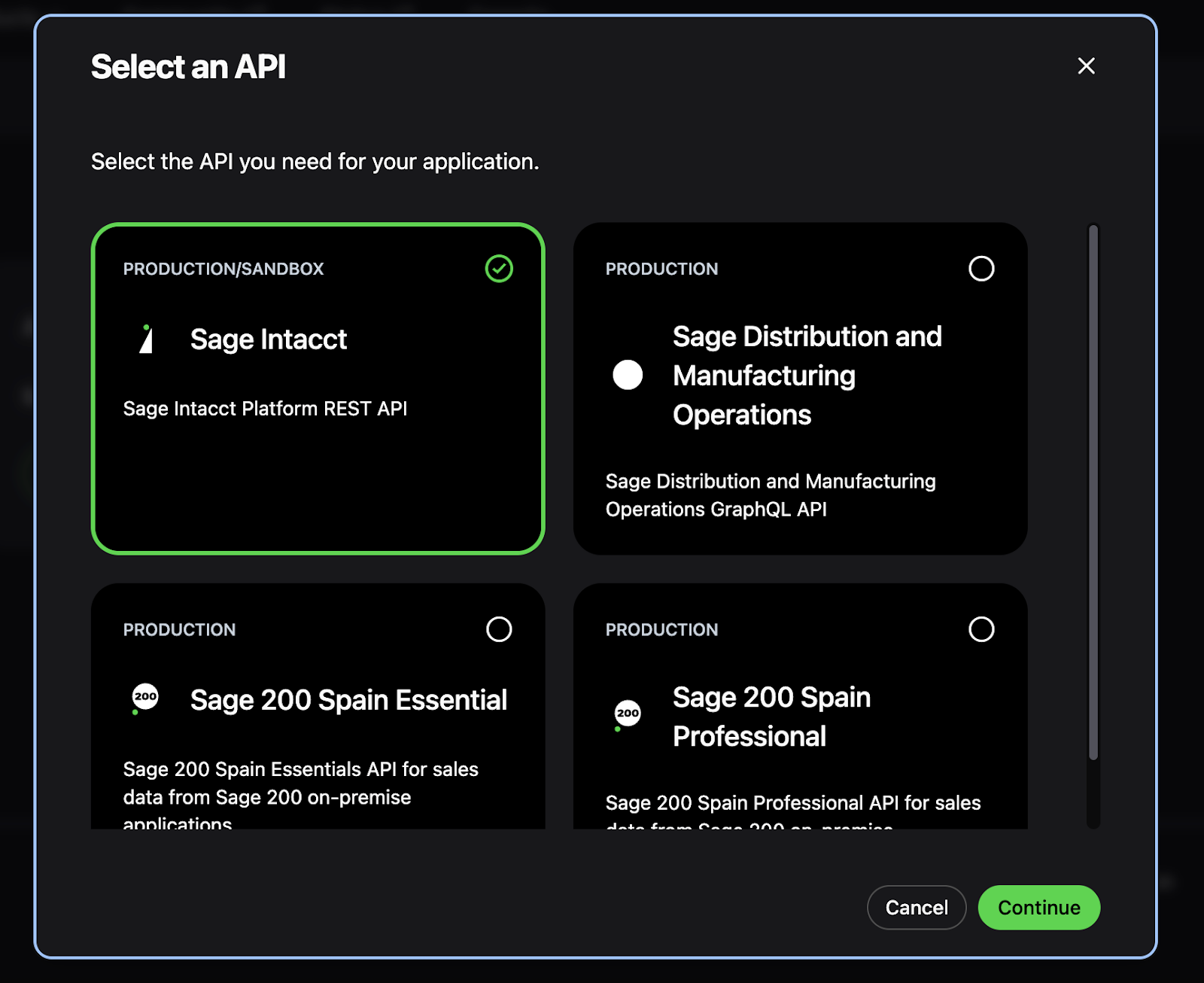
4
Configure application details
Fill out the basic information for your app:
- Name - a descriptive name (for example, “Oleria Integration”)
- Intacct Web Services License Password/Key - required for authentication with Sage Intacct
- Client Scope - select Production for live environments or Non-production for testing
5
Save your app credentials
After you create the application, Sage shows its Client ID and Secret Key. Copy both values and store them securely. You’ll enter the Client ID when you authorize the app and both values when you connect Oleria.
6
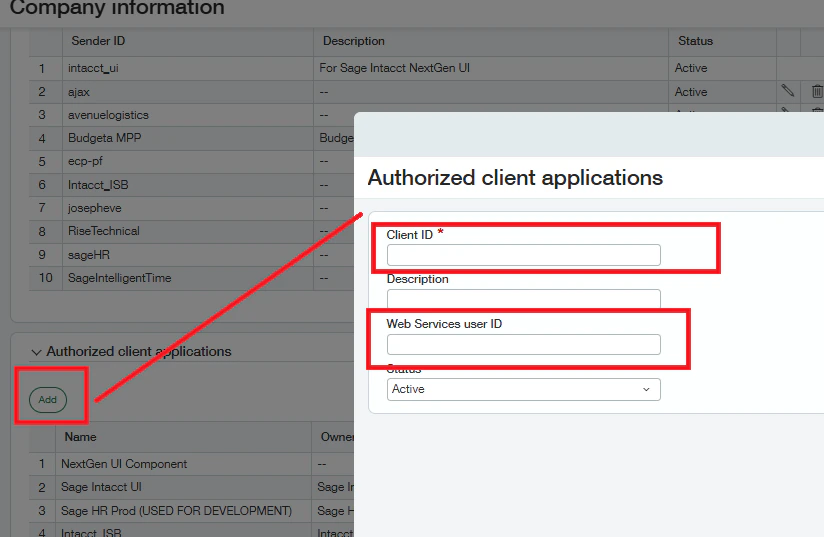
Authorize the client application
Navigate to Company -> Setup -> Company -> Security -> Authorized Client Applications -> Add.
- Enter the Client ID for your application.
-
Enter the Web Services User ID. This field is case-sensitive - enter it exactly as it was created.
Connect Sage Intacct to Oleria
1
Open the integration
Sign in to your Oleria workspace, navigate to Integrations, and select Sage Intacct.
2
Complete the connection form
A side panel opens. Enter the following details: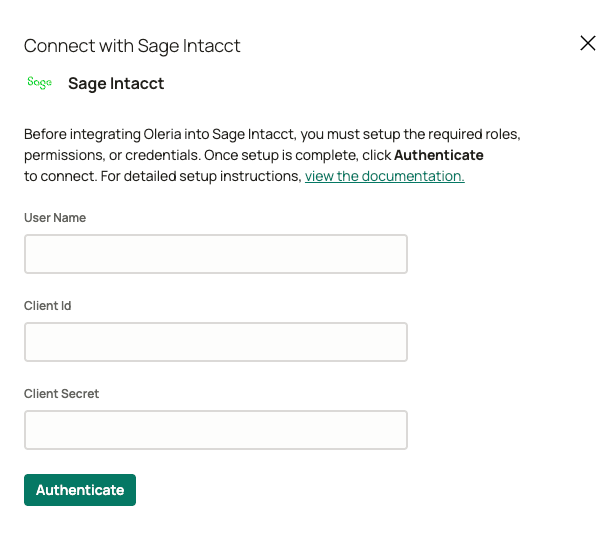
- User Name - the Web Services user you created for Oleria
- Client ID - the Client ID of your Sage Developer Portal app
- Client Secret - the app’s Secret Key
Verify the integration
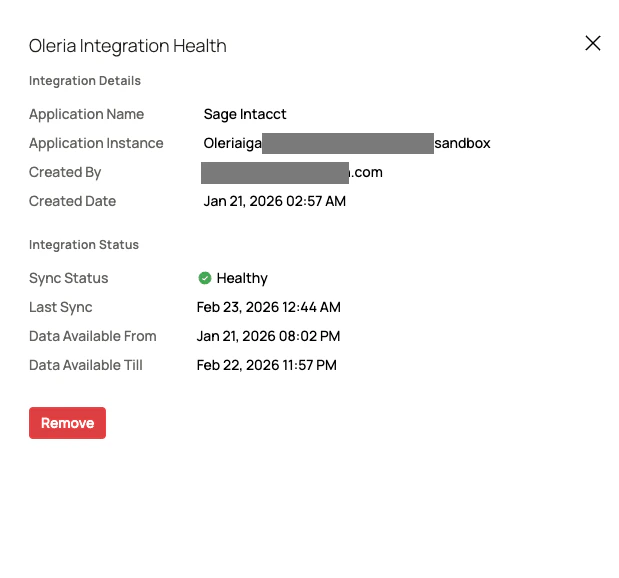
Confirm the Sage Intacct instance appears on the Connected tab of your Oleria Integrations page with a status of Healthy. After the first sync completes, you can review the discovered users and their entitlements in your Oleria workspace.