What Oleria discovers
- Users, aliases, and organizational units from your Google Admin directory.
- Groups and group membership.
- Admin roles and who holds them.
- Third-party app tokens each user has authorized.
- Drive files and sharing, from file metadata, plus Drive activity.
- Admin audit activity from Google Admin reports.
Prerequisites
- Google Super Admin privileges
- Grant domain-wide delegation to the Oleria app for the required scopes
Use a service account (and not an employee account) with super admin privileges for the integration to ensure continuity.
Grant domain-wide delegation
1
Sign in to Google Workspace Admin
Use your Super Admin account to sign in to Google Workspace and select the Admin console.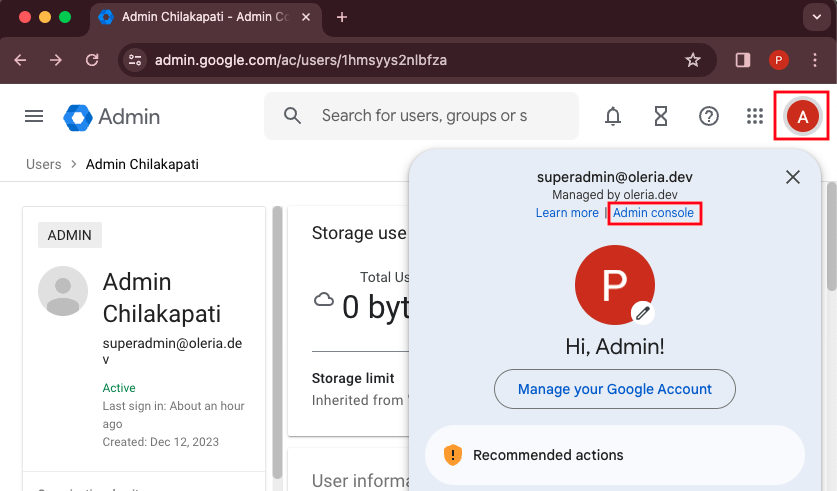
2
Open domain-wide delegation settings
In the Admin console, go to https://admin.google.com/ac/owl/domainwidedelegation or navigate to Menu -> Security -> Access and data control -> API controls -> Manage Domain Wide Delegation.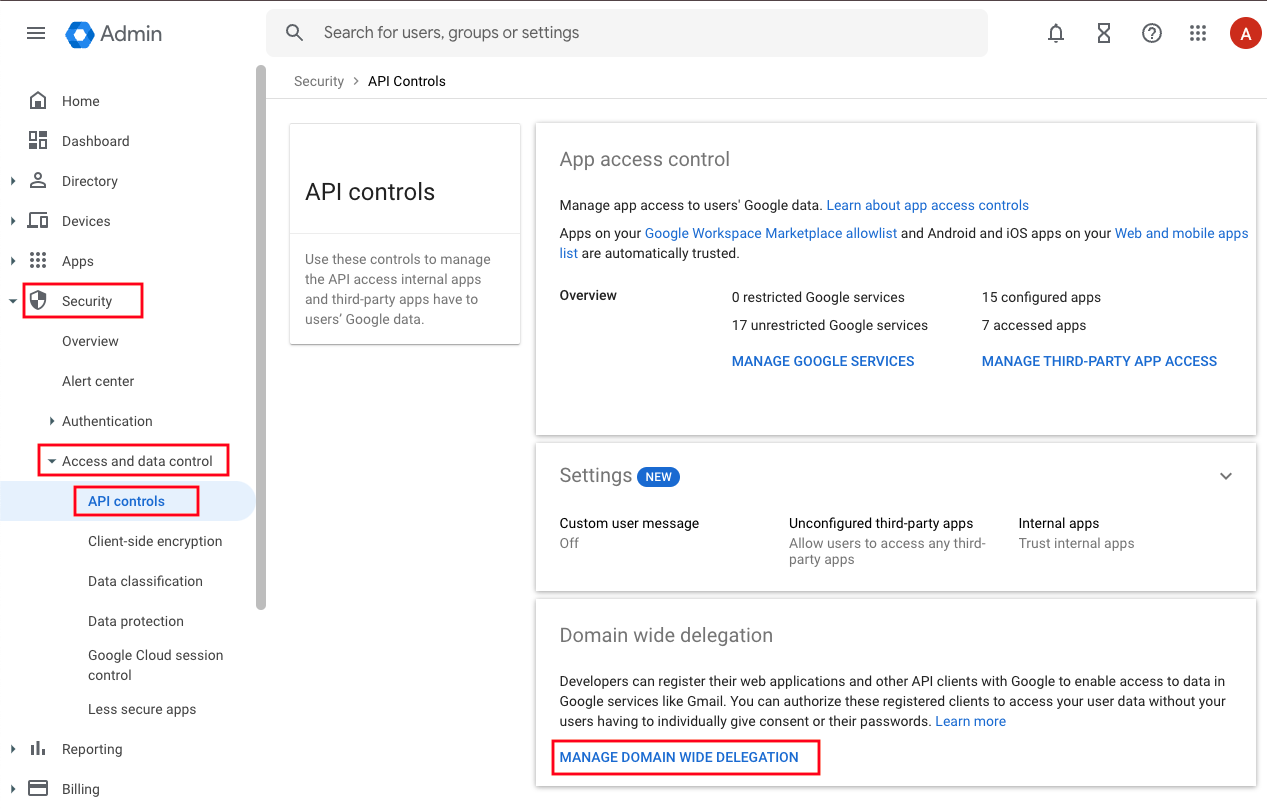
3
Add the Oleria Client ID and OAuth scopes
Select Add new, enter the Client ID and scopes below, then select Authorize. Enter the scopes as a single comma-separated list in the OAuth scopes field.Client ID: Google Admin - ReportsCloud IdentityGoogle Drive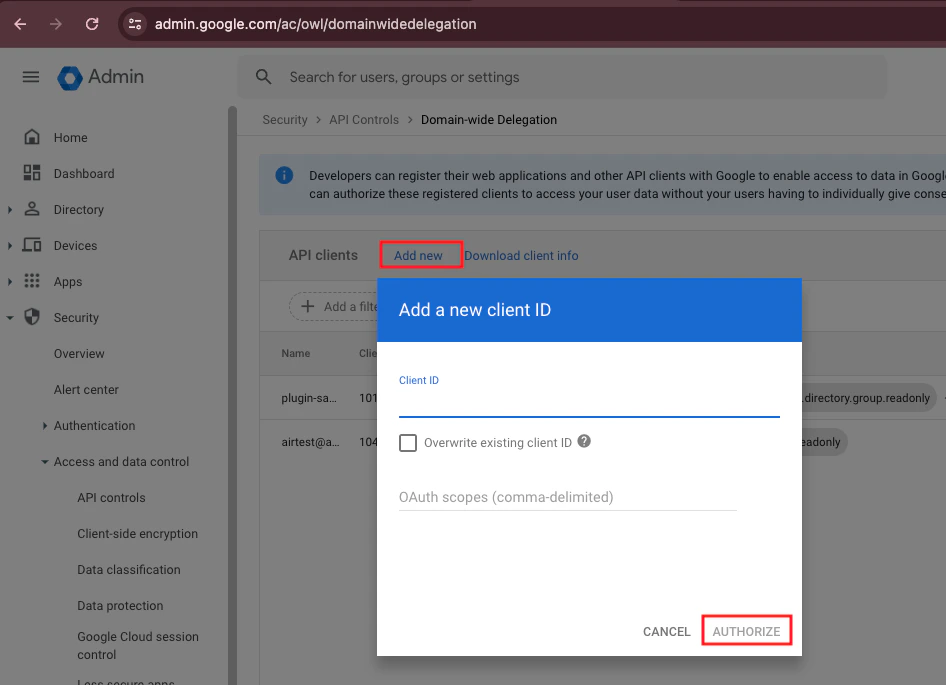
101716000692695758600Google Admin - DirectoryGoogle doesn’t offer a read-only version of the
admin.directory.user.security scope. Oleria needs it to list the third-party app tokens each user has authorized.4
Grant remediation scopes (optional)
To perform remediations, add the following scopes to the same domain-wide delegation entry. Separate each scope from the previous one with a comma.To revoke external users’ access:To disable dormant users:To remove user accounts from groups:To add or remove users from delegated admin roles:
5
Grant Drive label scopes (optional)
To view and manage Drive labels, add the following scopes to the same domain-wide delegation entry, separated by commas:
Connect Google Admin and Drive to Oleria
1
Open the integration
Go to your Oleria workspace, select Integrations -> select Google Drive.
2
Authenticate
Select Connect to complete the integration.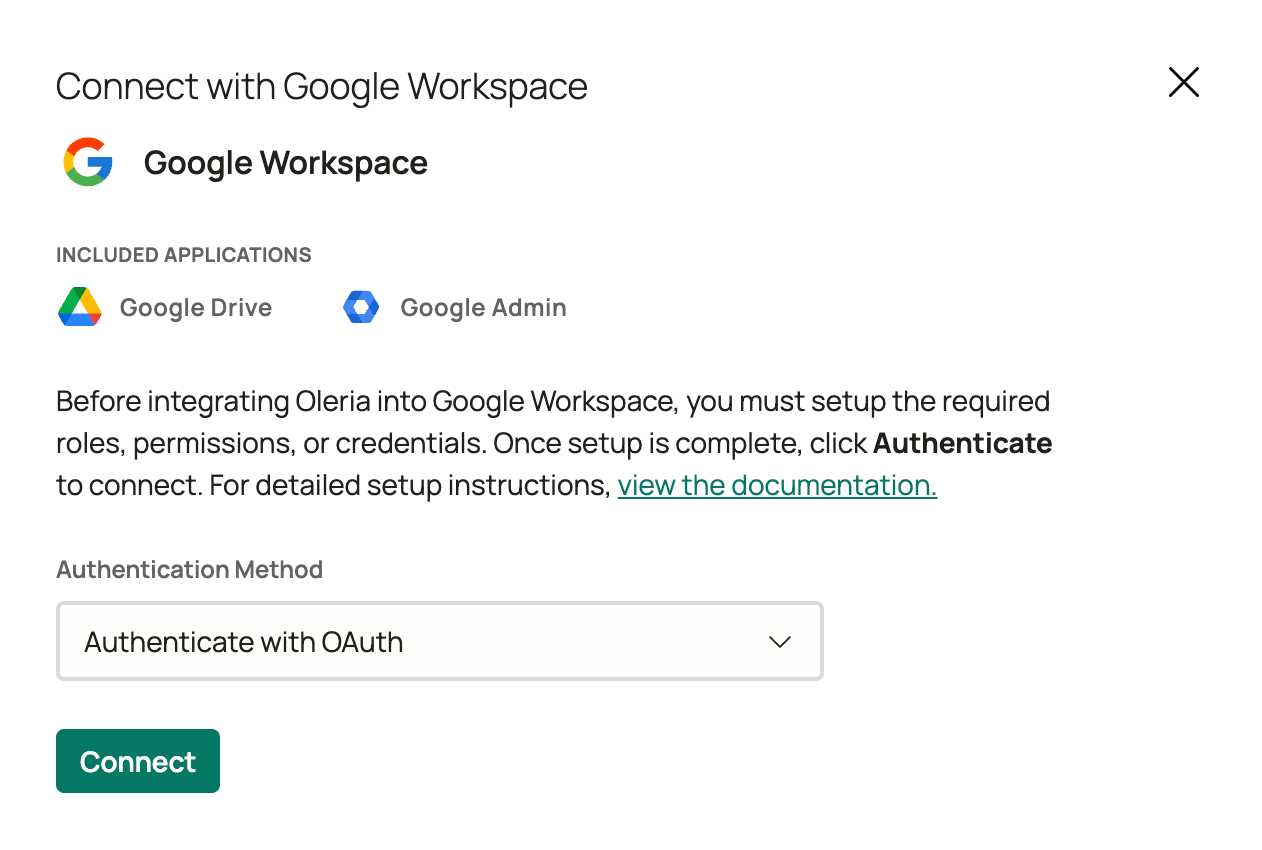
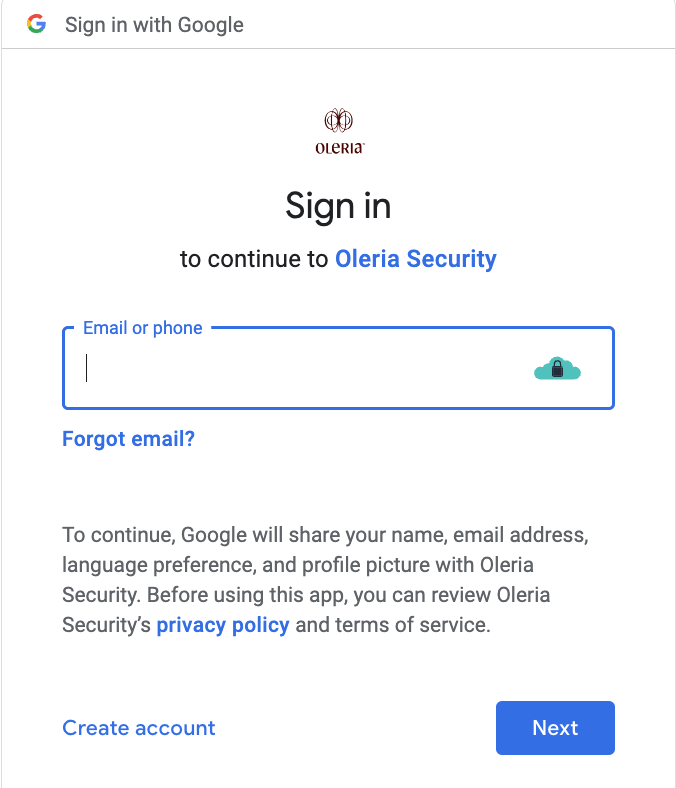
Verify the integration
Confirm the Google Admin and Google Drive instances appear on the Connected tab of your Oleria Integrations page with a status of Healthy. After the first sync completes, you can review the discovered users, groups, admin roles, and Drive sharing in your Oleria workspace.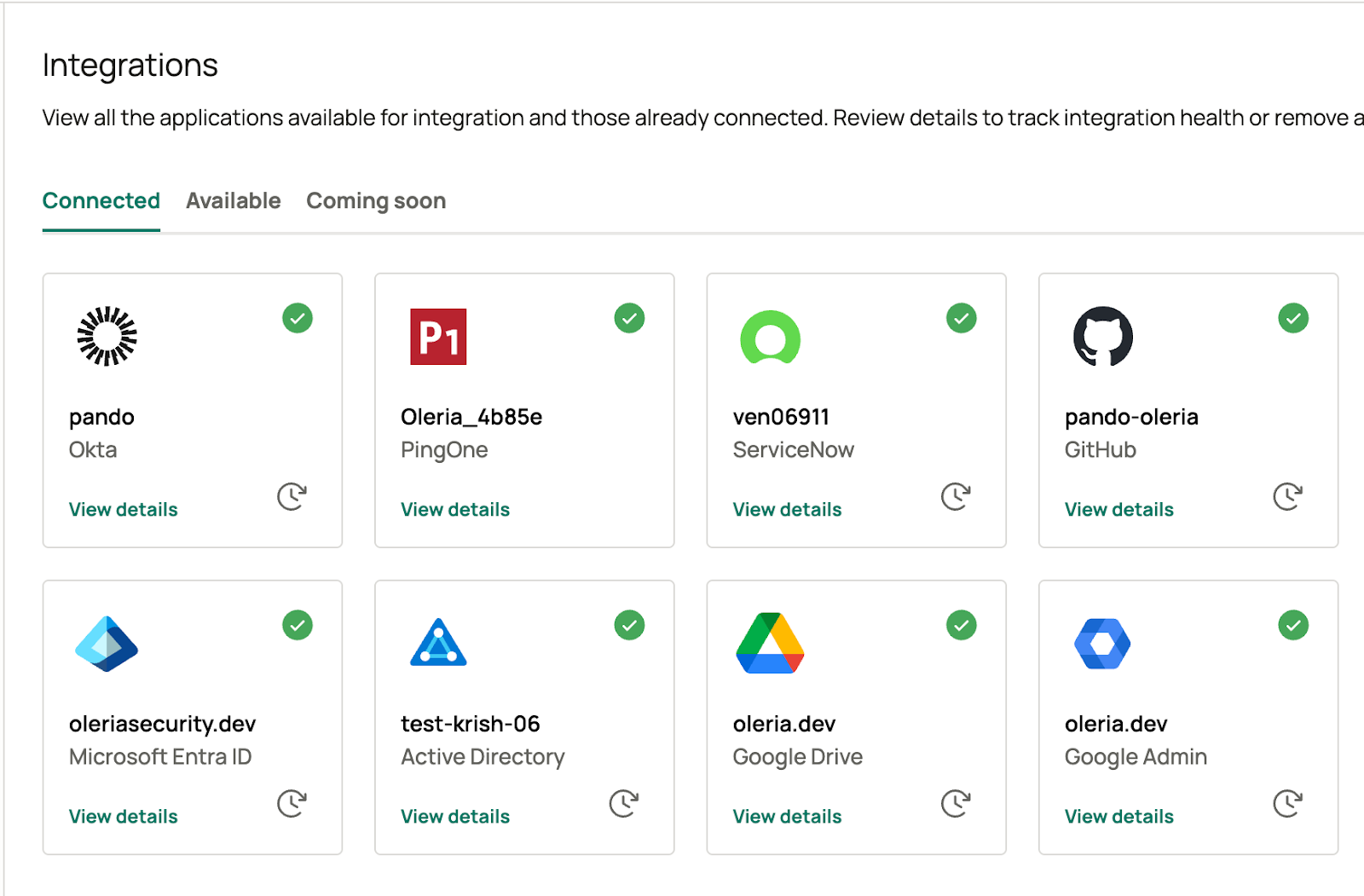
Re-integrate Google Drive and Google Admin
1
Initiate re-integration
Go to the Connected tab of the Integrations page and select the re-integration button to begin.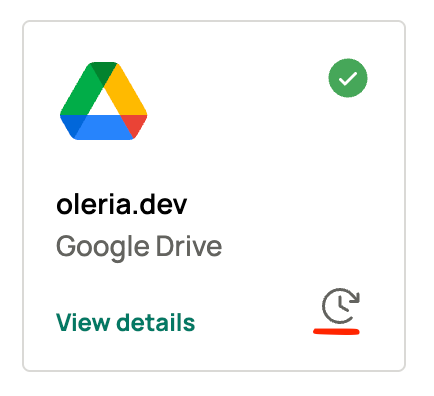
2
Complete with service account
Select Update and use a service account with Super Admin privileges to complete the re-integration.