
What Oleria discovers
- Workers - active and terminated workers, with employment and staffing details such as job, position, business title, and service dates.
- Organizations - supervisory organizations, and each worker’s organization and manager.
- Contact details - worker names and work email addresses, which Oleria uses to match workers to accounts in your other systems.
- Accounts and security groups - Workday user accounts and their security group membership.
Prerequisites
- Administrator permission on the Oleria workspace
- Workday admin credentials
Use a service account (and not an employee account) with the suggested privileges for the integration to ensure continuity.
Create an Integration System User in Workday
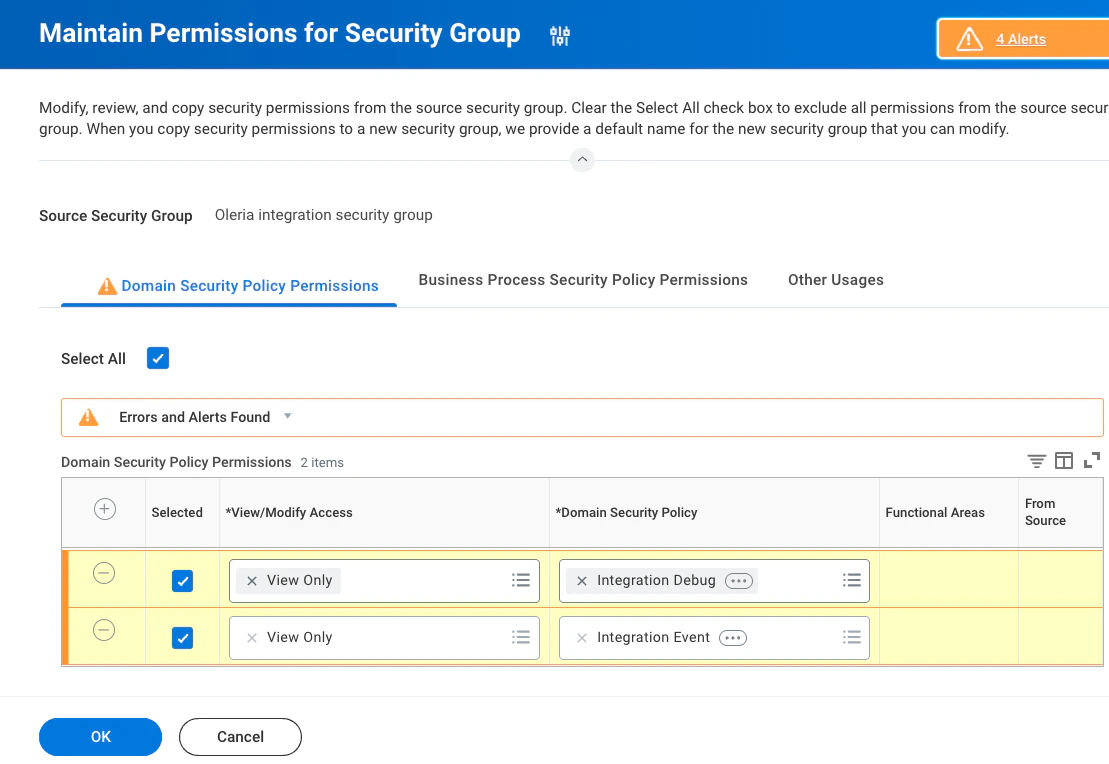
Create an Integration System User and grant View Only permissions.1
Create the Integration System User
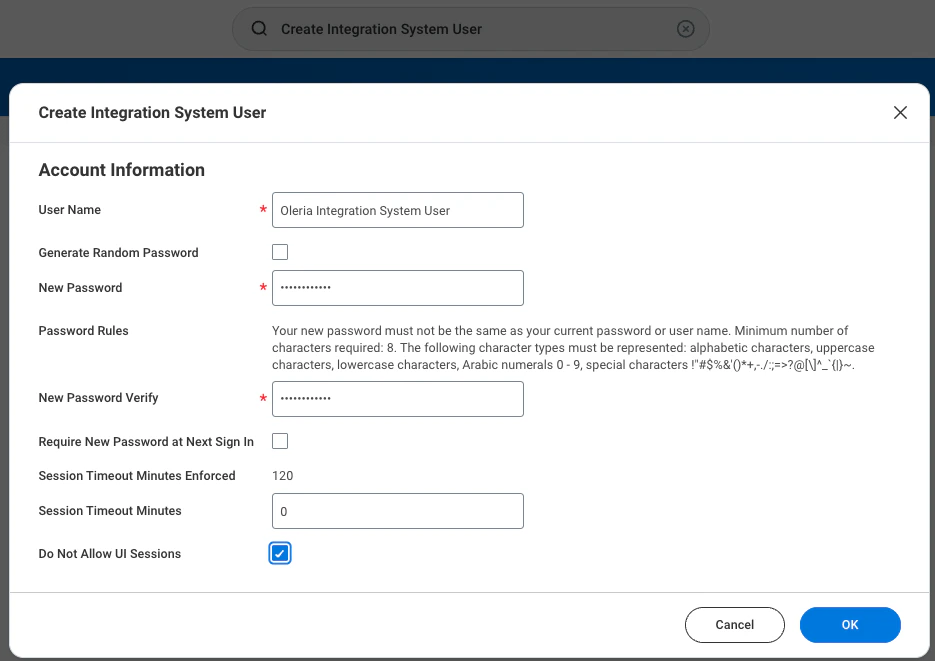
Sign in to Workday. Type Create integration system user in the search window and select the task.The Create Integration System User window opens. Provide the following:
-
User Name - a name you’ll recognize later, for example
Oleria Integration System User. The steps below refer to this user by that name. - Password
-
Set Session timeout minutes to
0 -
Select the Do Not Allow UI Sessions checkbox
2
Exempt the user from password expiration
In the search window, type Maintain Password Rules and select the task.Under System Users exempt from password expiration, search and add the Oleria Integration System User.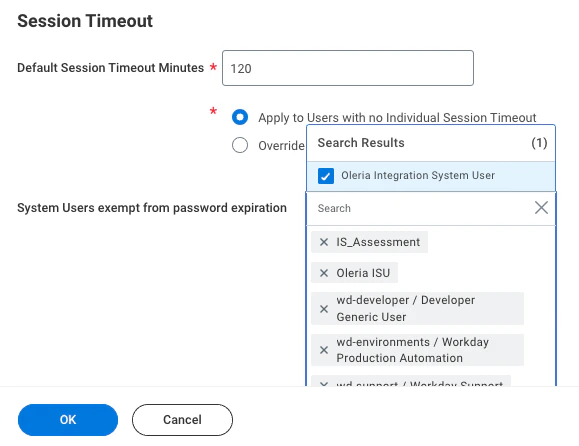
3
Create an integration security group
In the search window, type Create security group and select the task.From the Type of Tenanted Security Group dropdown, select Integration System Security Group (Unconstrained) and give it a name, for example, Oleria Integration Security Group.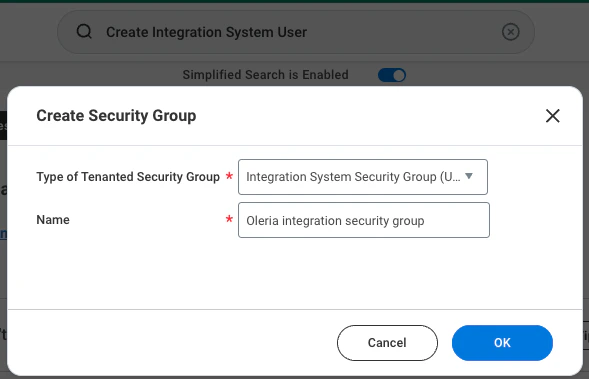
4
Add the user to the security group
From the Integration System User field, search and select the Oleria Integration System User created in the previous step.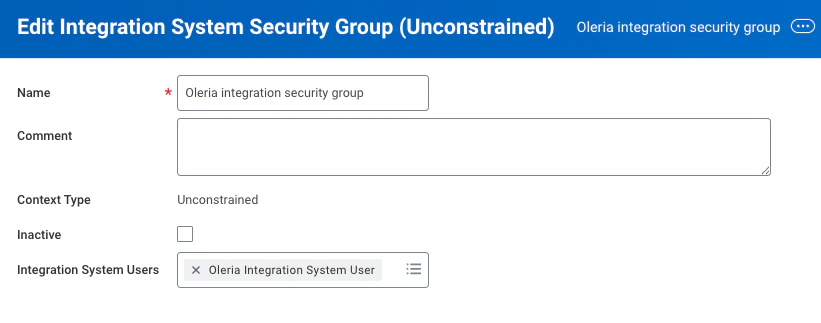
5
Add permissions to the security group
In the search window, type Maintain permissions for Security Group and select the task.Search and add the Oleria Integration Security Group in the Source Security Group field. Select Ok.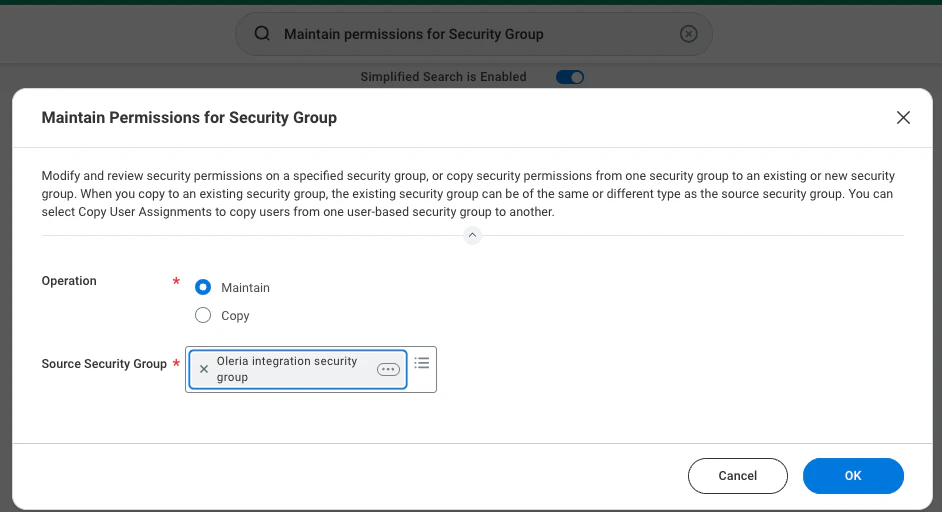
6
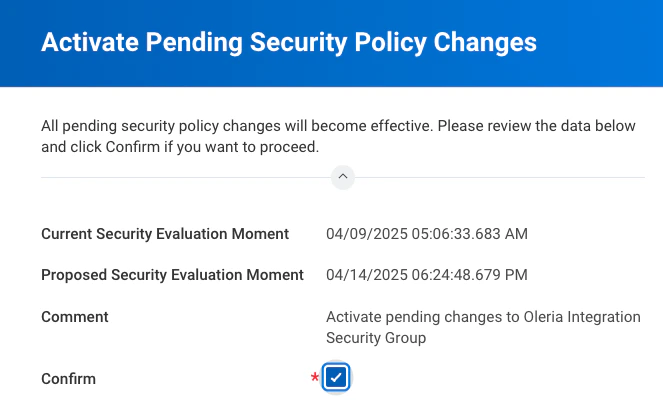
Activate pending security policy changes
Type Activate Pending Security Policy Changes in the search window and select the task.Provide a comment and select OK.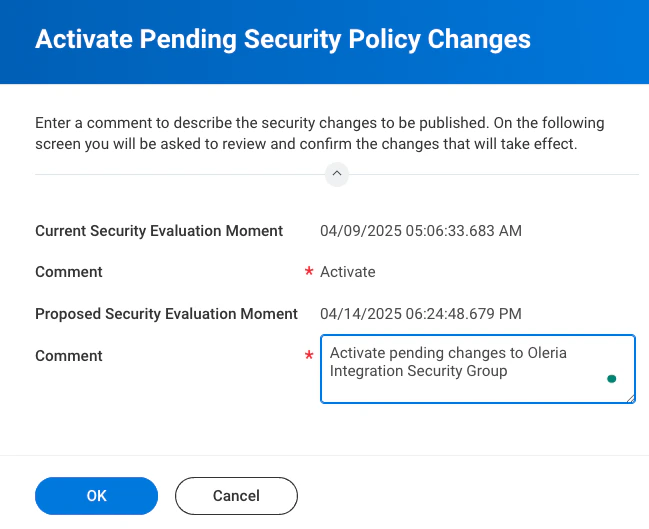
7
Register a new API client
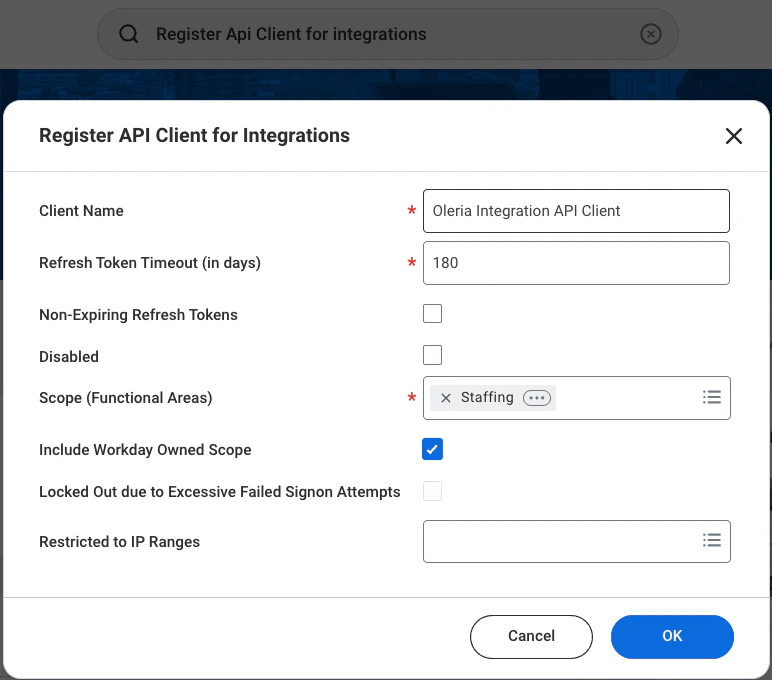
Type Register API Client for integrations in the search window and select the task.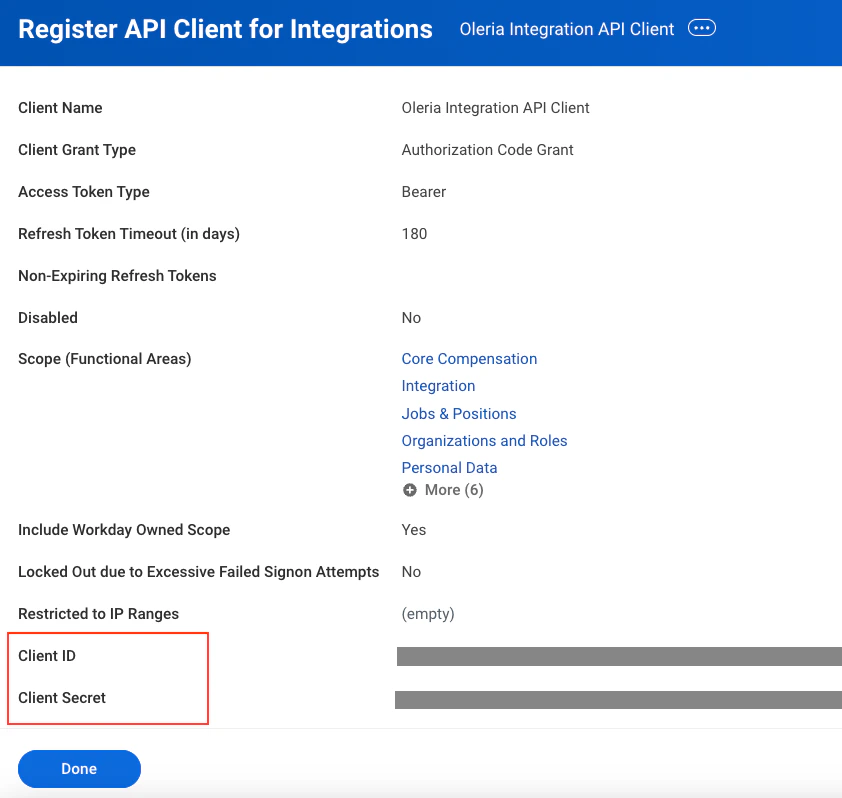
- Enter a name for your API client in the Client Name field.
- Clear the Non-Expiring Refresh tokens checkbox.
- Add 180 in the Refresh Token Timeout (in days) field.
-
Search and add the following scopes in the Scope (Functional Areas) field:
- Integration
- Jobs & Positions
- Organizations and Roles
- Personal Data
- Public Data
- Staffing
- System
- Tenant Non-Configurable
- Worker Profile and Skills
- Contact Information
-
Select the Include Workday Owned Scope checkbox.
8
Generate a refresh token
Type View API Clients in the search window and select the task.Select API Client for Integrations.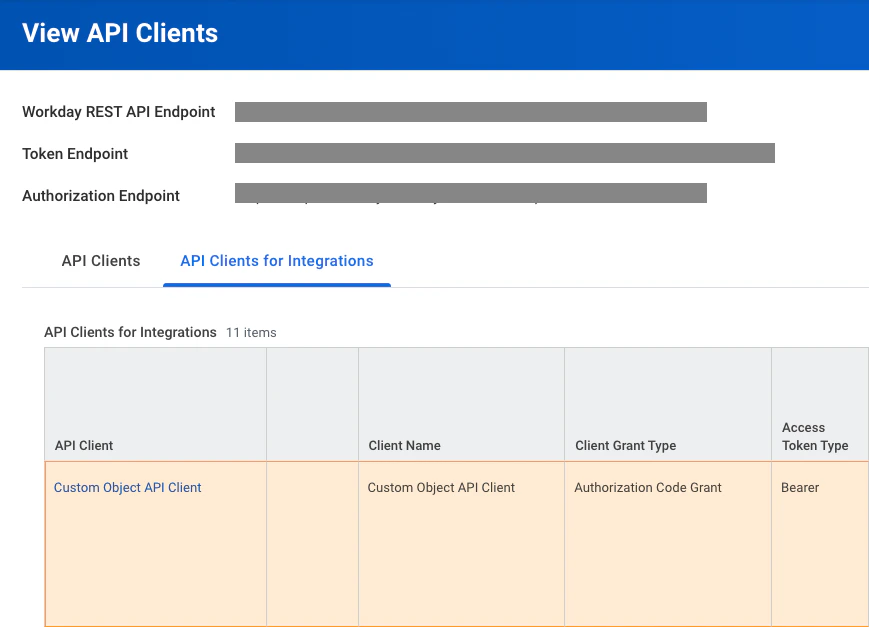
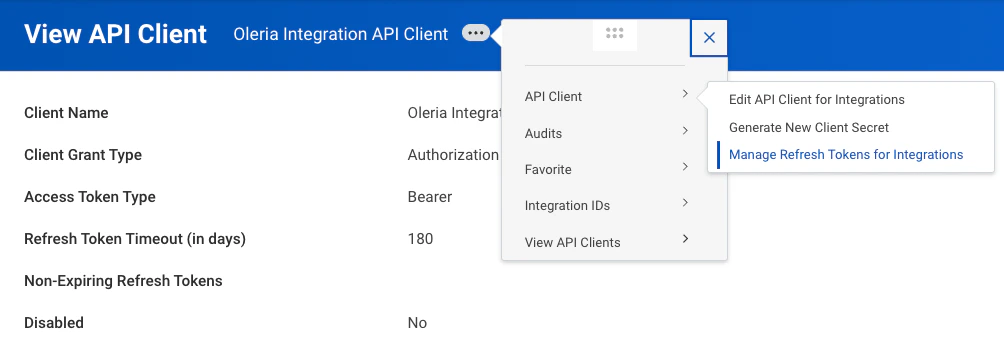
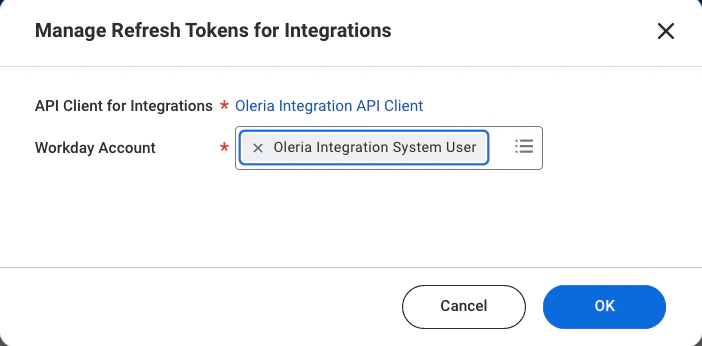
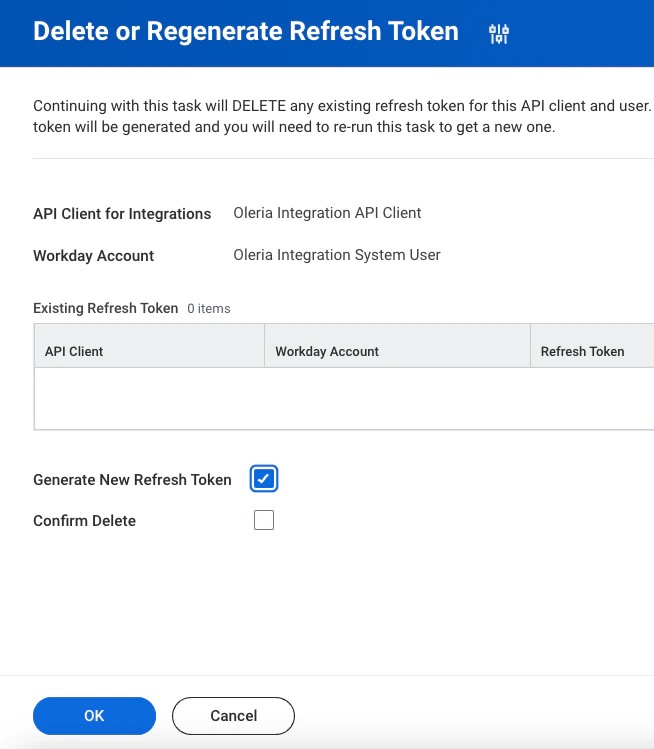
Connect Workday to Oleria
1
Open the integration and provide credentials
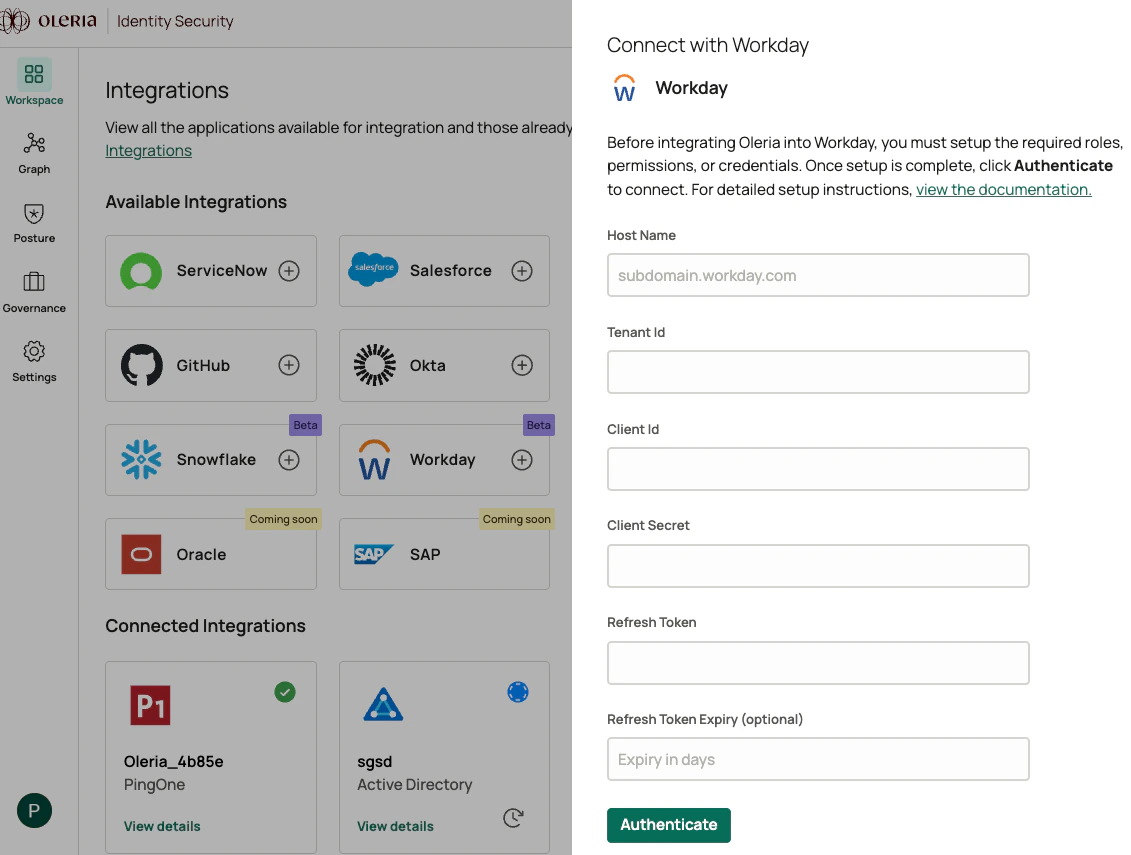
Go to your Oleria workspace, select Integrations -> select Workday, and provide the following:
-
Hostname - the host part of your Workday REST API endpoint, without
https://or any path (for example,wd2-impl-services1.workday.com). To find the endpoint, sign in to Workday and search for View API Clients. The endpoint appears at the top of the page. -
Tenant Id - your Workday tenant name: the path segment after
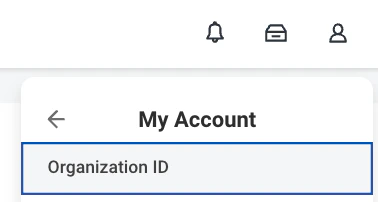
/ccx/api/v1/in the same REST API endpoint. It also appears as the organization ID in your Workday account menu. - Client ID - from the Register a new API client step
- Client Secret - from the Register a new API client step
- Refresh Token - from the Generate a refresh token step
-
Refresh Token Expiry (optional) - enter
180, the Refresh Token Timeout (in days) you set when you registered the API client.