
Prerequisites
- Admin access on the Oleria platform.
- Slack Workspace Owner or Admin rights, which are required to add or create apps.
Connect Slack to Oleria
First, open the Slack connection panel in Oleria:1
Open Messaging Systems
Select Messaging Systems under the Settings window.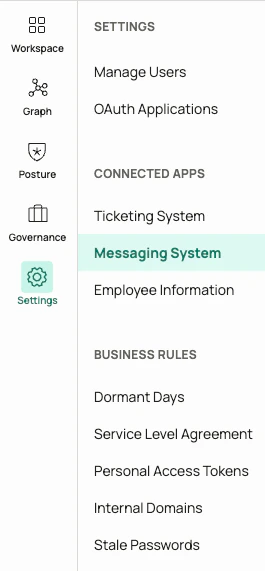
2
Connect Slack
Select Connect under the Slack application in Messaging Systems.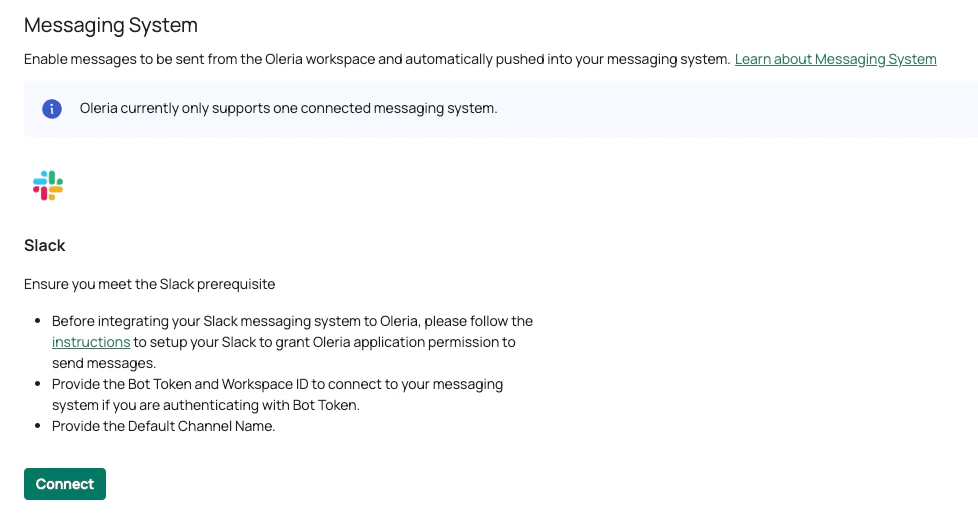
- Option A: OAuth (Recommended)
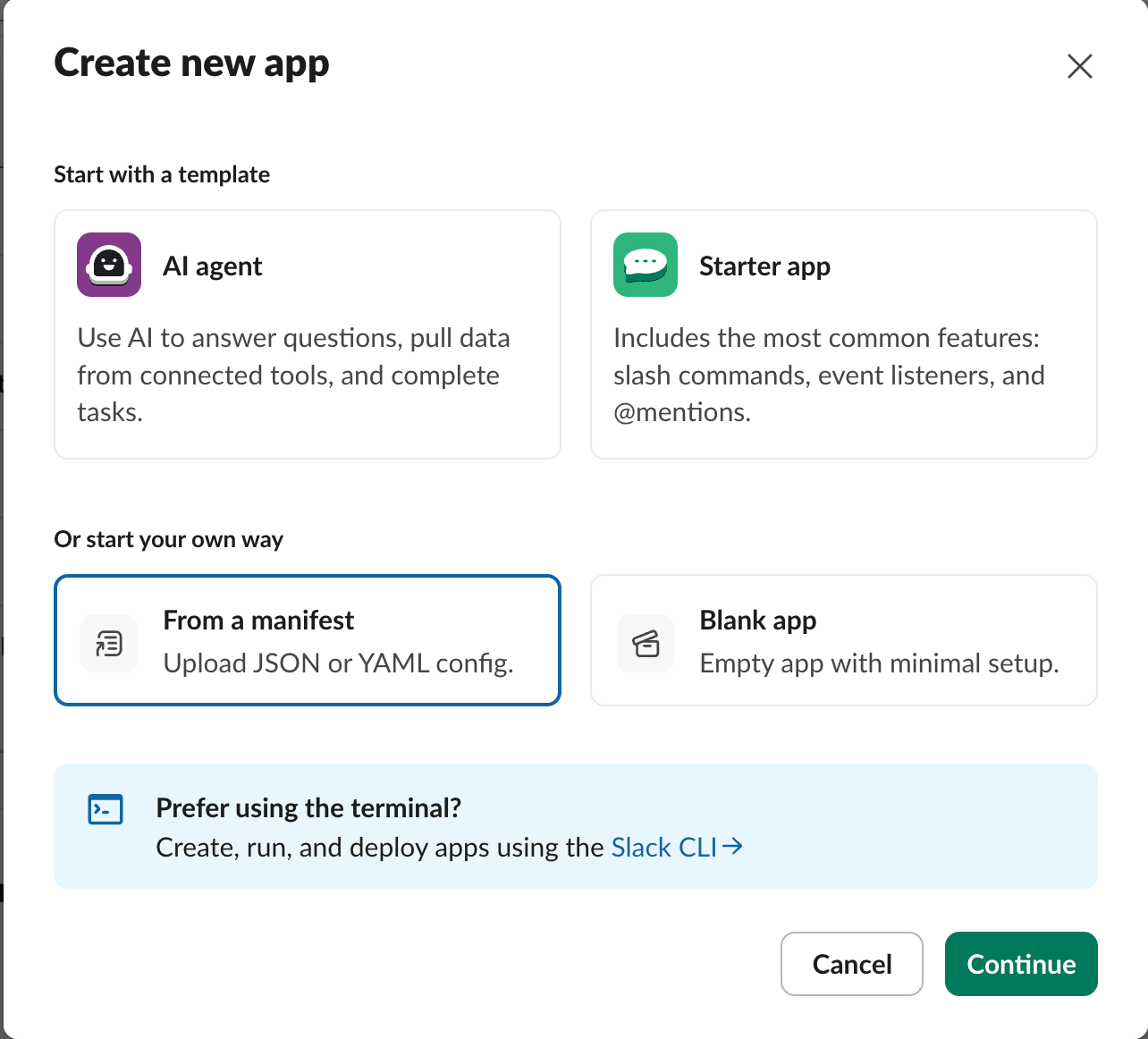
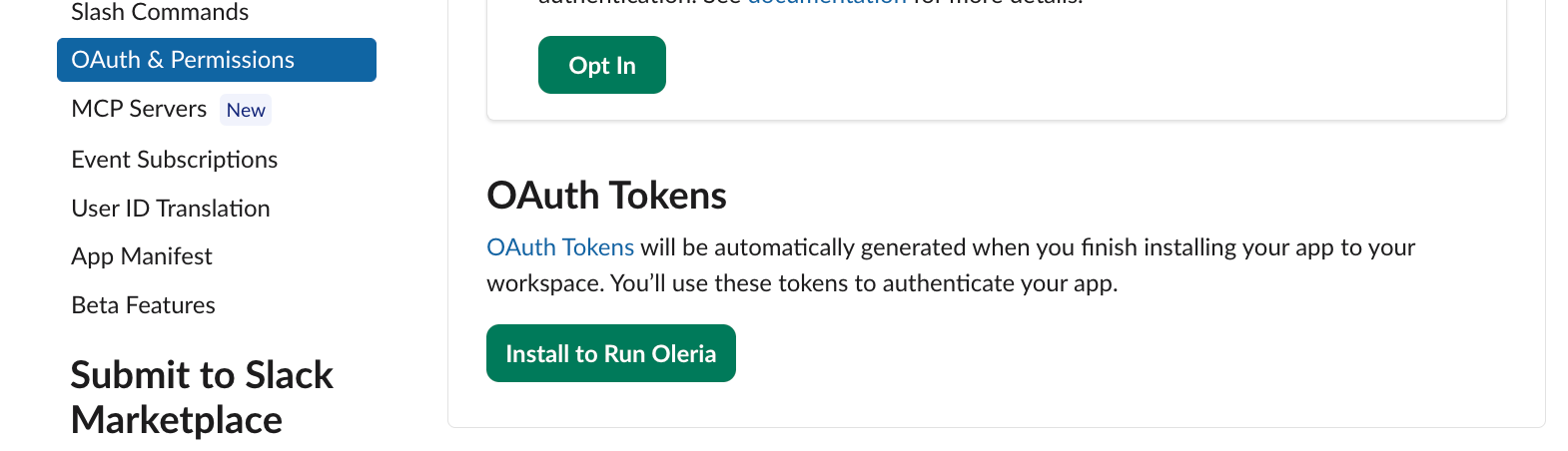
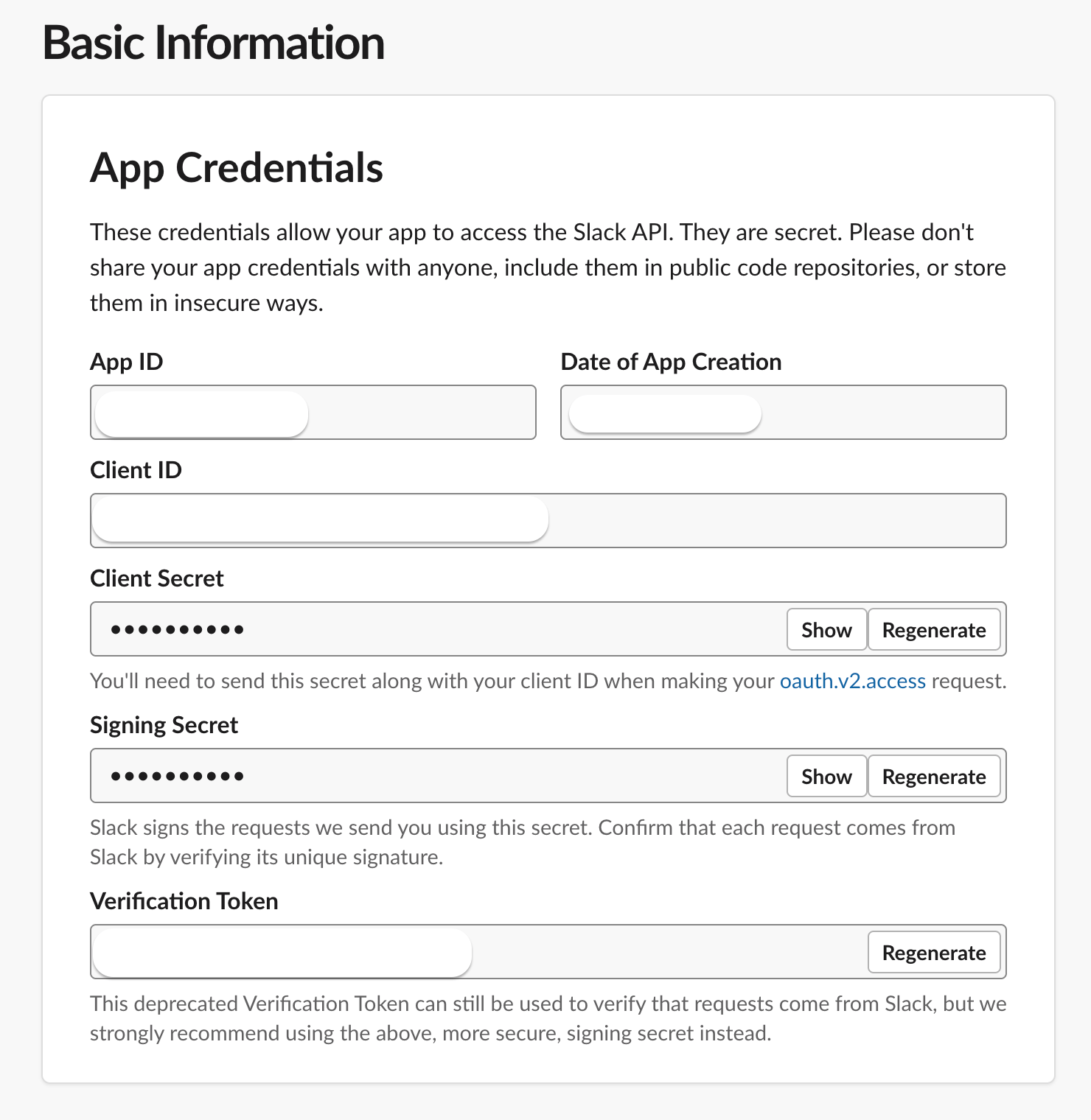
- Option B: Your own Slack app
Oleria’s verified Slack app is installed into your workspace with a single approval. No app creation or credential sharing is required.
1
Authenticate via OAuth
Select Connect in the overlay. Slack redirects you to an authorization screen showing the permissions Oleria will receive. Approve the request, then select the default channel where Oleria sends messages, unless a different channel is configured later.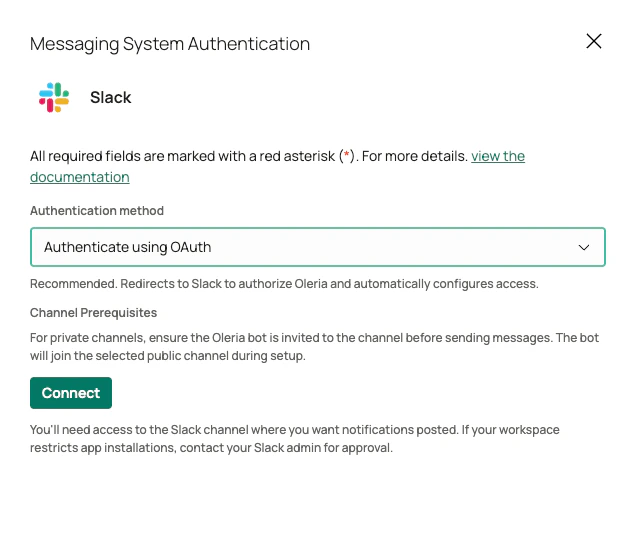
For private channels, ensure the Oleria bot is invited to the channel. Without this, Oleria cannot send messages to the selected private channel.
Verify the Slack integration
Select View Details on the Slack integration in the Messaging Systems page. A connected Slack integration confirms that messaging has been configured and Oleria is able to send messages. To confirm end-to-end, trigger a test notification and verify that it appears in your default channel.