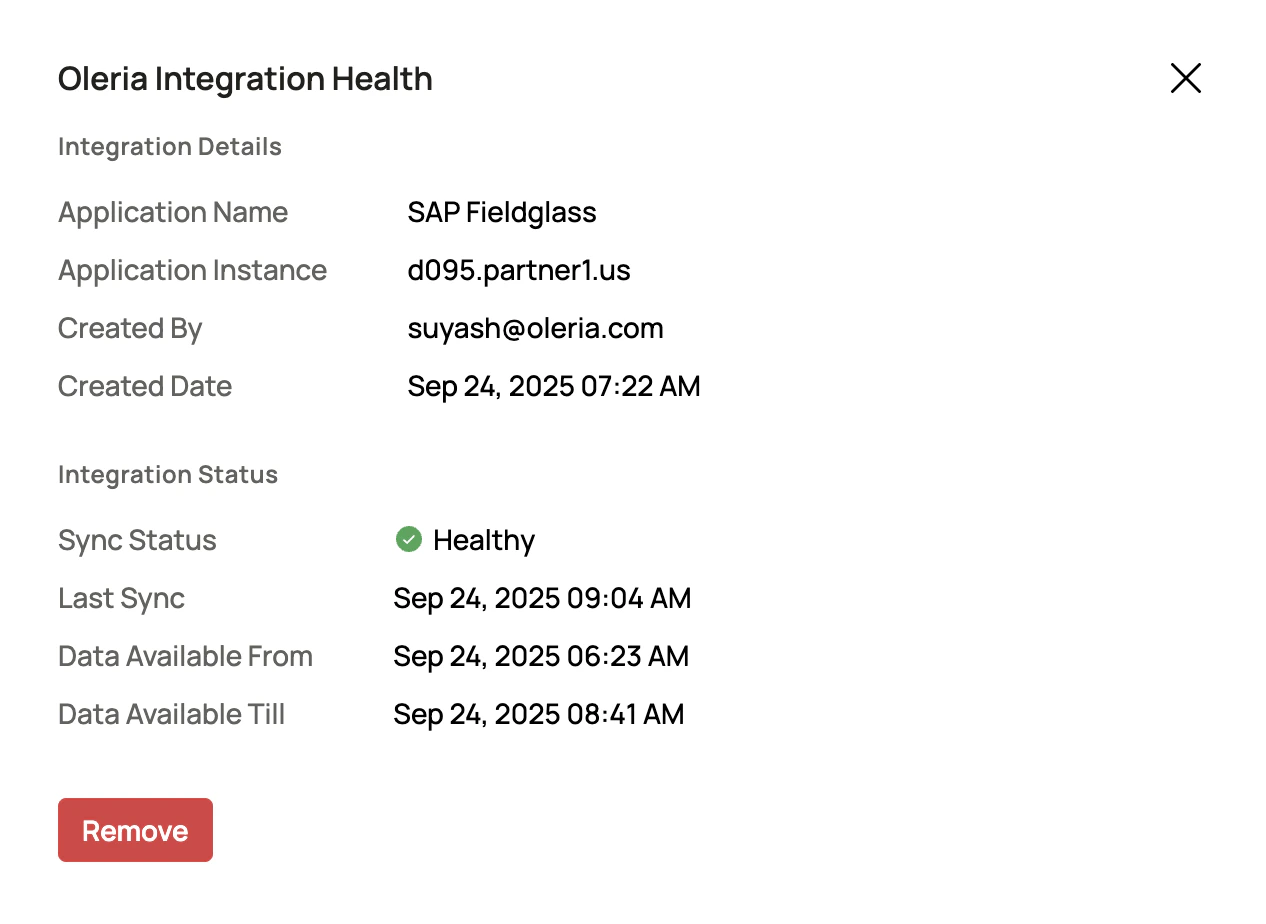

What Oleria discovers
- Workers - contingent and external worker records, including email and cost center.
- Departments - departments derived from business units, and each worker’s department.
- Managers - each worker’s manager.
Prerequisites
- Administrator permission on the Oleria workspace
- Fieldglass service account for integration with Oleria (username and password are required to integrate)
Generate an API key in Fieldglass
1
Sign in to SAP Fieldglass
Sign in to your SAP Fieldglass instance.
2
Open Configuration Manager
From the linked accounts, select Configuration Manager.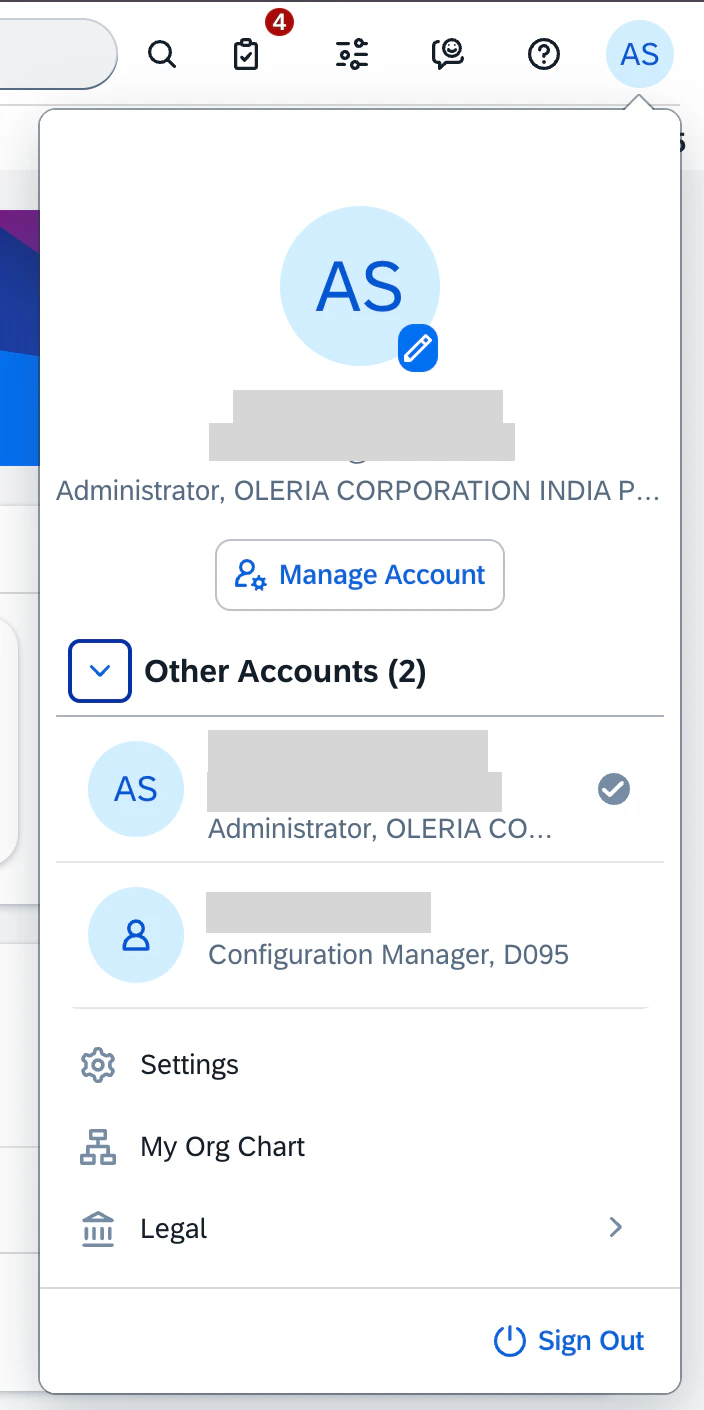
3
Open API Application Keys
Select API application keys from the self service dashboard.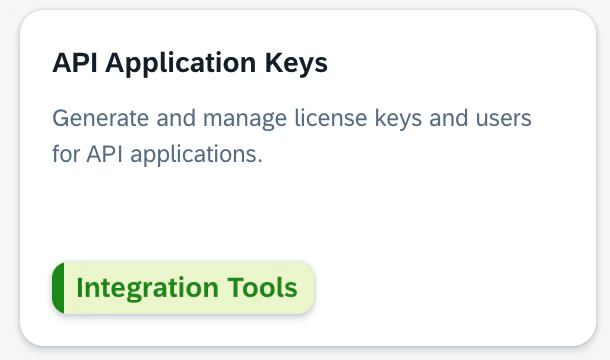
4
Create a new API key
Create a new API application key for integration with Oleria. Note the generated credentials shown after creation.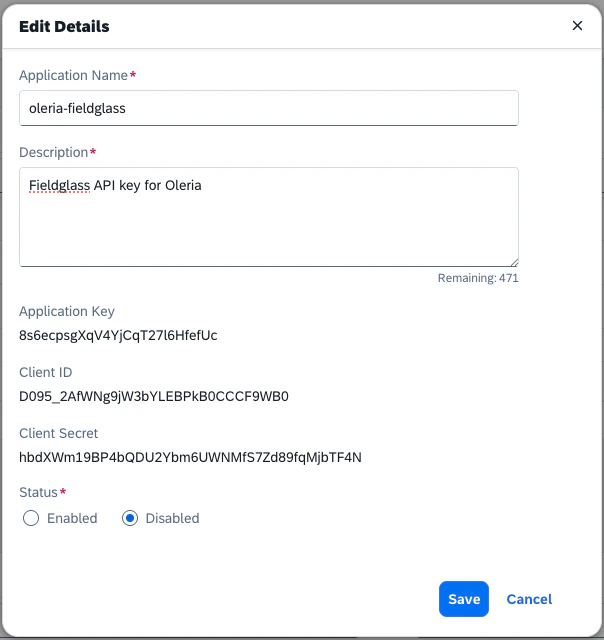
Connect SAP Fieldglass to Oleria
1
Open the integration
Sign in to your Oleria workspace, navigate to Integrations, and select SAP Fieldglass.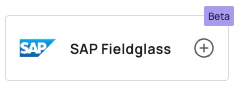
2
Complete the connection form
A side panel opens. Enter the following details: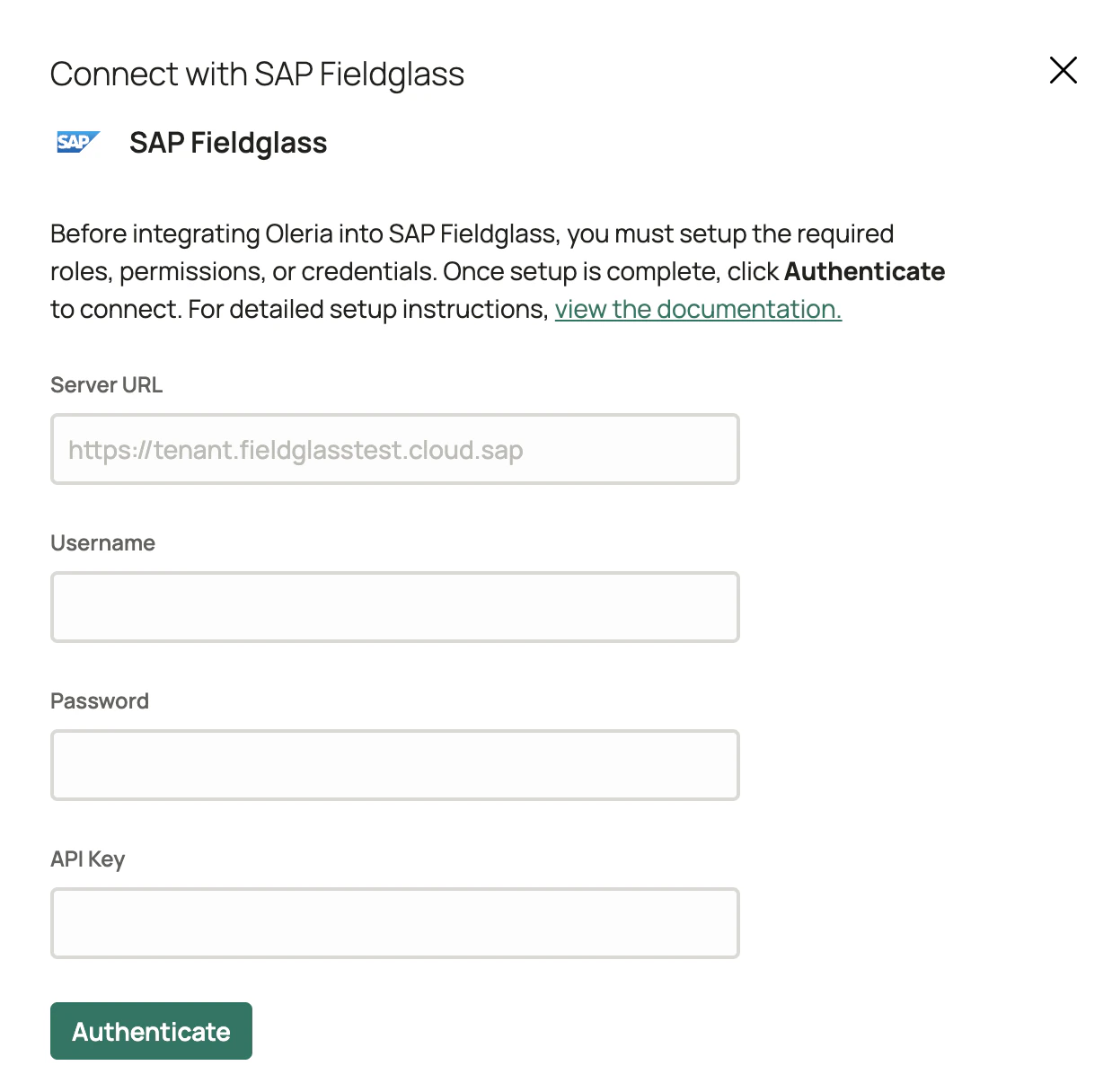
- Server URL - the URL of your Fieldglass instance
- Username and Password - of the user you created for Oleria integration
- API Key - the application key generated in the previous section
Verify the integration
Confirm the SAP Fieldglass instance appears on the Connected tab of your Oleria Integrations page with a status of Healthy. After the first sync completes, you can review the discovered workers, departments, and managers in your Oleria workspace.