
What Oleria discovers
- Users - user accounts, user types, and enrolled MFA factors.
- Groups - groups, group membership, and the admin roles assigned to groups.
- Admin roles - administrator role assignments for users and groups.
- Applications - applications and the users and groups assigned to them.
- Non-human identities - applications, API tokens, agents (such as AD agents), and service integrations, with their credentials.
- Risks - findings from Oleria’s checks of your password, MFA factor, and authenticator policies.
- Activity - events from your Okta system log.
Prerequisites
- The user granting these permissions must have super admin privileges
Standard integrations are configured with read-only permissions. Super admin permissions are limited to the API scopes specified in the steps below. Use a service account (and not an employee account) with the suggested privileges for the integration to ensure continuity.
Create an Oleria application in Okta
1
Create a new app integration
Sign in to the Okta admin console, navigate to Applications, and select Create App Integration.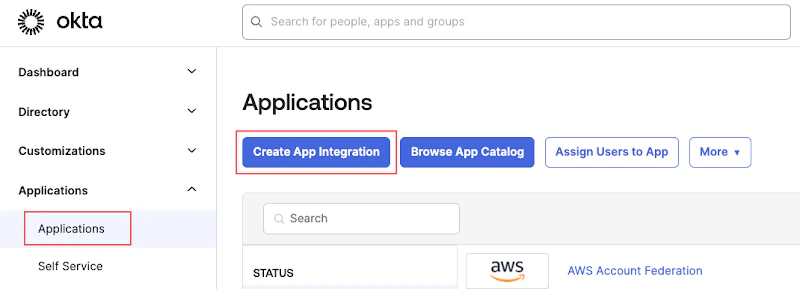
2
Select API Services
Select API Services and select Next.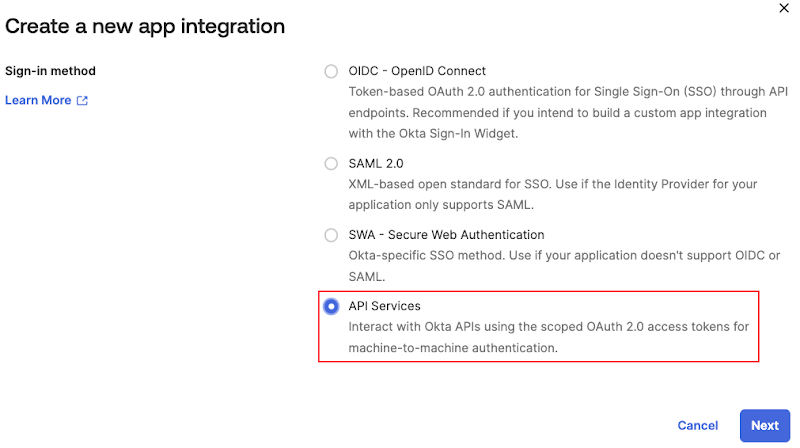
3
Name the application
Give the App Integration Name as “Oleria” and select Save.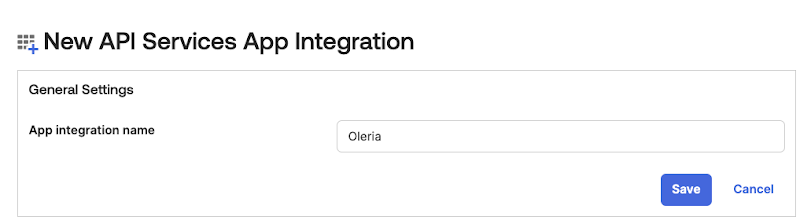
4
Configure client credentials
In the Oleria app, go to General -> Client Credentials -> select Edit.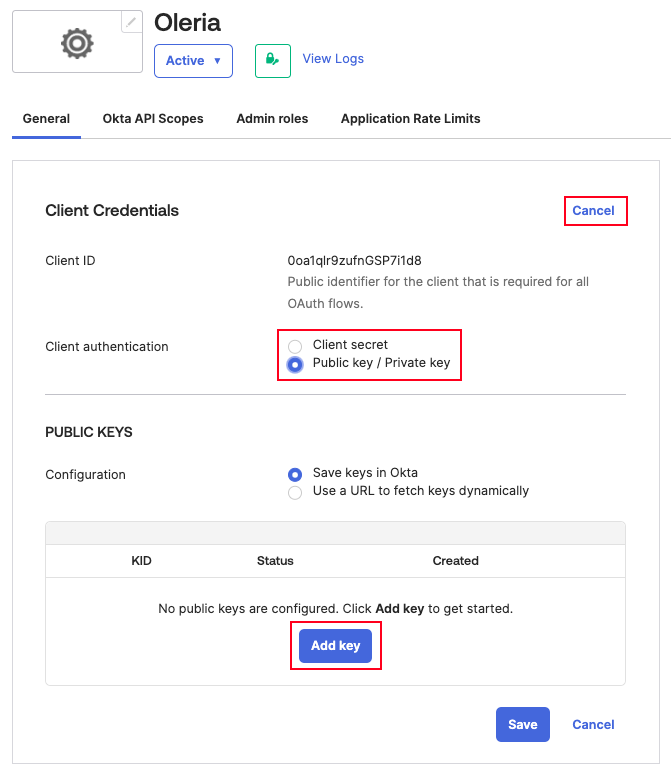
- Set Client authentication to Public key / Private key
- Select Add Key to generate a key
- Save the Client ID - you will need it when connecting in Oleria
Make sure there is only one key active for this application. The integration will not pull data if there are multiple active keys.
5
Generate a public key
Add a public key by selecting Generate new key.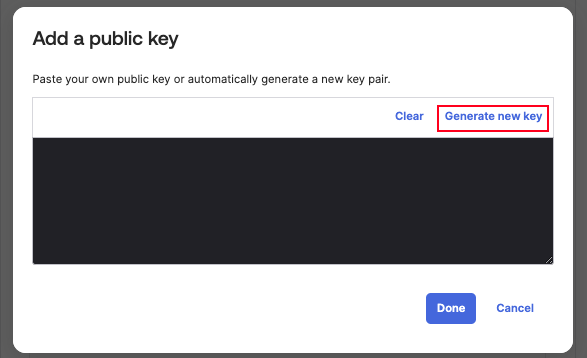
6
Save the private key
Save the key in PEM format and select Copy to clipboard. You will need this private key when connecting in Oleria.After saving, copy the key’s Key ID from the Public Keys table - you will need it as the Private Key Id when connecting in Oleria.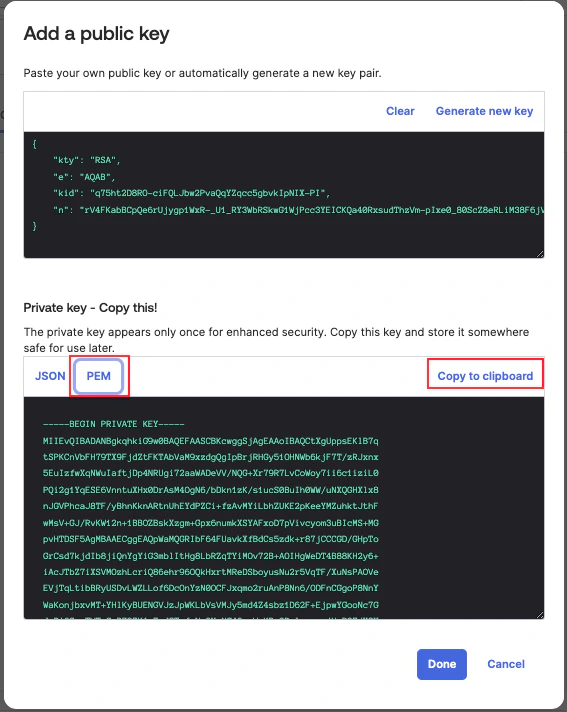
You will need to generate a new key if you forget to copy or lose the key.
7
Grant API scopes
Go to Okta API Scopes and grant the following permissions:
8
Grant remediation permissions (optional)
To perform remediations, grant the additional scopes for the actions you plan to use:To enable, disable, activate, or create users, and to revoke a user’s sessions:To add or remove users from groups:To assign or unassign users and groups to applications, and to disable application non-human identities:
9
Assign the Super Administrator role
Go to Admin roles, select Edit assignments, and add the Super Administrator role.Narrower roles don’t cover everything this integration reads: a Read-only Administrator role lacks access to administrator metadata (see the note below), and a custom role scoped to the same resource set still couldn’t retrieve activity log data. Super Administrator is the only built-in role confirmed to return both.Okta requires both the role and the API scopes together, though - the role alone grants the app no capability. With the Super Administrator role and only the read-only scopes from the Grant API scopes step, the Oleria app can read your Okta data but cannot write, remediate, or administer anything. Write access is limited to exactly the remediation scopes you granted in the Grant remediation permissions (optional) step, if you chose to enable them. The role only raises the ceiling of what’s possible - the scopes you grant are what Oleria can actually do.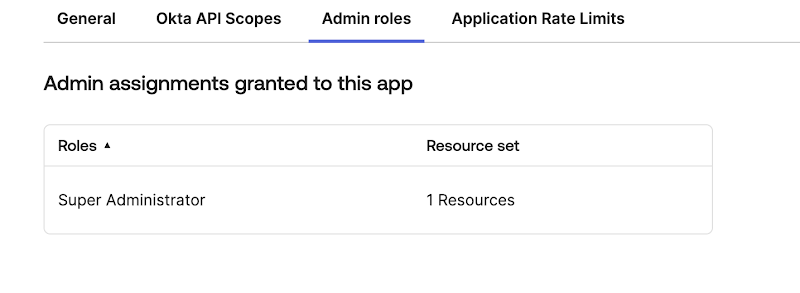
Read-only Administrators can’t view administrators or their role assignments in Okta - that permission belongs to Super Administrator alone, so a read-only connection can’t retrieve user role assignments via the API.
Connect Okta to Oleria
1
Open the integration
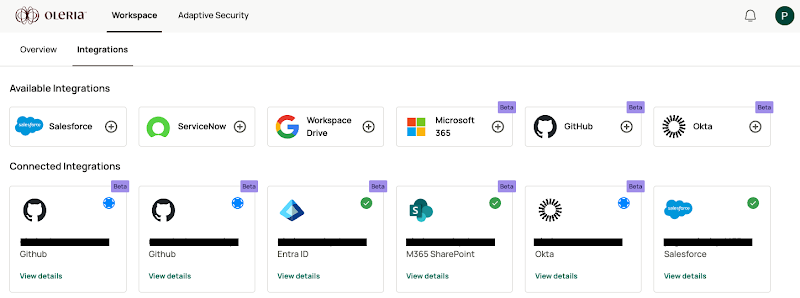
Go to your Oleria workspace, select Integrations -> select Okta.
2
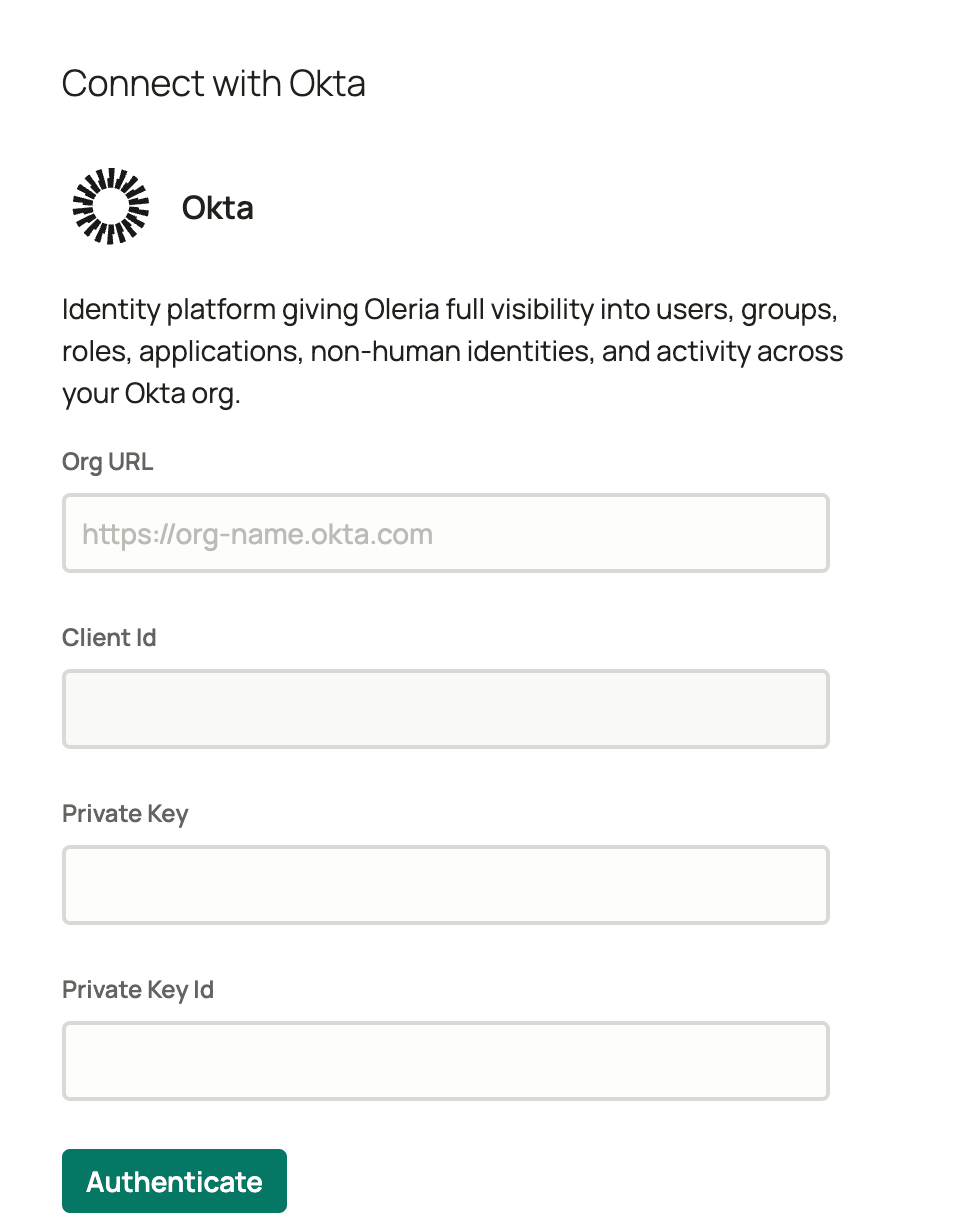
Provide your credentials
Select Continue and provide the following:
-
Org URL - your Okta URL, for example
https://yourcompany.okta.com(or your custom Okta domain, if you’ve configured one). Don’t use the Okta admin URL - it includes-adminbefore.okta.com(for examplehttps://yourcompany-admin.okta.com) and won’t work here. - Client ID - copied from the app configuration above
- Private Key - copied from the app configuration above
-
Private Key Id - the key’s Key ID, copied from the Public Keys table in the Save the private key step
Verify the integration
Confirm the Okta instance appears on the Connected tab of your Oleria Integrations page with a status of Healthy. After the first sync completes, you can review the discovered users, groups, admin roles, applications, non-human identities, risks, and activity in your Oleria workspace.