

What Oleria discovers
- Users - accounts in your ServiceNow instance.
- Groups - ServiceNow groups and their membership.
- Roles - role assignments for each user, directly and through groups.
- Resources - tables, incidents, cases, and workflows, and the access control rules that grant roles access to them.
- Activity - event log activity such as sign-ins, sign-outs, impersonation, and table views.
- Risks - risks Oleria detects from your ServiceNow access data.
Prerequisites
- A ServiceNow user who can elevate to the admin role.
- Admin access on the Oleria platform to add a new integration.
Generate the update set in Oleria
1
Open the integration
Go to your Oleria workspace, select Integrations -> select ServiceNow.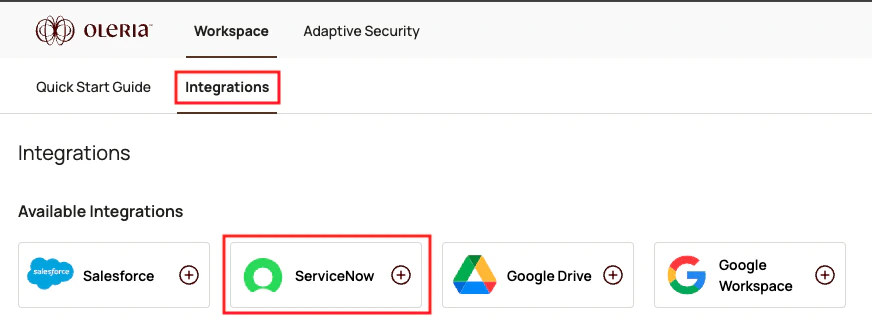
2
Enter your instance URL
Enter your ServiceNow URL in the Instance URL field, for example 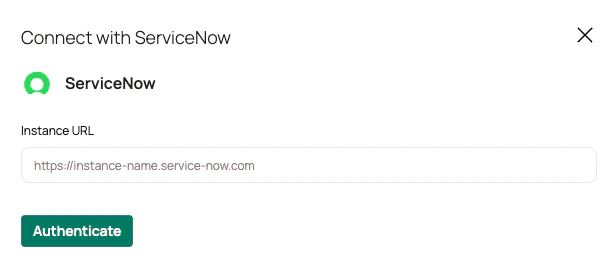
https://instance-name.service-now.com. Use the base URL only, with no path or query string.To let Oleria take remediation actions, also select I authorize Oleria to perform write actions in ServiceNow. Oleria then includes the write permissions those actions need in the update set.Select Continue.3
Save the update set
Oleria shows an update set generated for your workspace under Run the following in ServiceNow. Copy its contents and save them as an XML file, for example
oleria-update-set.xml. Keep the Oleria side panel open while you import the file into ServiceNow.Import the update set into ServiceNow
1
Elevate your role to admin
Sign in to your ServiceNow instance. Open your user menu, select Elevate role, select admin, and select Update.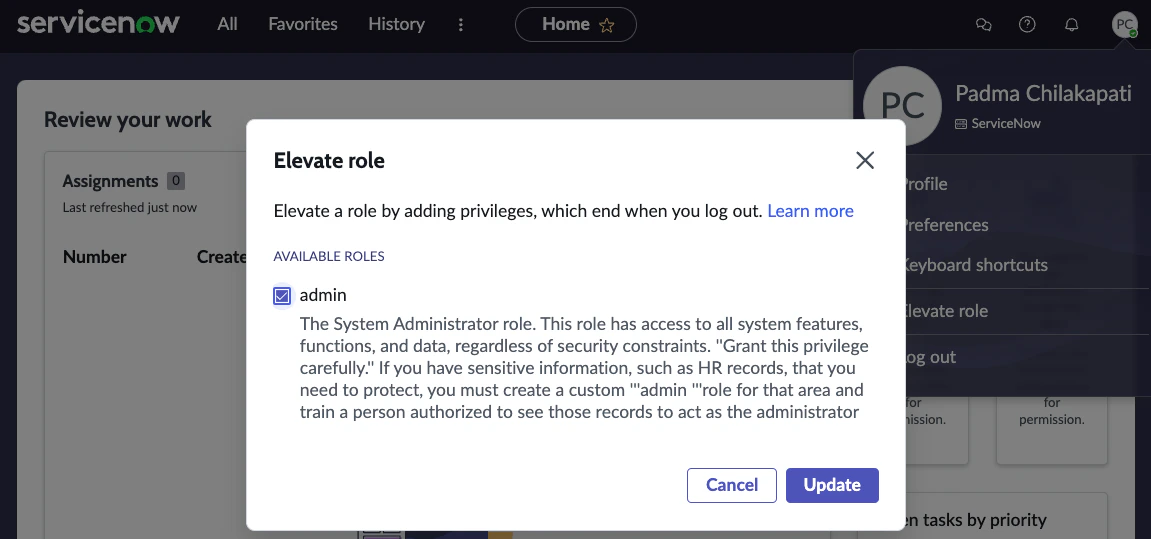
2
Open Retrieved Update Sets
Navigate to All -> search and select Retrieved Update Sets.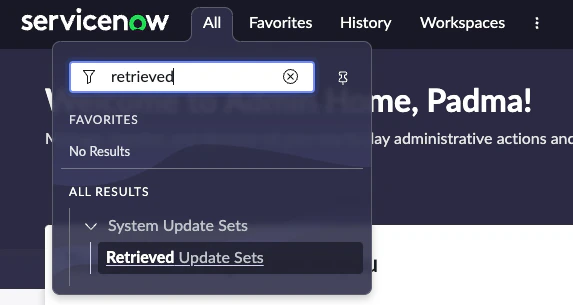
3
Import the update set
Select Import Update Set from XML.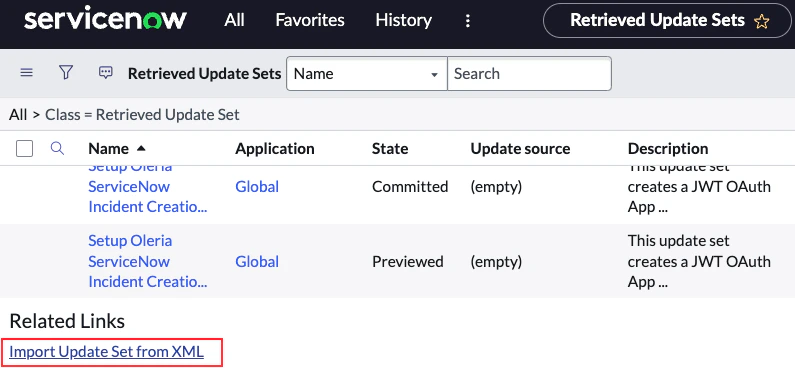
4
Upload the Oleria update set
Select Choose file, choose the XML file you saved from Oleria, and select Upload.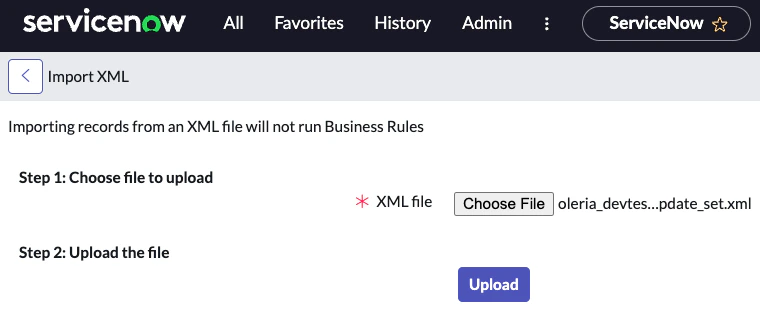
5
Select the uploaded update set
After a successful upload, ServiceNow returns you to the Retrieved Update Sets page. Select the Oleria update set you uploaded.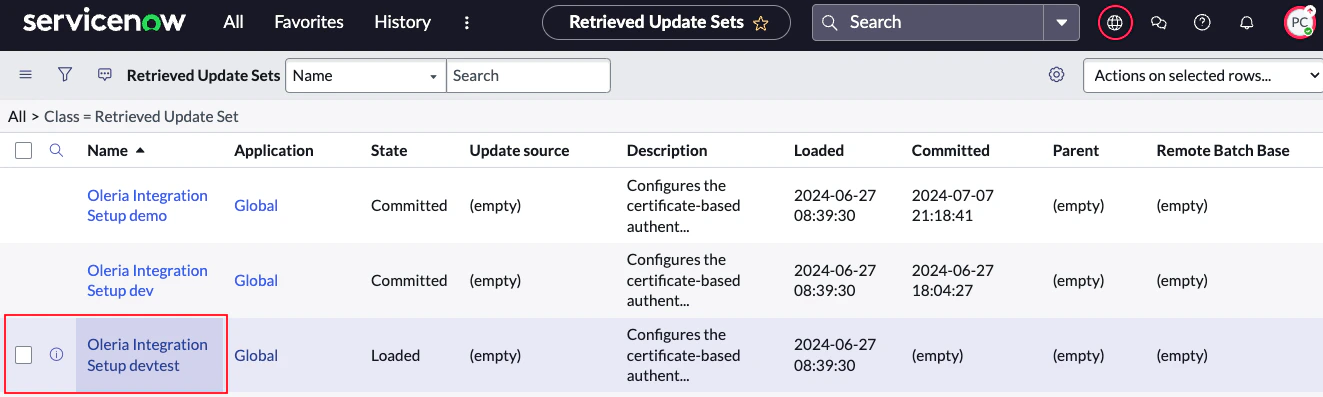
6
Preview the update set
Select Preview Update Set.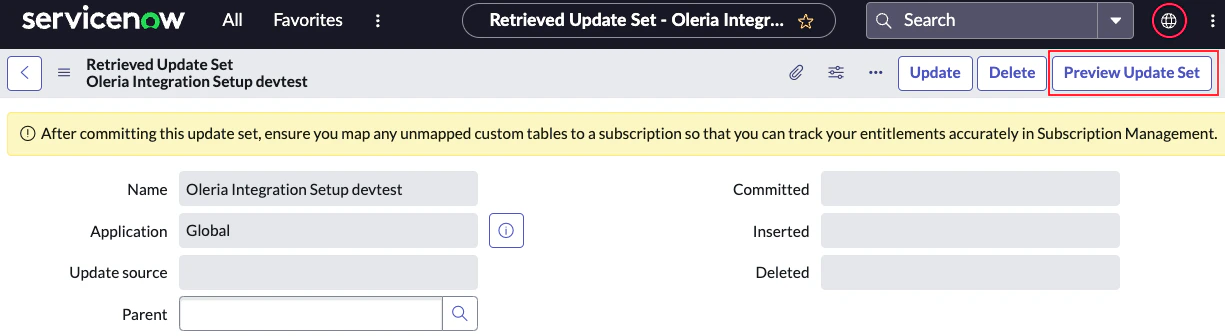
7
Confirm the preview
Confirm the preview runs without errors, then close the Update Set Preview window.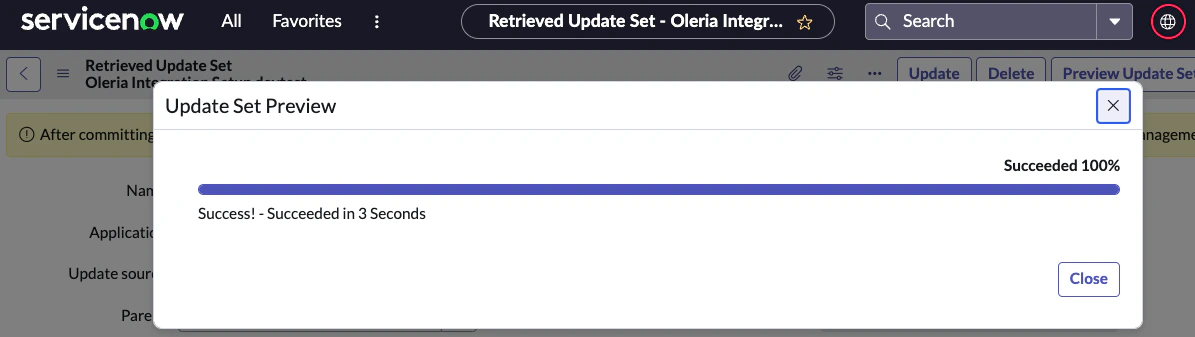
8
Commit the update set
Select Commit Update Set and confirm it completes without errors.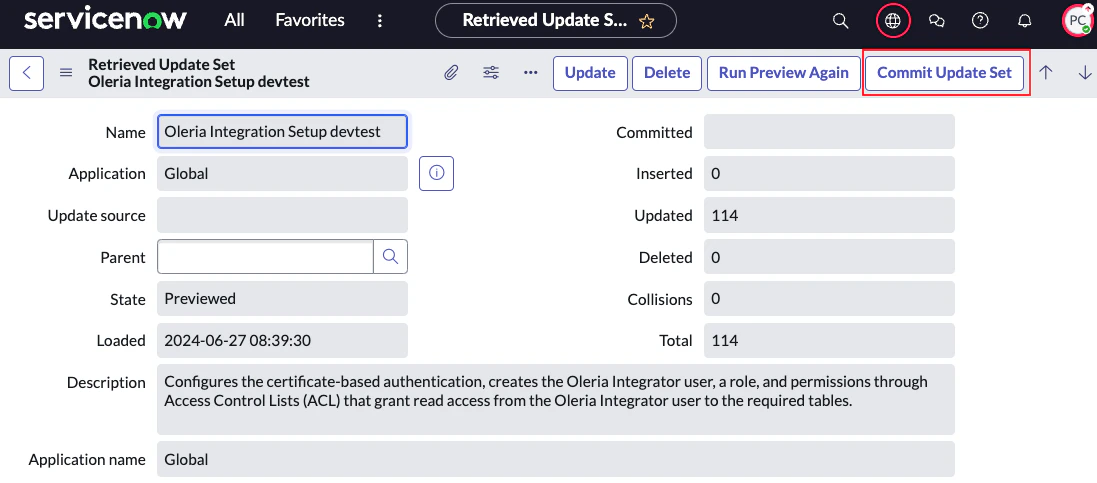
9
Verify customer updates
Open the committed update set and confirm the Customer Updates list isn’t empty and has no entries in a collision or error state.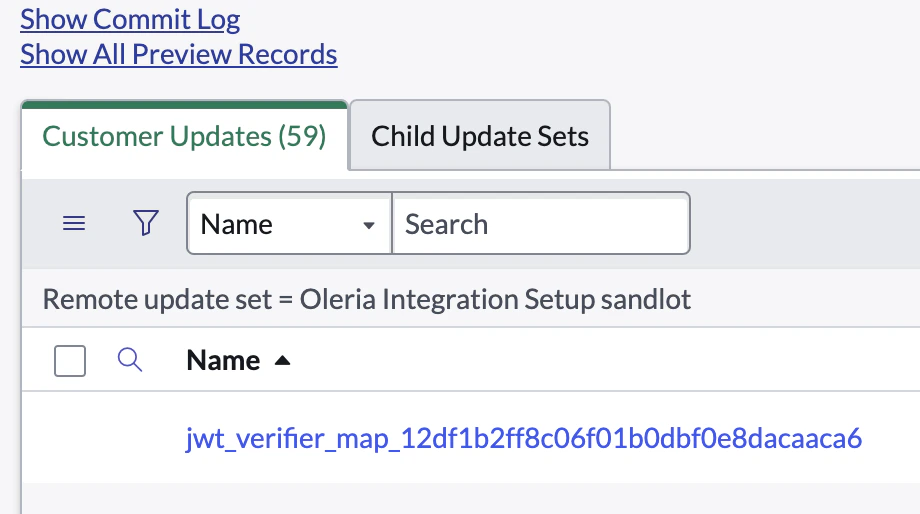
If the Customer Updates list is empty or shows errors, contact us at support@oleria.com before you continue.
10
Confirm the commit
A successful commit shows a timestamp in the Committed column.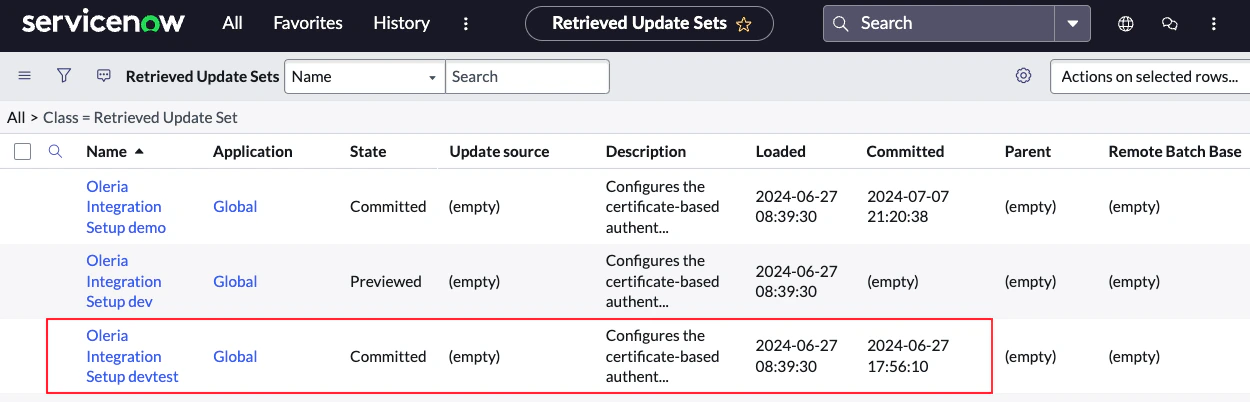
Connect ServiceNow to Oleria
1
Confirm the import and authenticate
Return to the Oleria side panel. Select I have run the above commands in ServiceNow, then select Authenticate. Oleria validates the connection to your instance.
Verify the integration
Confirm the ServiceNow instance appears on the Connected tab of your Oleria Integrations page with a status of Healthy. After the first sync completes, you can review the discovered users, groups, roles, resources, and activity in your Oleria workspace.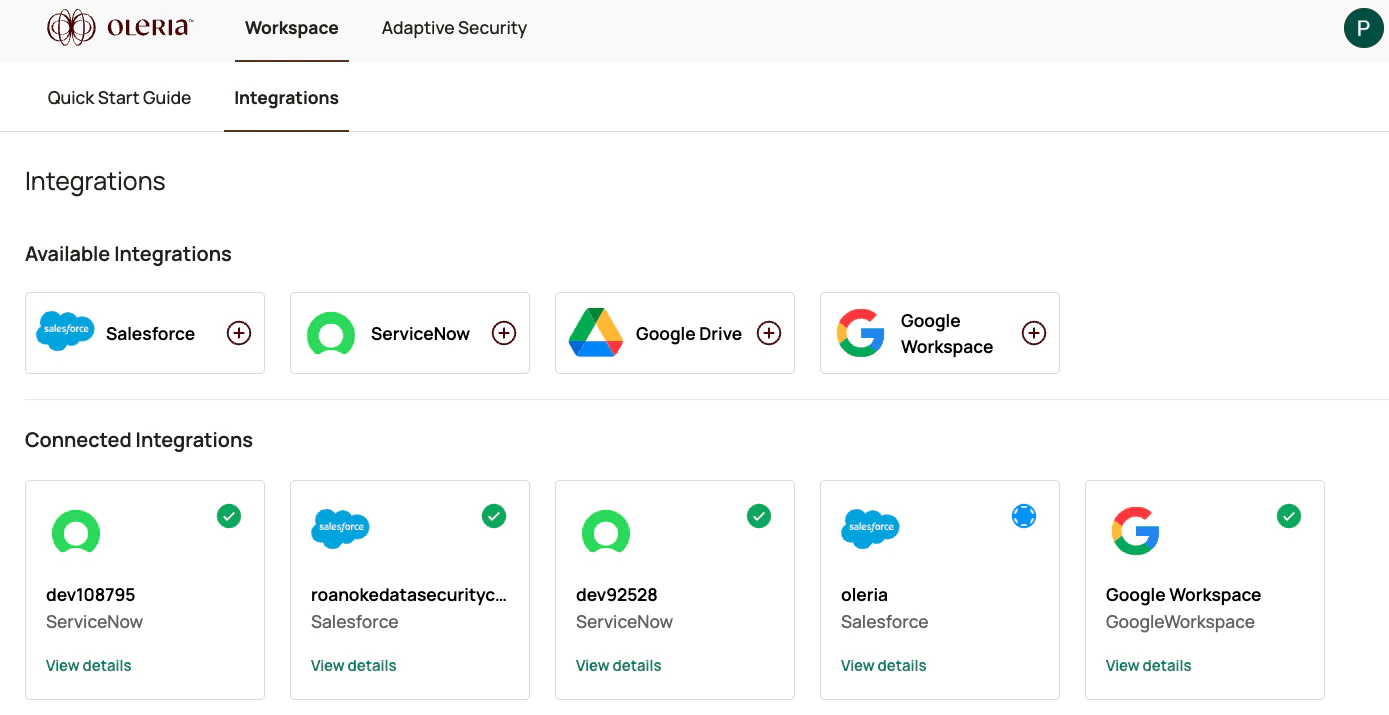
Remediation actions
If you selected I authorize Oleria to perform write actions in ServiceNow when you generated the update set, Oleria can take the following actions in ServiceNow:- Disable a user account
- Remove a user from a group