

What Oleria discovers
- Identities - IAM users and roles.
- Policies - IAM policies and the access they grant.
- Resources - EC2 instances and S3 buckets, including who can access each bucket.
- Activity - AWS CloudTrail events.
Prerequisites
- An admin user in your AWS management account. The account you sign in with must have these IAM permissions to create the Oleria CloudFormation stack:
cloudformation:CreateStackcloudformation:CreateUploadBucketcloudformation:DescribeStackscloudformation:DescribeStackEventscloudformation:GetStackPolicycloudformation:GetTemplateSummarycloudformation:ListStackscloudformation:ListStackResourcesiam:AttachRolePolicyiam:CreatePolicyiam:CreateRoleiam:ListRolesiam:GetRoleiam:DeleteRolePolicyiam:PutRolePolicys3:GetObjects3:CreateBuckets3:PutObjectsns:ListTopics
- Admin access on the Oleria platform to add a new integration.
Use a service account (and not an employee account) with the suggested privileges for the integration to ensure continuity.
Integration approaches
Choose one of two ways to connect:- Connect an AWS organization (recommended) - covers every account in your organization, including accounts you add later.
- Connect a single AWS account - for proofs of concept only.
Connect an AWS organization to Oleria
1
Sign in to the AWS management account
Sign in as an admin user to the AWS management account that you’ll connect to Oleria.Select the user in the top right corner, and select Organization.
2
Copy the Root ID
Copy the Root ID for your organization from the AWS Organizations console.
3
Launch AWS CloudFormation from Oleria
Sign in to your Oleria workspace. Select Integrations -> select AWS IAM and S3. A side page opens - select Organization (Recommended), paste the Root ID where the integration asks for the organization unit ID, and select Launch AWS CloudFormation.To let Oleria take remediation actions, also select I authorize Oleria to perform write actions in AWS before you select Launch AWS CloudFormation. Oleria then launches a template that grants the connector role the write permissions its remediation actions need.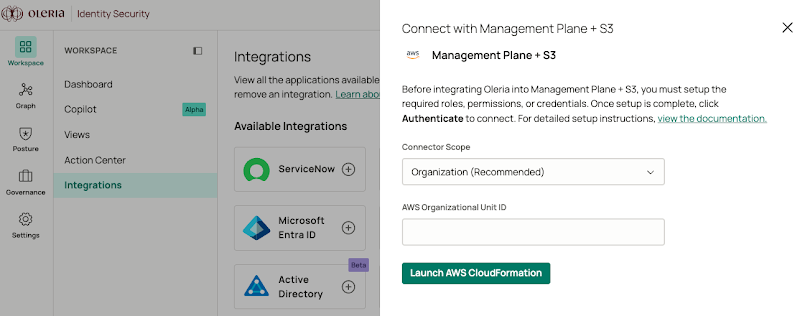
4
Create the CloudFormation stack
AWS opens. The stack name Oleria-Plugin-SaaS-Connector is preselected. Acknowledge and select Create Stack.
5
Wait for stack creation
Stack creation takes about a minute.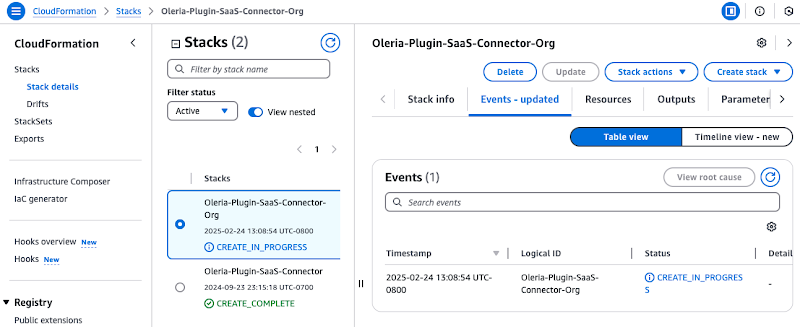

Before adding stacks, verify the StackSet’s configuration. For the integration to automatically apply to new AWS accounts added to your organization in the future, ensure auto-deployment is active.In the CloudFormation console, open StackSets from the left menu. Select the Oleria-Plugin-SaaS-Connector-Org StackSet. Under Deployment configuration, select Edit automatic deployment and set Automatic deployment to Activated.
6
Navigate to the oleriaConnectorRole
Select the Resources tab and navigate to the oleriaConnectorRole.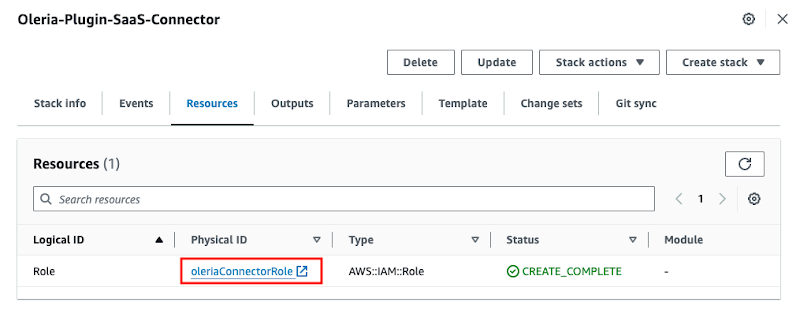
7
Copy the Role ARN
Copy the oleriaConnectorRole ARN.
8
Update the KMS key policy (if applicable)
This step is required only if the S3 bucket is encrypted with a KMS key. Add a statement to the KMS key policy that allows the Oleria connector role to use the key. Repeat these CloudTrail and KMS key policy steps for each AWS account that uses an encrypted trail.Search CloudTrail -> select Management Events.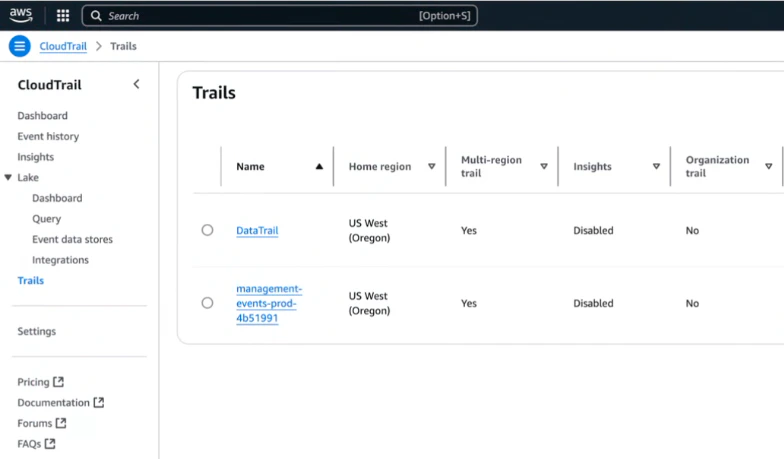


If you have multiple trails, select the first trail and check for an encrypted KMS key. If S3 is encrypted, you will see a KMS key link.
Statement array. Don’t replace the whole policy: overwriting it can remove your administrators’ access to the key. Replace <ACCOUNT_ID> with your AWS account ID.kms:Decrypt and kms:DescribeKey for KMS-encrypted S3 access.9
Provide the Role ARN in Oleria
Return to your Oleria workspace and paste the Role ARN you copied. Select Confirm that the role is created using CloudFormation successfully, then select Authenticate.
Connect a single AWS account to Oleria
1
Sign in to the AWS account
Sign in as an admin user to the AWS account you want to connect to Oleria.
2
Launch AWS CloudFormation from Oleria
In the same browser, open a new tab and sign in to your Oleria workspace. Select Integrations -> select AWS IAM and S3. A side page opens - select Account from the Connector scope dropdown and select Launch AWS CloudFormation.To let Oleria take remediation actions, also select I authorize Oleria to perform write actions in AWS before you select Launch AWS CloudFormation. Oleria then launches a template that grants the connector role the write permissions its remediation actions need.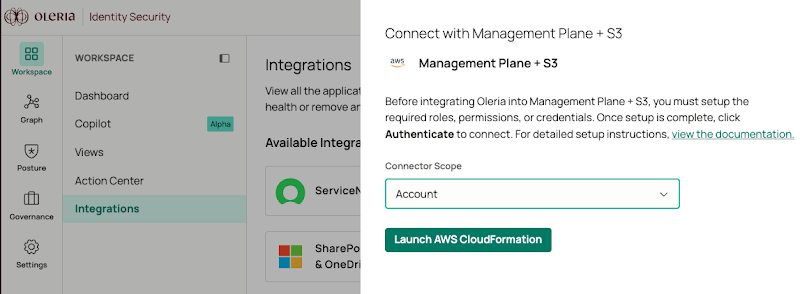
3
Create the CloudFormation stack
AWS opens. The stack name Oleria-Plugin-SaaS-Connector is preselected. Acknowledge and select Create Stack.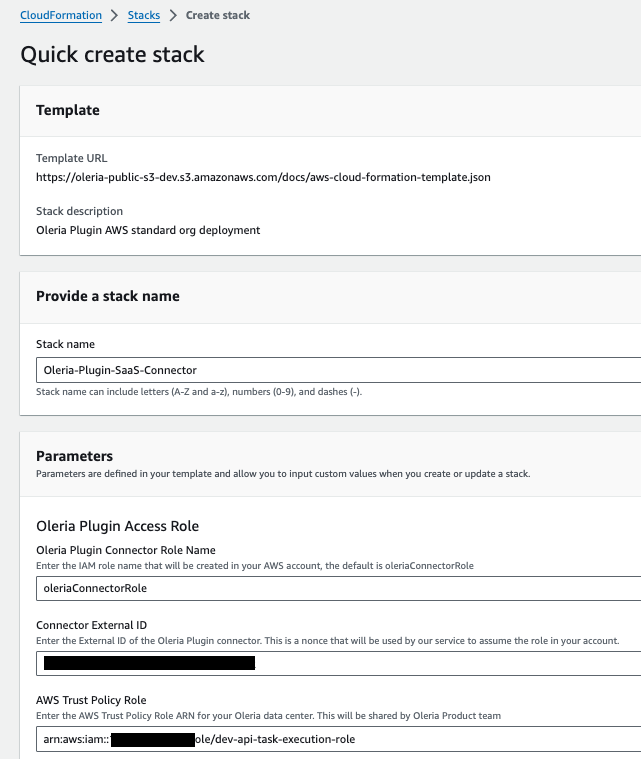
4
Wait for stack creation
Stack creation takes about a minute.
5
Navigate to the oleriaConnectorRole
Select the Resources tab and navigate to the oleriaConnectorRole.
6
Copy the Role ARN
Copy the oleriaConnectorRole ARN.
7
Update the KMS key policy (if applicable)
This step is required only if the S3 bucket is encrypted with a KMS key. Add a statement to the KMS key policy that allows the Oleria connector role to use the key.Search CloudTrail -> select Management Events.
If you have multiple trails, select the first trail and check for an encrypted KMS key. If S3 is encrypted, you will see a KMS key link.
Statement array. Don’t replace the whole policy: overwriting it can remove your administrators’ access to the key. Replace <ACCOUNT_ID> with your AWS account ID.kms:Decrypt and kms:DescribeKey for KMS-encrypted S3 access.8
Provide the Role ARN in Oleria
Return to your Oleria workspace and paste the Role ARN you copied. Select Confirm that the role is created using CloudFormation successfully, then select Authenticate.
Verify the integration
Confirm the AWS IAM and S3 instance appears on the Connected tab of your Oleria Integrations page with a status of Healthy. After the first sync completes, you can review the discovered IAM users, roles, policies, resources, and CloudTrail activity in your Oleria workspace.