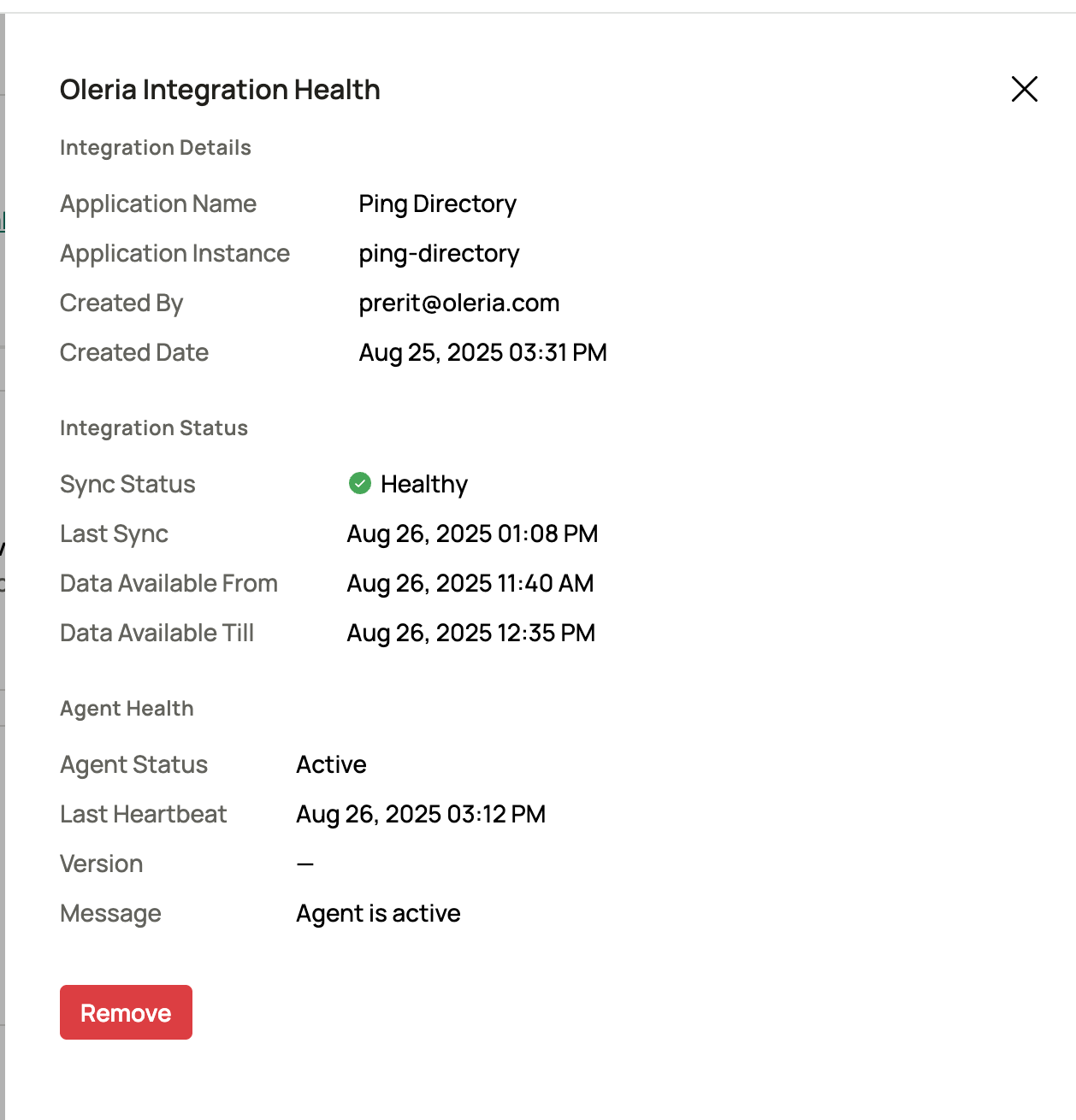

What Oleria discovers
- Users - user entries in your Ping Directory.
- Groups - static and dynamic groups, and group membership.
- Organizational units and domain - your directory’s OU structure and base domain.
- Permissions - access control instructions (ACIs) that grant users and groups access to directory entries.
- Activity - directory access log events, forwarded to the Oleria PD Agent through Fluentd. Activity requires the log forwarder and Fluentd setup below.
Prerequisites
- Admin access on the Oleria platform to add a new integration.
- A Windows machine to install the Oleria PD agent on, and administrator permissions on it. The agent installs through a PowerShell script and runs as a Windows service.
- Administrative access in Ping Directory to create a user.
- If Ping Directory and the agent run on different machines, network access between them. Make sure no firewall rules block the connection.
Agent host requirements
The Oleria PD agent and its bundled Fluentd log collector run on the Windows machine you choose. Make sure that machine meets these requirements:If you need to route the agent’s outbound traffic through a proxy, contact us at support@oleria.com before you install.
Create a service account in Ping Directory
This process involves creating an LDIF file to define the new service account and its permissions, then using theldapmodify command to apply these changes to the directory.
1
Create the LDIF file
An LDIF (LDAP Data Interchange Format) file is a plain text file containing instructions for adding, deleting, or modifying entries in an LDAP directory. The file you’ll create,
create_readonly_user.ldif, will:- Create the service account - a new user entry with UID
readonlyoleriauserand common nameRead Only User, using theinetOrgPersonobject class. - Assign read-only access - an ACI (Access Control Instruction) granting the
readonlyoleriauseraccount read and search permissions on all attributes within the entire directory subtree.
<replace-with-your-base-dn> with your directory’s base distinguished name (for example, dc=example,dc=com) and <replace-with-a-secure-password> with a strong password for the service account.2
Execute the LDAP Modify command
After creating the LDIF file, use the
ldapmodify command-line tool to apply the changes to your Ping Directory instance. Open a command prompt, navigate to the bat directory inside your Ping Directory installation, and run the following command as a single line:-
<hostname>- the hostname or IP address of your Ping Directory server -
"cn=Directory Manager"- the DN of the administrative user (the default administrative user) -
<password>- the password for the administrative user -
<file-path>- the path to the LDIF file you created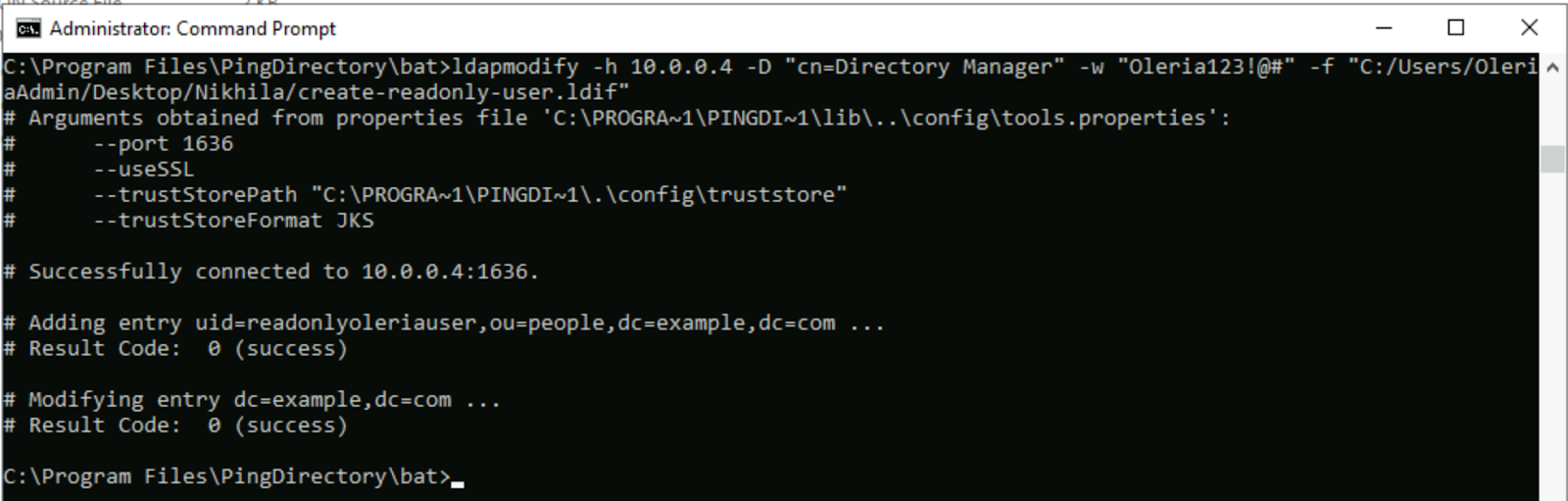
Configure the syslog-based log forwarder
This step uses thedsconfig command-line utility to configure a syslog-based log forwarder in Ping Directory. This forwards directory logs to a centralized log management system like Fluentd for monitoring and analysis.
Open a command prompt, navigate to the Ping Directory installation’s bat directory, and run the following command as a single line. Replace <IP-ADDRESS-OF-AGENT-MACHINE> with the IP address of the machine where the agent is running.
Connect Ping Directory to Oleria
1
Open the integration
Sign in to your Oleria workspace and select Workspace -> Integrations -> Ping Directory.
2
Name your agent
Provide a name for your agent and select Continue.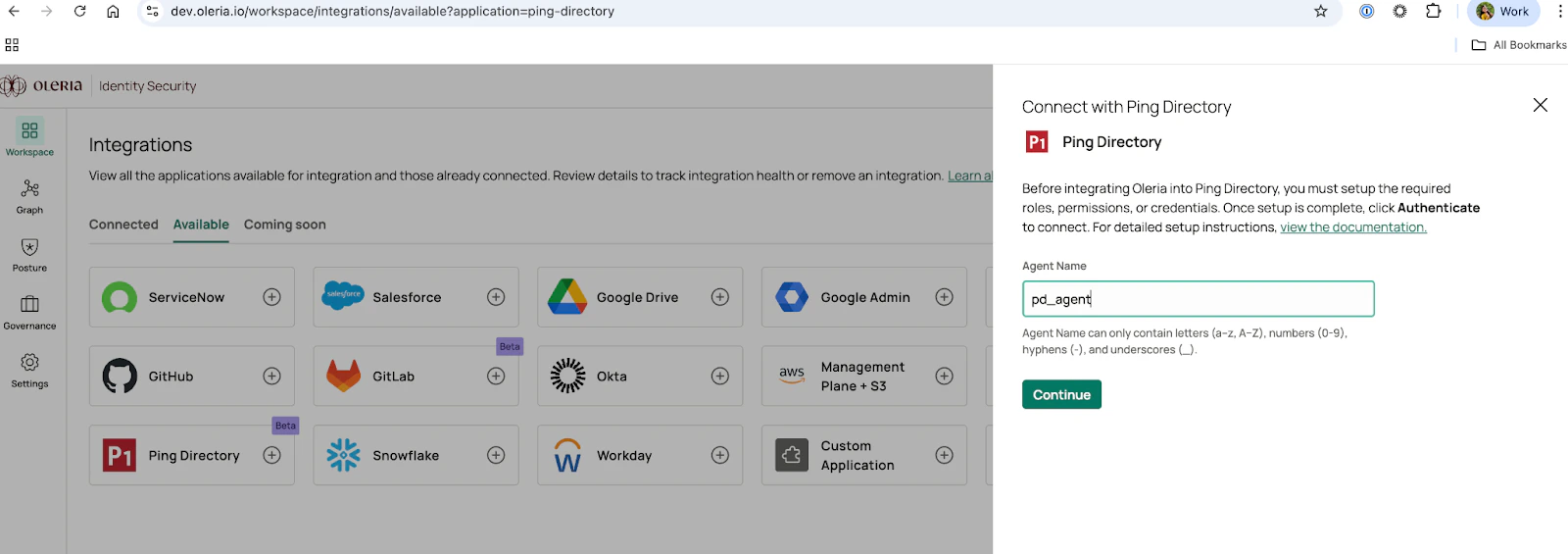
3
Copy the installation script
Oleria shows a PowerShell installation script. Copy it. You’ll run it on the Windows machine where you want to install the Oleria PD agent.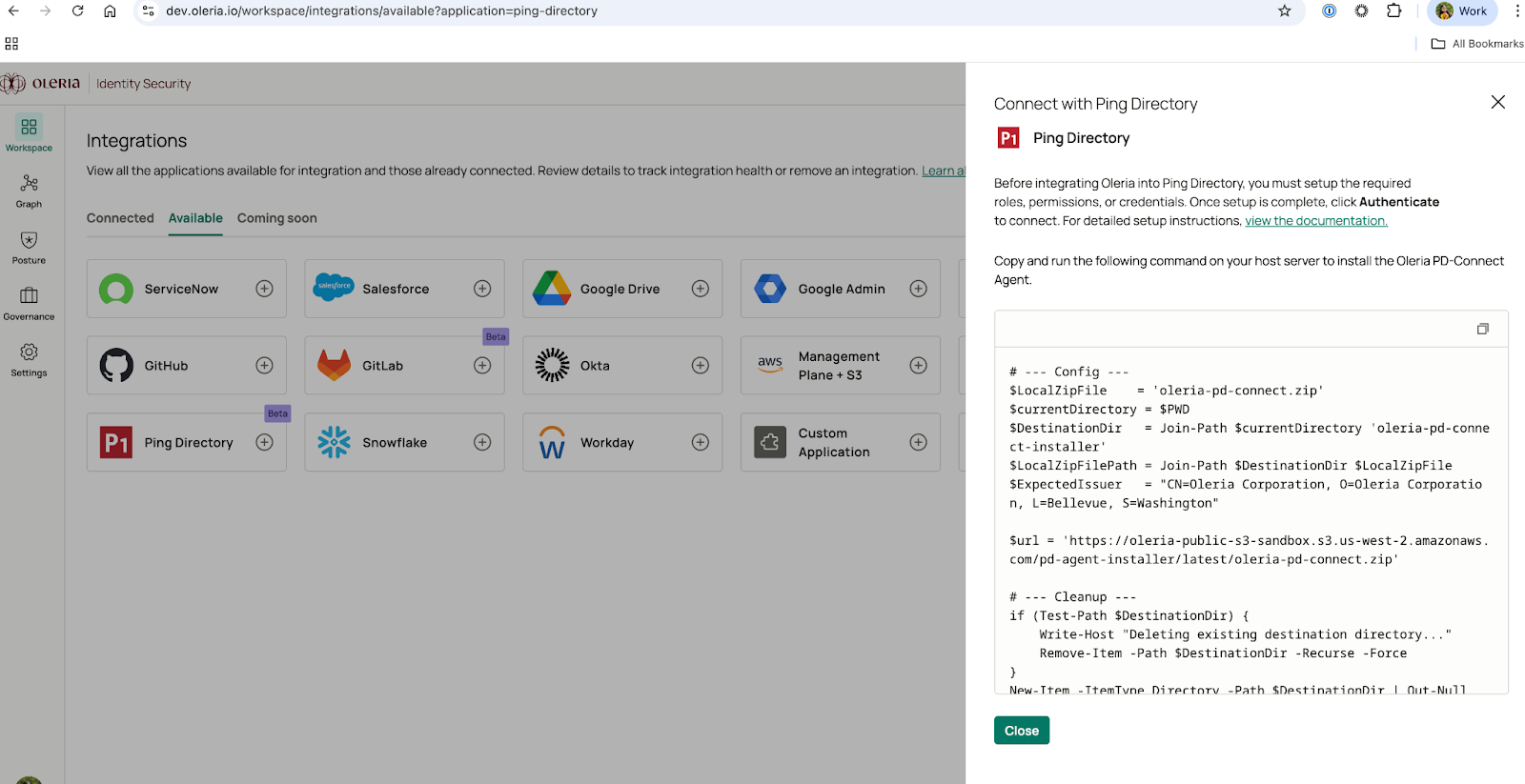
Install the Oleria PD agent
1
Run the installation script
Sign in to the Windows machine, open PowerShell as an administrator, and run the script you copied in the previous section.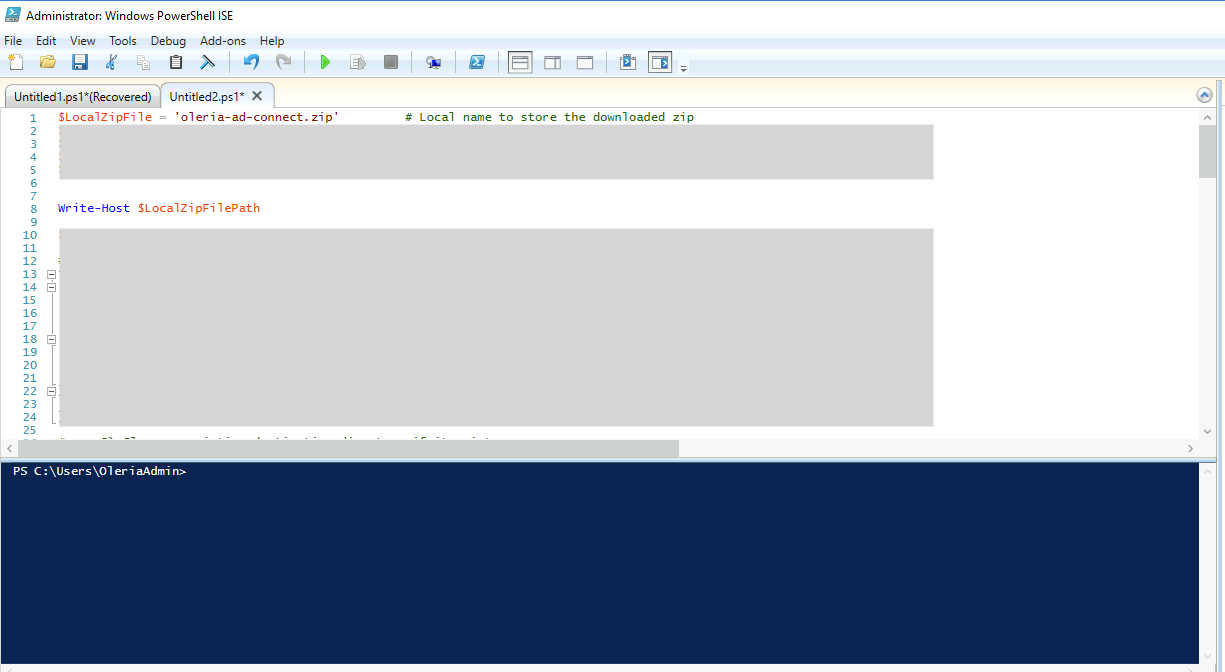
2
Install Fluentd
The Fluentd installer opens. Accept the license terms and select Next.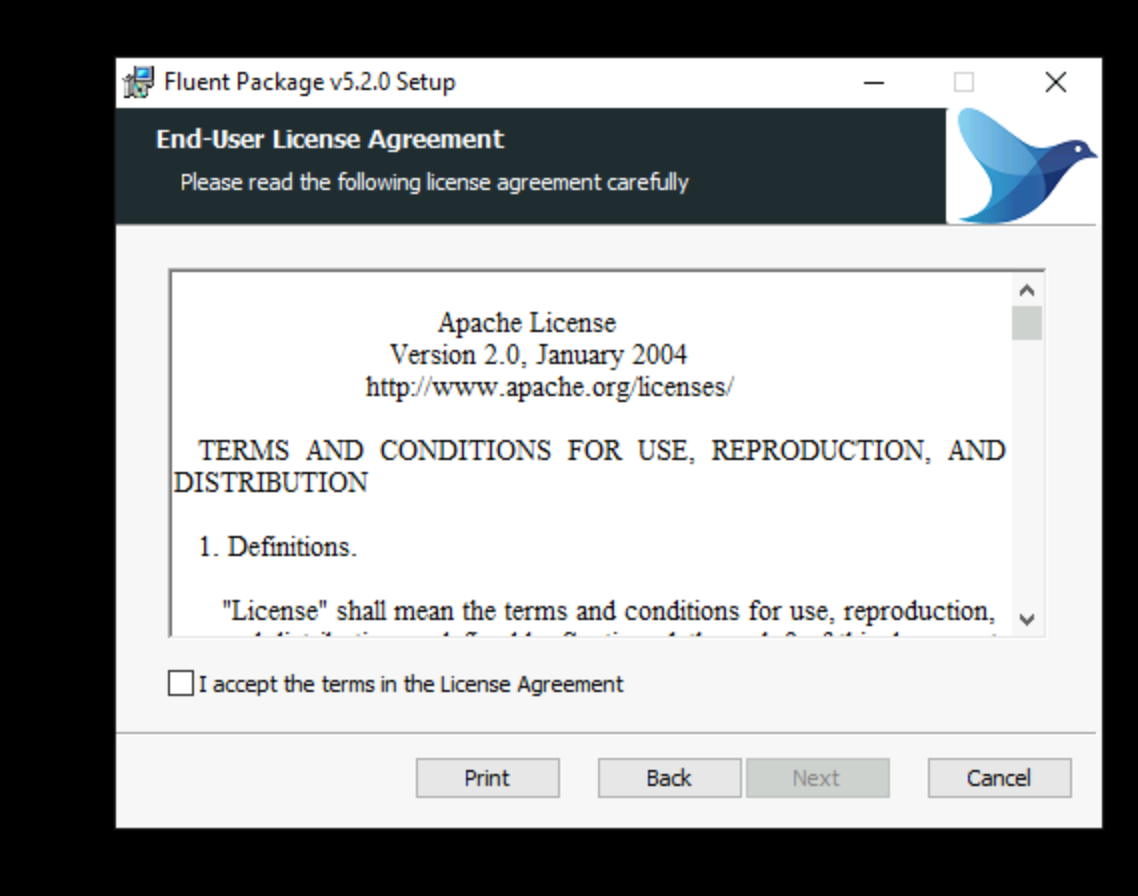
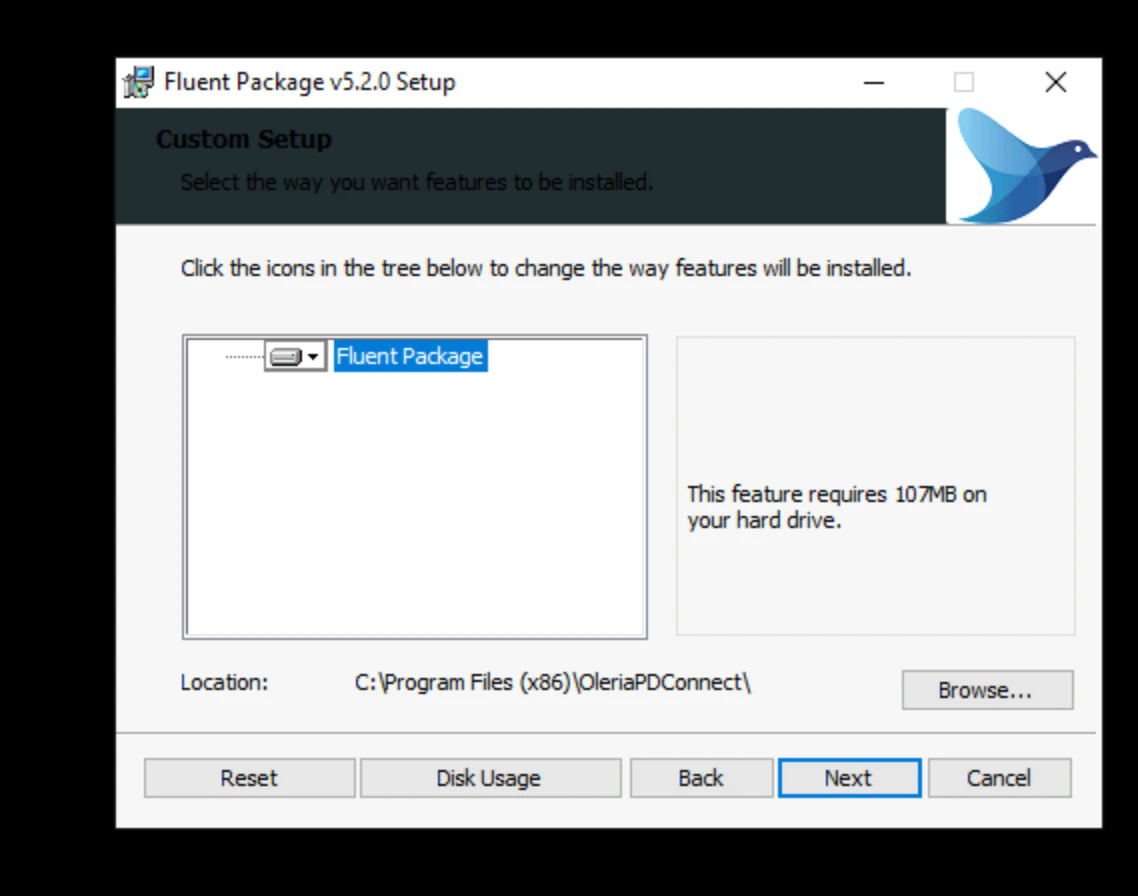
3
Install the Oleria PD agent
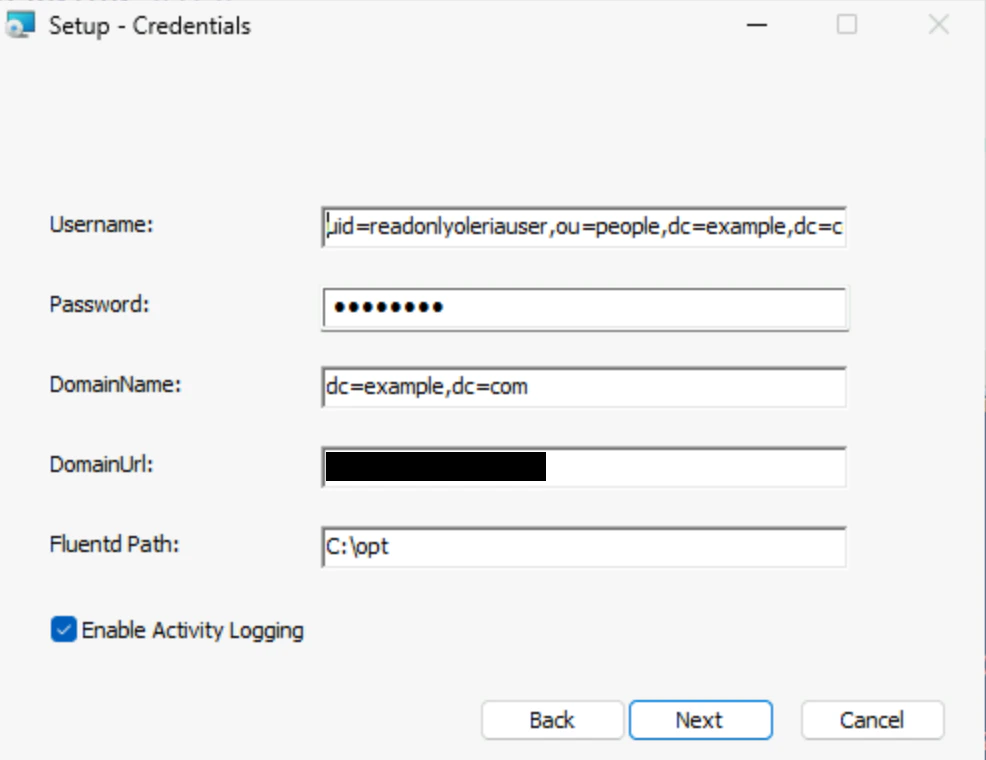
Accept the license terms and select Next.On the next page, provide the following:
-
Username - the bind DN of the service account you created, the
dnfrom your LDIF file (for example,uid=readonlyoleriauser,dc=example,dc=com) - Password - the service account’s password
-
DomainName - your directory’s base DN, the same value you used for
<replace-with-your-base-dn>(for example,dc=example,dc=com) -
DomainUrl - the LDAP URL of your Ping Directory server, including the scheme (for example,
ldaps://pd.example.com:636orldap://10.0.0.5:389) - Fluentd Path - the path where you installed Fluentd in the previous step
-
Enable Activity Logging - select this only if Fluentd is installed and you’ve entered its path in Fluentd Path
Verify the integration
In your Oleria workspace, go to Integrations -> Connected -> Ping Directory and select View Details. The side panel shows the health status of the Oleria PD agent.