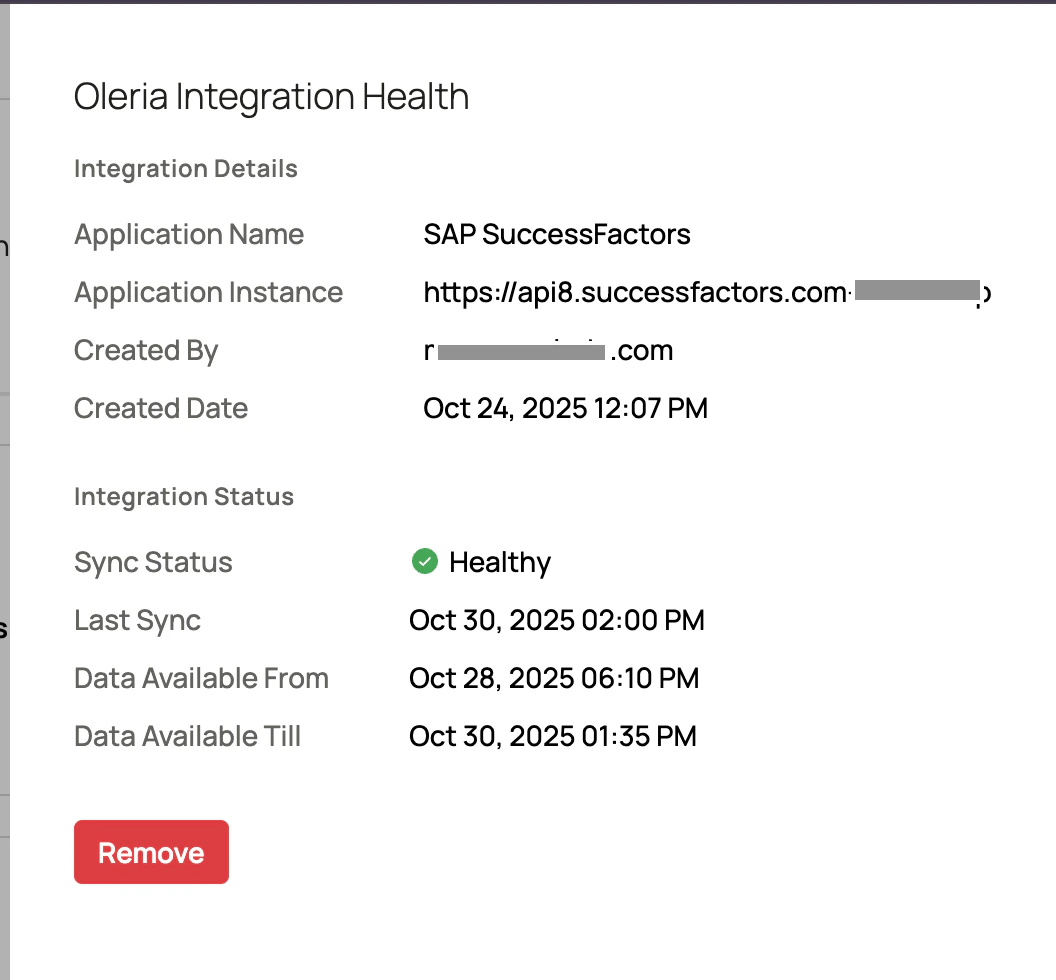

What Oleria discovers
- Employees - employee records from SAP SuccessFactors.
- Organizational data - the organizational information associated with each employee.
Prerequisites
- Admin access on Oleria platform
- An integration service user (ISU) with admin privileges in SAP SuccessFactors, for connecting with Oleria
Generate an API key in SAP SuccessFactors
1
Open OAuth configuration
Go to Admin Center -> API Center -> OAuth configuration for OData. You can also search for Manage OAuth2 Client applications from the search box.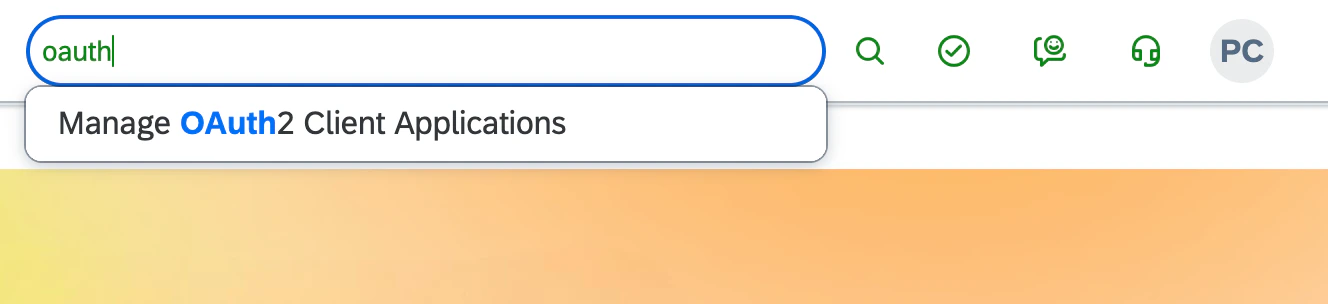
2
Register a new client application
Select Register client application. The registration form will appear.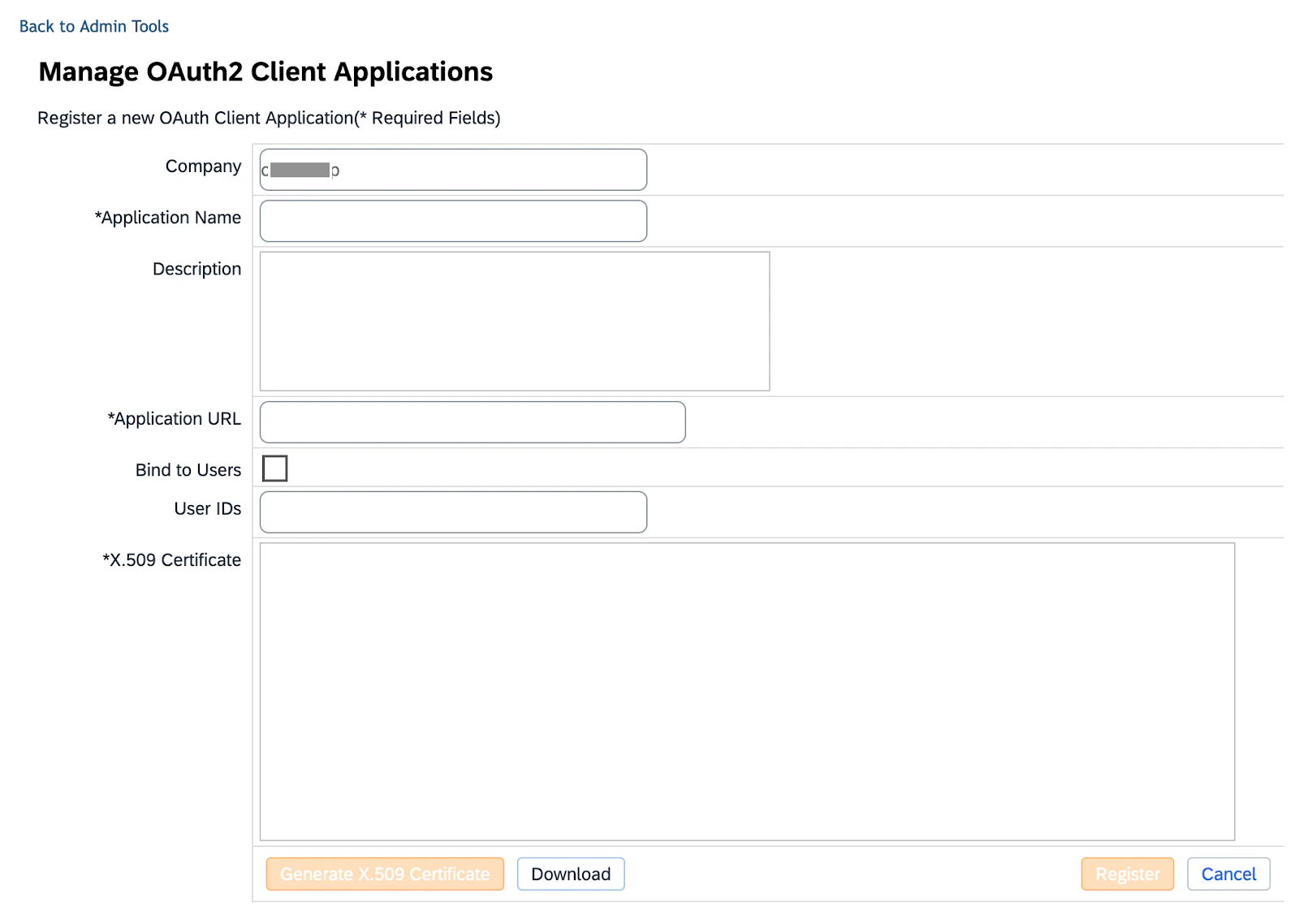
3
Enter the Application URL
Enter
https://oleria.com/ in the Application URL field. This URL is used for identification purposes only, not for connection.4
Bind to a user
Select Bind to User, then enter the ISU user ID. This restricts OAuth token requests to the specified user only.
5
Create an X.509 certificate
Create an X.509 certificate by following the steps on this guide.
Keep the private key from this certificate pair in a secure location. You’ll paste it into Oleria when you connect the integration.
6
Enter the public key
Enter the public key generated in the previous step in the X.509 certificate field.
7
Register and save the API key
Select Register to save your registration. Save the API key - this is the Client ID for integration with Oleria.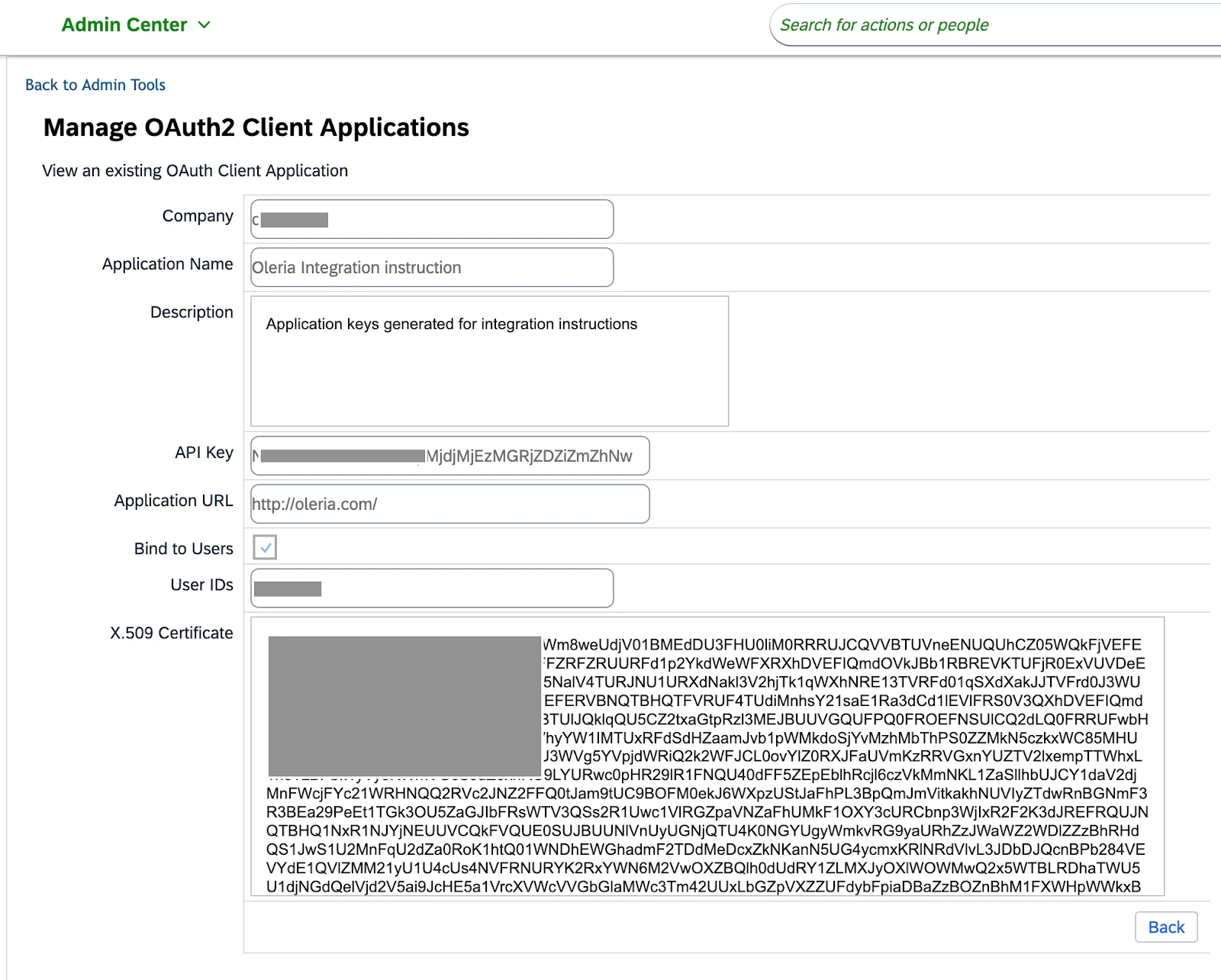
Connect SAP SuccessFactors to Oleria
1
Open the integration
Select Add Integration for SAP SuccessFactors.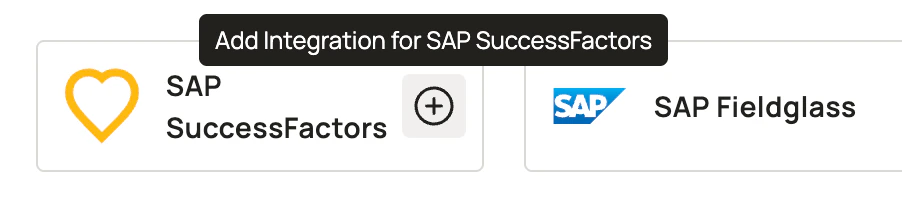
2
Enter the server URL
Enter the server URL. You can find your server URL from this link, or contact SAP technical support.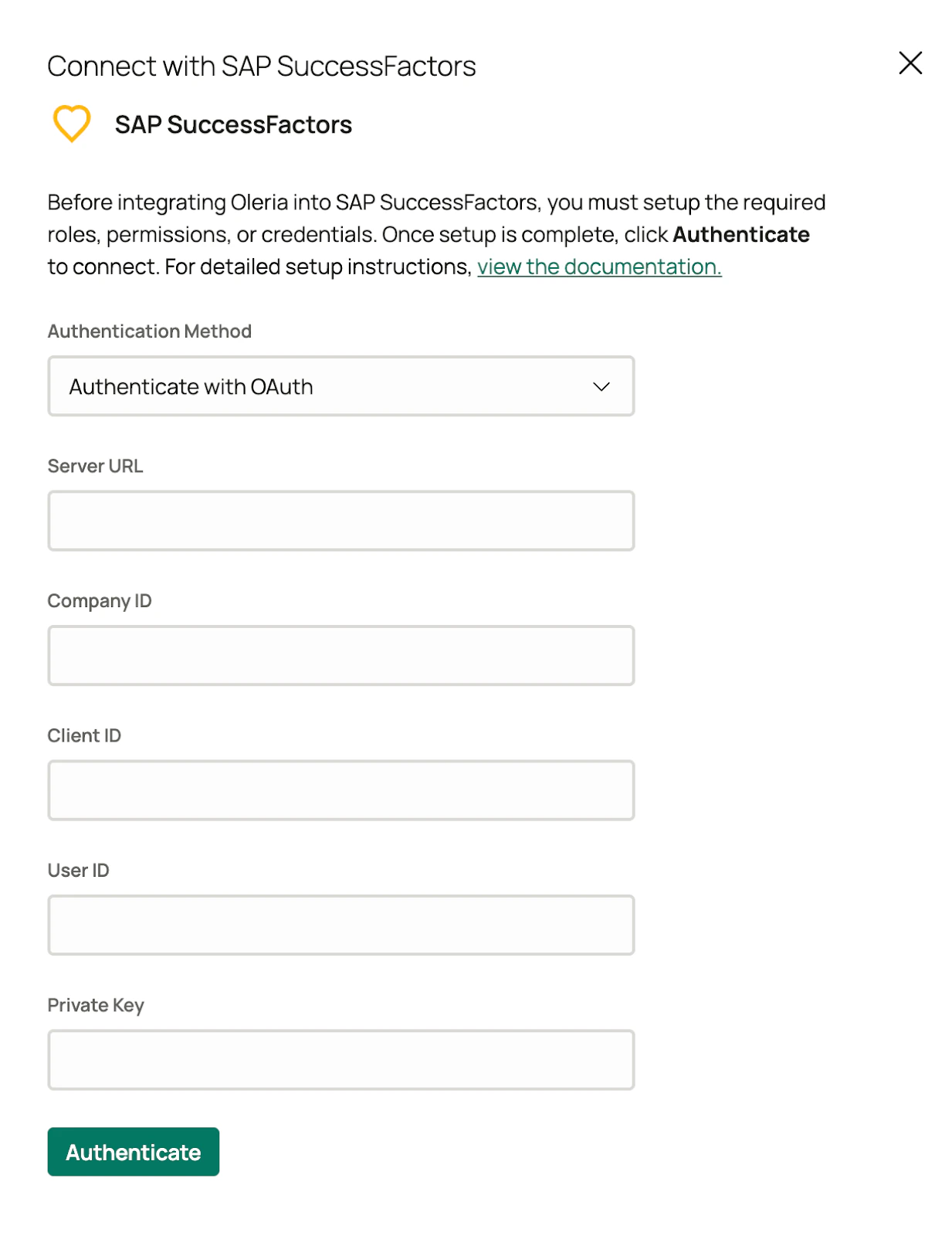
3
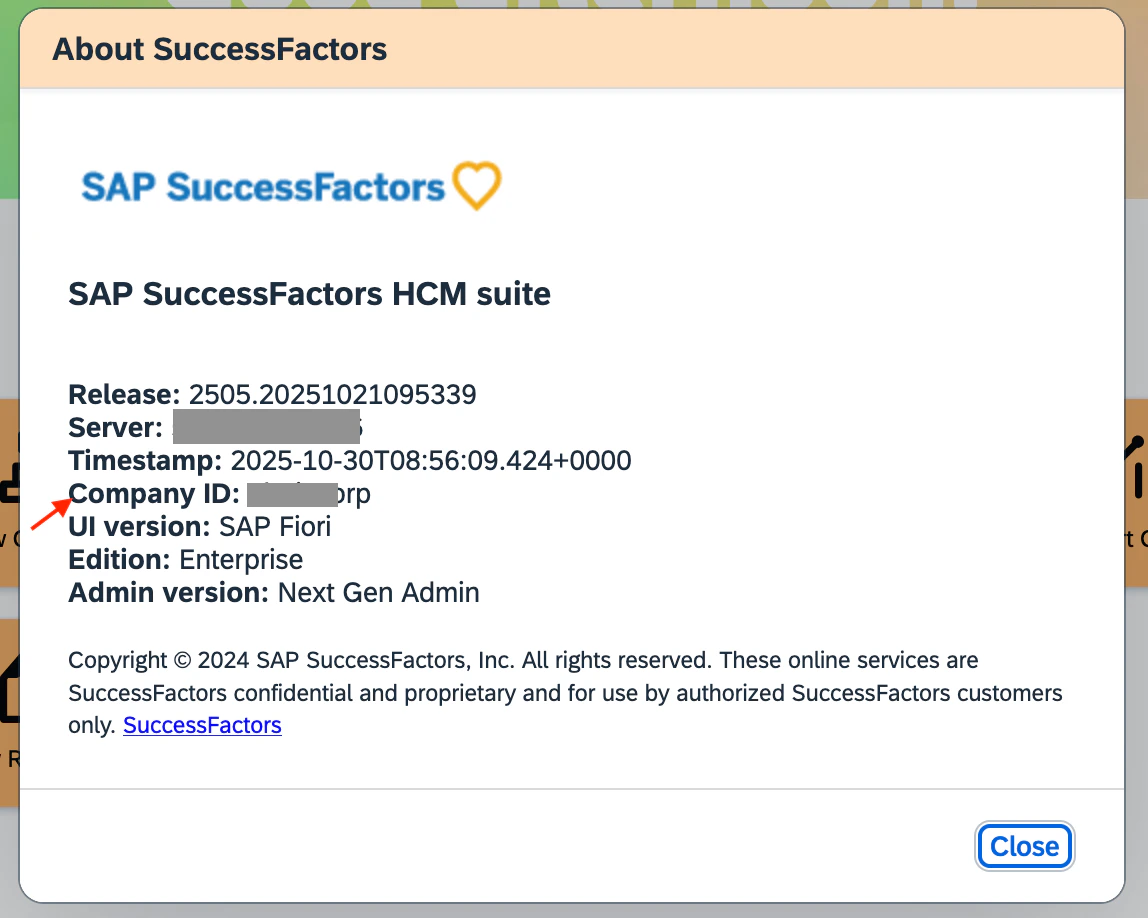
Enter the Company ID
Enter the Company ID. You can find it by clicking Show version information from the profile dropdown menu.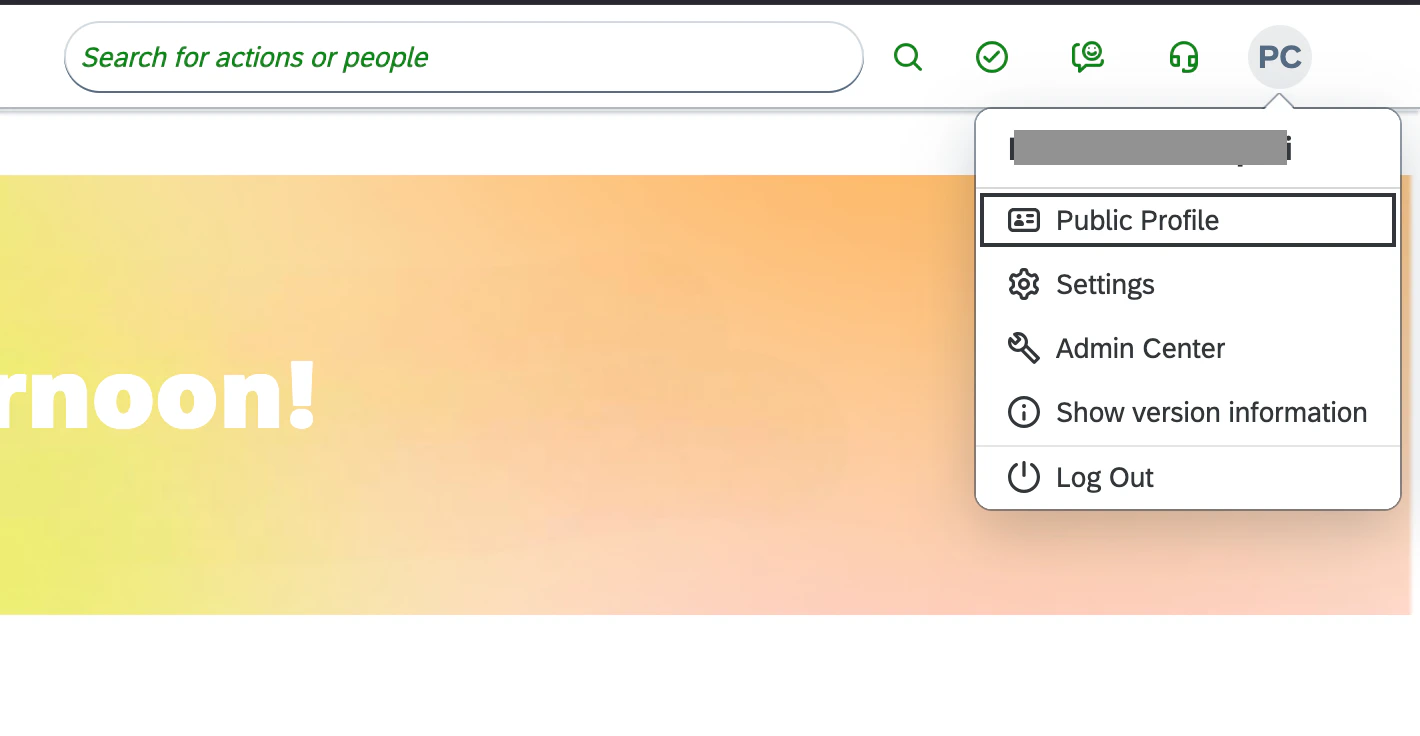
4
Enter the remaining credentials
Enter the following:
- ISU user ID
- Client ID - generated in the previous section
- Private key - the private key from the X.509 certificate you created in the previous section
5
Authenticate
Select Authenticate. On successful authentication, find the new SAP SuccessFactors instance on the Connected tab of the Integrations page.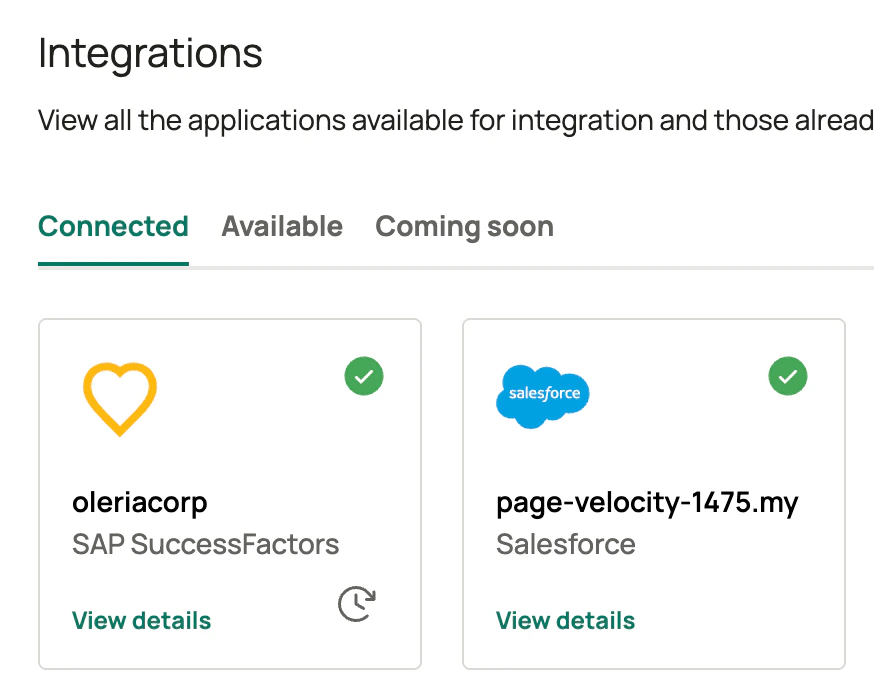
Verify the integration
Select View Details on the SuccessFactors integration on the Connected tab of the Integrations page to view the integration health status.