

What Oleria discovers
- Users and service accounts - AD user and
inetOrgPersonobjects, including accounts that hold admin rights through group membership. - Groups - security and distribution groups, with direct and nested membership.
- Computers - computer objects and the groups and organizational units they belong to.
- Organizational units and group policies - your OU structure, group policy objects, and the domain.
- Activity - Windows security events, when you configure event forwarding.
Prerequisites
- Admin access on the Oleria platform to add a new integration.
- A domain-joined Windows server (ADDJ machine) to install the Oleria AD agent on.
- Administrator permissions on that machine.
- Permission in Active Directory to create a user and delegate read permissions.
Agent host requirements
The Oleria AD agent runs on the domain-joined Windows server you choose. Make sure that server meets these requirements:If you need to route the agent’s outbound traffic through a proxy, contact us at support@oleria.com before you install.
Create a service account in Active Directory
Create a dedicated service account for Oleria. Use a service account, not an employee account, so the integration keeps working if someone leaves. For discovery, the account needs read access to user, group, computer, organizational unit (OU), and Group Policy Object (GPO) objects, which a standard domain user has by default. To use remediation actions, it also needs write access to the member attribute of the groups it manages.1
Create a new user
Sign in to Active Directory and create a new user, for example, Oleria Read Admin.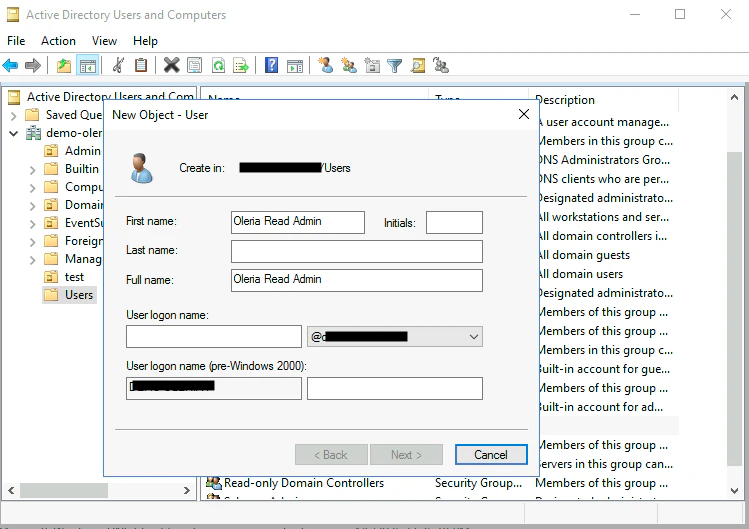
2
Delegate control
Open your AD Domain and select Delegate Control.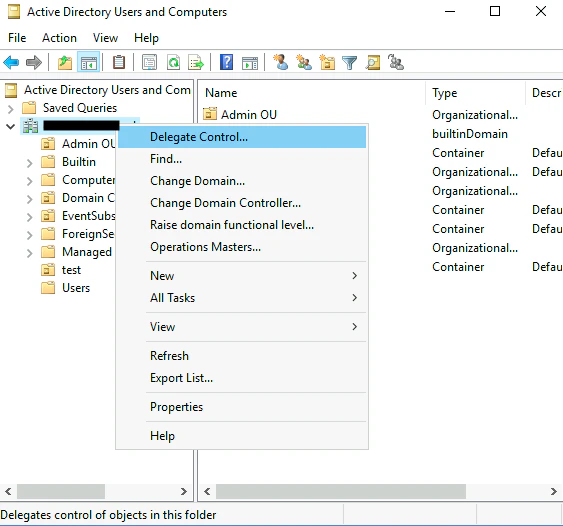
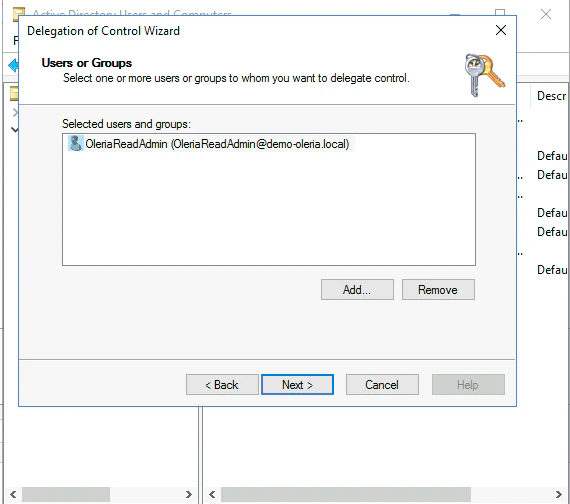
- Read all user information
-
Read all inetOrgPerson information
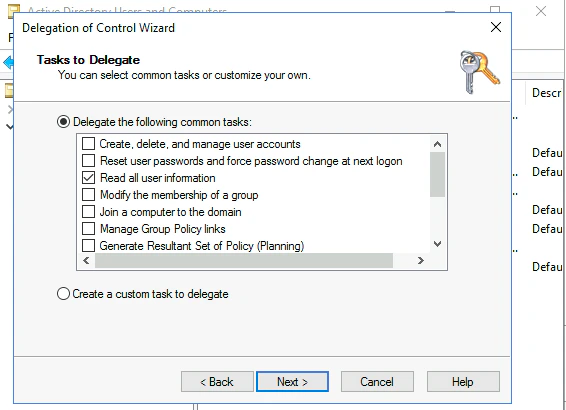
3
Verify group membership
The account will be automatically added to the Domain Users group. Open the Domain Users group to verify the service account.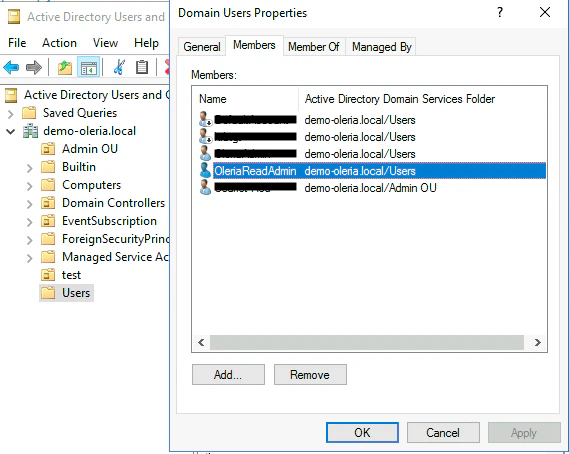
Configure event forwarding
Event forwarding is how Oleria gets activity for Active Directory. It forwards Windows security events from your domain controllers, so Oleria can show sign-in and account activity alongside the accounts it discovers. Without event forwarding, Oleria still discovers user accounts but shows no activity. To set it up, follow Microsoft’s guide to configure Windows event forwarding.Connect Active Directory to Oleria
1
Open the integration
Sign in to your Oleria workspace and select Workspace -> Integrations -> Active Directory.
2
Name your agent
Provide a name for your agent and select Continue.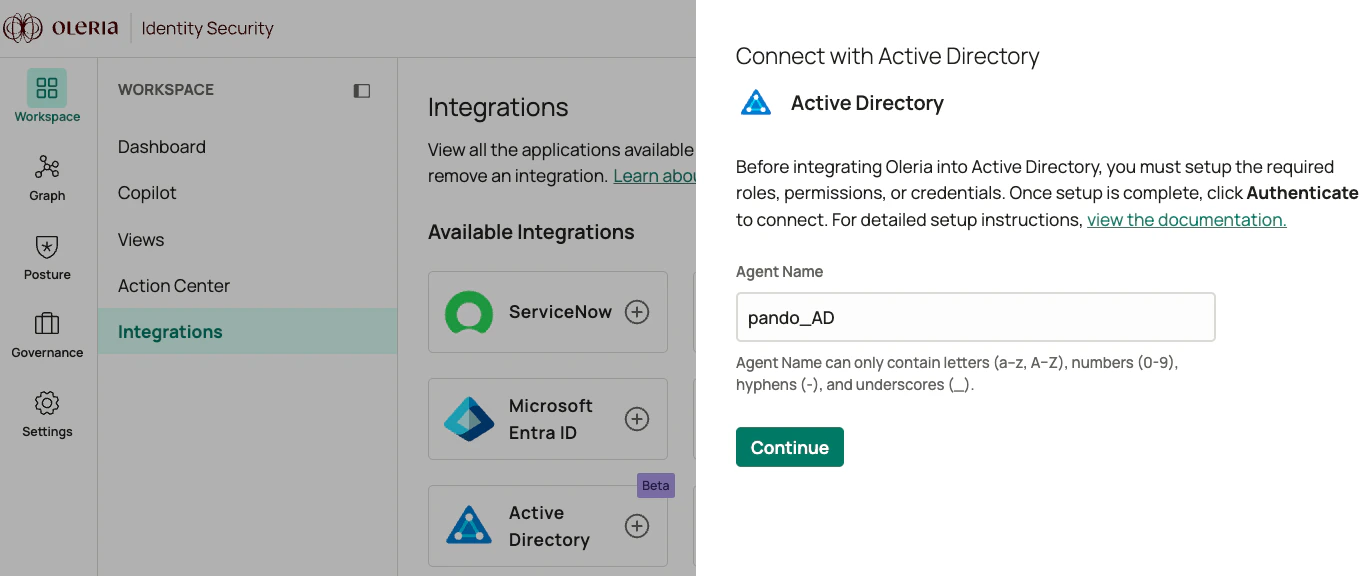
3
Copy the installation script
Oleria shows a PowerShell installation script. Copy it. You’ll run it on the domain-joined server where you want to install the Oleria AD agent.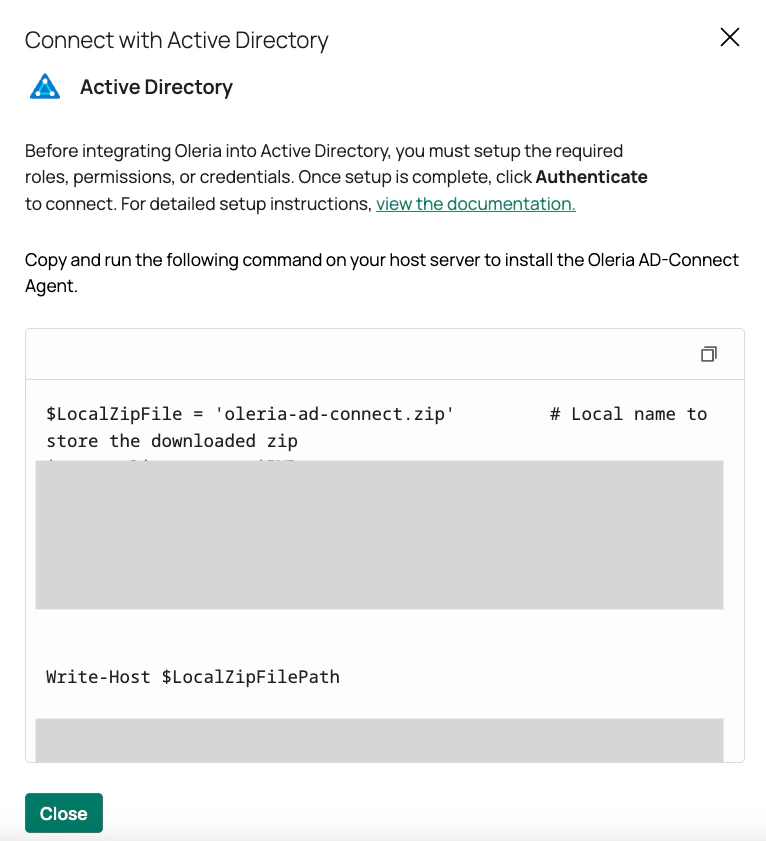
Install the Oleria AD agent
1
Run the installation script
Sign in to the ADDJ machine, open PowerShell as an administrator, and run the script you copied in the previous section.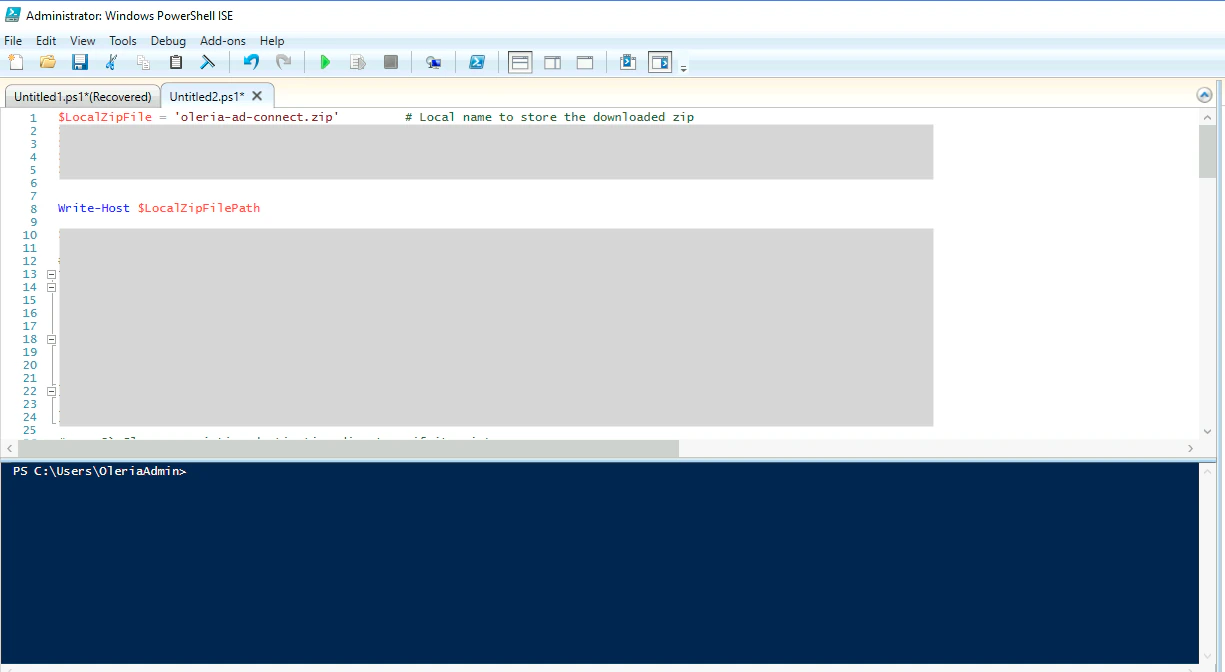
2
Accept the license terms
The Oleria AD agent installer opens. Accept the license terms and select Next.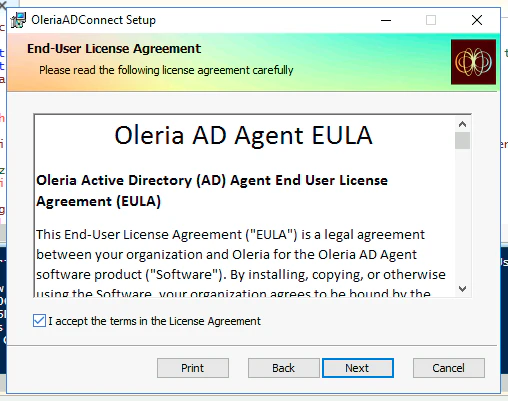
3
Provide the service account details
On the next page, provide the following: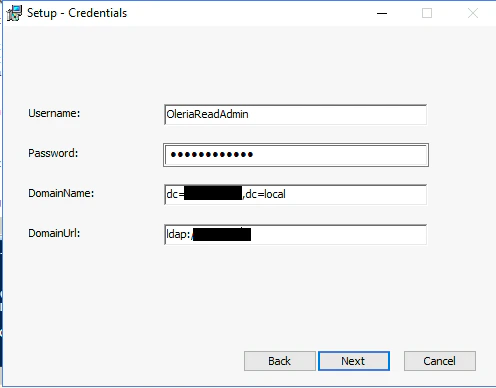
- Username - the name of the service account you created
- Password - the service account’s password
- DomainName - your domain in distinguished name format (for example, if your domain is
example.local, enterdc=example,dc=local) - DomainUrl - the LDAP URL of your domain controller, including the scheme. For example,
ldap://10.0.0.5orldap://dc01.example.local:389. Useldaps://with port636if your domain controller requires LDAPS.
4
Confirm installation
When the installation completes, the OleriaADConnectAgent service appears in the Windows services list.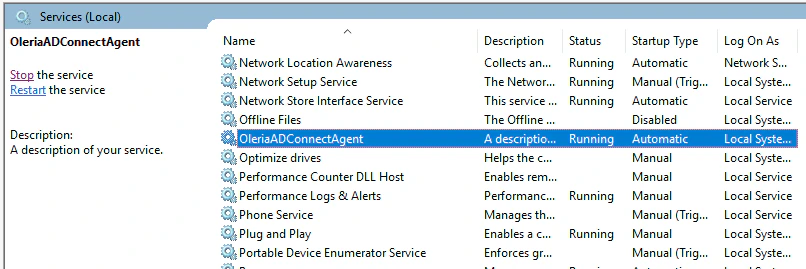
Verify the integration
In your Oleria workspace, go to Integrations -> Connected -> Active Directory and select View Details. The side panel shows the health status of the Oleria AD agent.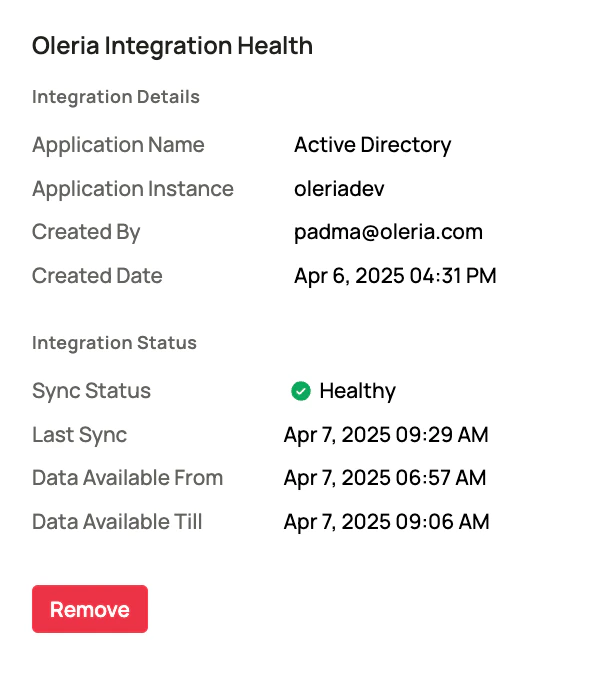
Remediation actions
Oleria can take the following actions in Active Directory. Each action can be reverted.- Add a user to a group
- Remove a user from a group
These actions change the group’s member attribute. The service account needs write permission on the member attribute of the groups you want Oleria to change. The read-only permissions from the setup steps above aren’t enough.