

What Oleria discovers
Once connected, Oleria continuously discovers and maps the following from your Rollbar account:- Users - every user in your Rollbar account.
- Teams - all teams and their membership.
- Project access levels - each team’s fixed access level on a project:
owner,standard,light, orview. - Non-human identities - accounts Oleria classifies as non-human among your Rollbar users.
- Projects - every project in the account.
Prerequisites
- Admin access to your Rollbar account, to generate an account access token
- Account access token ready before connecting in Oleria (see the next section)
Use a service account rather than a personal employee account for the integration to ensure continuity if the employee leaves or changes roles.
Connect Rollbar to Oleria
1
Open Account access tokens in Rollbar
Log in to Rollbar, select the Settings icon in the left sidebar, then select Account access tokens.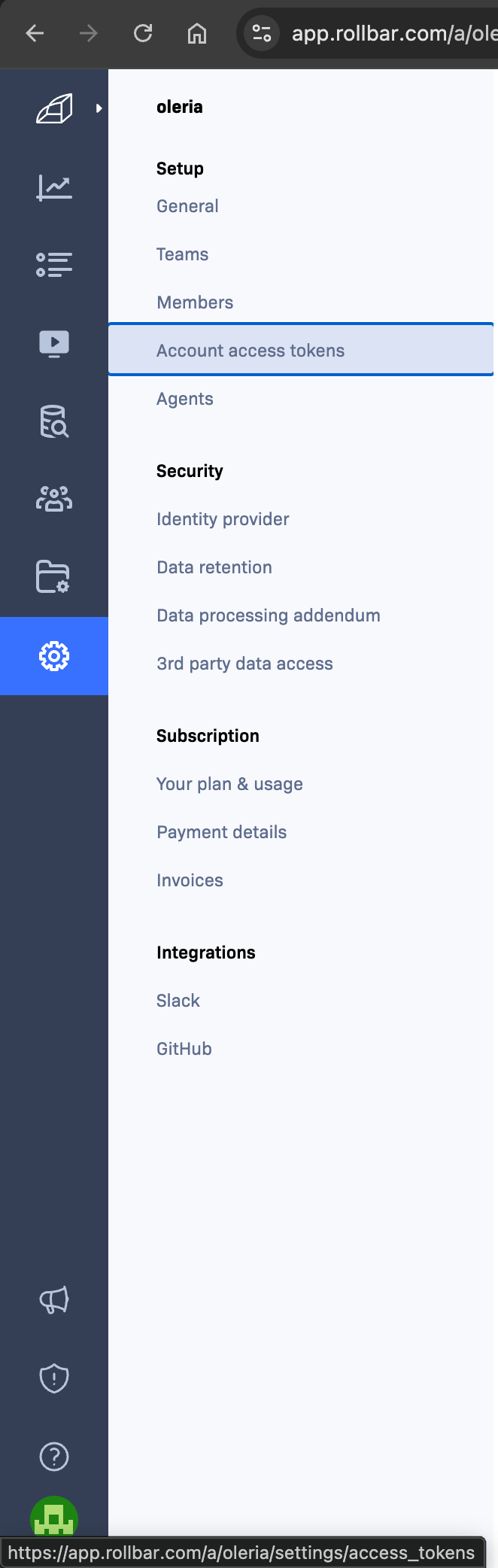
2
Create an account access token
Select Create New Token. Enter a Name (for example, 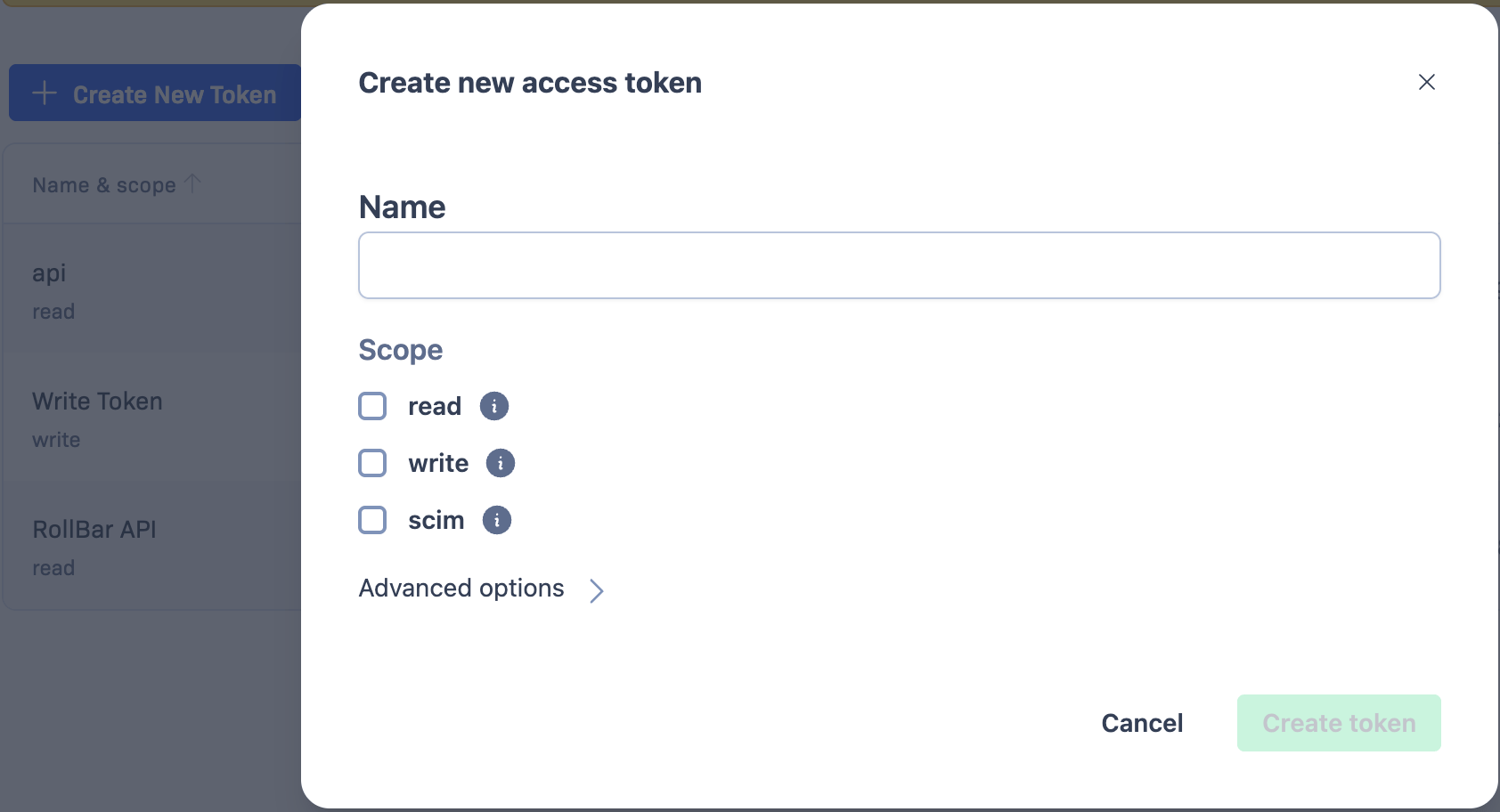
Oleria connector), then choose a Scope:- read - required for discovery (users, teams, and projects)
- write - required if you want Oleria to perform governance actions (team membership changes)
- scim - not required for the Oleria integration
Store the token securely and treat it as a secret credential.
3
Connect in Oleria
Go to your Oleria workspace, select Integrations -> select Rollbar. Fill in the connection form: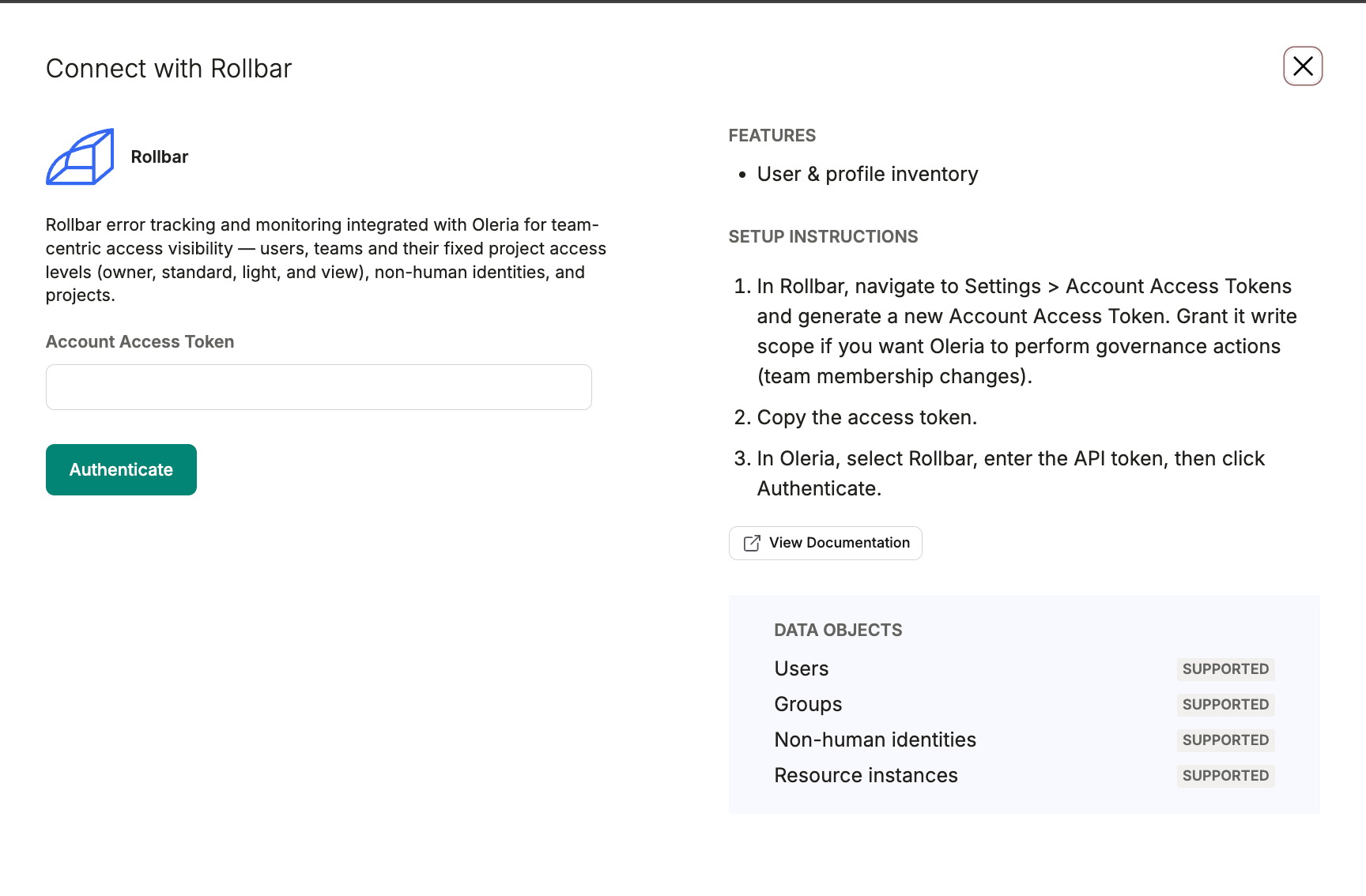
Select Authenticate to validate and save the integration. Oleria checks the credentials against Rollbar before saving.
Verify the integration
Confirm the Rollbar account appears in your Oleria workspace connected integrations. After the first sync completes, you can review the discovered users, teams, and projects in your Oleria workspace.If you rotate or revoke the account access token, update the credentials in Oleria by editing the integration. A revoked token stops discovery until you provide a new one.
Governance actions
Beyond discovery, Oleria can change team membership in Rollbar to remediate risk. This requires an account access token with write scope.Known limitations
- Team-level access model - Rollbar access is reported through team membership and each team’s fixed project access level (
owner,standard,light,view). Oleria does not report a separate account-level role. - Non-human identity classification is inferred - Rollbar’s user API does not return an explicit service-account or bot flag. Oleria classifies non-human identities using its own heuristics, so treat this classification as best-effort rather than authoritative.
- No audit log sync - Oleria does not sync audit activity for Rollbar; there is no Rollbar audit or event log API to read from.