

If you connected xMatters through the earlier SCIM setup (a SCIM base URL and bearer token), that connection stops syncing once this connector replaces it. Remove it and add xMatters again with an API key or web login, as described below.
What Oleria discovers
Once connected, Oleria continuously discovers and maps the following from your xMatters instance:- Accounts - every user in your instance, with their name, email address (from their email devices), status, license type, roles, site, and when they were created, last changed, and last signed in.
- Groups - on-call, broadcast, and dynamic groups, their user members and nested groups, and the supervisors who manage each group.
- Roles - every default and custom role, and which users hold each one.
- Resources - workflows, messaging forms, scenarios, and services, and how they fit together (a workflow contains its forms, a form contains its scenarios).
- Resource access - who can send alerts with each messaging form and scenario, which roles can observe each group, and which form each integration triggers.
- Non-human identities (NHIs) - service accounts (users whose only roles are REST Web Service User or Web Service Supervisor), linked to their supervisors as owners, and the integrations in your workflows.
- Credentials - the API key Oleria connects with, linked to the user who owns it, and workflow endpoints that store a password or an OAuth client secret. Oleria records only names, types, and owners. It never reads or stores secret values.
- Activity - inbound signals, alerts and who raised them, alert comments and responses, integration calls with their source IP address, and user import jobs.
Oleria doesn’t import on-call schedules, incident details, or message content. This integration covers identity and access governance for xMatters only.
Prerequisites
- An xMatters instance. Note its hostname, for example
acme.xmatters.comoracme.na1.xmatters.com. - A dedicated xMatters integration user with the REST Web Service User role (or Company Supervisor, for full visibility). Oleria reads and acts with this user’s access.
- That role must be an observer of every group you want Oleria to see. See Let the integration user see every group.
- An xMatters user who can manage the integration user’s API keys, such as the user’s supervisor or a Company Supervisor.
- Admin access to the Oleria workspace.
Create the integration user in xMatters
1
Open the integration user
Go to Users and create a user for Oleria, for example Integration Service. Open the user’s page.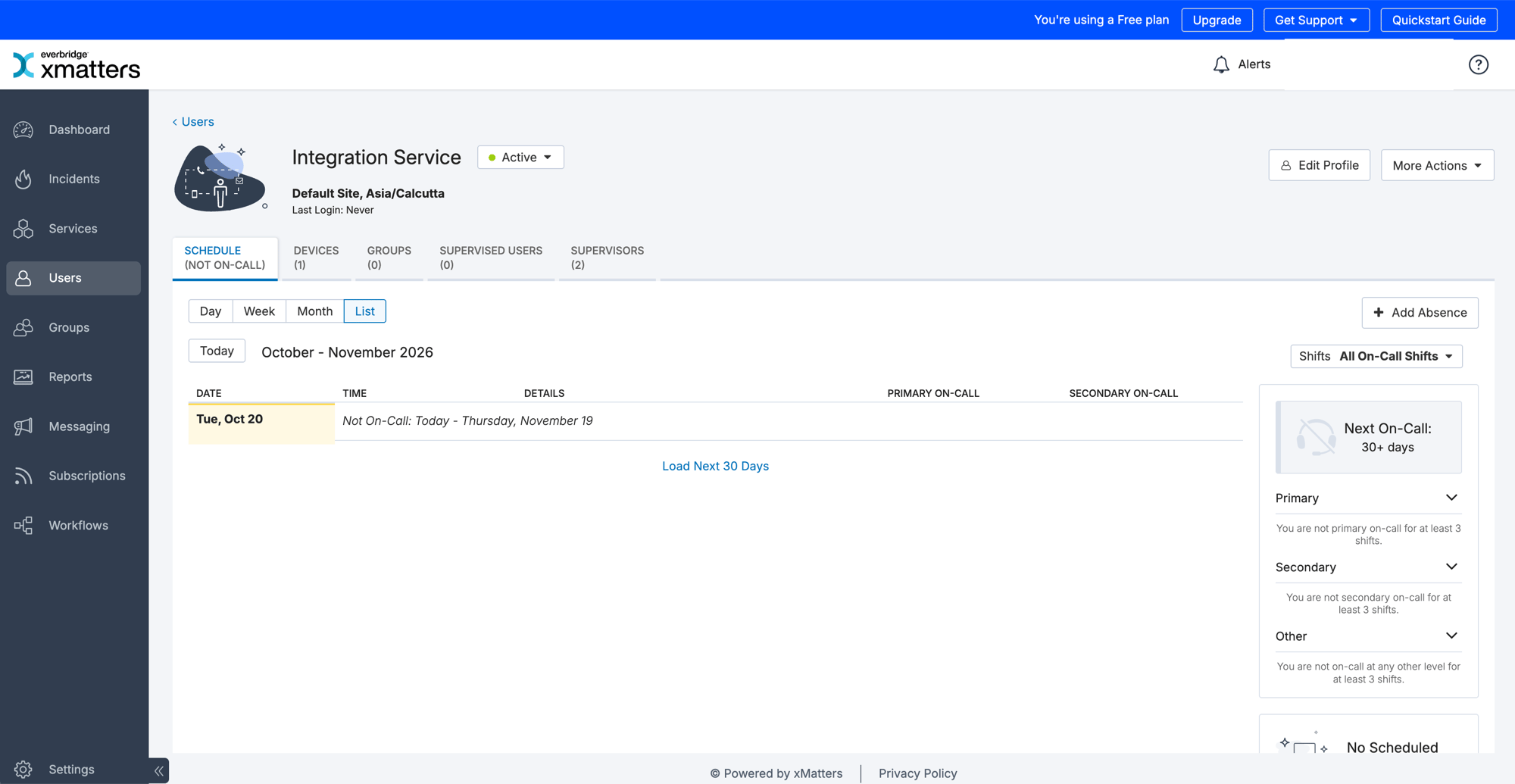
2
Assign the role
Select More Actions > Manage Roles. Assign REST Web Service User, remove any other roles, and select Save.The REST Web Service User role lets the user call the xMatters REST API. It also includes Data Synchronization and Edit Incidents, so it isn’t read-only.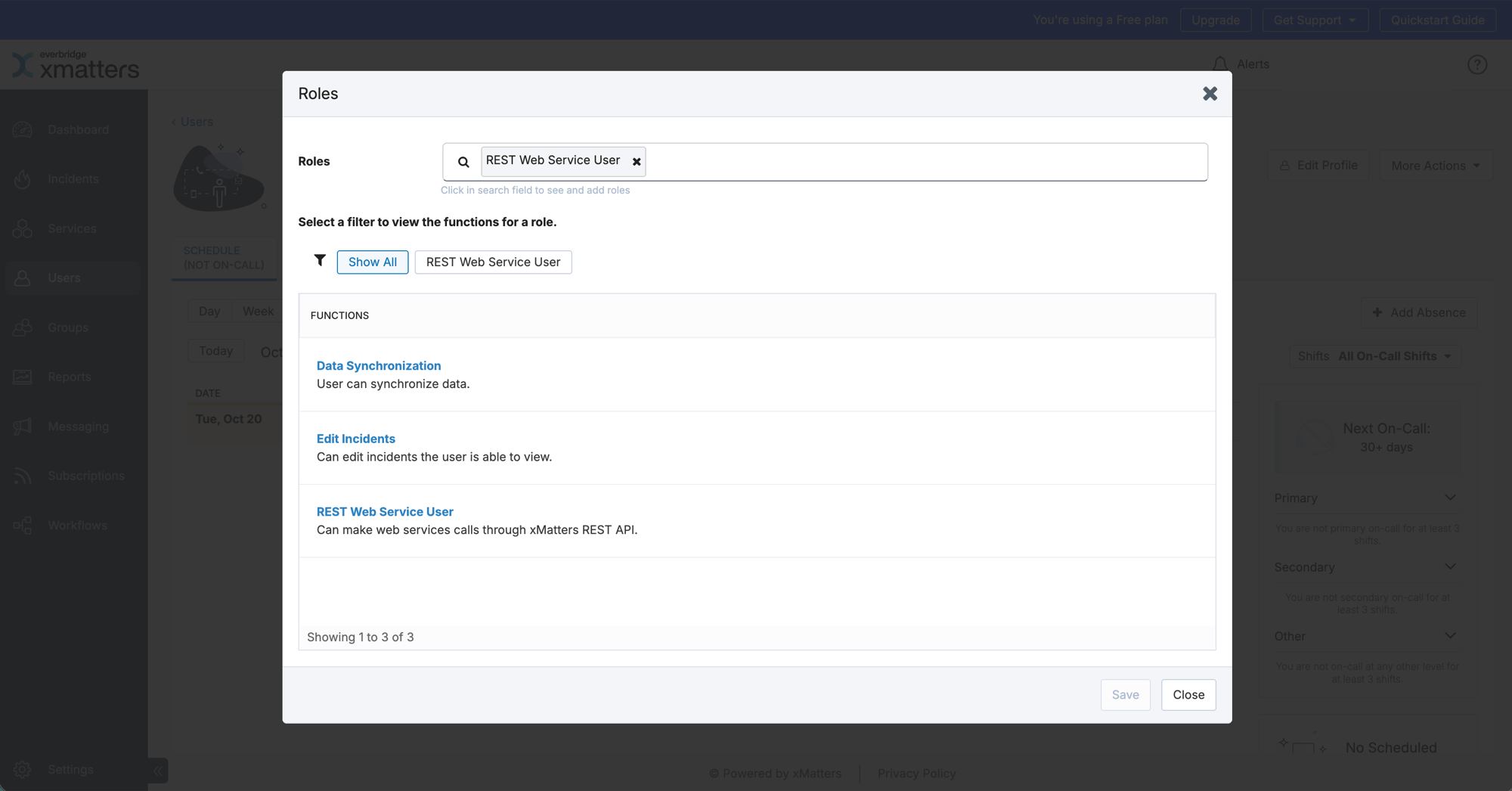
Create an API key for the integration user
1
Open Manage API Keys
On the integration user’s page, select More Actions > Manage API Keys.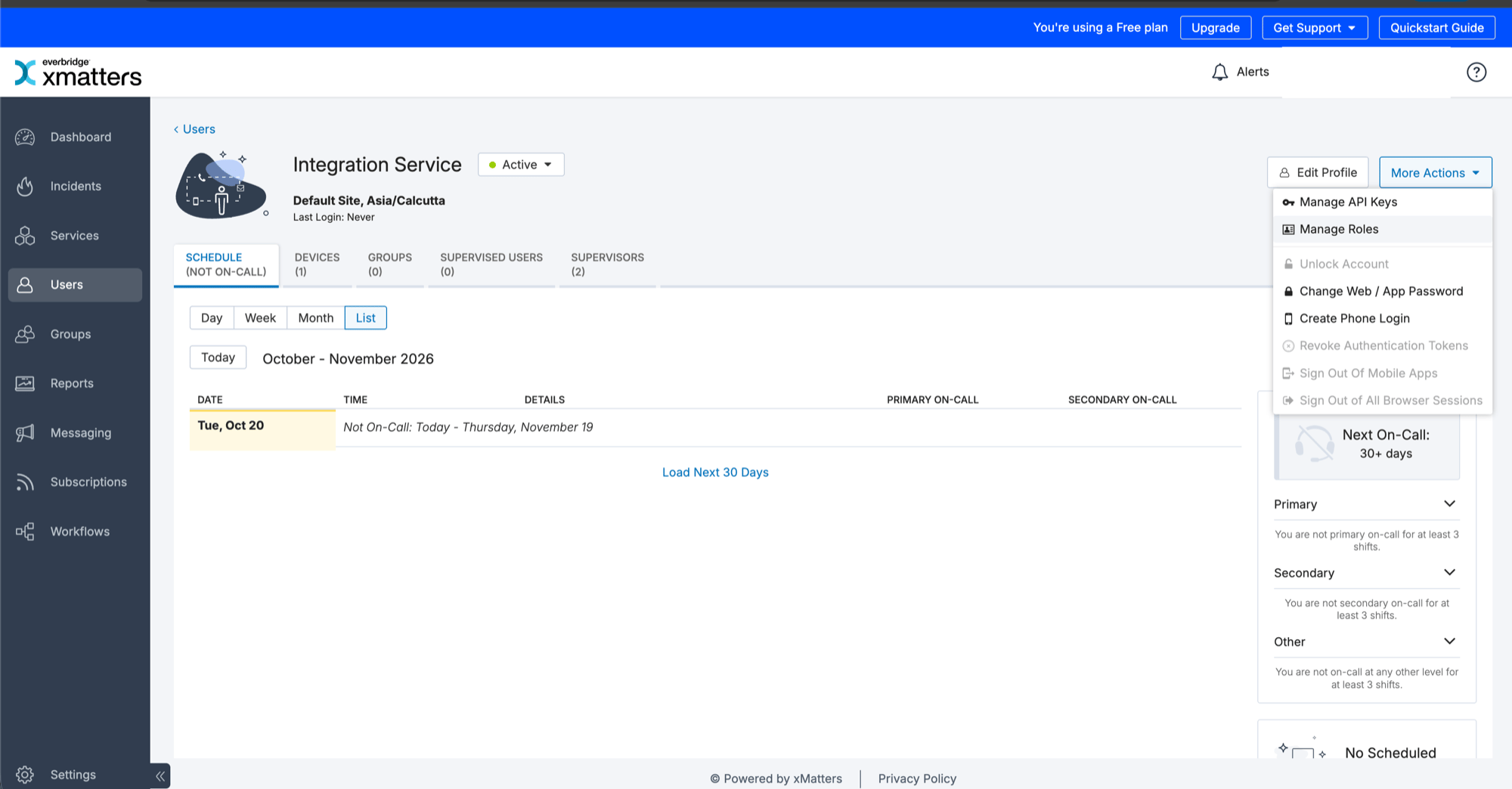
2
Copy the User API Key and create a credential
Copy the User API Key shown at the top of the page. This is the API key you enter in Oleria, and it identifies the integration user, so Oleria knows which user it connects as. Then select Create API Key Credential.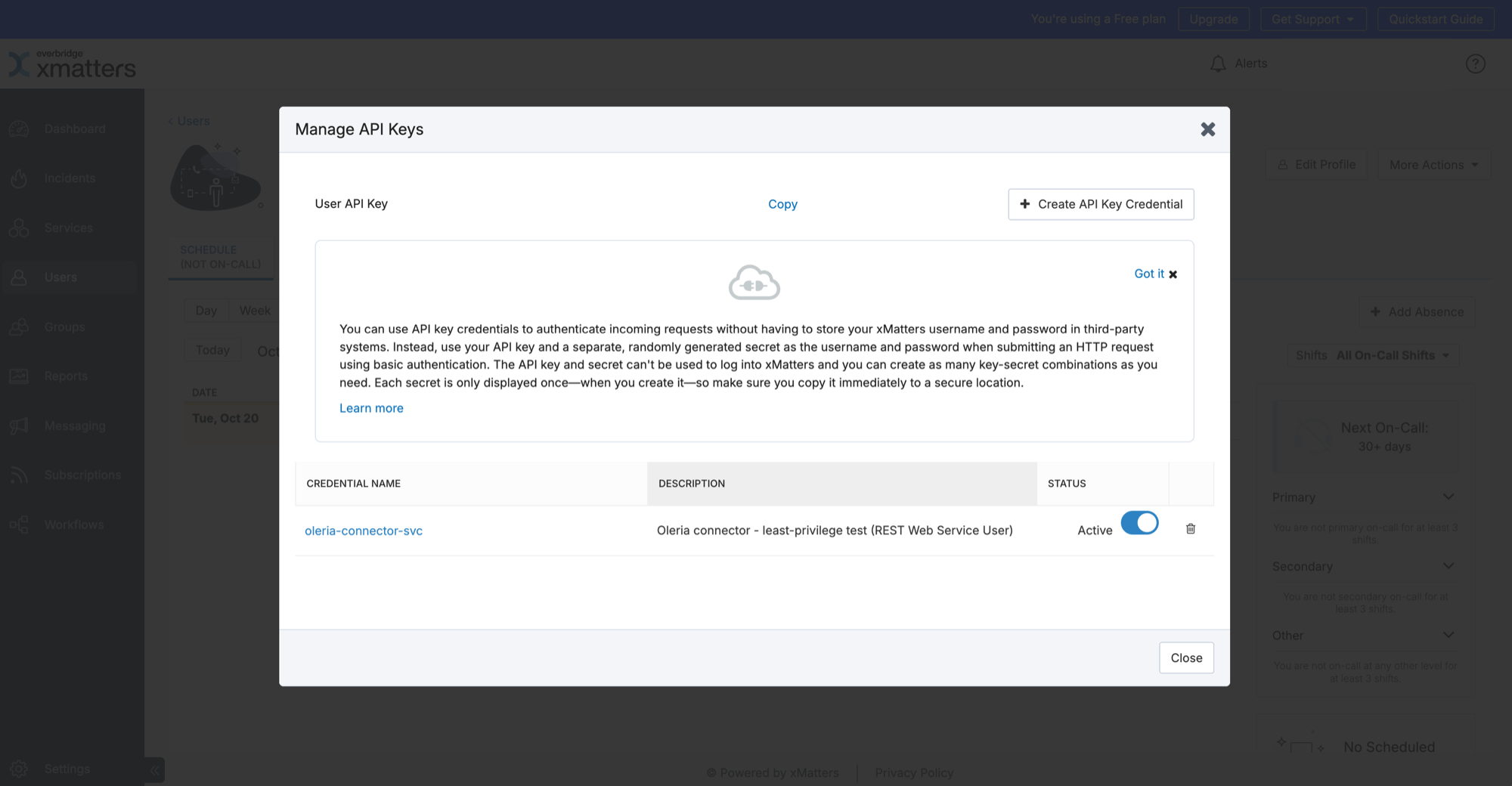
3
Name the credential
Enter a Name you’ll recognize later, for example 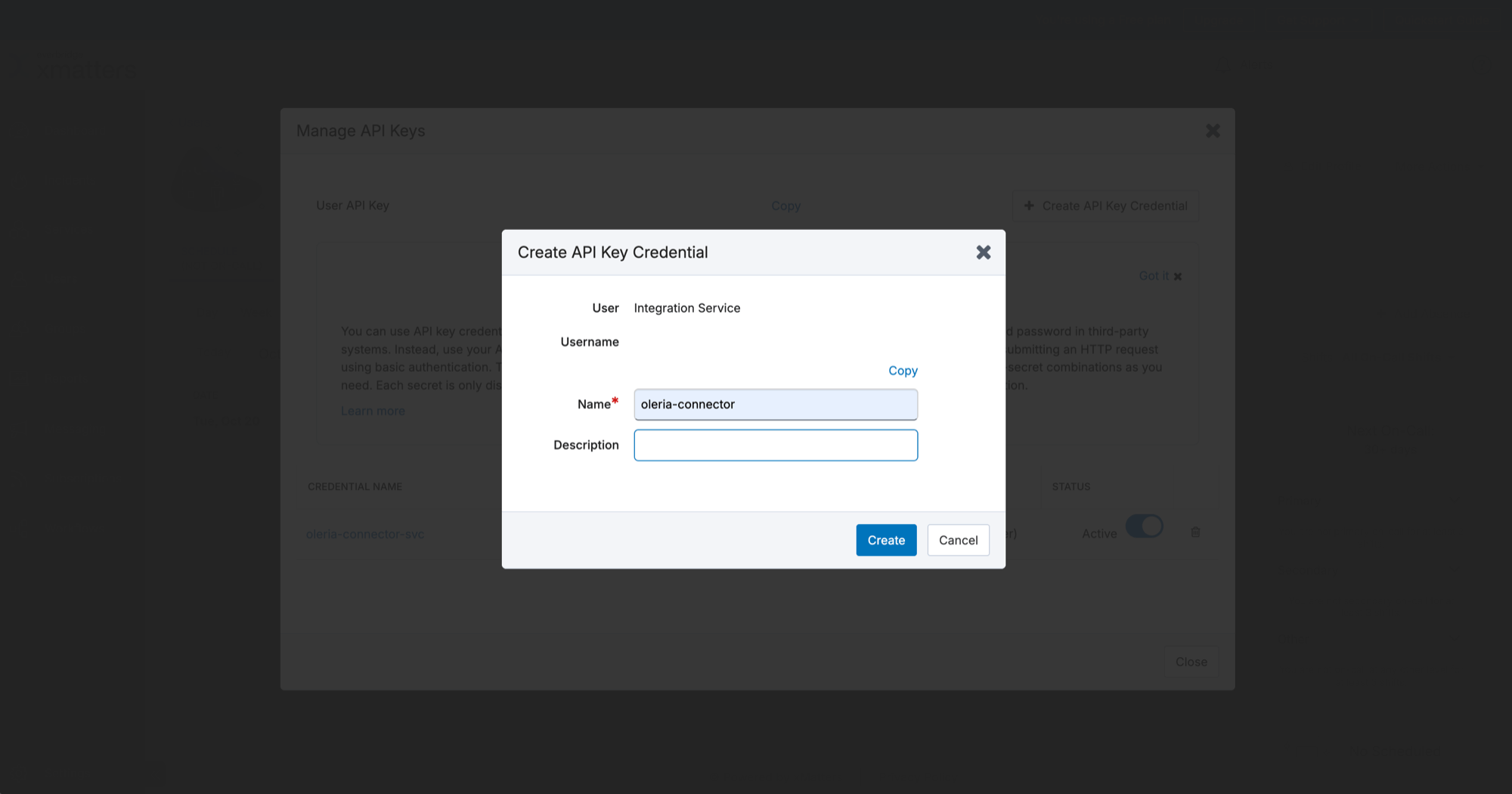
oleria-connector, and an optional Description. Select Create.4
Copy the secret
Copy the secret right away. xMatters shows it only once. You need the API key and the secret to connect xMatters to Oleria.
You can connect with the integration user’s web login ID and password instead of an API key. We recommend an API key: it can’t be used to sign in to xMatters, and you can revoke it without changing the user’s password. If your instance enforces single sign-on, a password sign-in may not be allowed, so use an API key.
Let the integration user see every group
xMatters can limit which roles see a group. If a group restricts its observers, users whose role isn’t an observer can’t see it, and Oleria won’t discover it.1
Open the group's observers
Go to Groups, open a group, and select People > Observers.
2
Add the role
Select Manage Observers and add REST Web Service User (or the role you gave the integration user). Repeat for each group that restricts observers.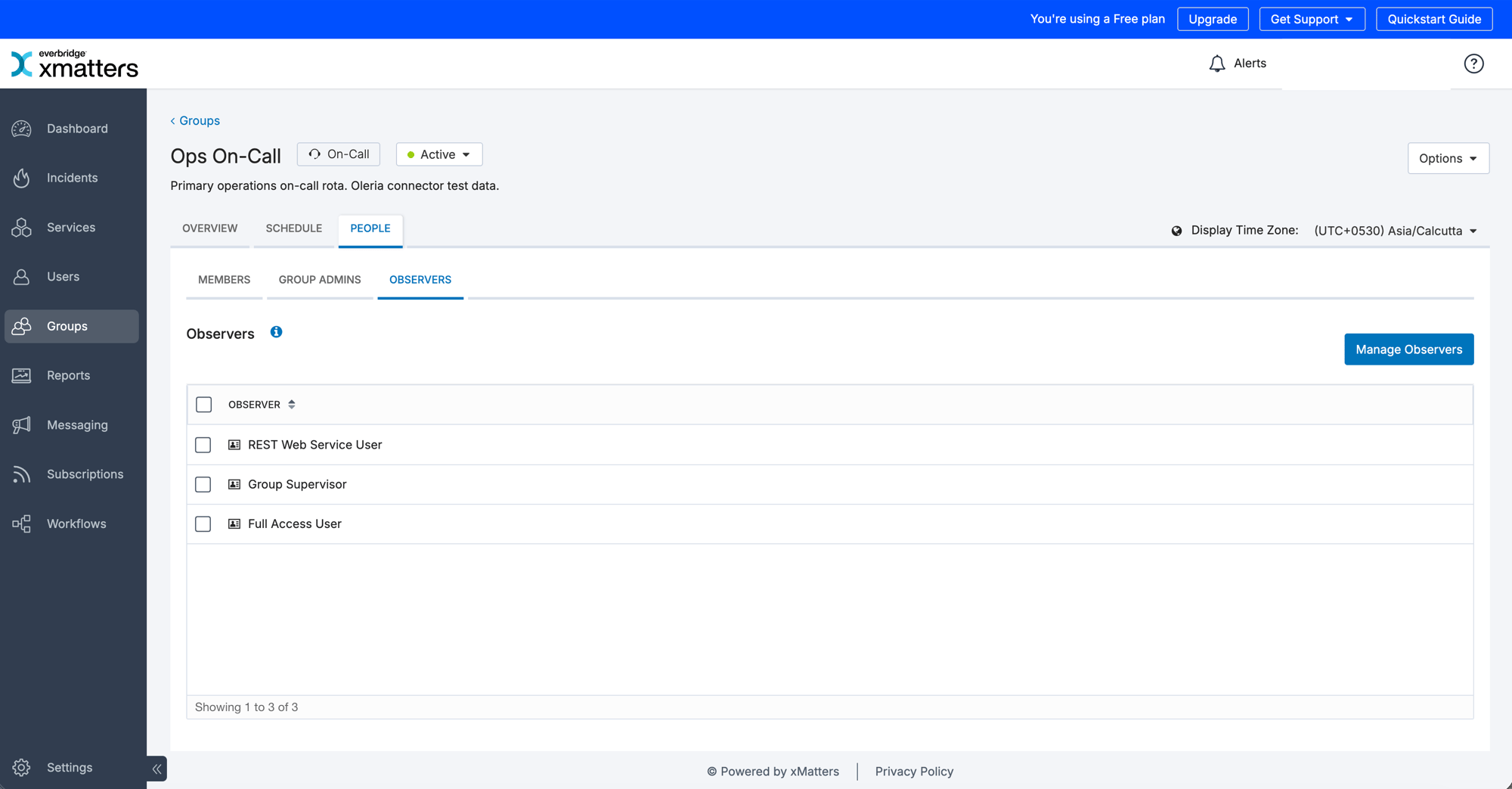
Permissions Oleria needs
Connect xMatters to Oleria
1
Open the integration
Go to your Oleria workspace, select Integrations -> select xMatters.
2
Complete the connection form
Select Continue and provide the following:
Oleria stores the secret or password encrypted.
3
Confirm the connection
Select Authenticate. Oleria checks that it can read your instance with these credentials before it saves anything. Find the newly connected instance on the Connected tab of your Oleria Integrations page.
When you edit the integration, you can’t change the instance hostname. To connect a different instance, add another integration. Leave the secret or password blank to keep the stored one, unless you change the authentication method.
Verify the integration
Confirm the xMatters instance appears on the Connected tab of your Oleria Integrations page with a status of Healthy. After the first sync completes, check that users, groups, and roles appear in your Oleria workspace, that the integration user appears as a service account (when REST Web Service User is its only role), and that your workflows and messaging forms appear as resources.Remediation actions
Oleria can take these actions in xMatters. Each one runs with the access of the integration user:- Disable a user and enable a user. Disabling sets the user’s status to Inactive.
- Create a user. Oleria creates the user with the Standard User role, a work email device, and no password. The user is Inactive unless you choose to activate it, and signs in through single sign-on or the password reset flow.
- Delete a user. This can’t be undone.
- Create a group.
- Add a user to a group and remove a user from a group.
- Assign a role to a user and remove a role from a user.
- Revoke a user’s permission to send with a messaging form. This removes the user’s own sender permission. If the user can send through a role, Oleria tells you which role to remove instead.
- Disable a non-human identity. A service account is set to Inactive. An integration is undeployed.
- Oleria reads the user, group, or form before it changes anything. If it’s already in the requested state, Oleria makes no change.
- Reverting an action undoes only the change that action made. Deleting a user can’t be reverted.
- Oleria won’t disable, delete, or remove roles or sender permissions from the integration user it connects as.
- Oleria won’t delete a Company Supervisor.
- Oleria won’t remove a user’s last role, or a form’s last sender.
- Scenario sender permissions can’t be changed from Oleria. Change them in xMatters.
- Oleria can’t revoke a user’s sessions or API keys. xMatters allows this only in its web interface.
Known limitations
- API keys are per user. xMatters has no organization-wide key, so the connection depends on the integration user. Use a dedicated user, not a person’s account.
- Groups that restrict observers are hidden unless the integration user’s role is an observer. See Let the integration user see every group.
- Some built-in workflows can’t be read. xMatters may refuse to show the integrations, endpoints, or form senders of a built-in workflow to the REST Web Service User role. Oleria skips those details and keeps syncing everything else.
- No audit log or sign-in history. xMatters has no API for its system audit report, sign-in history, API key list, OAuth tokens, SAML settings, or role permissions, so Oleria doesn’t import them.
- No multi-factor authentication or single sign-on status. xMatters doesn’t report them per user. Multi-factor authentication comes from your identity provider.
- Limited user details. xMatters stores email addresses on devices, and job title, department, and manager only as custom fields. Oleria imports email from email devices.
- No creation dates for groups, roles, integrations, or endpoints, and no last password change. xMatters doesn’t report them.
- Activity has collection limits. Oleria reads comments and responses for the first 200 alerts in each sync and misses responses sent more than 24 hours after an alert. Integration calls come from each integration’s latest 1,000 log entries, for up to 200 integrations.
- Signals and alerts older than 30 days need extra permission. xMatters returns older records only with its historical data permission, which xMatters Support turns on.
- OAuth isn’t supported. xMatters OAuth uses the same user’s password, so it adds no protection over an API key.