

The Oleria connection form’s Access Token field accepts any of three credentials: a group access token, a personal access token, or a GitLab service account’s personal access token. All three authenticate the same way against the GitLab API. Use a dedicated group access token or service account, not an employee’s personal access token - if that employee leaves and their account is disabled, the integration breaks.
What Oleria discovers
Once connected, Oleria continuously discovers and maps the following from the configured GitLab group:- Accounts - group members (seat-consuming users on Premium and above; all members on Free), including username, name, state, and last activity. With an Owner credential, or a GitLab administrator’s credential on self-managed GitLab, Oleria also reads each member’s email, multi-factor authentication (MFA) status, and whether they sign in through the group’s single sign-on (SSO), when GitLab exposes them. Service accounts are detected with an Owner credential (GitLab 18.10 and later on any plan; Ultimate on earlier versions).
- Roles - GitLab’s built-in access levels (Guest, Planner, Reporter, Developer, Maintainer, Owner, and related levels) and Ultimate custom member roles with their granular permissions.
- User groups - the root group and every descendant subgroup, including nested group membership.
- Resources - projects in the group tree, plus protected branches as their own resources (push and merge access).
- Access - who can reach which project, including:
- direct group membership
- inherited membership from ancestor groups
- group and project shares (the lower of the member’s role in the source group and the share level)
- direct project membership (outside collaborators)
- named protected-branch access control lists (user, group, or deploy key)
- Non-human identities (NHIs) - personal, group, and project access tokens, including when each token was last used; with an Owner credential, enterprise users’ personal access tokens (GitLab.com, Premium and above, from the top-level group) and service account tokens; with a GitLab administrator’s credential, every personal access token on the instance; deploy tokens and deploy keys; cluster agent tokens; group and project CI/CD runners; pipeline trigger tokens; CI/CD job-token inbound allowlists; instance OAuth applications when the credential belongs to a GitLab administrator; Duo Agent Platform catalog agents, including whether each agent is enabled, when the API allows.
- Activity - group and project audit events (Premium and above), including membership changes, token and deploy-key events, protected-branch changes, and authentication events.
Plan coverage
What GitLab returns depends on the group’s plan. If a feature isn’t available on your plan, Oleria skips it and continues syncing everything else, rather than failing the connection:
Group access tokens require Premium or Ultimate on GitLab.com, and are not available on a GitLab.com trial. Self-managed GitLab supports group access tokens on any license. On Free, use a personal access token instead.
Prerequisites
- A GitLab group you want Oleria to inventory (GitLab.com or self-hosted).
- A credential that is Maintainer or Owner on that group. Maintainer is enough to connect and inventory members, projects, and most access; Owner is recommended for full coverage. See Token role: Maintainer vs Owner.
- Creating a group access token still requires you to be Owner of the group in GitLab, even though the token itself can be scoped to Maintainer. That is a GitLab UI gate, not an Oleria requirement.
- For self-hosted GitLab, the instance URL (for example,
https://gitlab.example.com).
Token role: Maintainer vs Owner
Oleria does not reject a Maintainer-level credential at connect time. Authenticate only checks that the credential can see the configured group. Owner is recommended. Maintainer connects and inventories members, projects, and most access, but misses group access tokens, group deploy tokens, the billable seat list, service account detection, enterprise users’ personal access tokens, and the Disable NHI and Revoke anonymous access remediation actions.Compare what Maintainer and Owner can see
Compare what Maintainer and Owner can see
Create an access token in GitLab
A group access token is the preferred credential because it is tied to the group, not to a person. Use a personal access token on Free plans, or a service account token if you want a dedicated bot identity for the connection.- Option A: Group access token (Recommended)
- Option B: Personal access token (Free plan)
- Option C: Service account token
1
Open the group
In the top bar, select Search or go to and find the group you want to connect.
2
Open access tokens
In the left sidebar, select Settings -> Access tokens.
3
Create the token
Select Add new token and set:
Select Create group access token.
4
Copy the token
Copy the token immediately (the prefix is usually
glpat-). GitLab does not show it again after you leave the page.Find the Group ID
Oleria accepts either value:
Both resolve to the same group. The numeric ID is stable if you rename the group; the path is easier to read.
Connect GitLab to Oleria
1
Open the integration
Go to your Oleria workspace, select Integrations -> select GitLab.
2
Complete the connection form
Fill in the connection form: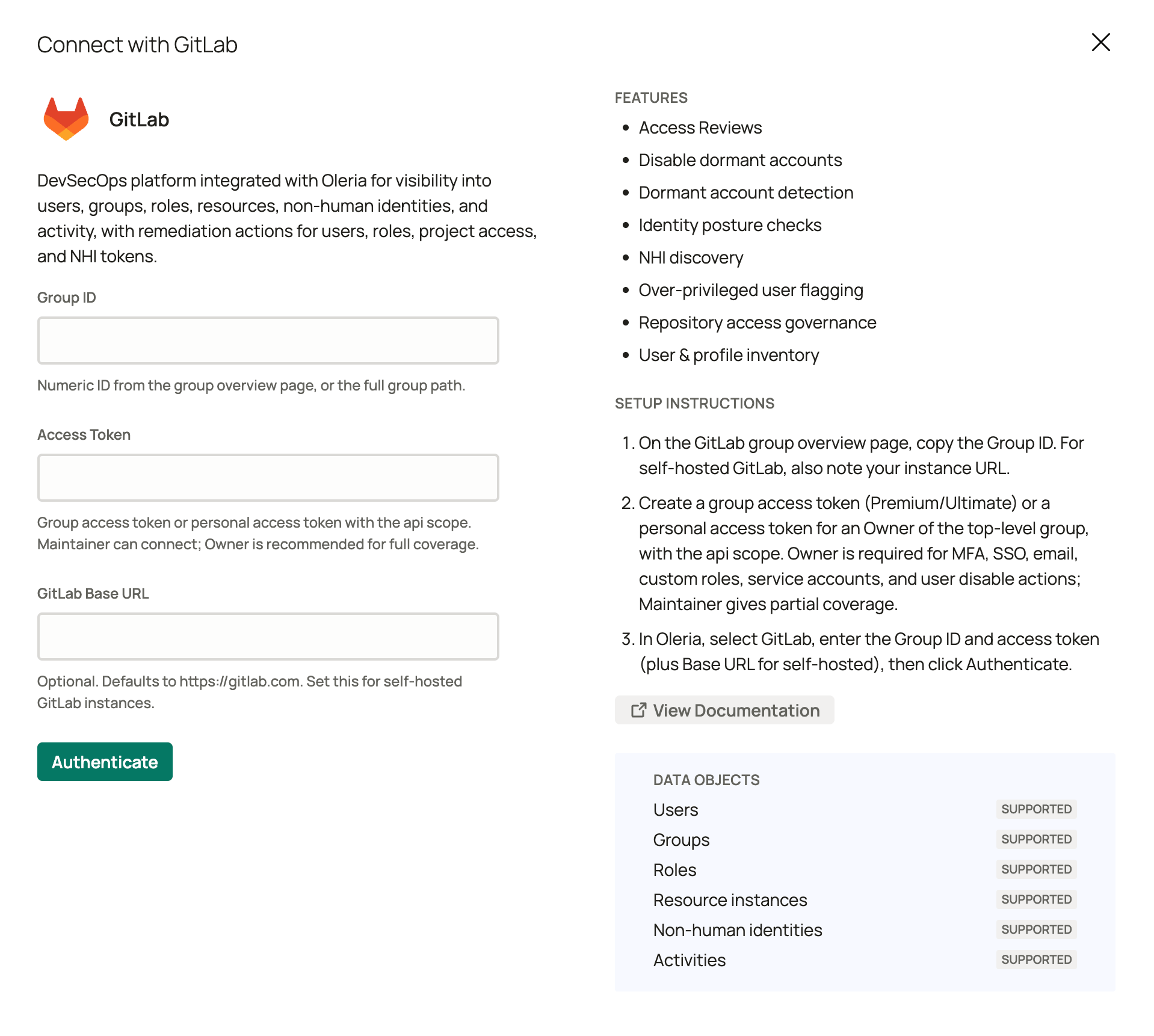
3
Save the integration
Select Authenticate. Oleria calls GitLab for the configured group to confirm the credential can see it before saving.
Verify the integration
Confirm the GitLab instance appears on the Connected tab of your Oleria Integrations page. After the first sync completes, you can review the discovered accounts, groups, projects, NHIs, and access. Audit event activity (Premium and above) syncs on a separate, more frequent cadence.If you rotate or revoke the credential, edit the integration in Oleria, paste the new value, and select Update. The next sync runs with the new credential.
On GitLab.com, Oleria throttles requests to stay within GitLab’s authenticated Ultimate caps: 2,000 requests per minute and 25,000 per hour. Self-hosted instances use whatever limits you configured on the GitLab side.
Remediation actions
Standard integrations are configured read-only. If you enable remediation for GitLab, Oleria uses the same credential. Adding and removing group members, adding and removing roles, and revoking project access need Maintainer or above on the configured group. Disable NHI and Revoke anonymous access need Owner on the configured group. Disabling and enabling a user needs Owner on the top-level group (Premium and above), or a GitLab administrator’s credential.
Removing a member deletes their direct memberships on that group and everything under it. If they still inherit access from a parent group or a share link, they will still appear on projects until those other paths are removed. To cut off a member of the top-level group everywhere under it at once, use Disable user instead.
Known limitations
- Instance-wide (shared) runners aren’t discovered. Only group- and project-scoped runners are.
- Snippets aren’t discovered as resources.
- SAML group links aren’t used as the source of membership. GitLab is the service provider, so your identity provider remains the authority for those memberships.
- Group-owned OAuth applications aren’t discovered. Oleria lists instance OAuth applications only when the credential belongs to a GitLab administrator.
- SSH keys and active sessions aren’t discovered. GitLab also has no API to end a member’s sessions.
- Duo Agent Platform catalog agents are best effort. Oleria skips them when API access is missing, unless the token is a fine-grained token that lacks a required scope.