

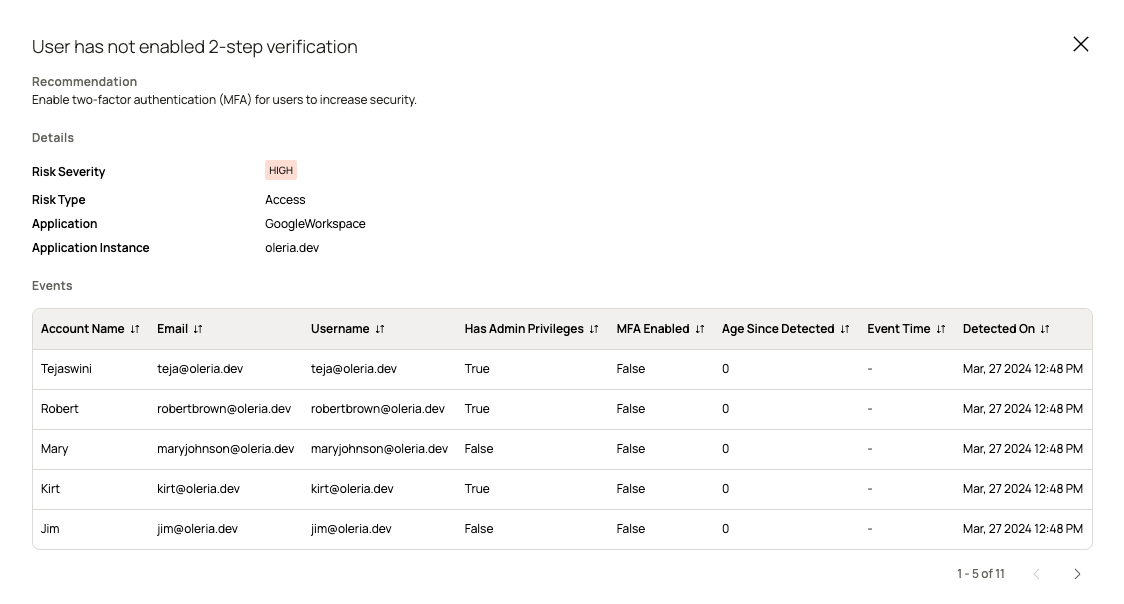
When you select a risk from the Risk Monitoring table, a side panel opens with the full details for that finding. This view gives you the context needed to understand the risk, assess its priority, and decide on a remediation action.Documentation Index
Fetch the complete documentation index at: https://docs.oleria.com/llms.txt
Use this file to discover all available pages before exploring further.
Risk detail fields
| Field | Description |
|---|---|
| Risk description | A concise description of the identified risk. |
| Recommendation | The suggested action to resolve the risk. |
| Risk severity | The severity level: critical, high, medium, or low. |
| Risk type | The category of the risk: identity, security, or access. |
| Application | The application where the risk was detected - for example, Salesforce. |
| Application instance | The specific application instance where the risk was detected. |
| Account name | The account associated with the risk. |
| The email address linked to the account. | |
| User name | The username of the account holder. |
| Has admin privileges | Whether the account has administrator privileges. |
| MFA enabled | Whether multi-factor authentication (MFA) is enabled for the account. |
| Age | How long the risk has been open. |
| Event timestamp | The date and time of the event that triggered the risk. |
| Detected on | The date and time when Oleria first detected the risk. |
How to use the detail view
Start with the recommendation. Each risk surfaces a specific recommended action. Follow it to resolve the finding. Check admin privileges and MFA status together. A risk on an admin account without MFA is significantly higher priority than the same risk on a standard user. Use these fields to calibrate urgency. Use Age and Event timestamp to judge staleness. A risk that has been open for a long time without action may indicate a process gap. Risks with a very recent event timestamp may be part of an active incident and warrant immediate investigation.Actions from the detail panel
From the risk detail side panel you can:- Create a ticket - open a ticket in your connected ticketing system (Jira or ServiceNow) to assign the risk to someone for remediation. See Ticketing overview.
- Remediate directly - for supported risk types, take a remediation action - such as disabling a dormant account or revoking external access - without leaving Oleria. See Remediations.

