

Only Oleria Administrators can perform this action. View role permissions.
Looking to run this on a schedule instead of manually? See the Disable dormant accounts workflow.
1
Filter for dormant accounts
Navigate to Governance → Account Hygiene and apply filters to find the accounts you want to disable. For example, to view all enabled user accounts inactive for the past 90 days:
- Application: your target application
- Account Type: User
- User Status: Enabled
- Dormant Days greater than: 90
2
Open the disable flow
Select Disable Account. A view opens where you can select individual accounts to disable. An information banner above the table explains which accounts are eligible for disabling.
3
Select accounts to disable
Select one or more user accounts, then select Disable Account.
4
Confirm the action
In the confirmation dialog, enter a business justification for disabling the account(s), then select Yes, Disable to submit the request.
5
Track the action
Upon successful submission, a toast message appears. Select View Details to navigate to Audit Logs and track the status of the action.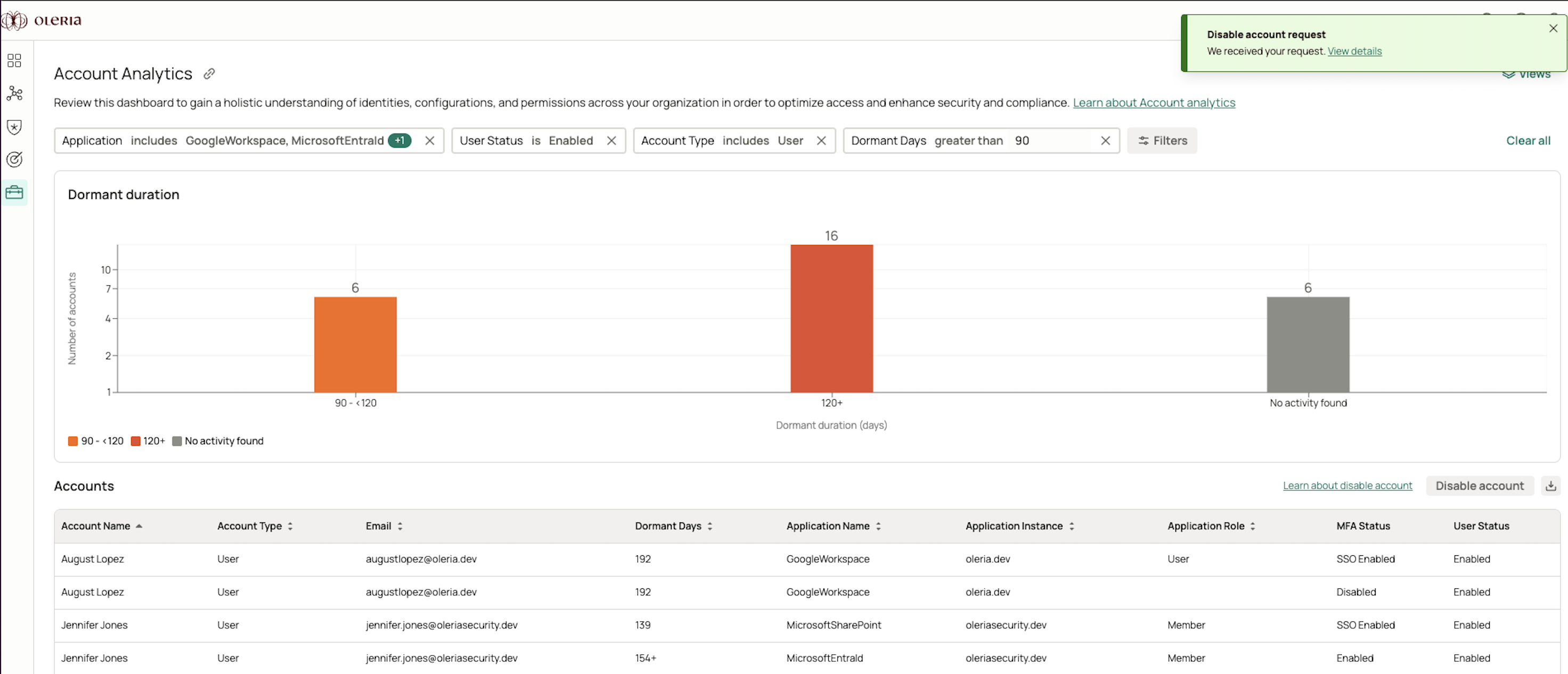
The time to update account status in Oleria depends on the number of accounts selected and the next data sync with the integrated application. To verify immediately, check the target application directly.