

Supported applications
- Okta
- Microsoft Entra ID
- Google Admin
Oleria creates certain group types that are not present in your environment. The Remove account action is not supported for these group types:
- Modeled - groups created by Oleria to organize permissions based on common user access patterns.
- Sync - groups that originate in your identity provider and are synchronized to SaaS applications or other identity providers through SCIM provisioning - for example, groups provisioned in Active Directory synced to Okta, or groups provisioned in Okta synced to AWS.
1
Open Group Hygiene
Navigate to Governance → Group Hygiene. Groups are listed with their utilization percentage and total member count.
2
Filter to the target group
Apply filters for Application and Group Name to find the group you want to update.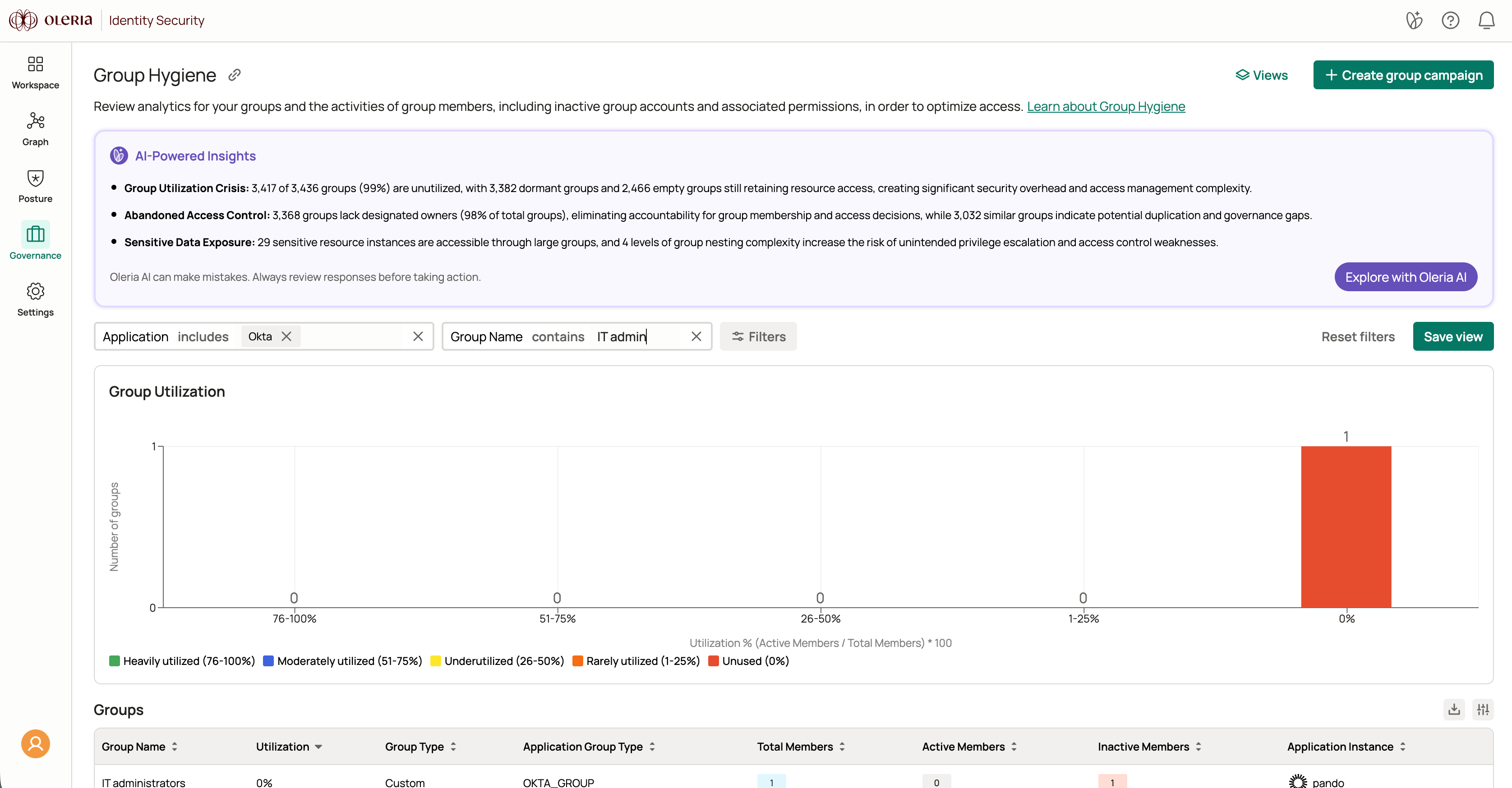
3
Open group membership
Select the group name to view its membership details. The member list shows Account, User Type, Dormant Days, Last Activity, and Created Date. Select Remove account.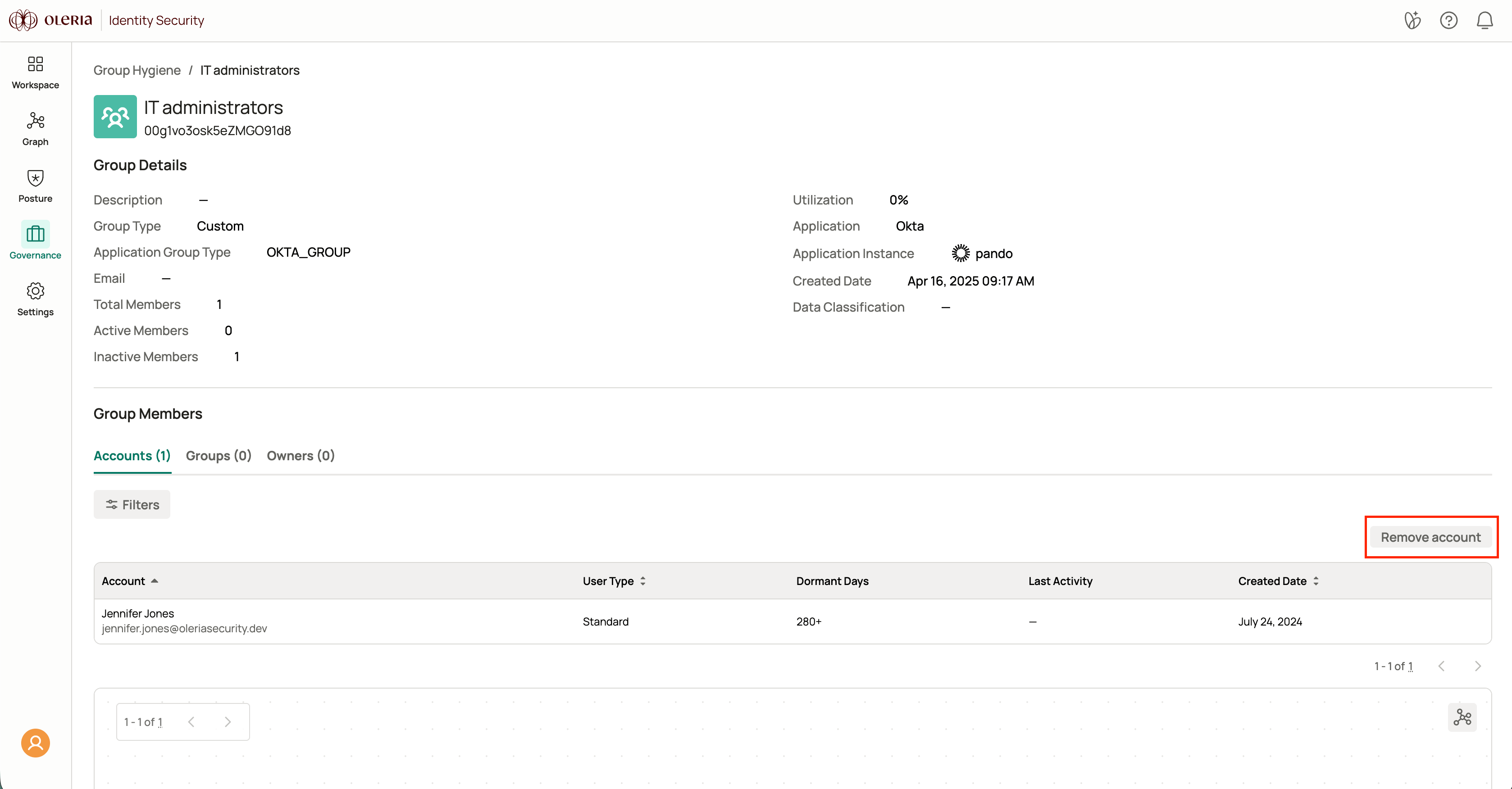
4
Select accounts to remove
Select the accounts whose dormant days exceed your organization’s dormancy threshold, then select Remove account.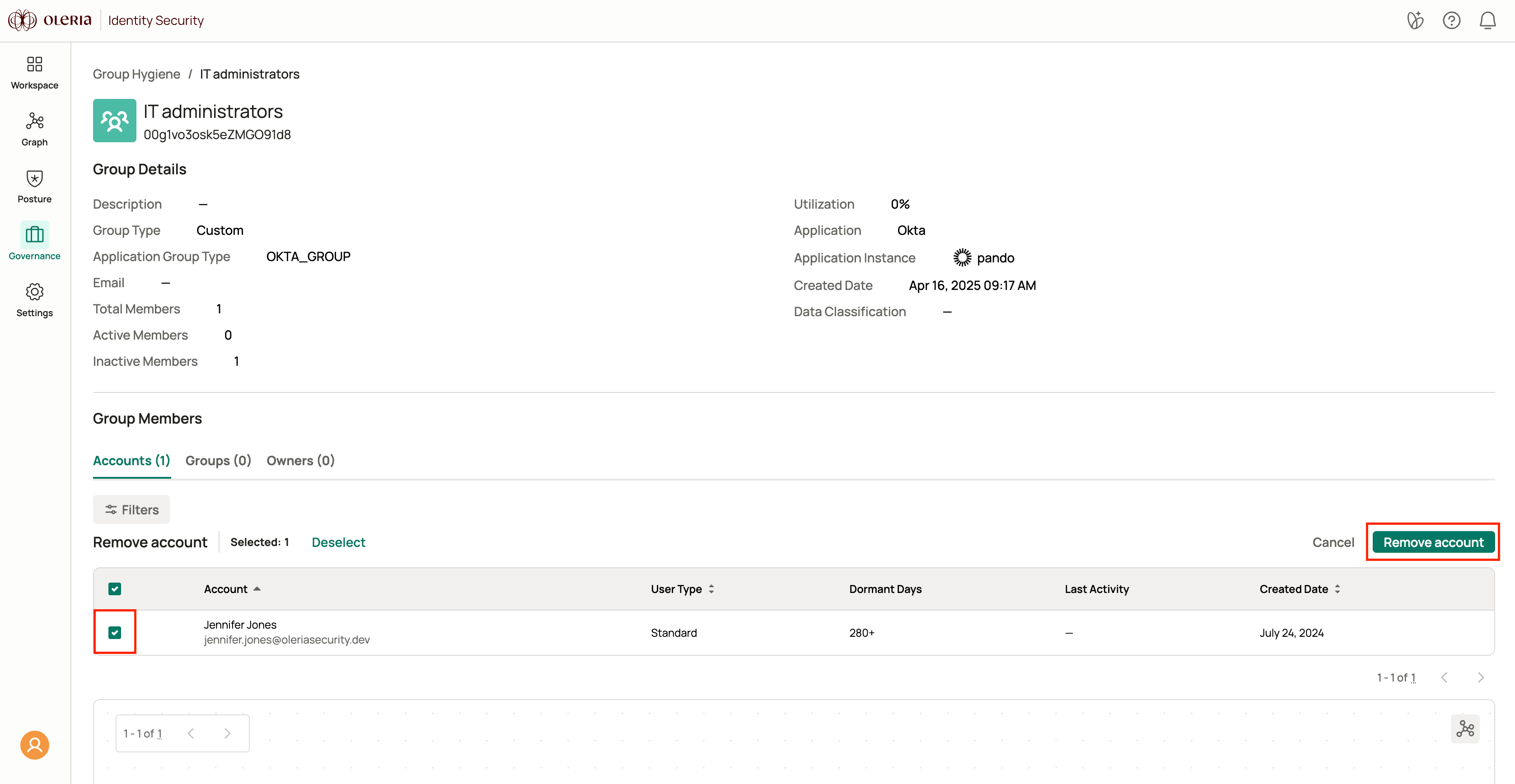
5
Enter a reason and confirm
In the Remove account dialog, enter the reason for removing the group members, then select Yes, remove to submit the request.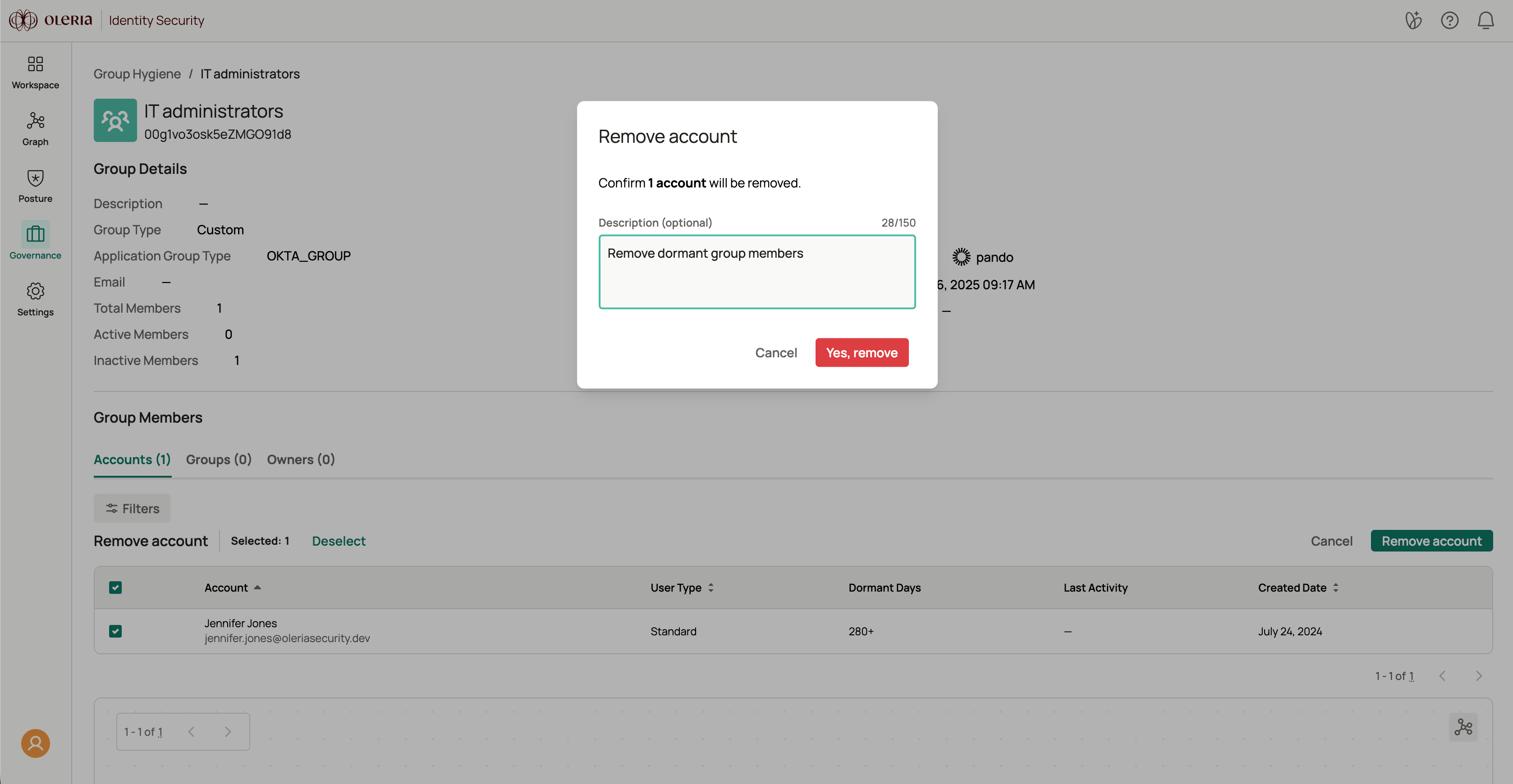
6
Track the action
Upon successful submission, select the View details link in the toast message to navigate to Action Center and check the status of the action.