
- Emailing support@oleria.com
- Submitting a ticket from Oleria Help Center
Contact support from Oleria Help Center
Click the “Service request” button from the Workspace Overview page to get started. This will open a new tab and you will automatically be logged into the Oleria Help Center.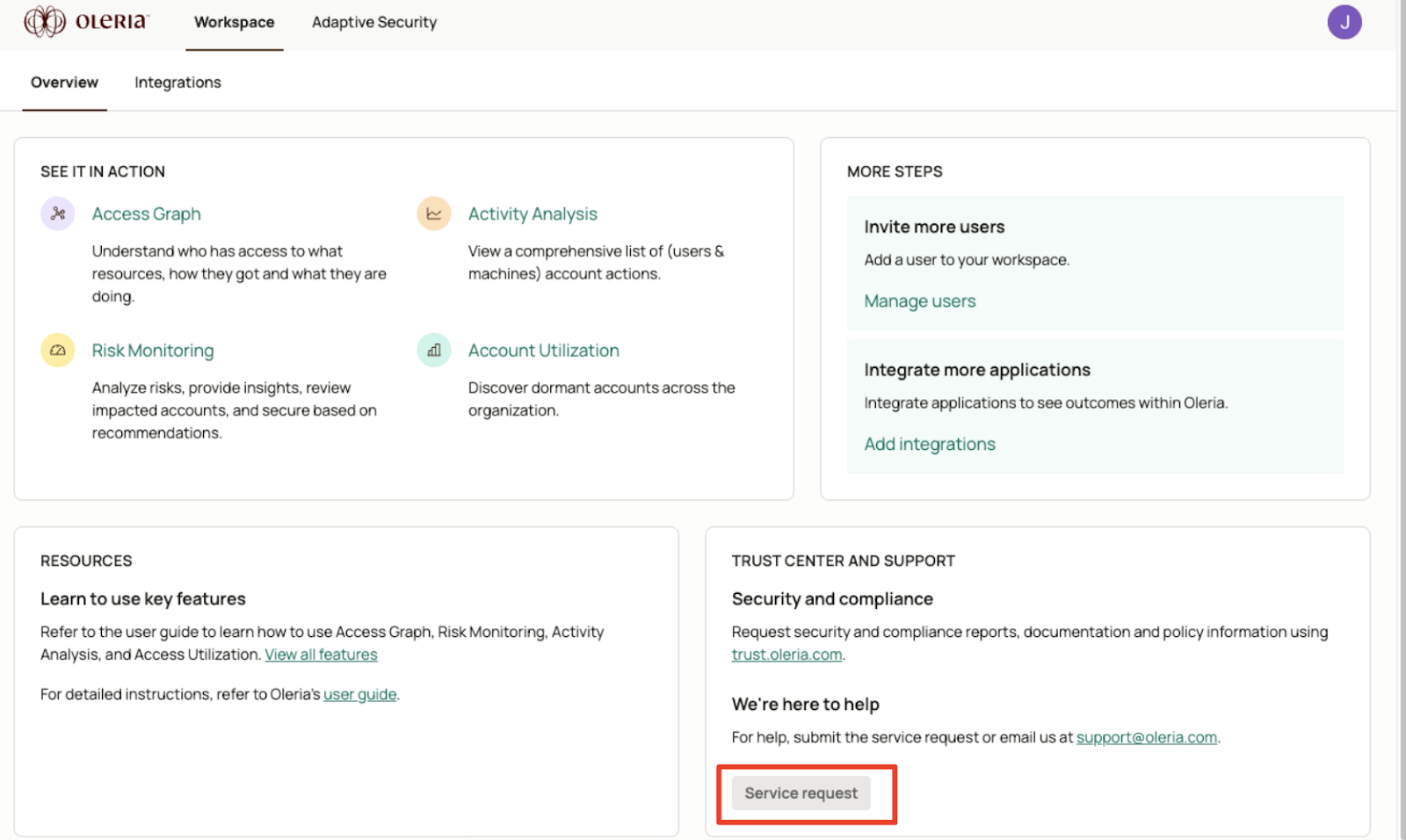
- Submit a new ticket
- View existing tickets
- Update an existing ticket
Submit a New Ticket
To submit a new ticket, follow the below instructions.- Click the “Submit a request” text from the upper right navigation of the Oleria Help Center.

- Complete the ticket details below and click the “Submit” button.
- Subject: Enter a short summary of the ticket
- Description: Provide details regarding the question, issue, request, etc.
- Attachments (optional): Include any supporting screenshots or documents that are relevant to your ticket submission
View Existing Tickets
There are three types of tickets you can view:- My requests: Your own tickets that you submitted
- Requests I am CC’d on: Tickets you were copied on
- Organizational requests: Tickets within your organization that you were not copied on
- From Oleria Help Center, click on your name in the upper right corner. Then click on “Requests” from the submenu.
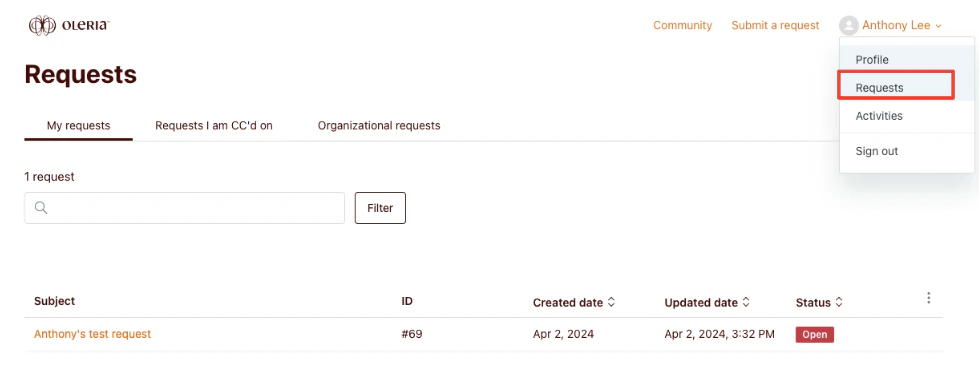
- Click on the tab for the ticket you want to view based on the ticket origination.
- My requests: Your own tickets that you submitted
- Requests I am CC’d on: Tickets you were copied on
- Organizational requests: Tickets within your organization that you were not copied on
- To view a ticket’s details, click on the individual ticket for which you want to see details from the list of tickets.
Update an Existing Ticket
You can only edit your requested tickets.- From the Requests section of the Oleria Help Center, select “My Requests.”
- This view will provide you with the list of your tickets that you can edit.
- If you need help in navigating to your requests, review the documentation on how to view an existing ticket.
- Select the ticket that you would like to edit.
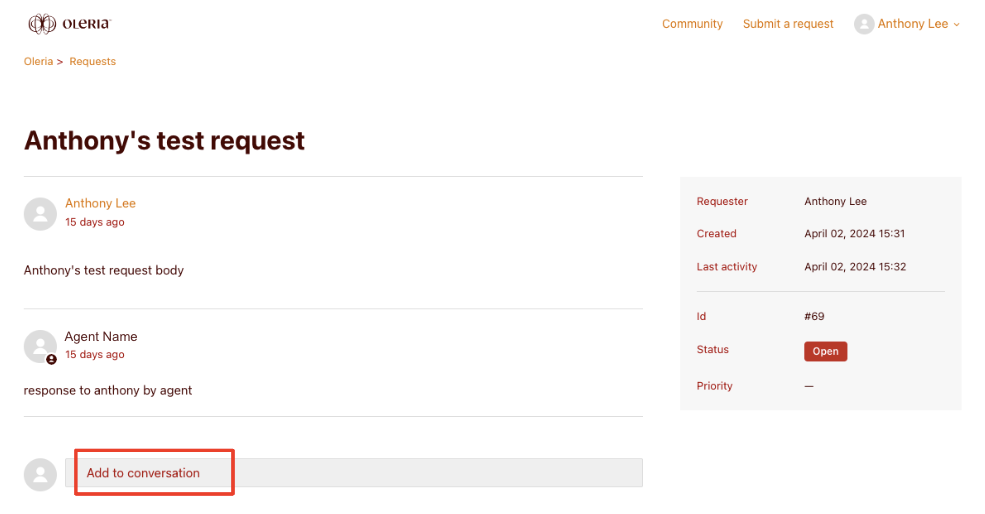
- Click on the “Add to conversations” textbox, and add your response/addition to the ticket. Then click “Submit.”