How dormant days are calculated
Dormant days are calculated based on account activity data using one of two formulas depending on data availability. When last activity is available:0, 30, 50.
When last activity is not available:
+ suffix to indicate a minimum threshold - for example, 0+, 30+, 50+.
User account dormant days
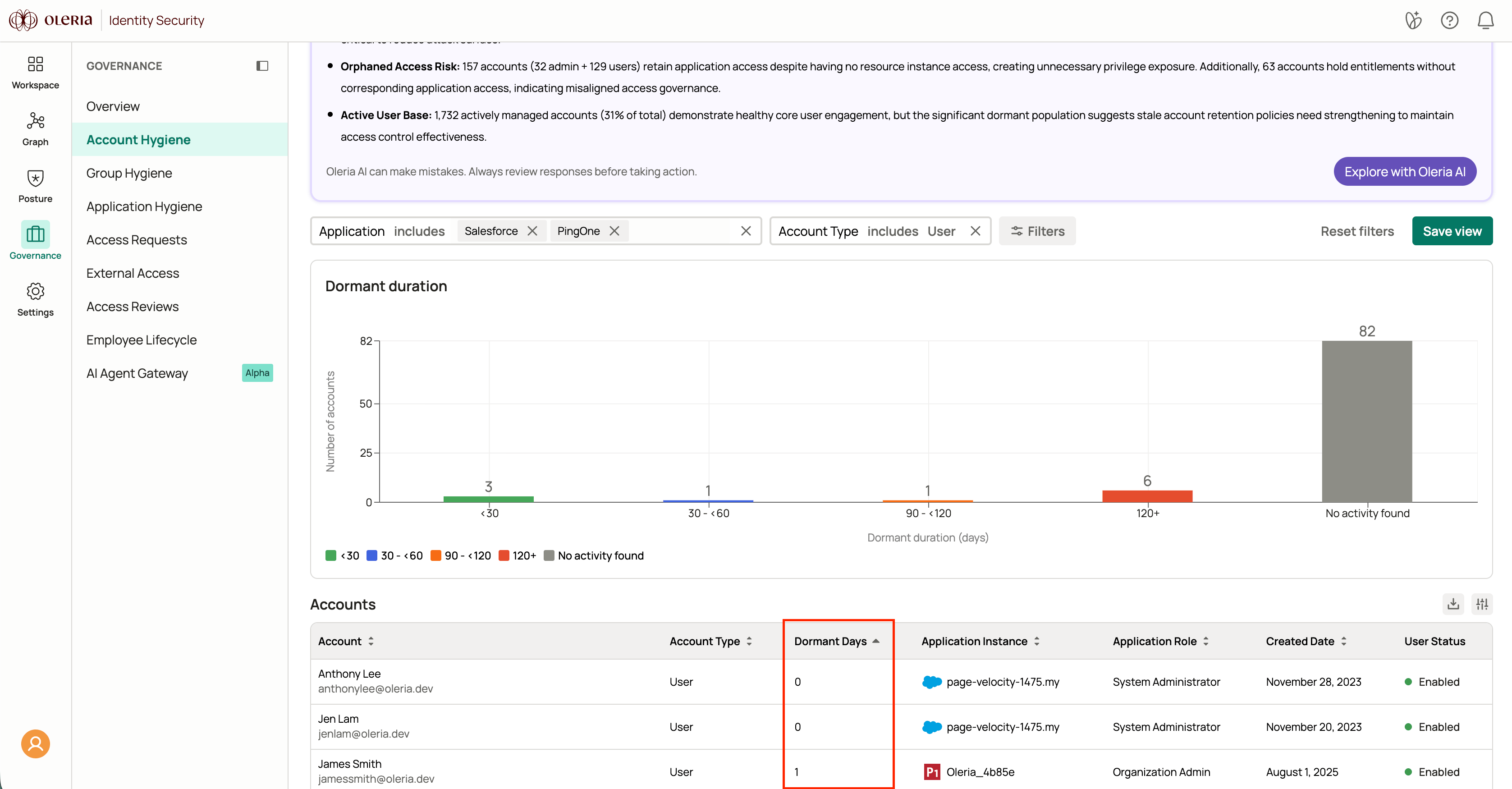
User account dormant days are available in Account Hygiene.1
Navigate to Account Hygiene
Go to Governance → Account Hygiene.
2
Filter by account type
Apply the filter Account type =
user.3
Review dormant days
The Dormant days column shows how long each user has been inactive. Use the sort option to order users by most or least dormant days.
Machine account dormant days
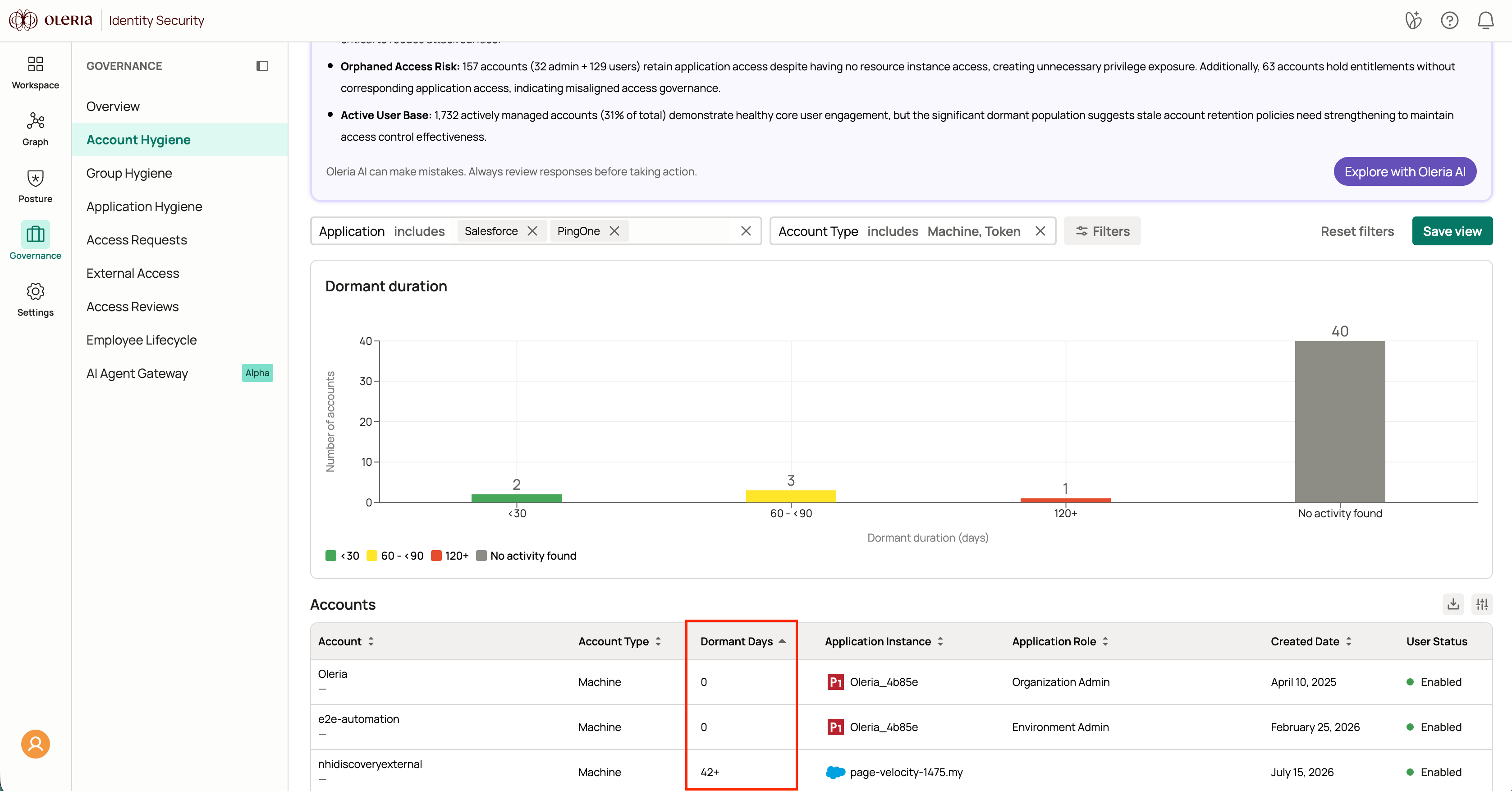
Machine account dormant days are available in Account Hygiene.1
Navigate to Account Hygiene
Go to Governance → Account Hygiene.
2
Filter by account type
Apply the filter Account type =
machine.3
Review dormant days
The Dormant days column shows how long each machine account has been inactive. Use the sort option to order machine accounts by most or least dormant days.
Resource dormant days
Resource dormant days are available in Access Inventory.1
Navigate to Resource Instances
Go to Posture → Access Inventory → Resource Instances.
2
Review dormant days
The Dormant days column shows the minimum number of days since any account last accessed the resource.

Account-to-resource dormant days
Account-to-resource dormant days are available in Access Inventory.1
Navigate to Resource Instances
Go to Posture → Access Inventory → Resource Instances.
2
Open the account 360 view
Select an account to open its 360 view.
3
Review dormant days
The Dormant days column shows how long since that specific account last accessed each resource.
External user-to-resource dormant days
External user-to-resource dormant days are available in External Access.1
Navigate to External Access
Go to External Access → External users.
2
Open the user 360 view
Select an external user to open their 360 view.
3
Review dormant days
The Dormant days column shows how long since that external user last accessed each resource.
Group member dormant days
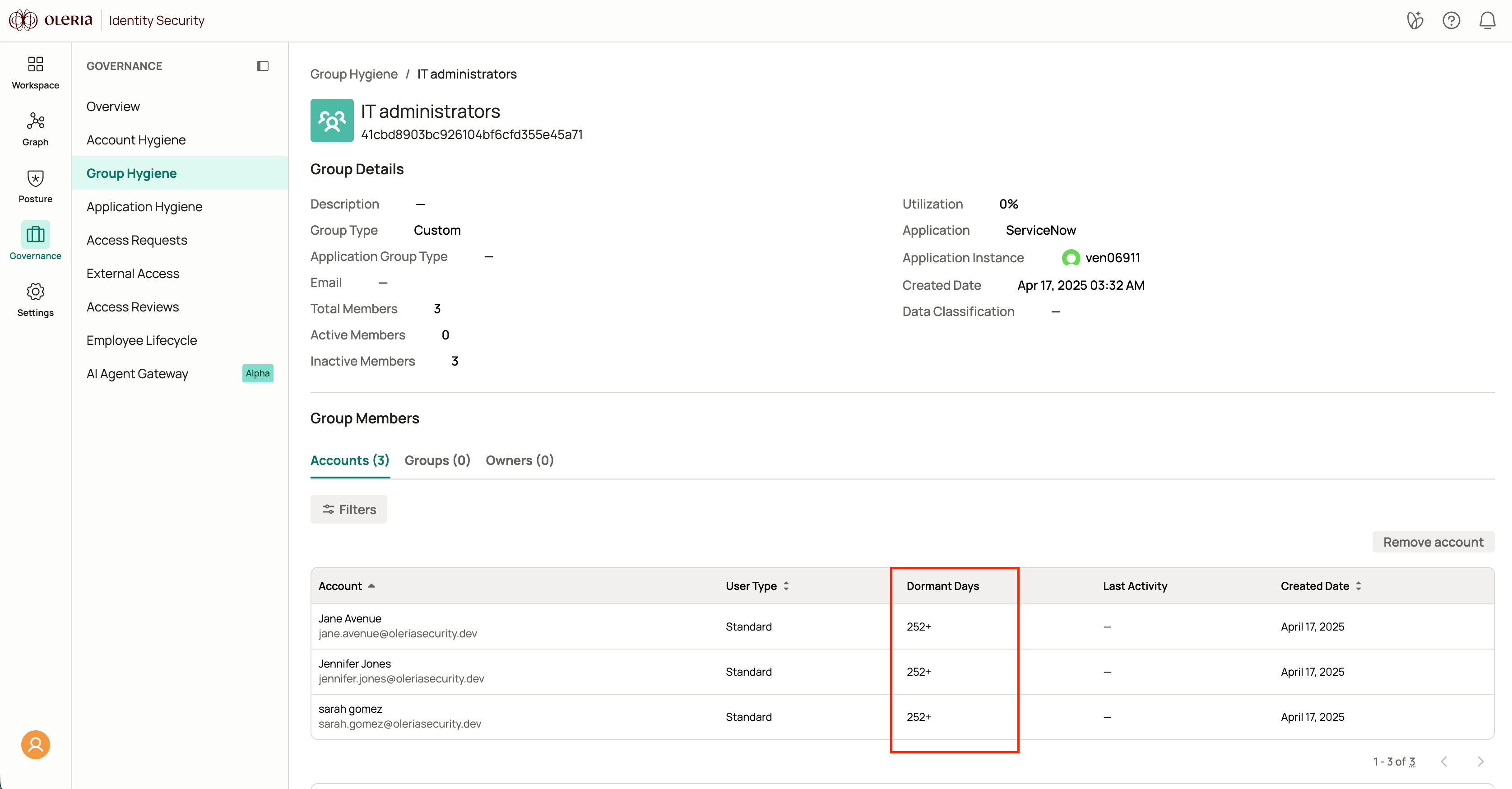
Group member dormant days are available in Group Hygiene.1
Navigate to Group Hygiene
Go to Governance → Group Hygiene.
2
Select a group
Select a group name to open its member detail view.
3
Review dormant days
The Dormant days column shows how long each member has been inactive via that group’s membership. Use the sort option to order members by most or least dormant days.