- Unchanged passwords may have been shared, stored insecurely, or become predictable over time, making them easier to compromise.
- Older passwords are more likely to appear in data breach lists, exposing organizations to credential stuffing and brute force attacks.
- Many regulatory standards such as PCI-DSS and HIPAA require regular password rotation. Stale passwords can lead to compliance violations and penalties.
- Stale passwords are common on old, unused accounts. If these accounts go unmonitored, they become a security gap attackers can exploit without detection.
Supported applications
- Okta
- Microsoft
- AWS IAM and S3
Support for additional applications is in progress.
How to assess password hygiene
1
Navigate to Account Hygiene
Go to Governance → Account Hygiene.
2
Apply the Last Password Changed filter
Select the Last Password Changed filter and choose the before operator. Enter a date to surface accounts whose passwords have not been rotated since that date. For example, to find accounts with passwords unchanged for more than 30 days, enter the date 30 days prior to today.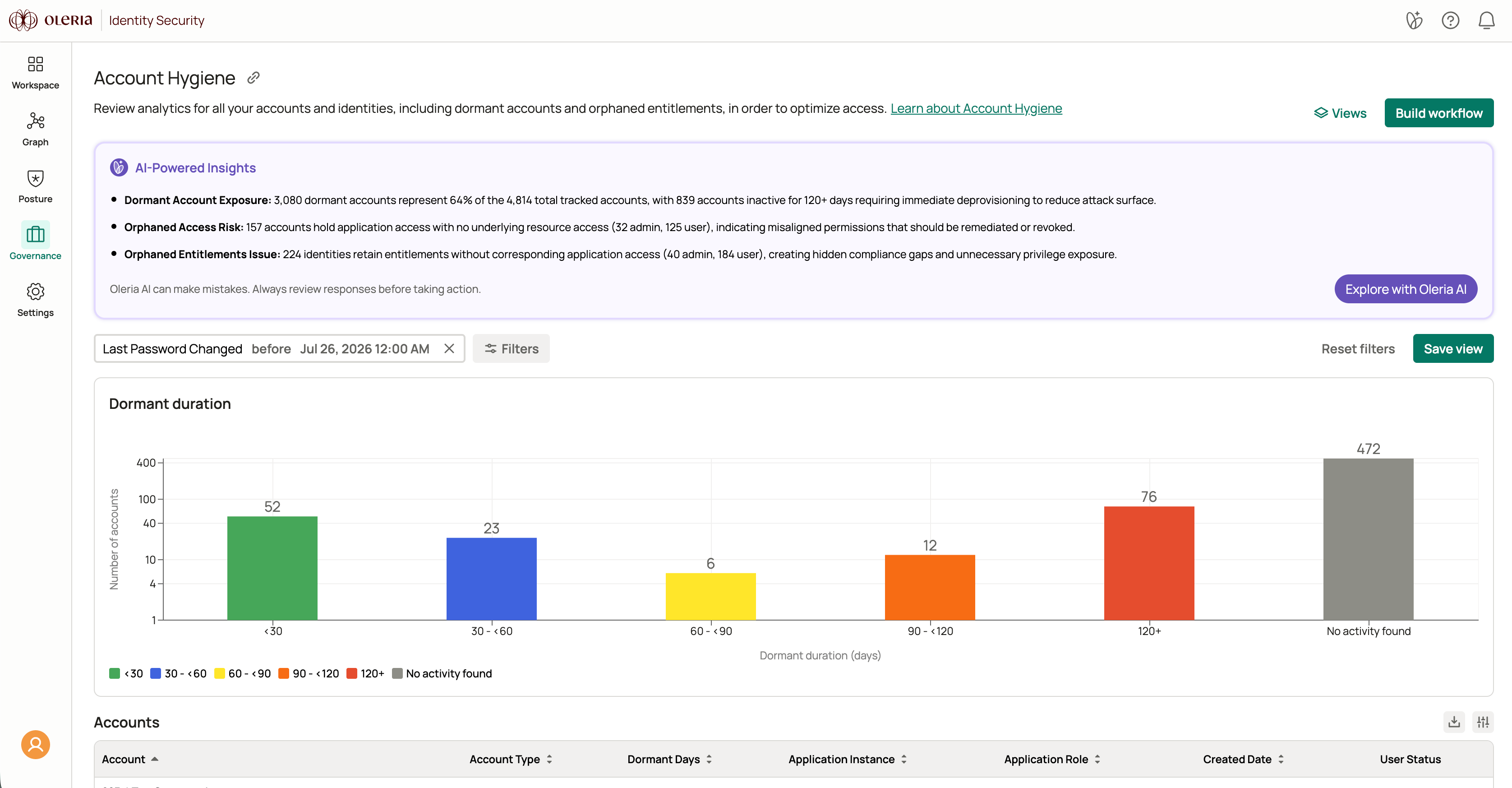
3
View the last password change timestamp
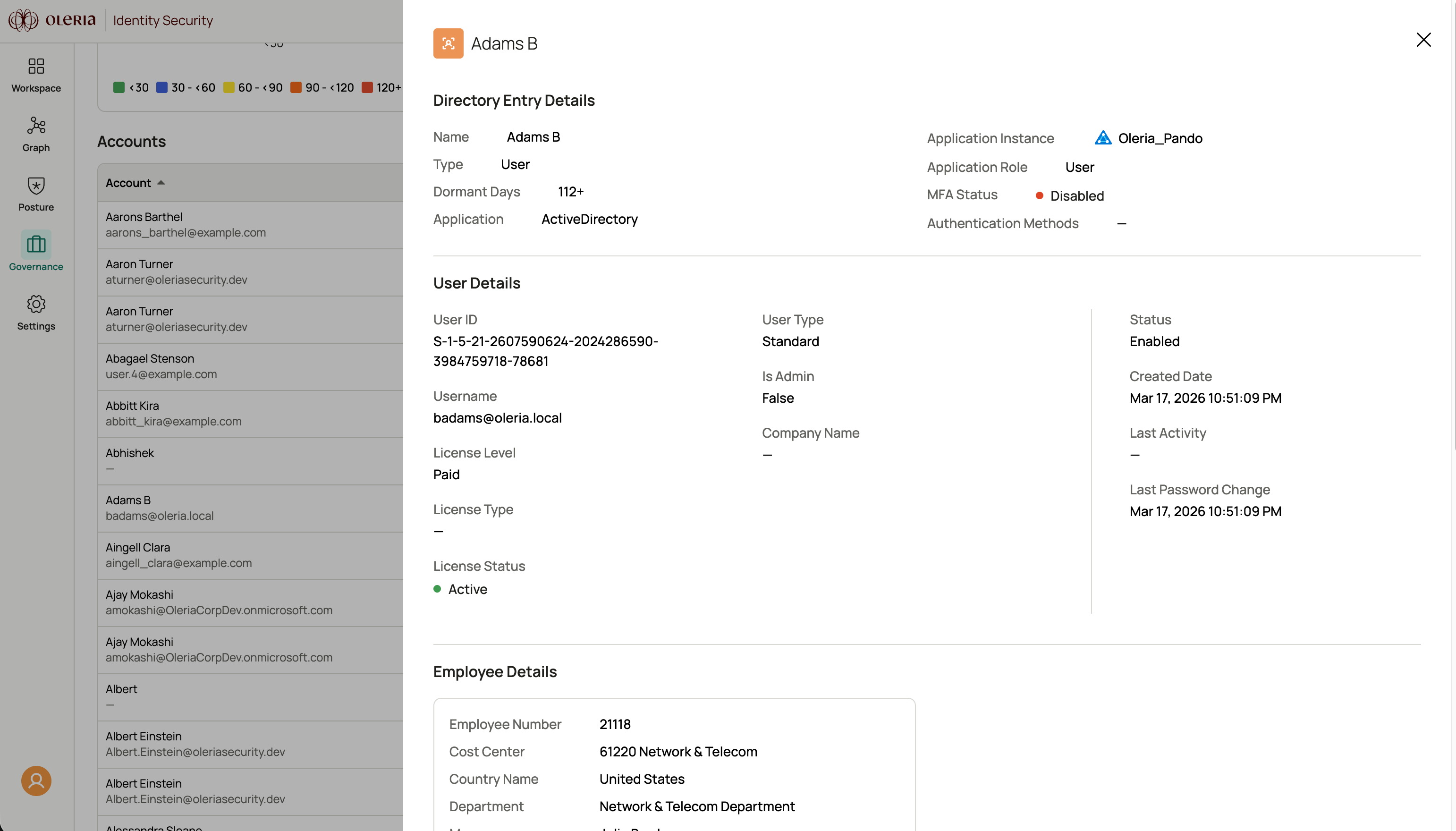
Select a user to open their side panel and view the exact last password change timestamp.