Creating access review campaigns
1
Open the campaign builder
Navigate to Governance → Access Reviews and select Create Campaign.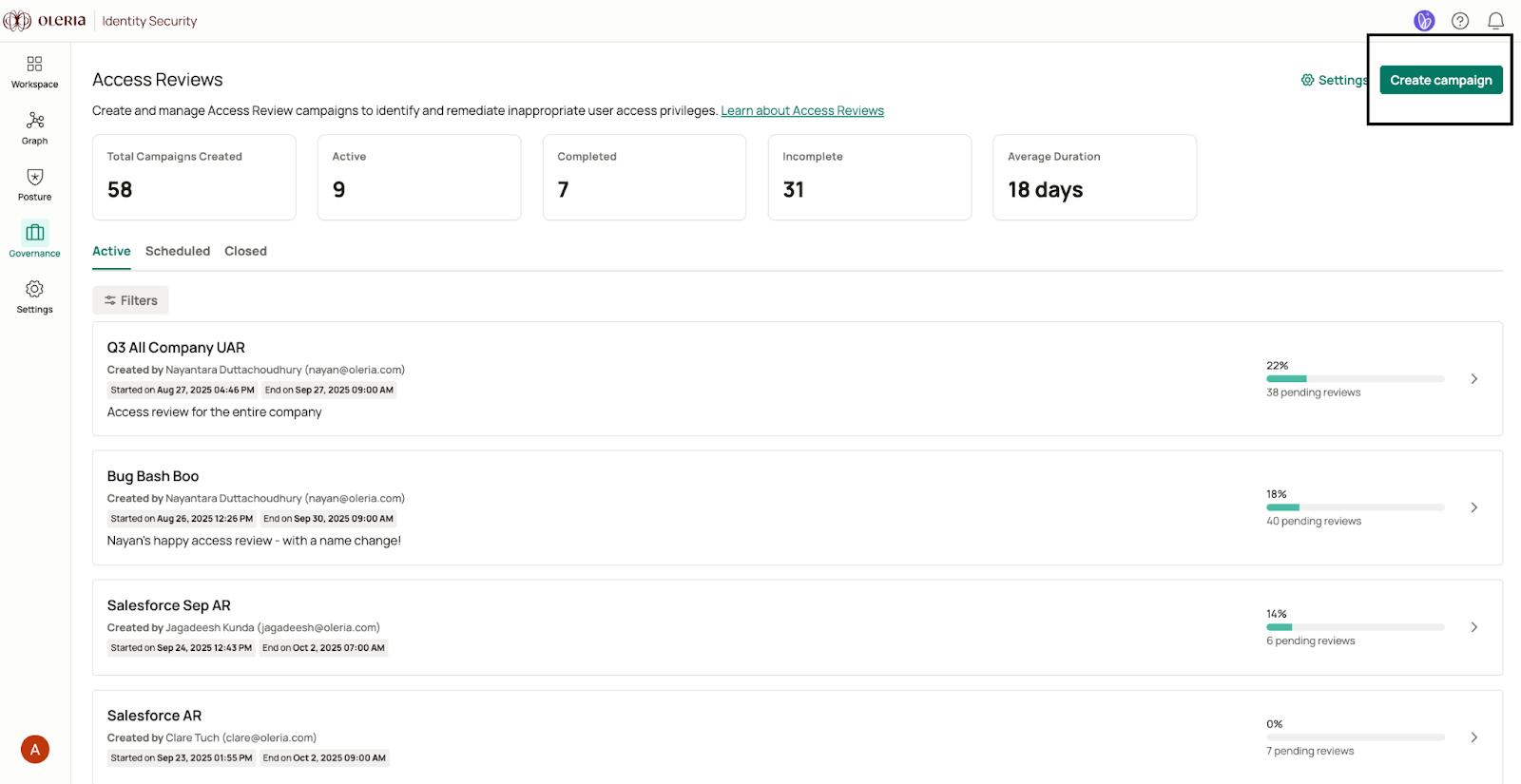
2
Select applications
Choose the desired campaign type. If you choose the application campaign type, you will need to select applications within your organization that need to be reviewed. If you choose the group campaign type, select the groups that need to be reviewed. Apply filters to narrow down to specific applications or groups if necessary.
3
Choose users for review
Select which users will undergo an access review. These users are sourced directly from your connected HR platform, which serves as the source of truth.
4
Assign reviewers
Select Next and assign reviewers for the campaign. You can assign reviewers based on managerial hierarchy, or specify a user for role or group reviews.
5
Set the schedule
Configure the start and end date for the access review campaign.
6
Configure remediations
Choose the actions to take when a reviewer takes no action or rejects a review.
7
Review and publish
Review your campaign settings and select Publish to create the campaign.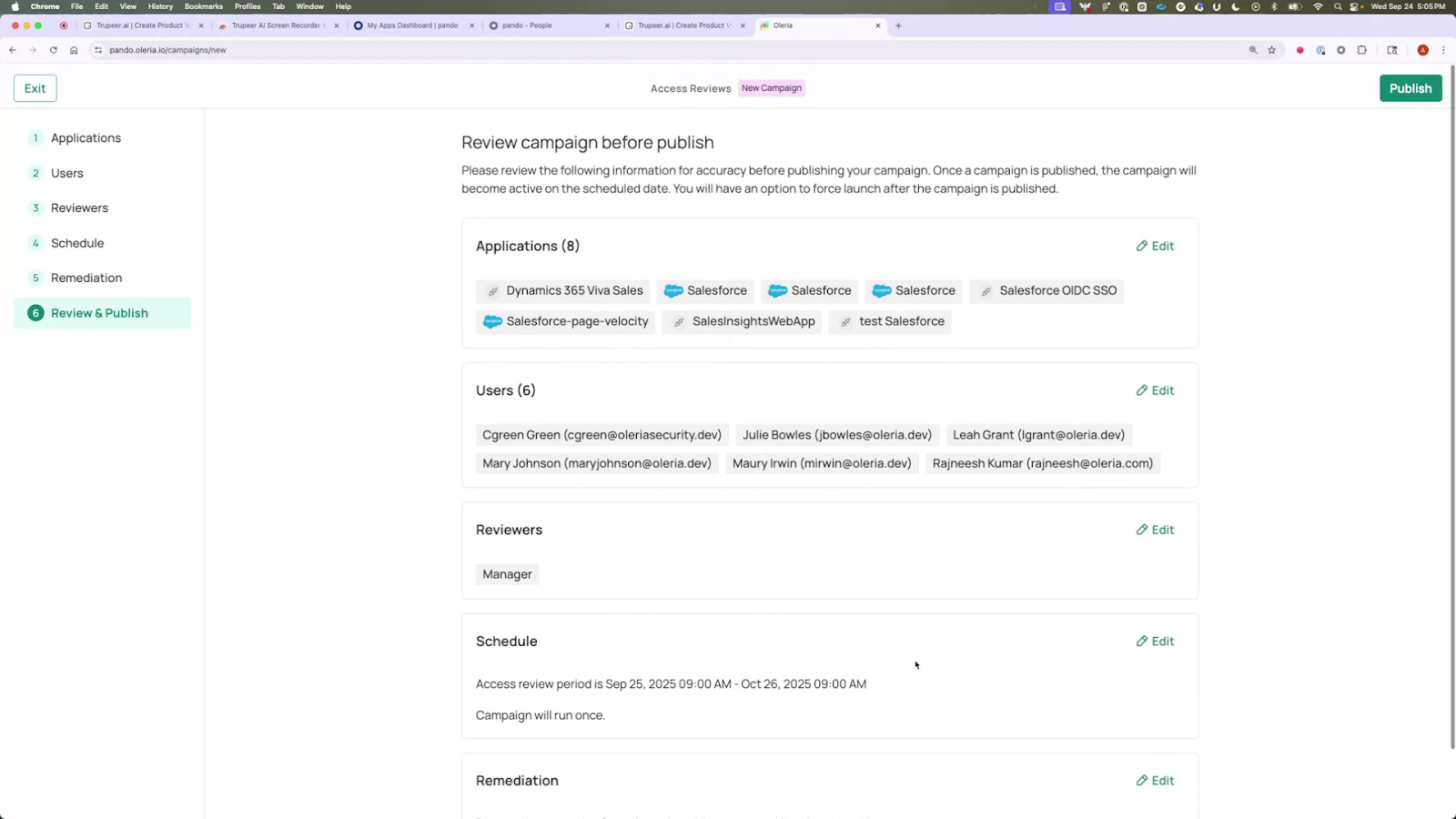
Managing access review campaigns
A newly created campaign does not launch until its start date and appears under the Scheduled tab. To launch it immediately, select Launch - the campaign will then appear in the Active tab.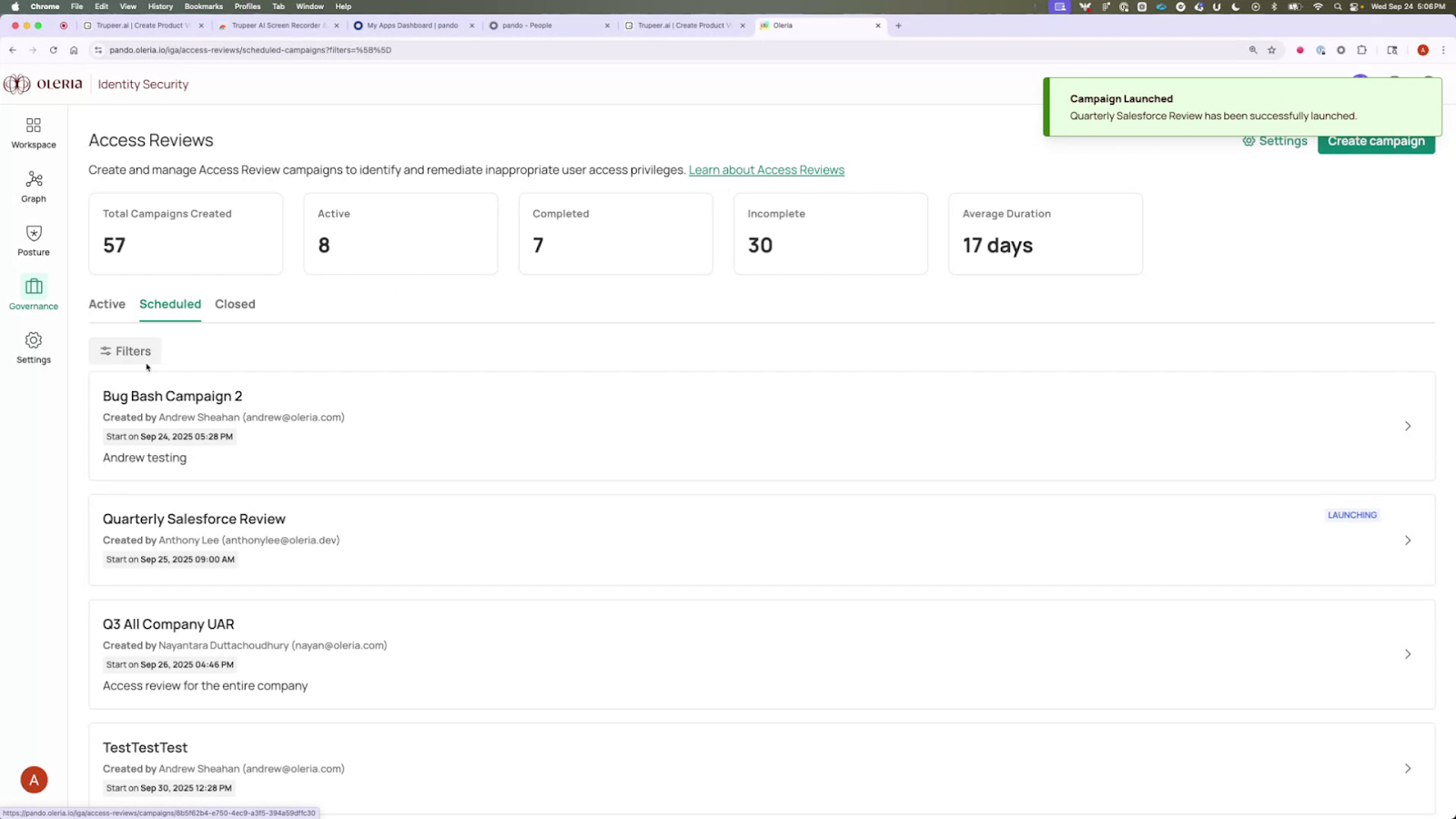 From the active campaign view, you can see how many concurrent reviews are in progress. Use the Reviewer and Application tabs to switch between views.
The Reviewer view shows each reviewer and their pending review count. Select a reviewer’s name to see the specific reviews assigned to them. If a reviewer is unavailable, you can reassign reviews directly from this view.
From the active campaign view, you can see how many concurrent reviews are in progress. Use the Reviewer and Application tabs to switch between views.
The Reviewer view shows each reviewer and their pending review count. Select a reviewer’s name to see the specific reviews assigned to them. If a reviewer is unavailable, you can reassign reviews directly from this view.
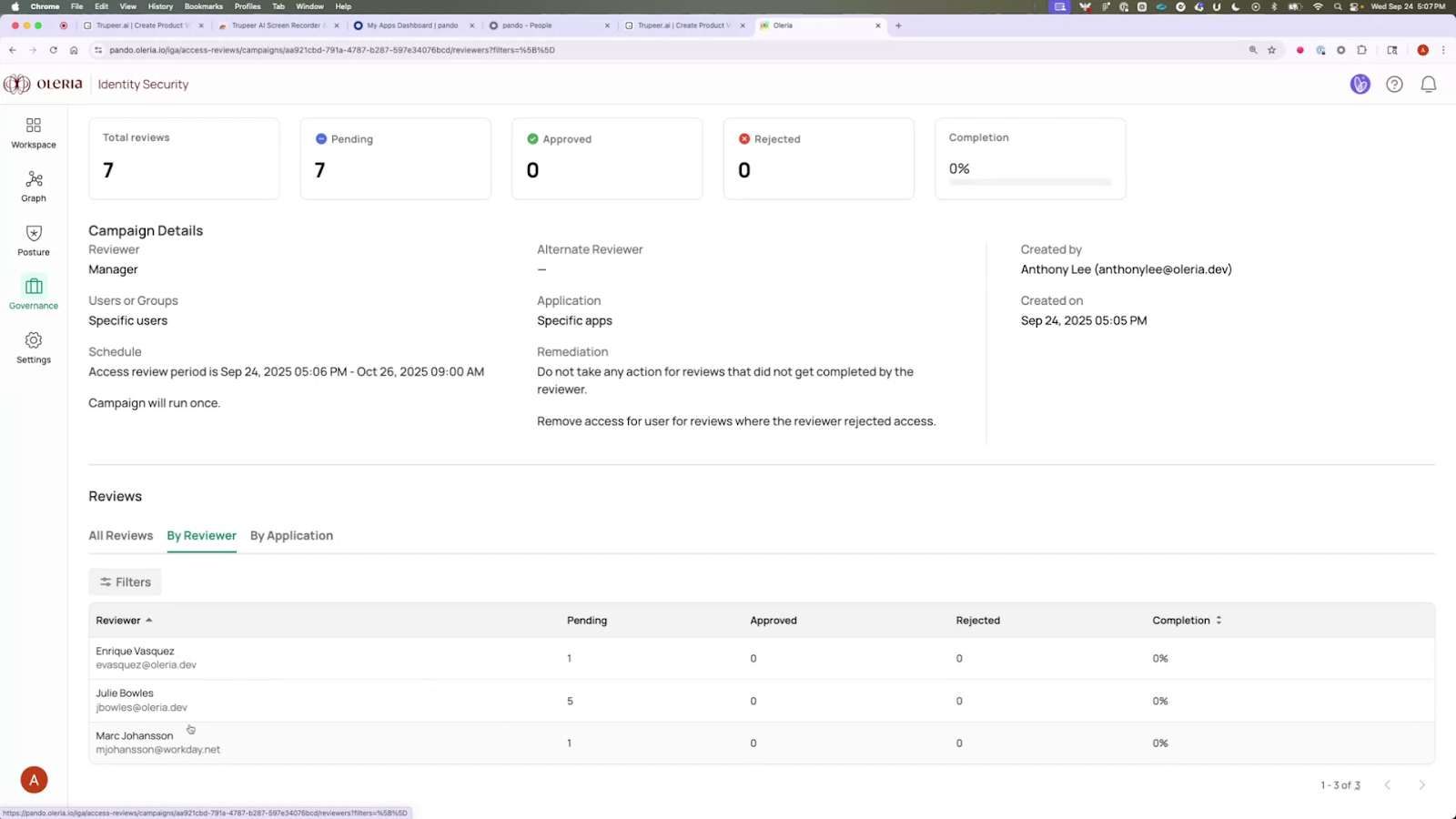 Once the campaign end date is reached, the campaign closes automatically. An admin can extend the campaign or close it early from the campaign detail view.
Reviewer experience in the Governance app
Reviewers receive an automatic invitation email to the reviewer portal atwww.youroleriainstancename-governance.oleria.io. From the portal, reviewers can complete their assigned reviews.
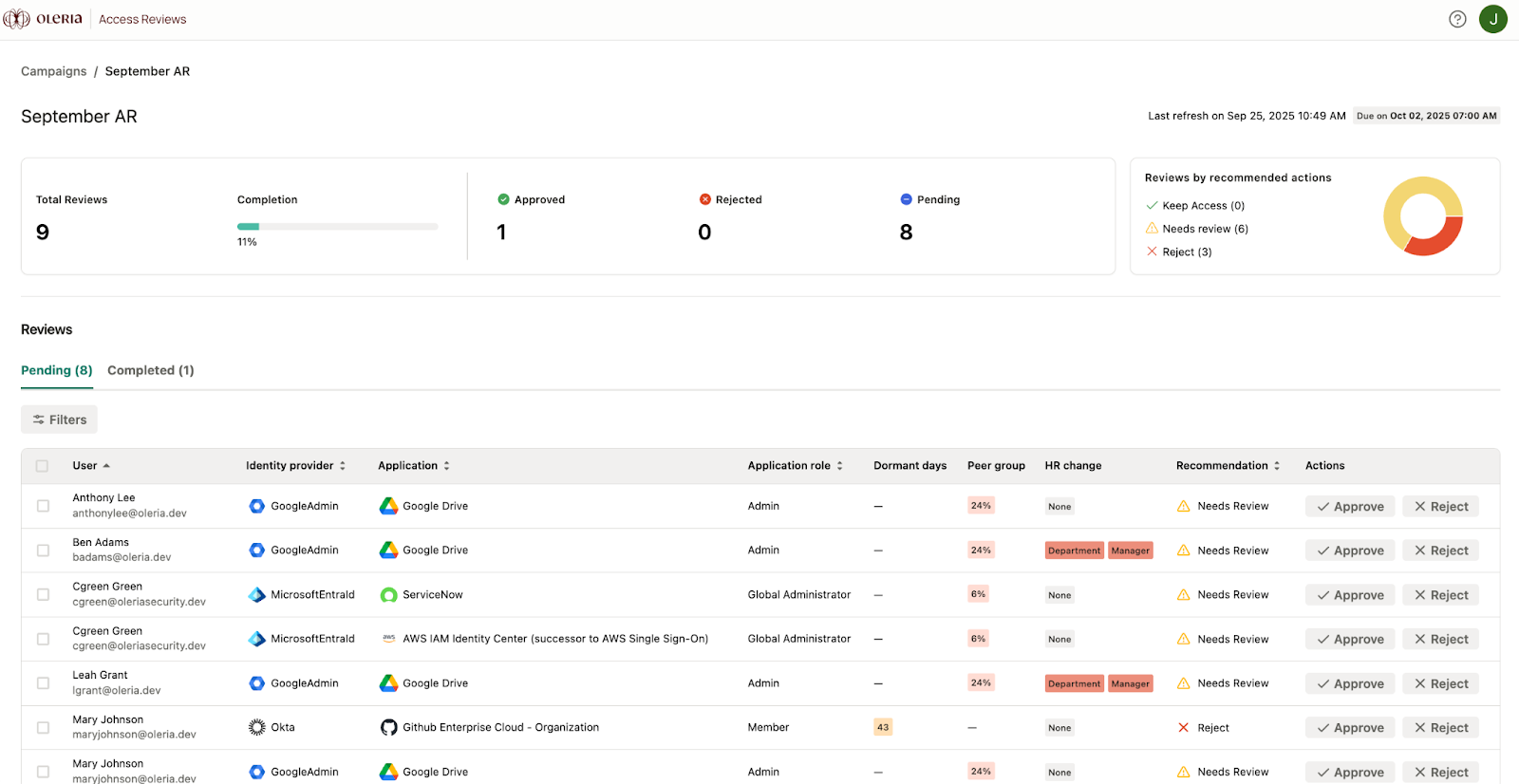
The reviewer portal shows a recommendation list at the top. Oleria recommends keeping, reviewing, or rejecting each access entry based on usage data. Reviewers can apply filters to streamline the process.
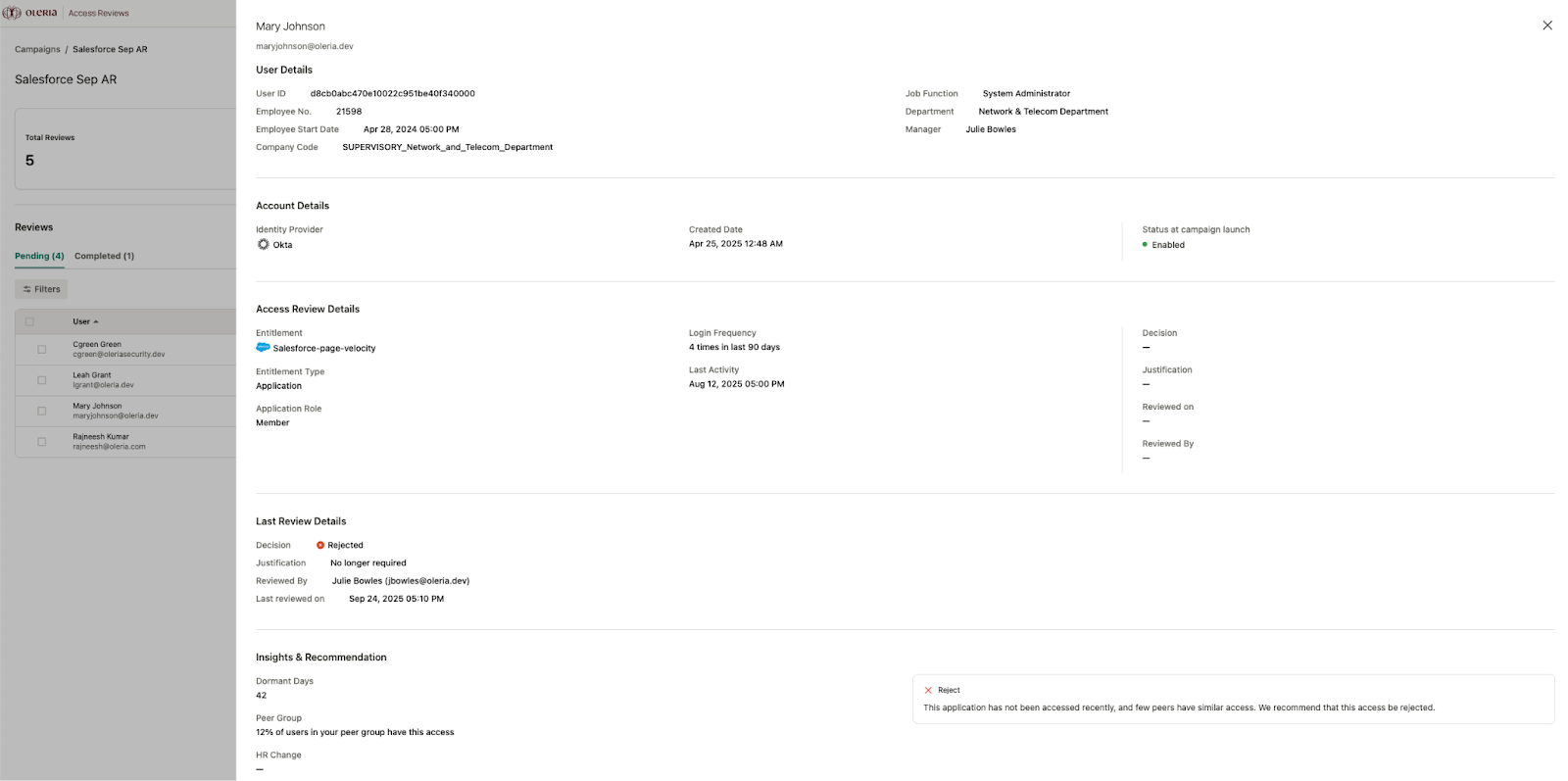
 Selecting an employee shows the outcomes of past reviews alongside insights that explain Oleria’s recommendation. For example, Oleria may recommend rejecting access if a user’s login frequency is significantly lower than their peer group, or if the account has been inactive for an extended period.
Remediations
Once a campaign closes, it appears under the Closed tab. The closed campaign view shows the number of reviews completed, pending, approved, and rejected, along with the admin-defined configuration.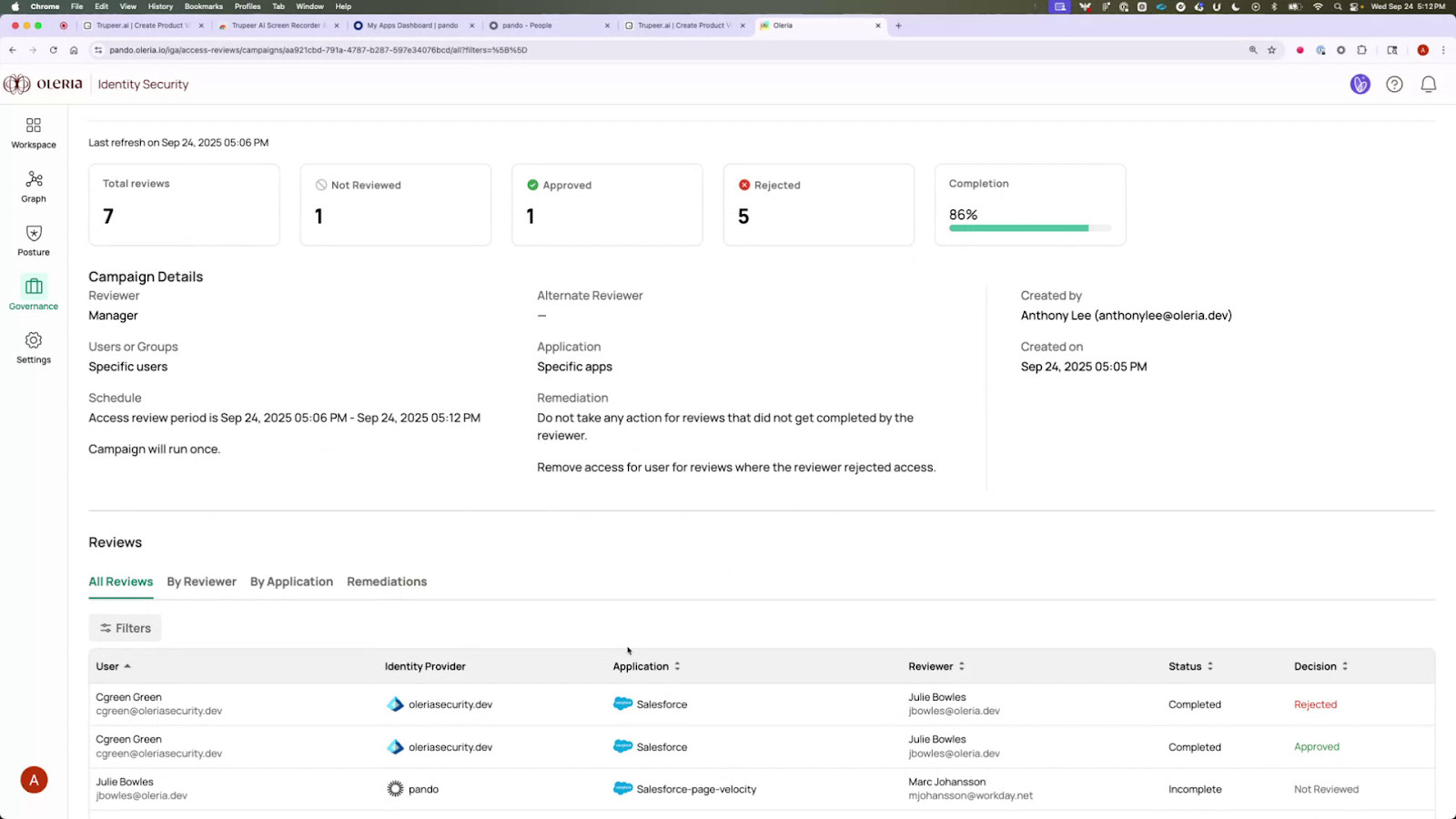 If remediations were enabled, select the Remediations tab to view all remediation actions and their current status.
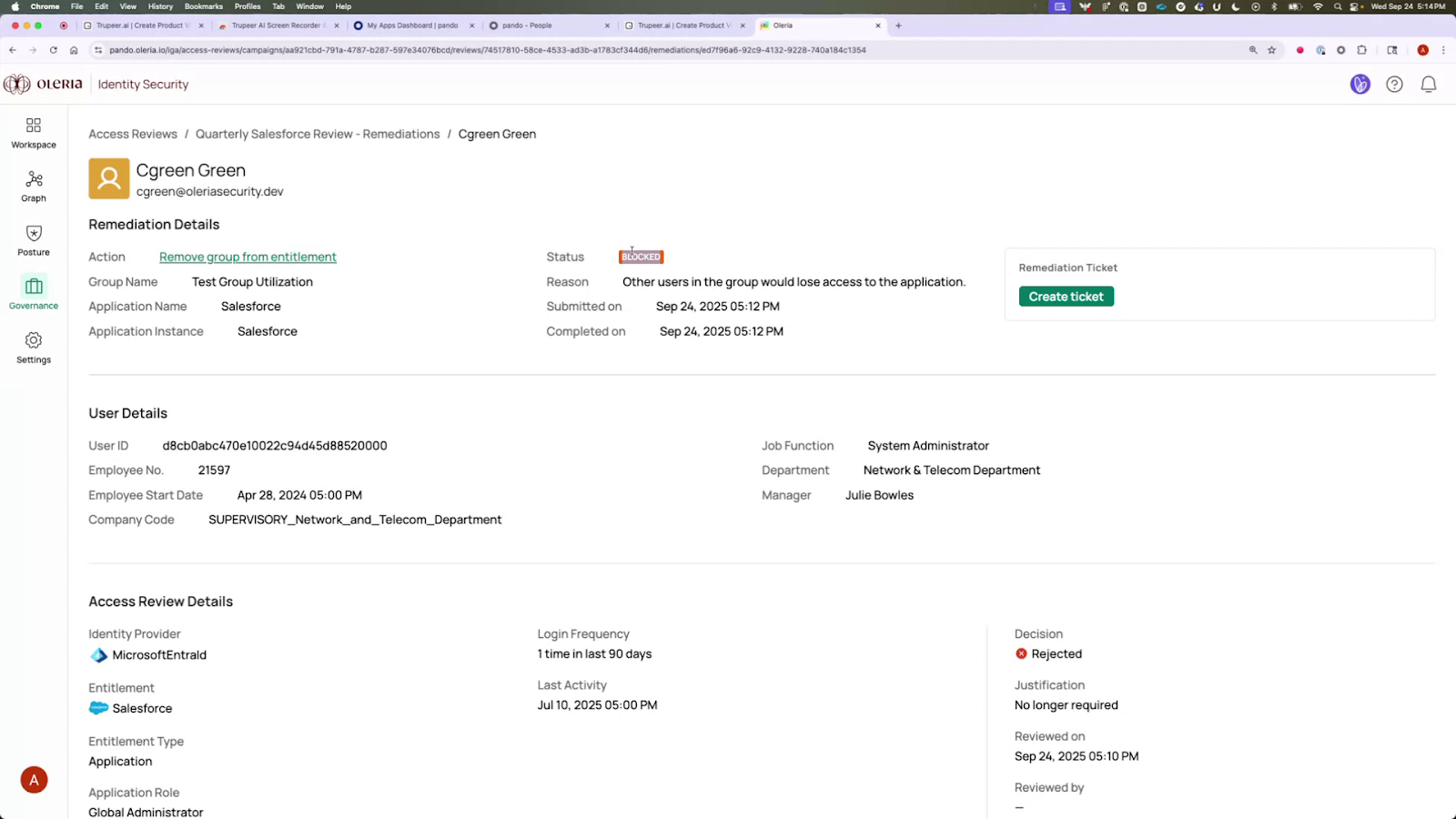
The remediation process examines each rejected review to determine how the person accessed the application and what can be safely revoked. If an access path cannot be removed without affecting other users, the remediation shows a Blocked status.
You can also create tickets for remediations as needed. A ticket is automatically generated in your configured ticketing system.
If remediations were enabled, select the Remediations tab to view all remediation actions and their current status.
The remediation process examines each rejected review to determine how the person accessed the application and what can be safely revoked. If an access path cannot be removed without affecting other users, the remediation shows a Blocked status.
You can also create tickets for remediations as needed. A ticket is automatically generated in your configured ticketing system.