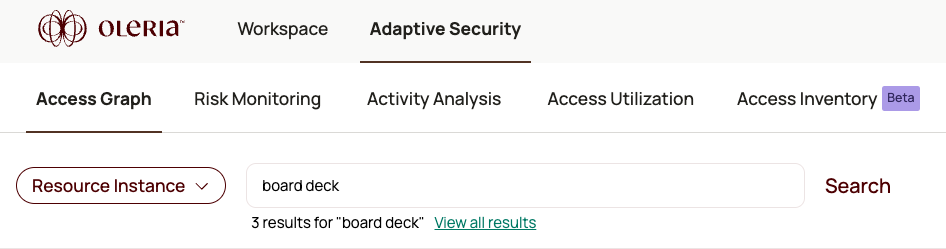
Access Graph currently shows the top 5 search results. To see all results, select View all results to open the Access Inventory page.
Search by accounts
1
Select the Accounts search type
In the search bar, select Accounts from the dropdown menu.
2
Enter the account email
Type the account email address. A list of matching application account nodes displays.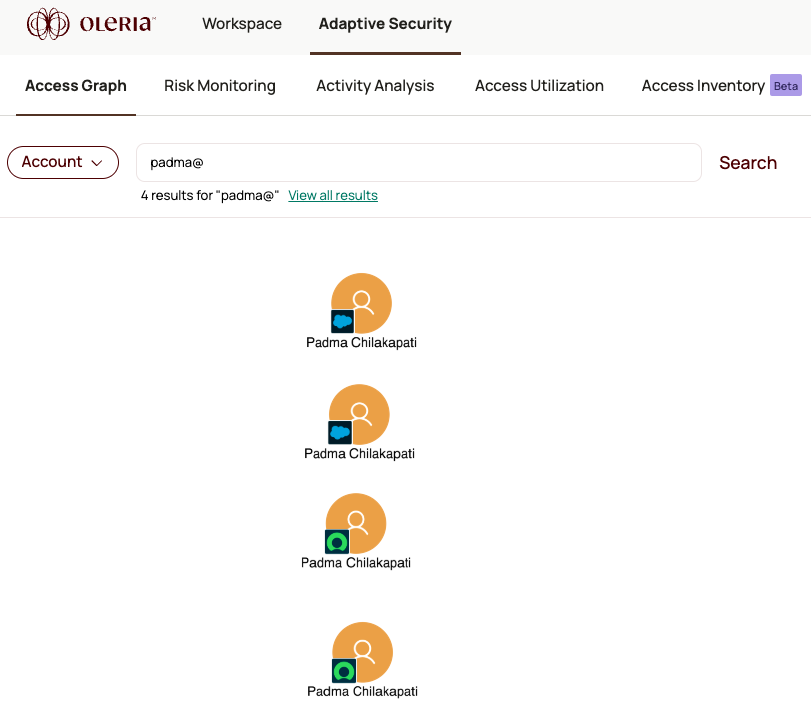
If the email address contains reserved characters, wrap it in double quotes. Example:
"demo-salesforce-group+anthonylee@oleria.com"3
Select an account node
Select an account from the results to build the graph. If the account exists in multiple application instances (for example, Salesforce Production and Salesforce Dev), the graph shows a separate node for each.
Search by resource instances
1
Select the Resource Instances search type
In the search bar, select Resource Instances from the dropdown menu.
2
Enter the resource instance name
Type the resource instance name. A list of matching resource instance nodes displays.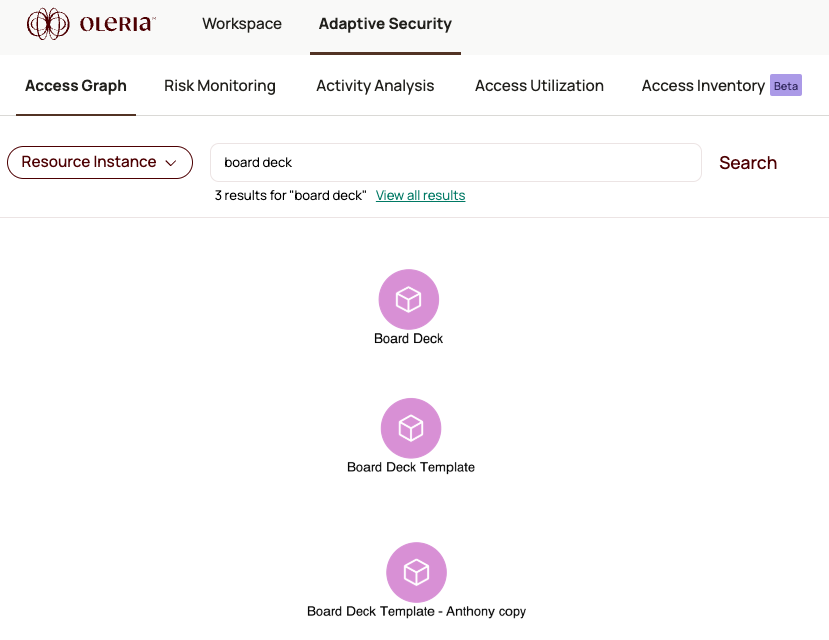
3
Select a resource instance node
Select a resource instance from the results to build the graph. If the instance exists in multiple applications or environments, the graph shows a separate node for each.
View all results
If there are more than 5 matches, select View all results to open the full list in the Access Inventory page.