

What Oleria discovers
Once connected, Oleria continuously discovers and maps the following from your Grist team site:- Accounts - every member and guest of the team site, with their name, email address, team role, and whether they’re an owner.
- Roles - the team roles Owner, Editor, Viewer, and Member (shown in Grist as No Default Access), and which accounts hold each one. Guests appear with the Guest role.
- Non-human identities (NHIs) - Grist service accounts on the team site.
- Credentials - the API key Oleria connects with, linked to its service account, with its status. Grist shows other service accounts’ keys only to the person who created them, so Oleria doesn’t list them. Oleria never reads or stores key values.
Oleria doesn’t import workspaces, documents, document sharing, or the records inside your documents. This integration covers team-site membership and roles only.
Prerequisites
- A Grist team site on getgrist.com. Note its subdomain, for example
acmeforacme.getgrist.com. - A Grist user who is an Owner of that team site. Only owners can see every member.
- A terminal with
curl. Grist creates service accounts only through its API. - A free member slot on the team site. The service account counts as a team member, so if your plan’s member limit is reached, Grist rejects it with “No more team members permitted”. Remove a member or upgrade first. On paid plans, check with Grist whether it counts as a billed seat.
- Admin access to the Oleria workspace.
Create a service account for Oleria
Grist has no page for service accounts, so you create one with a temporary personal API key, then delete that key.1
Create a temporary personal API key
Sign in to Grist as a team owner. Select your profile picture, then Account settings > Developer. Under API Key, select Create.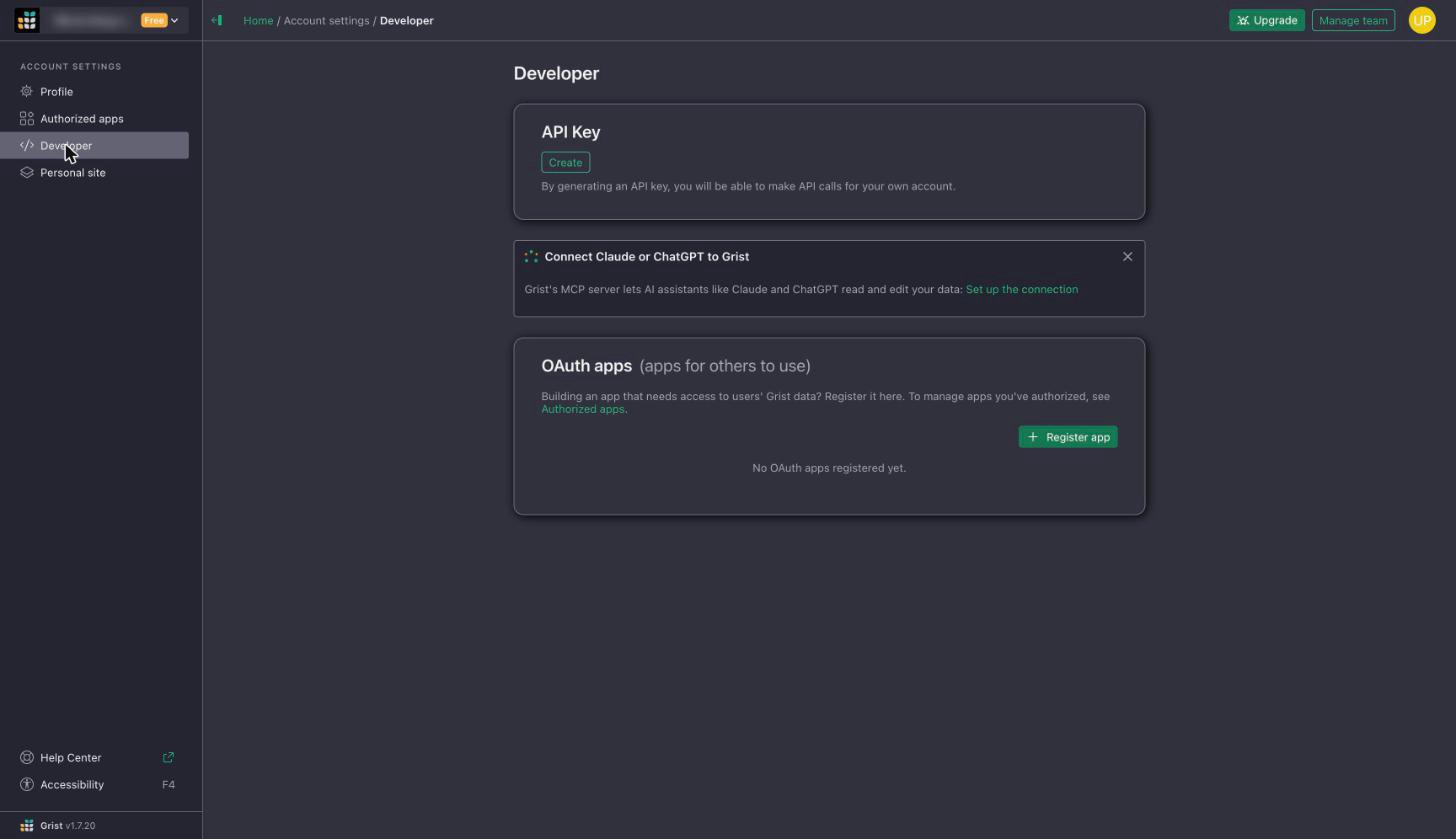
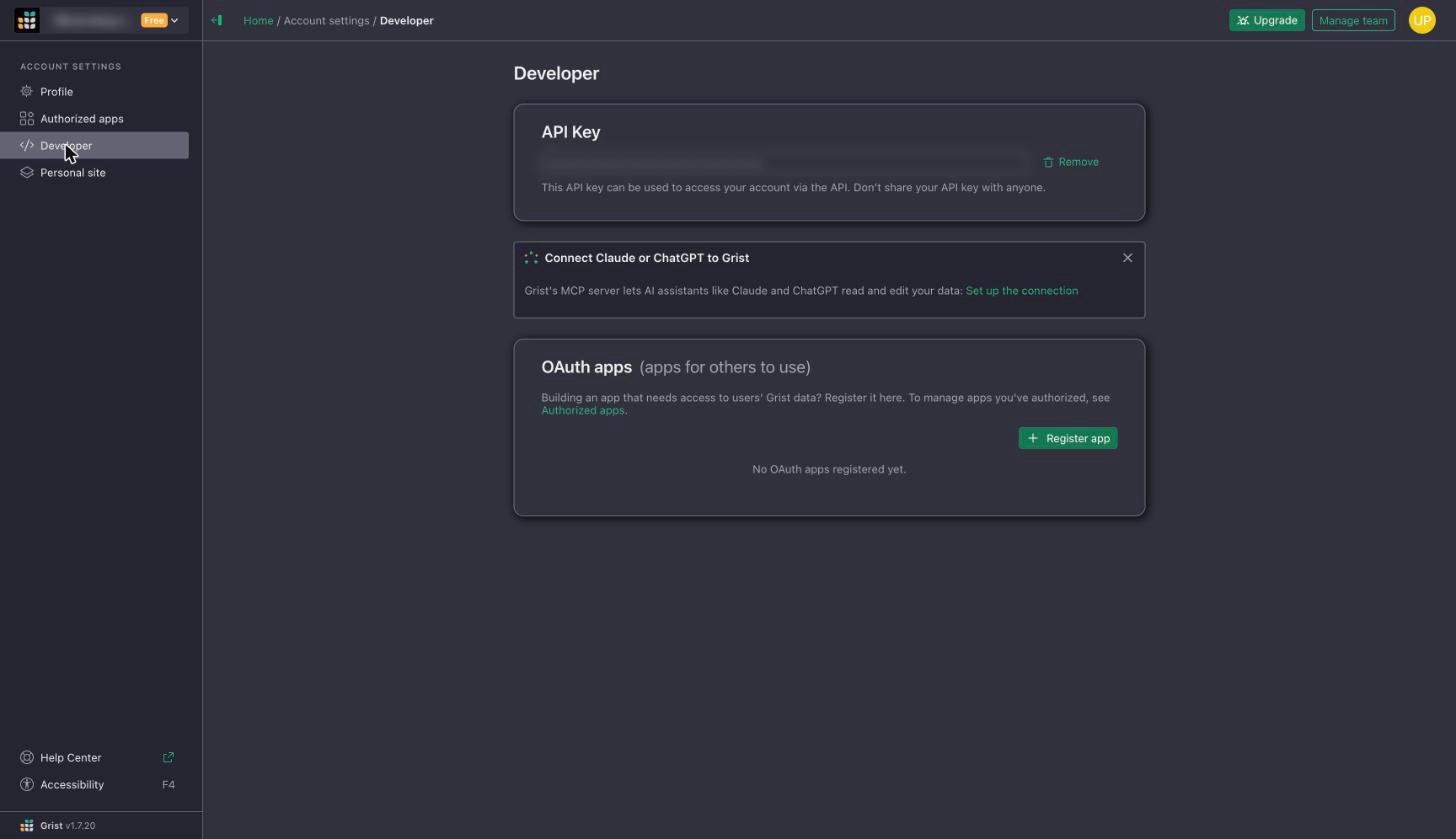
2
Create the service account
Run this command. Replace The response contains
<team> with your team subdomain, <personal-key> with the key you just copied, and set an expiry date. Grist disables the service account’s key after that date.id, login (the service account’s address, ending in @serviceaccounts.invalid), key (its API key), and expiresAt. Copy all of them. Grist shows the key only in this response.Oleria can’t see the expiry date, and only the person who created the service account can extend it or replace its key. Before the date passes, sign in as that person and get a personal API key (use their existing one if they have one, as in the first step). Then either extend the date with
PATCH /api/service-accounts/<id> (body {"expiresAt": "..."}), which keeps the current key, or get a new key with POST /api/service-accounts/<id>/apikey. That call disables the old key right away, so paste the new one into the Oleria integration straight after. Delete the personal key only if you created it for this.3
Make the service account a team owner
Run this command with the same personal key. Replace To check, select Manage team in Grist. The service account appears in the list with the Owner role.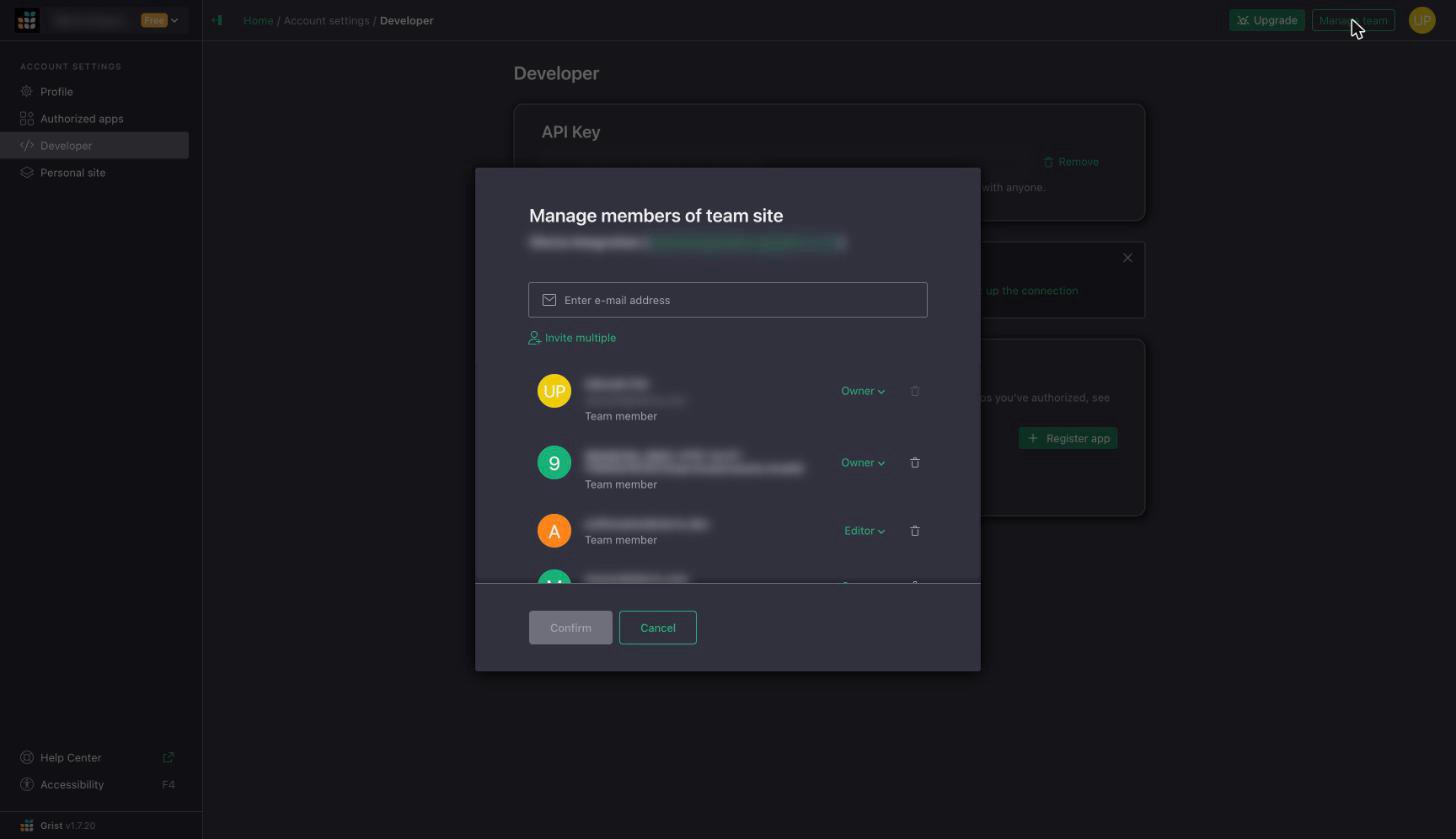
<login> with the service account’s login address.4
Delete the temporary personal key
If you created the key in the first step, go back to Account settings > Developer, select Remove next to the API key, and confirm.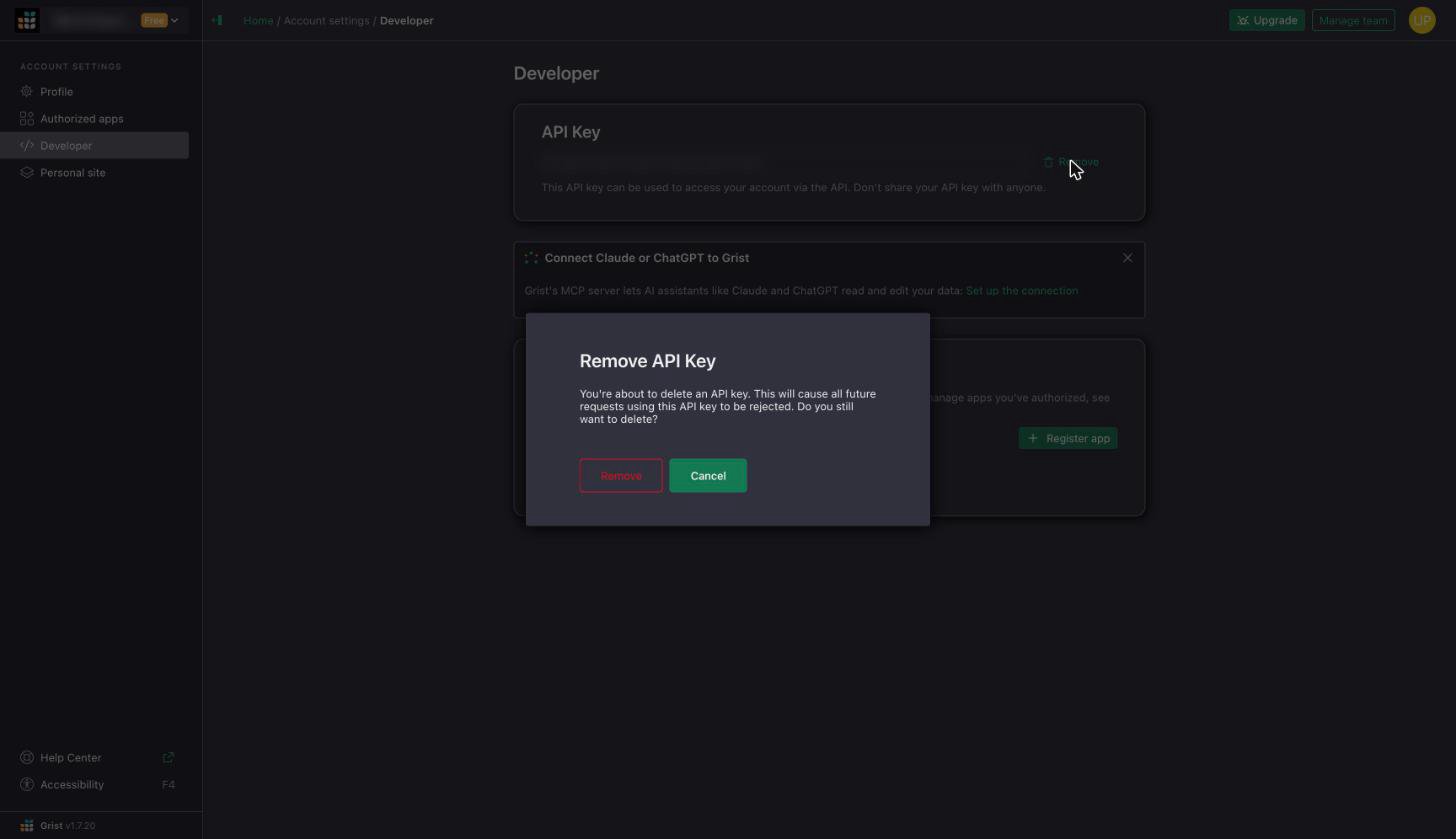
Permissions Oleria needs
Grist API keys have no scopes. A key acts with its user’s team role.Connect Grist to Oleria
1
Open the integration
Go to your Oleria workspace, select Integrations -> select Grist.
2
Complete the connection form
Select Continue and provide the following:
Oleria stores the API key encrypted.
3
Confirm the connection
Select Authenticate. Oleria checks that the key is an owner of the team site before it saves anything. Find the newly connected team site on the Connected tab of your Oleria Integrations page.
When you edit the integration, leave the API key blank to keep the stored one.
Verify the integration
Confirm the Grist team site appears on the Connected tab of your Oleria Integrations page with a status of Healthy. After the first sync completes, check that your team members and their roles appear in your Oleria workspace, and that the Oleria service account appears as a service account.Remediation actions
Oleria can take these actions in Grist. Each one runs with the access of the service account:- Create a user. Oleria invites the email address to the team site with the role you choose, or Member if you don’t choose one. Oleria never invites a guest or grants Owner unless you choose it. Grist sends the person an invitation email.
- Assign a team role to a member, for example raise a Viewer to Editor.
- Remove a team role. An owner, editor, or viewer becomes a Member (no default access). Member is the base team role and can’t be removed this way. To take someone off the team site, use Remove a user from the team site.
- Remove a user from the team site. Grist also deletes all of the person’s document and workspace shares. A revert adds them back to the team but doesn’t restore those shares.
- Disable a non-human identity. The service account is removed from the team site, so its key can no longer reach it.
- Oleria reads the team’s access list before it changes anything. If the member is already in the requested state, Oleria makes no change.
- Reverting an action restores the member’s team role. When a member is removed, Grist also removes their shares on documents and workspaces. A revert doesn’t restore those shares.
- Oleria won’t change or remove the service account it connects as, and won’t remove or demote the team’s last human owner.
- Adding a member back sends them a Grist invitation email.
- Guests’ access is on documents, so Oleria doesn’t change it.
- Oleria can’t delete Grist users, revoke another service account’s key, or disable an account. Grist allows these only for the account owner or a self-hosted installation admin.
Known limitations
- Team-level access only. Workspaces, documents, document shares, guests’ document access, and public links aren’t imported yet.
- No sign-in or activity data. Grist’s API doesn’t return when users were created, first signed in, or were last active, and getgrist.com has no audit log API, so Oleria imports no activity.
- No multi-factor authentication or single sign-on status. Grist shows two-factor authentication and sign-in method only on each user’s own account page, so Oleria reports them as unavailable.
- Service-account details are visible only to their creator. Labels, expiry dates, and key status of other service accounts aren’t shown to the Oleria service account.
- Personal API keys aren’t visible. Grist shows a user’s personal key only to that user.
- No groups or custom roles. Grist team sites don’t have them.
- OAuth isn’t supported. Grist OAuth apps can read documents but not team membership, so Oleria connects with an API key only.
- getgrist.com team sites only. Self-hosted Grist and custom team domains aren’t supported.
- Renaming the team subdomain breaks the connection. The connection is tied to the subdomain you entered. If an owner changes it in Grist, syncs fail. Remove the integration and add it again with the new subdomain.