

What Oleria discovers
Once connected, Oleria continuously discovers and maps the following from your Teamwork site:- Accounts - every person on the site: standard users, collaborators, client users, and contacts, plus people who were deleted. Each account includes the person’s name, email, title, company, user type, whether they’re an administrator or the site owner, two-factor authentication, last login, creation date, invitation state, and job roles. People from client companies appear as external users. Contacts can’t sign in and deleted people are gone, so both appear as disabled. Non-human identities appear as their own accounts:
- Teamwork Bot - the service account Teamwork runs forms and automations as, linked to the person who created it.
- Webhooks - each webhook, its event, its status, and its receiver address (domain only).
- API keys - each person who holds an API key, linked to that person. Oleria never reads, stores, or shows an API key value.
- Teams and companies - every team and company, and their members. Sub-teams appear as their own teams. Teamwork doesn’t list a sub-team’s members in the parent team, so Oleria doesn’t count them as parent-team members.
- Roles - each person’s user type, site administrator and site owner status, and site permissions (for example add projects or manage people), with what each one allows. Project roles appear as roles with their members.
- Projects and project templates - every project, including archived projects, and every project template. For each project, Oleria shows who has access, what they can do (for example project administrator, view tasks and milestones, or add tasks), and who owns the project.
- Activity - changes to project content, such as tasks, task lists, messages, files, and comments, attributed to the person who made them. When a task is assigned to someone, Oleria links that person too.
Prerequisites
- A Teamwork user that is a site administrator. Both connection methods act as this user, and Oleria refuses to connect with a user who isn’t an administrator, because such a user sees only part of the site.
- Admin access on the Oleria platform to add a new integration.
Teamwork has no service tokens. Connect with a dedicated Teamwork user that isn’t tied to an employee, for example
oleria-integration@yourcompany.com. Then the integration keeps working if a person leaves, or if their key changes or their access is removed.Permissions Oleria needs
Teamwork API keys and OAuth tokens have no scopes. They carry the rights of the user they belong to:
With the OAuth 2.0 method, your Teamwork Developer Portal app needs access to the Projects product.
The exact location of these settings can change over time. If the steps below don’t match what you see, refer to Teamwork’s documentation on API authentication and the App Login Flow.
Create the integration user
1
Invite the integration user
In Teamwork, select People, then select Invite users. Enter a name and an email address for the dedicated user, for example 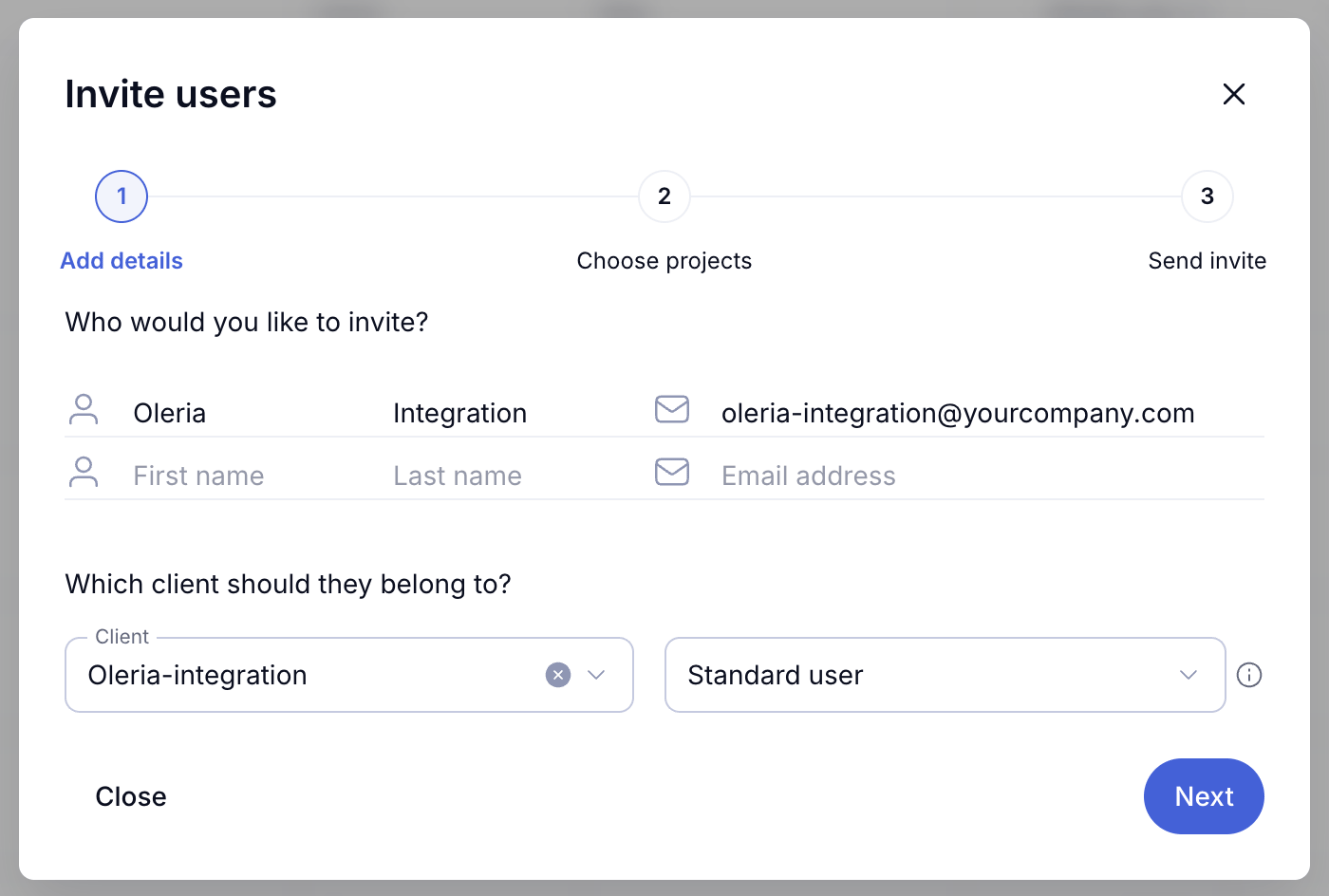
oleria-integration@yourcompany.com. Keep your own company as the Client and Standard user as the user type. Then select Next and send the invite. Accept the invite from that mailbox and set a password.2
Make the user a site administrator
Open the user’s profile from People. In the Permissions section, turn on Is this user an administrator?.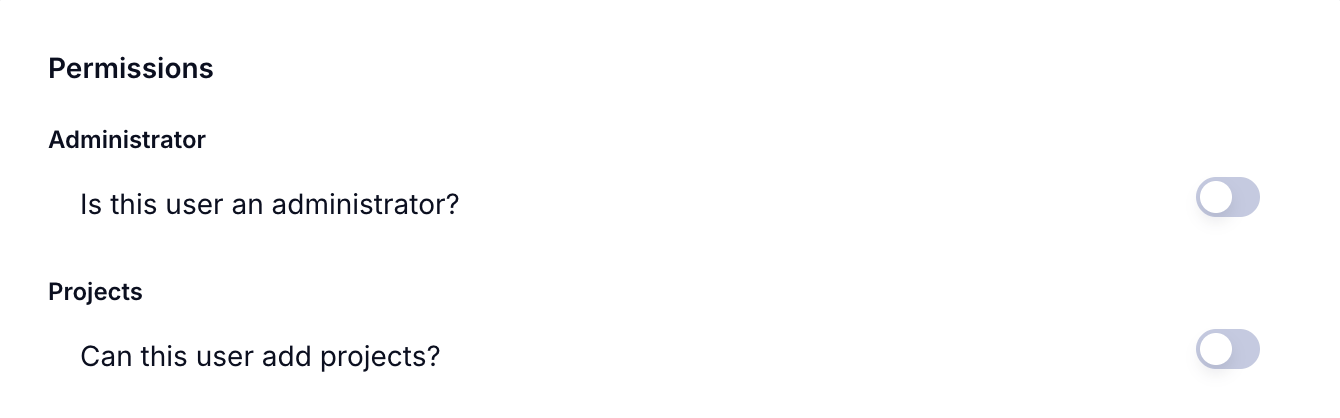
Connect Teamwork.com to Oleria
Choose one method:- API key - you paste the API key of the dedicated user. This is the quickest setup.
- OAuth 2.0 (Teamwork Developer Portal app) - you create an app in the Teamwork Developer Portal and approve it as the dedicated user. Use this method if your policy doesn’t allow pasting personal API keys into other products.
- API key
- OAuth 2.0
1
Copy the API key from Teamwork
Sign in to Teamwork as the dedicated user. Select your profile picture, select Edit my details, and open the API & Mobile tab. Select Show your Token and copy it.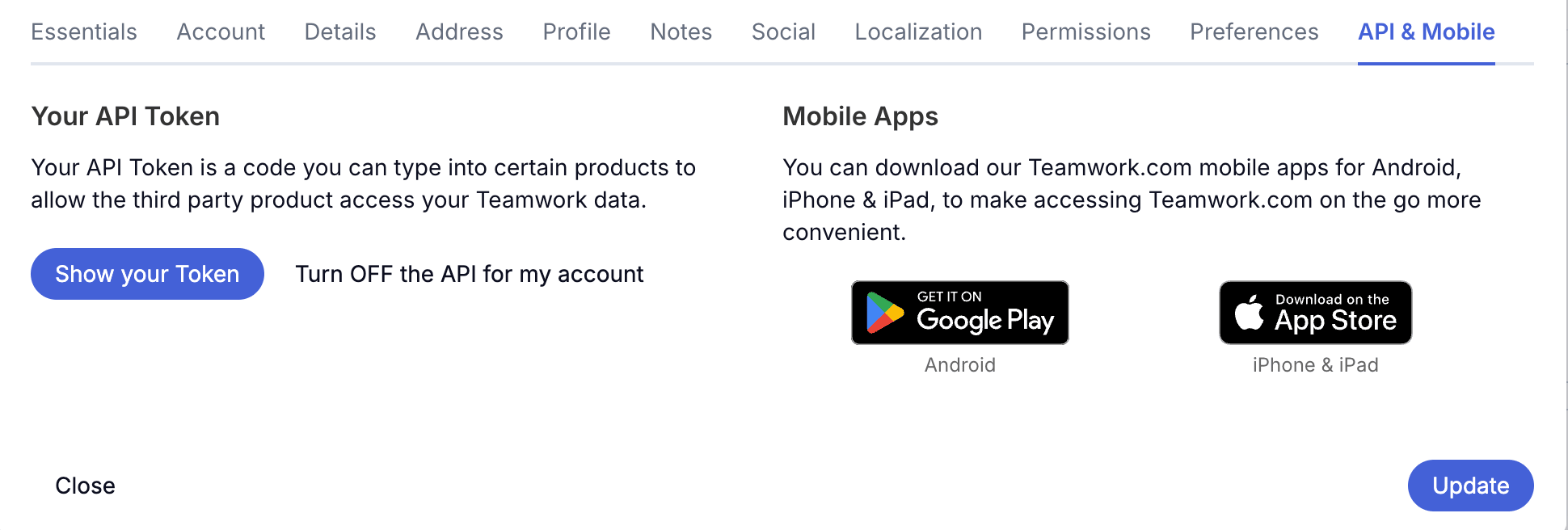
2
Find Teamwork.com in Oleria
Go to your Oleria workspace, select Integrations, select the Available tab, and search for Teamwork.com.
3
Connect in Oleria
Select the Teamwork.com card and choose API key as the Authentication method. Enter your Site URL, for example
https://yourcompany.teamwork.com (EU and AU sites end in .eu.teamwork.com or .au.teamwork.com), and paste the API key. If your site uses a custom domain, enter its teamwork.com address instead. Select Connect. Oleria checks the key against Teamwork, and that the user is a site administrator, before saving the integration.Verify the integration
Confirm the new instance appears on the Connected tab of your Oleria Integrations page with a status of Healthy. After the first sync completes, you can review the discovered accounts, teams, companies, roles, projects, and activity in your Oleria workspace.An integration can’t move to a different Teamwork site. To connect another site, add a new integration. If you edit the integration with a key or approval for a different site, Oleria refuses it.
If someone regenerates the dedicated user’s API key, or removes the user’s administrator rights, the integration shows as unhealthy. Edit the integration in Oleria and enter the new key, or restore the user’s rights.
Remediation actions
Beyond discovery, Oleria can act on Teamwork access to remediate risk. Every remediation action needs the connection user to be a site administrator. Oleria checks this before running any action.
A few safeguards apply to every action:
- Oleria won’t disable, delete, or change the user type of the user the integration connects as, the site owner, or Teamwork Bot. It also won’t change their team or project-role memberships or remove them from a project, won’t remove the connection user’s administrator or manage-people rights, and won’t remove the site owner’s site permissions.
- Teamwork Bot is managed by Teamwork, and changing it can break forms and automations, so Oleria also won’t change its site permissions.
- Teamwork doesn’t allow removing a project’s owner from the project, so that action reports a failure and changes nothing.
- Remove access for external accounts refuses people from your own company.
- A reversal only undoes the change Oleria made. If someone changed the same person, team, or project in Teamwork in the meantime, for example by adding a removed person back to a project, Oleria leaves it as is.
Known limitations
- Sign-ins and security events aren’t available. Teamwork has no audit log API. Activity in Oleria covers changes to project content.
- Removing a team member or a project role member replaces the whole list. Teamwork has no API to remove a single member, so Oleria reads the list and writes it back without that person. A member added in Teamwork at the same moment could be dropped.
- Single sign-on is a site setting. Teamwork reports whether SSO is enabled for the whole site (Enterprise plan), not for each person. Last password change isn’t available.
- Other people’s API keys need the site owner. Teamwork lists every API key only to the site owner. With any other connection user, Oleria discovers only that user’s own key when you connect with an API key, and no API keys when you connect with OAuth 2.0.
- Oleria shares your site’s API rate limit. Teamwork allows 150 API requests a minute for the whole site on most plans. While a sync runs, Oleria can use most of it, so other integrations on the same site may be slowed down.
- API keys and the Teamwork Bot can’t be disabled from Oleria. Teamwork has no API to revoke another person’s key or to disable its service account. Disable or delete the key’s owner instead.
- AI Teammates aren’t discovered. Teamwork has no API for them.
- Tasks, messages, files, and other project content aren’t imported. Oleria reads who can access each project and what they can do, not the content itself.