

This integration is for a Dropbox team (Standard, Advanced, Business Plus, or Enterprise). It does not apply to a personal Dropbox account. There is no API token or SCIM path. Authorize with a dedicated Team admin, not an employee’s personal admin login. If that employee leaves and the account is disabled, the integration breaks.
What Oleria discovers
Once connected, Oleria continuously discovers and maps the following from the Dropbox team:- Accounts - every team member, including email, display name, join date, status (invited, enabled, suspended, or removed; invited members who have not joined yet count as enabled), roles, secondary emails, last activity from the member’s linked devices and web sessions, and last password change. Two-step verification (multi-factor authentication, or MFA) combines the team-wide policy with each member’s own two-step verification changes recorded in team activity. Single sign-on (SSO) reflects the team-wide policy.
- Roles - every role available on your team, plus Member. For example Team admin, User management admin, Support admin, and, where your plan offers them, Billing admin, Content admin, Compliance admin, Reporting admin, Security admin, and custom roles.
- User groups - team groups (company-managed and user-managed) and their membership.
- Resources - shared folders and team folders.
- Access - who can reach which shared or team folder: the members and groups on each folder, with their access level (for example Owner, Editor, or Viewer).
- Non-human identities (NHIs) - third-party apps linked to a member’s Dropbox account, including app name and when the app was linked.
- Activity - team activity such as logins, member and admin-role changes, group membership changes, sharing and team-folder changes, password and MFA/SSO policy changes, app link and unlink, and device link and unlink. See Plan coverage.
Plan coverage
If a Dropbox plan does not include a feature, Oleria skips it and continues syncing everything else, rather than failing the connection.
Activity also requires the authorizing admin to be able to view team activity in the Dropbox admin console. Support admin cannot view activity logs. If the authorizing admin cannot view activity, Oleria still connects and syncs accounts, roles, groups, and folders. Activity is skipped rather than failing the connection, and so are MFA, SSO, and last password change for every account, because Oleria reads them from team activity.
Prerequisites
- A Dropbox team you want Oleria to inventory (not a personal account).
- A Team admin (or an admin who can grant the permissions on the consent screen) to authorize the connection.
- Permission to view team activity in the Dropbox admin console, if you want Activity.
- For Option B only, access to the Dropbox App Console to create and configure your own app, and the redirect URI provided by Oleria.
Connect Dropbox to Oleria
Choose how Oleria authorizes to Dropbox. Both options use the same OAuth 2.0 consent screen and the same permissions. There is no team ID or base URL to paste. After you approve access, Oleria uses the authorized Dropbox team automatically.- Option A: Oleria Dropbox app (Recommended)
- Option B: Your own Dropbox app
1
Open the integration
Go to your Oleria workspace, select Integrations -> select Dropbox. Keep Authentication Method set to Oleria Dropbox app (OAuth).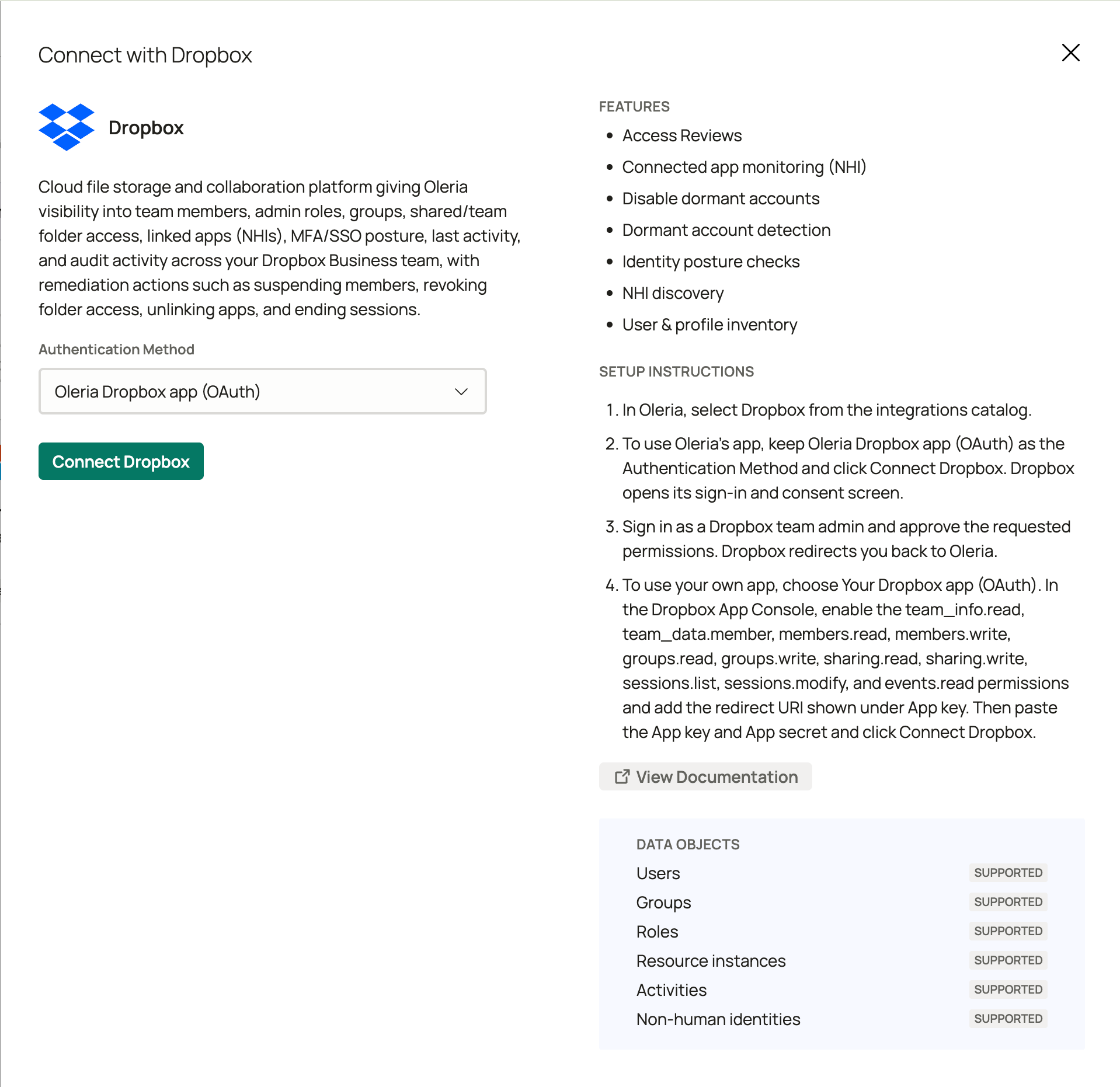
2
Authorize in Dropbox
Select Connect Dropbox. Dropbox opens its sign-in and consent screen. Sign in as a Team admin and approve the permissions. Dropbox redirects you back to Oleria when the connection is active.The consent screen includes both discovery and remediation permissions together. Dropbox has no read-only option for this app, so approving it grants Oleria write access to members, groups, sharing, and sessions from the moment you connect.
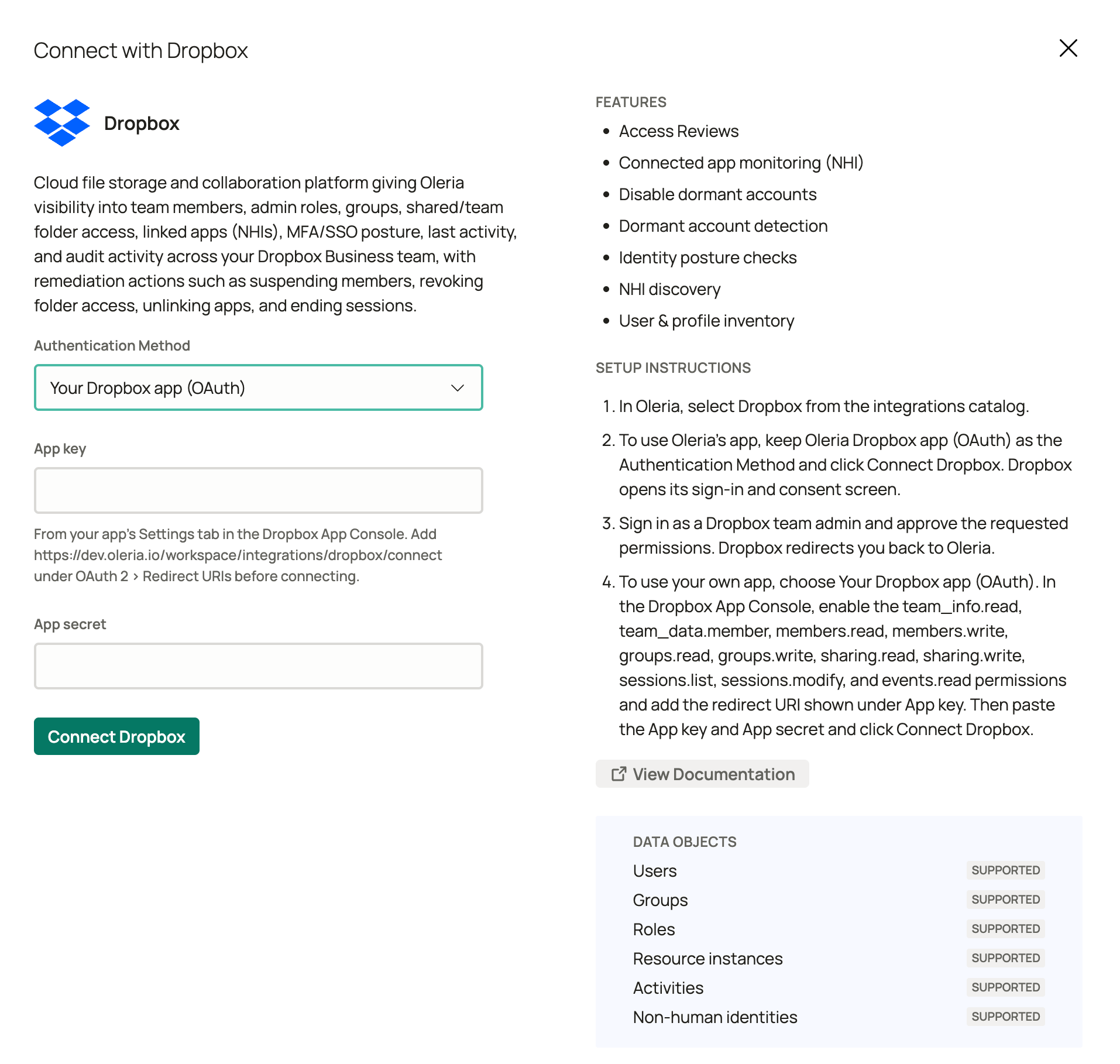
Permissions Dropbox asks for
Dropbox’s consent screen requests the permissions this integration needs. With Option A you do not set scopes anywhere. With Option B, enable these scopes on your app’s Permissions tab first.If a connection was authorized before
sharing.read and sessions.modify were requested, Oleria keeps syncing everything else and skips folder access, unlinking apps, and ending sessions, and reverting a shared-folder revocation restores Viewer. Edit the Dropbox integration in Oleria and select Update to sign in again and grant them.Verify the integration
Confirm the Dropbox instance appears on the Connected tab of your Oleria Integrations page with a status of Healthy. Oleria names the instance after the Dropbox team ID, which starts withdbtid:. After the first sync completes, you can review the discovered accounts, roles, groups, folders, folder access, and linked apps in Access Inventory. Activity backfills afterward if the authorizing admin can view team activity.
If Dropbox revokes the app, or the authorizing admin account is disabled, edit the Dropbox integration in Oleria and select Update to sign in again. Sign in as an admin of the same Dropbox team. Oleria rejects an update that authorizes a different team. To connect another team, add a new Dropbox integration. With Option A there is no secret to rotate. With Option B, if you regenerate the App secret, edit the integration in Oleria, paste the new secret, and select Update.
Recent Activity can take a few minutes longer to appear than other data. Dropbox indexes team activity with a short delay.
Remediation actions
If you enable remediation for Dropbox, Oleria uses the same OAuth connection. You start each action in Oleria.Known limitations
- Per-member SSO - Oleria reads the team-wide SSO policy only.
- MFA and SSO policy history - Oleria infers the team-wide policy from the latest policy change in team activity. If the policy has not changed within the activity Dropbox retains, SSO shows as Unavailable, and MFA shows as Unavailable unless the member changed their own two-step verification in the last 365 days. Per-member two-step verification and password changes look back 365 days.
- Member devices and sessions - not listed as their own objects. They set each member’s last activity, and device link and unlink still appear in Activity.
- Shared links - links to individual files and folders are not listed as access.
- Selective sync, legal holds, file requests, Dropbox Paper, and Showcase - not covered.
- Dropbox Sign, Dash, and other add-on products - not covered.