

What Oleria discovers
Once connected, Oleria continuously discovers and maps the following from your Port organization:- Organization - your Port organization’s name, region, and plan, and the sign-in methods its users have. When Port returns them, Oleria also shows organization settings such as whether Port support staff can access your organization.
- Accounts - every user, whether active, invited, or disabled, with their name, email, status in your organization, roles, teams, whether they’re an Admin, created and last-modified dates, and last login. Each user’s license level (free or paid) comes from your Port plan. Oleria also shows how each user can sign in, such as password, Google, GitHub, or SSO, from the sign-in providers Port records, and whether the user is provisioned by SCIM.
-
Roles - Port’s built-in Admin, Admin Readonly, and Member roles, one moderator role for each blueprint (for example
service-moderator), any other role a user holds, and who holds each role. Each account also shows its highest role level: Admin, Admin Readonly, Moderator, or Member. - Teams - every team, its members, and its parent team, so nested teams show up as a hierarchy. Teams that Port syncs from your identity provider are marked as synced.
- AI agents - if your organization uses Port AI agents and agent discovery is enabled for your Oleria workspace, Oleria discovers each agent with its title, description, status, execution mode (Automatic or Approval Required), the user who created it, and its owning team. An agent acts with the permissions of the user who runs it, so it has no account or credential of its own. Oleria never reads agent prompts. If AI agents aren’t enabled for your Port organization, Oleria skips them without failing the sync.
-
Non-human identities (NHIs):
Organization credentials, each webhook’s ingestion key, and organization secrets also appear as credentials, with their dates and, where Port reports one, their status. Oleria never imports client secrets, secret values, webhook URLs or keys, or integration configurations.
- Activity - Port’s audit log: changes to blueprints, blueprint and action permissions, self-service actions and their runs, webhooks, integrations, secrets, and scorecards, and catalog entities changed in the Port UI, through the API, or through Port’s MCP server, including user and team entities. Each event shows who made it - a user, a service account, organization credentials, or an integration - and whether it came from the Port UI or the API. A change to a user or team points to that account or team, and a change to an integration or secret points to that non-human identity when Port records which one changed. Other events point to your Port organization, with the blueprint, entity, or action recorded on the event. Failed events include Port’s error message.
Prerequisites
- A Port organization in the EU (
app.port.io) or US (app.us.port.io) region. - A Port user with the Admin role, to copy your organization credentials.
- Admin access to the Oleria workspace.
Permissions
Port organization credentials have no scopes to choose. Port evaluates them as the organization’s admin, so they hold every permission below. Oleria refuses personal credentials, whose Client ID is an email address, because Port evaluates them as that one user and they would sync an incomplete inventory.Required to sync
Users, teams, and roles are required. If Port refuses any of the other reads, the sync continues without that data.
Required only for actions
Organization credentials always include these permissions, so you can’t leave them out. Oleria makes changes in Port only when an action is run from Oleria.
Copy your organization credentials
1
Open Credentials in Port
Sign in to Port as an Admin. Select your profile picture at the bottom left, then select Credentials.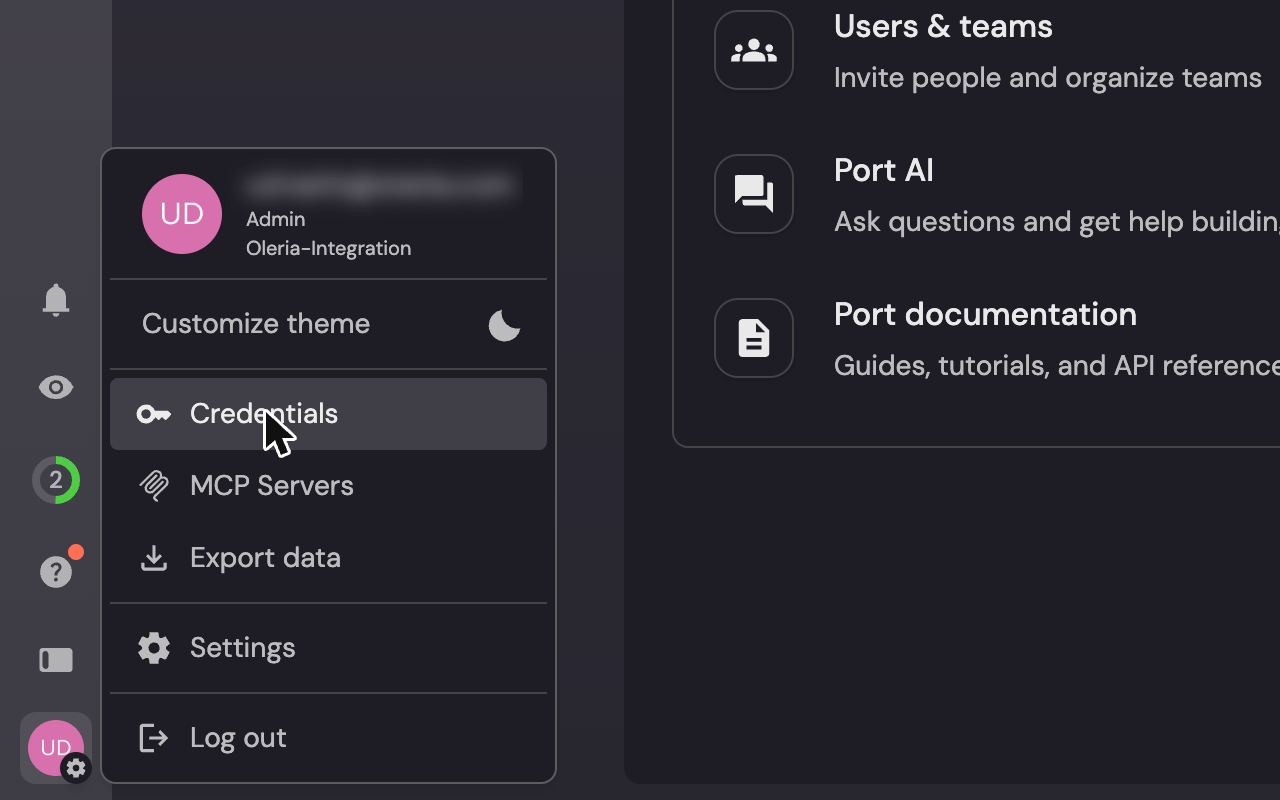
2
Copy the Client ID and Client Secret
Open the Organization tab and copy the Client ID and Client Secret. Don’t use the Personal tab: personal credentials act as one user, and Oleria refuses them.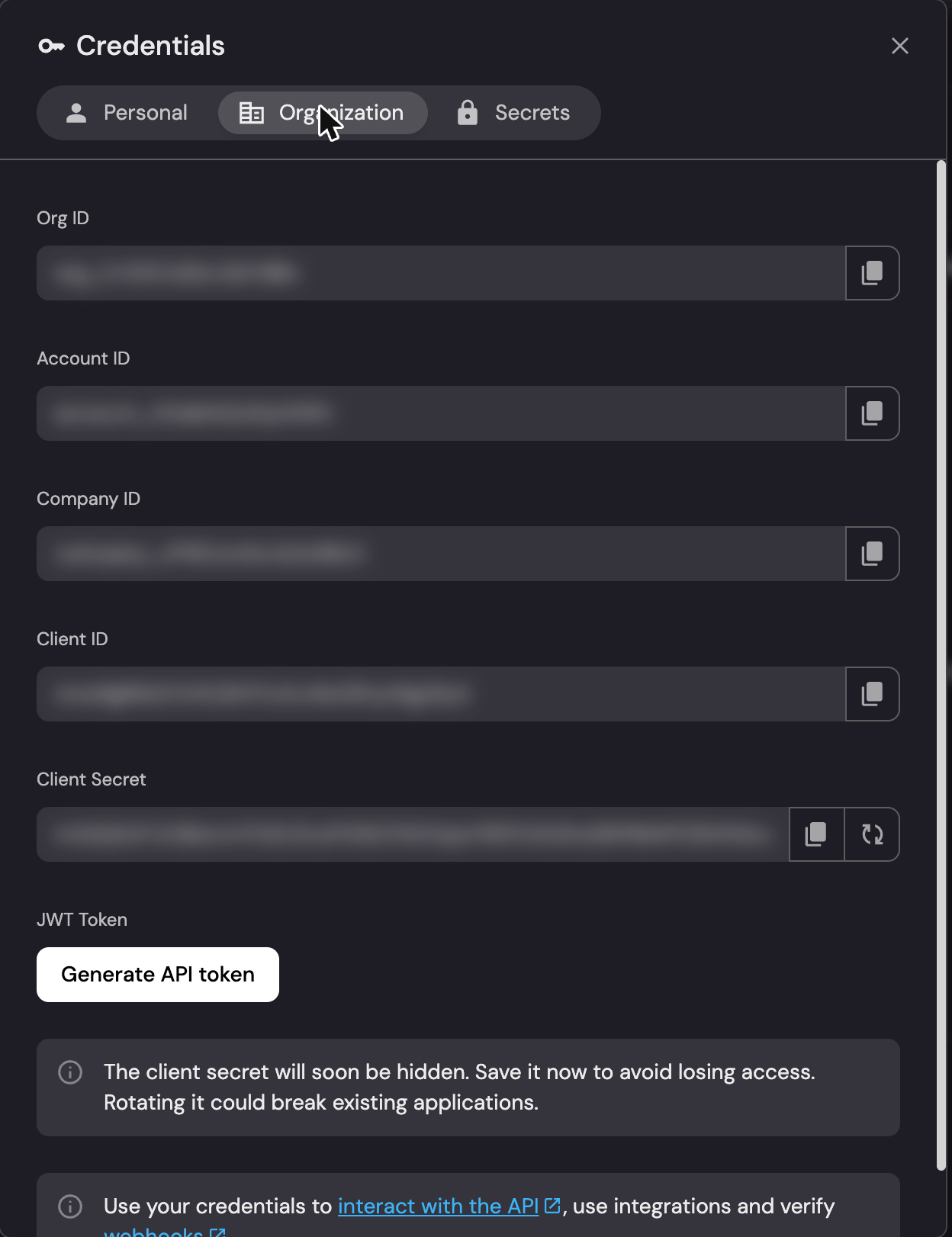
3
Note your region
Check the address you sign in to Port at:
app.port.io is the EU region, and app.us.port.io is the US region.Connect Port to Oleria
If you connected Port to Oleria with the earlier SCIM form (a SCIM base URL and token), the sync stops with an error asking you to reconnect. Remove that connection, then connect Port again with the Organization credentials and region below.
1
Open the integration
Go to your Oleria workspace, select Integrations, select the Available tab, and search for Port.
2
Complete the connection form
Fill in the connection form:
3
Confirm the connection
Select Authenticate. Before it saves anything, Oleria checks that:
- The Client ID isn’t an email address.
- Port accepts the Client ID and Client Secret in the region you chose. If Port rejects them, check the region and copy the organization credentials again.
- The credentials can read your organization and its blueprints.
Verify the integration
Confirm the integration appears on the Connected tab of your Oleria Integrations page as Port (your organization name). After the first sync completes, check that users, service accounts, teams, roles, non-human identities, and activity appear in your Oleria workspace.When you edit the integration, you can change the Region, Client ID, and Client Secret. Leave Client Secret blank to keep the stored one. If you change the Client ID, enter its Client Secret too. The credentials must belong to the same Port organization: Oleria refuses credentials from another organization. To connect a different organization, add a new integration.
Remediation actions
Oleria can take these actions in Port. Each one runs with the organization credentials, and before every action Oleria checks that the credentials still act as the organization’s admin.
Keep these limits in mind when you use these actions:
- Oleria won’t lock you out of Port. It refuses to disable the organization’s only active Admin, or to remove the Admin role from them. Service accounts don’t count as active Admins.
- Teams synced from your identity provider can’t be changed. Port takes their members from your identity provider, so Oleria refuses to add or remove members. Change the membership in your identity provider.
- Users provisioned by SCIM. If Port reports that a change conflicts with SCIM, the action fails. Make the change in your identity provider.
- Nothing to change. If the user is already in the requested state - for example, already disabled, already in the team, or already holding the role - the action succeeds without changing anything.
- Changes are checked. After each change, Oleria reads the user, team, or webhook again. If Port didn’t apply the change, the action fails.
- Reverting doesn’t undo later changes. A revert changes only what the action changed: one team member, or one role. If a user, invited user, service account, or new team changed since, the revert leaves it as it is and reports a conflict. If the team member or role is already back where it was, or the target no longer exists, the revert succeeds without changing anything.
- Not available from Oleria. Oleria can’t delete users or teams, or revoke tokens a user already created. Deleting can’t be undone, and Port has no API to revoke an issued token. Do these in Port.
Disable non-human identity
If the service account or webhook is already disabled, the action succeeds without changing anything. If it no longer exists, the action fails. This action works only on service accounts and webhooks. To disable a person, use Disable user accounts.
These non-human identities can’t be disabled from Oleria:
- Integrations - the Port API can’t pause an integration, only delete it, which can’t be undone.
- Organization credentials - Port can only delete or rotate them. Neither can be undone, and both break every integration that uses the credentials.
- Organization secrets - Port secrets have no disabled state. They can only be deleted, which can’t be undone.
Known limitations
- No MFA data. The Port API returns no MFA enrollment or MFA policy, so Oleria can’t show whether users have MFA. For users who can sign in only through SSO, Oleria shows MFA as handled by your identity provider.
- No SSO settings. The Port API doesn’t return your SSO connection or its settings. Oleria shows how each user signs in from the sign-in providers Port lists for them. SSO is available on Port’s Standard and Enterprise plans, and SCIM on Enterprise.
- No sign-ins in activity. Port’s audit log doesn’t record sign-ins, and Port shows its login logs only in its own UI. A user’s last login comes from the last-login time Port records for your organization.
- User, team, and role changes appear as entity changes. Port’s audit log has no separate events for user, team, or role administration. These changes appear only as changes to the user’s or team’s catalog entity.
- 90 days of activity. Port keeps audit-log events for 90 days, so the first sync brings in at most the last 90 days.
- Catalog updates from integrations aren’t imported. Oleria imports catalog entity changes made in the Port UI, through the API, or through Port’s MCP server, and leaves out the entity updates your Port integrations write as they sync data into Port.
- Events from unknown actors are skipped. Oleria imports an event only when it can match who made it to a user, service account, organization credentials, or integration it discovered. For example, events by a user who has since been removed from Port are skipped.
- Webhook events point to the organization. Port’s audit events for webhooks don’t say which webhook changed, so Oleria shows them on your Port organization, not on the webhook.
- No credential last-used dates. Port doesn’t record when organization credentials were last used. The credentials Oleria connects with show the latest sync time instead.
- Personal and service-account credentials aren’t listed. The Port API has no way to list personal credentials or a service account’s Client ID and secret, so Oleria shows service accounts but not their credentials.
- Roles are built in. Port has no custom roles, and roles can’t be given to teams.
- Not imported. Blueprints, catalog entities (except AI agents), self-service actions, pages, scorecards, and their permissions aren’t imported, so Oleria doesn’t show who can see or change them. Oleria reads blueprints only to list each blueprint’s moderator role. Changes to these objects appear as activity on your Port organization.