

What Oleria discovers
Once connected, Oleria continuously discovers and maps the following from your Anypoint organization:- Accounts - every user in your organization, with their name, username, email address, whether they’re enabled, when they were created, when they last signed in, and when they last changed their password. Oleria also shows whether each user signs in through single sign-on, whether they’ve set up multi-factor authentication, whether their email address is verified, and whether they’re exempt from multi-factor authentication or the IP allowlist.
- Administrator standing - the organization owner gets the Organization Owner account role. Users who hold the Organization Administrator permission on the root organization, through a role group or through a team or one of its parent teams, get the Organization Administrator account role. Every other user gets the Member account role.
- External team members - members of external teams, who belong to another trusted Anypoint organization, appear as accounts with the External Team Member account role.
- Teams - every team, its members and maintainers, and teams nested inside other teams. Members that teams receive from external groups through your identity provider are included.
- Permissions - the permissions granted to each team and user, and the business group or environment each permission applies to. Oleria also imports role groups and their members.
- Business groups and environments - your root organization, its business groups, and their environments, so you can see where each permission applies.
- Non-human identities - connected apps, with their owner, whether they’re enabled, when they were created, when they were last used, and when their client secret was last rotated. Oleria also discovers Exchange client applications with their owners, and the client credentials of each environment and business group.
- Credentials - client secrets, public keys, and certificates of connected apps and client applications, the client credentials of each environment and business group, Secrets Manager secrets, single sign-on certificates, and client provider credentials. Each credential shows its type, status, and, where Anypoint Platform reports them, its creation, rotation, and expiry dates. Credentials that belong to a connected app or client application are linked to it.
- API instances - API Manager API instances in each environment, and which client applications can call each API through an approved contract. For each client application, Oleria also shows how many of its contracts are approved, pending, or revoked.
- Runtime Manager applications - applications deployed to CloudHub 2.0, CloudHub, and hybrid servers in each environment, with their status and runtime version.
- Exchange assets - assets in each business group, such as APIs, connectors, and templates, and the users and teams with administrator, contributor, or viewer access to each one.
- Secrets Manager secret groups - the secret groups in each environment and the secrets they contain.
- Activity - events from the Anypoint audit log, such as sign-ins, failed sign-ins, sign-outs, objects being created, updated, or deleted, permissions being granted or revoked, and settings changes. Oleria doesn’t import the events that its own connected app creates.
Oleria never stores or imports secret values. For credentials and Secrets Manager secrets, Oleria imports only names, identifiers, types, and dates. Some Anypoint Platform APIs that Oleria calls, such as the Exchange client application API, return a client secret in their response. Oleria discards it without storing or logging it.
Prerequisites
- An Anypoint organization on one of these control planes: US (
anypoint.mulesoft.com), EU1 (eu1.anypoint.mulesoft.com), Gov (gov.anypoint.mulesoft.com), CA1 (ca1.platform.mulesoft.com), GB1 (gb1.platform.mulesoft.com), JP1 (jp1.platform.mulesoft.com), IN1 (in1.platform.mulesoft.com), or AU1 (au1.platform.mulesoft.com). - An Anypoint Organization Administrator who can create connected apps in Access Management.
- Admin access to the Oleria workspace.
Create a connected app in Anypoint
1
Open Connected Apps
Sign in to Anypoint Platform as an Organization Administrator. Go to Access Management > Connected Apps, make sure your root organization is selected under Business Group, and select Create app.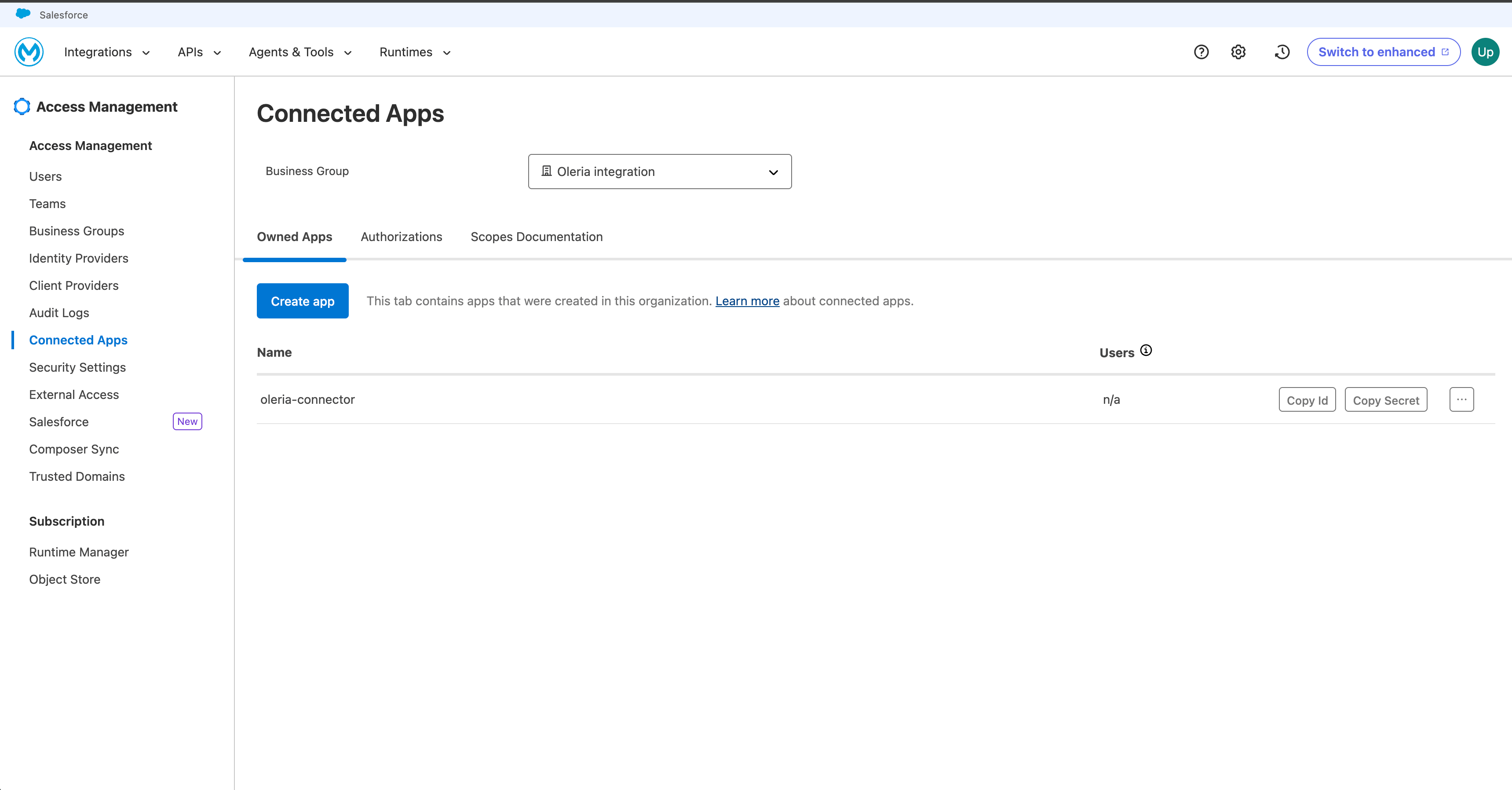
2
Name the app and choose its type
Enter a name for the app, such as 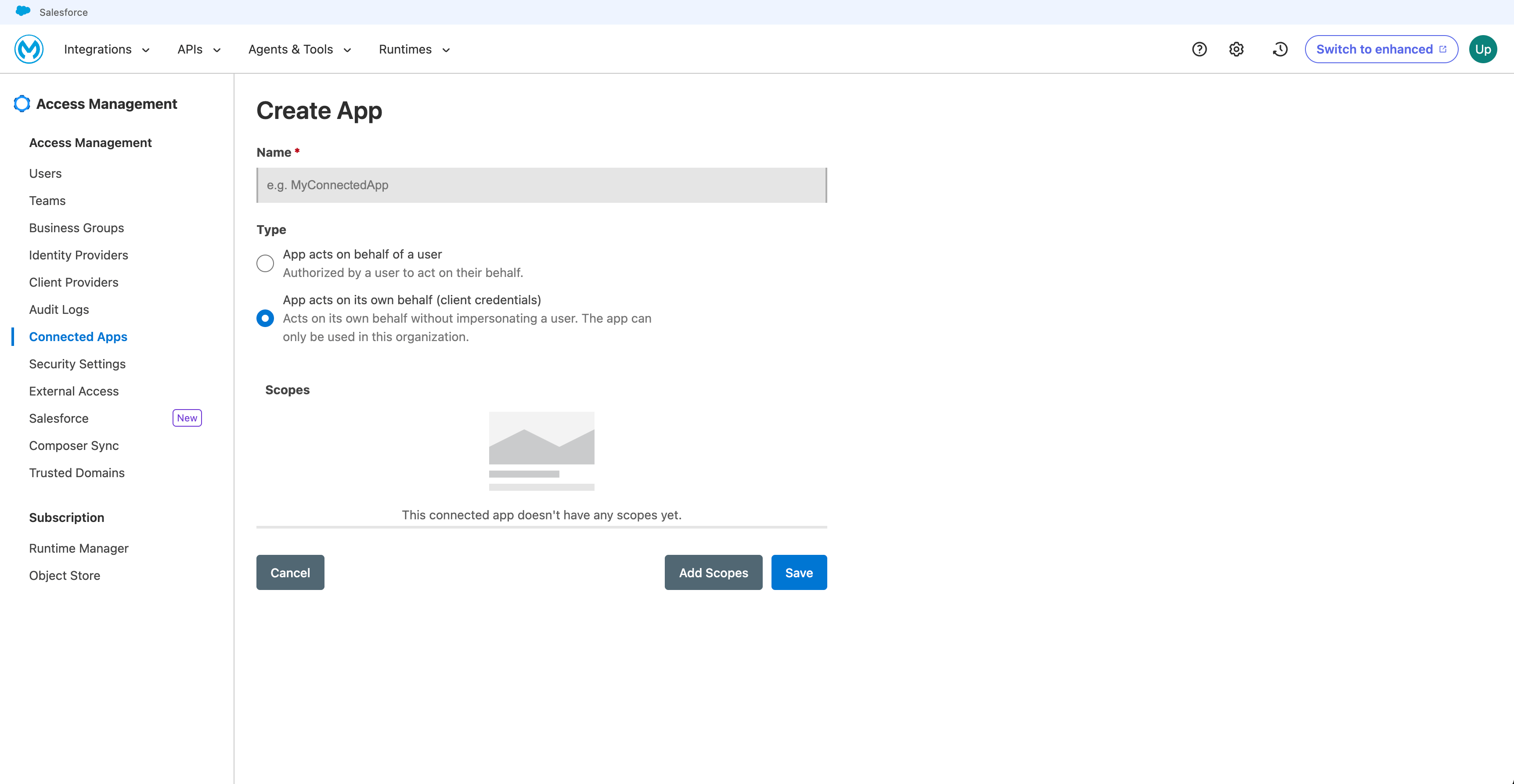
oleria-connector. Under Type, select App acts on its own behalf (client credentials). Oleria doesn’t support apps that act on behalf of a user.3
Add the scopes
Select Add Scopes and add the scopes for what you want Oleria to do: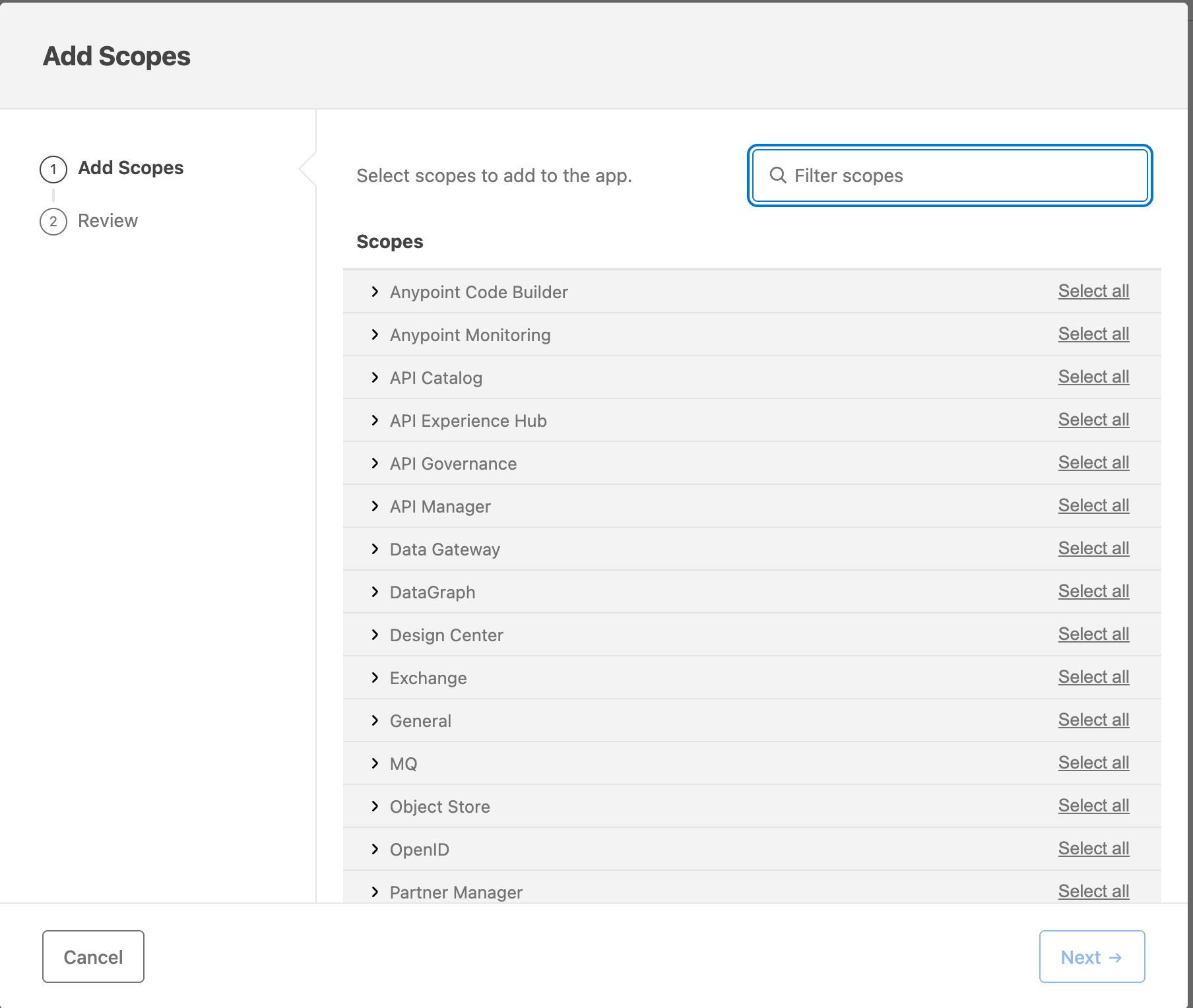
If you leave out an optional sync scope, Oleria skips that type of data and keeps syncing everything else. Don’t add
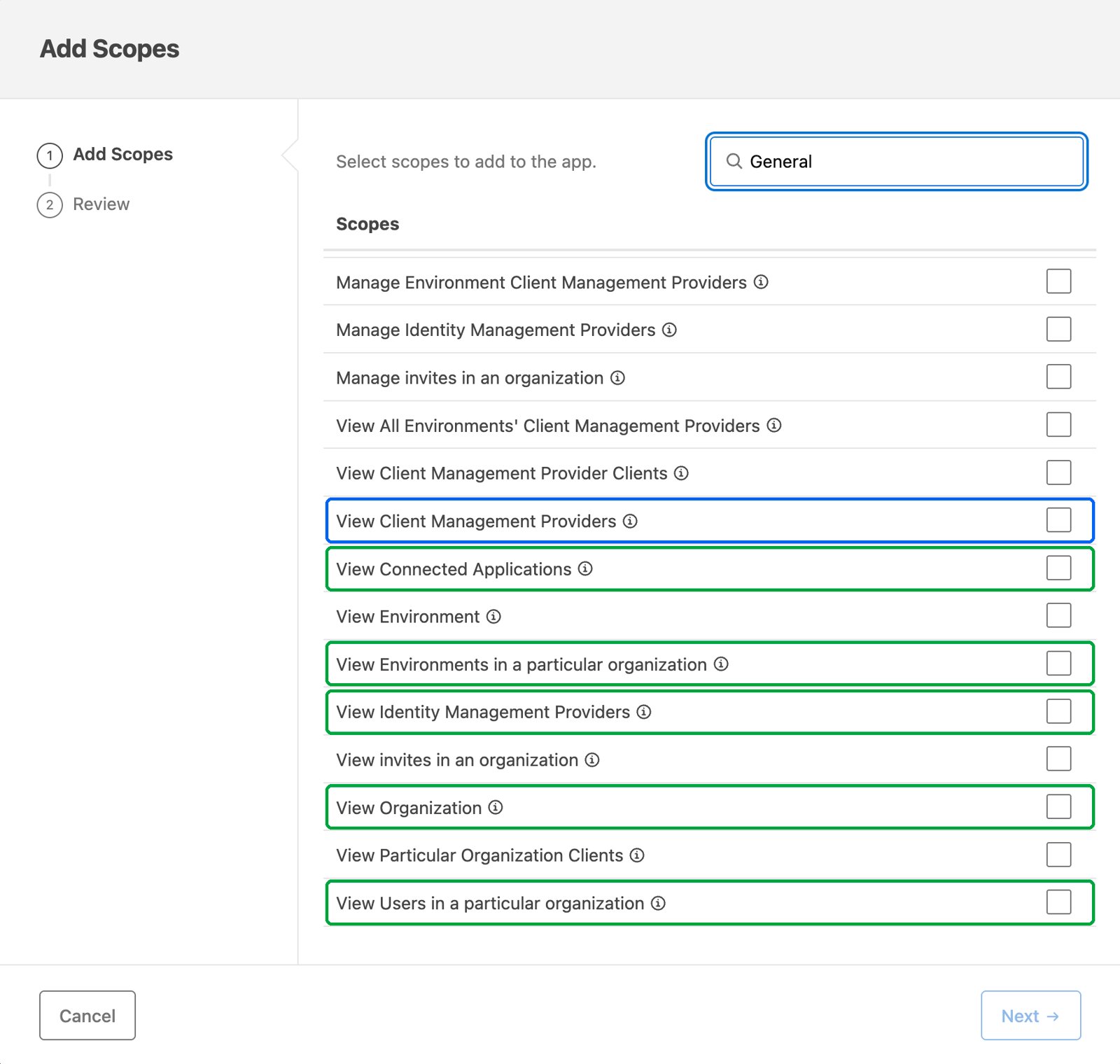
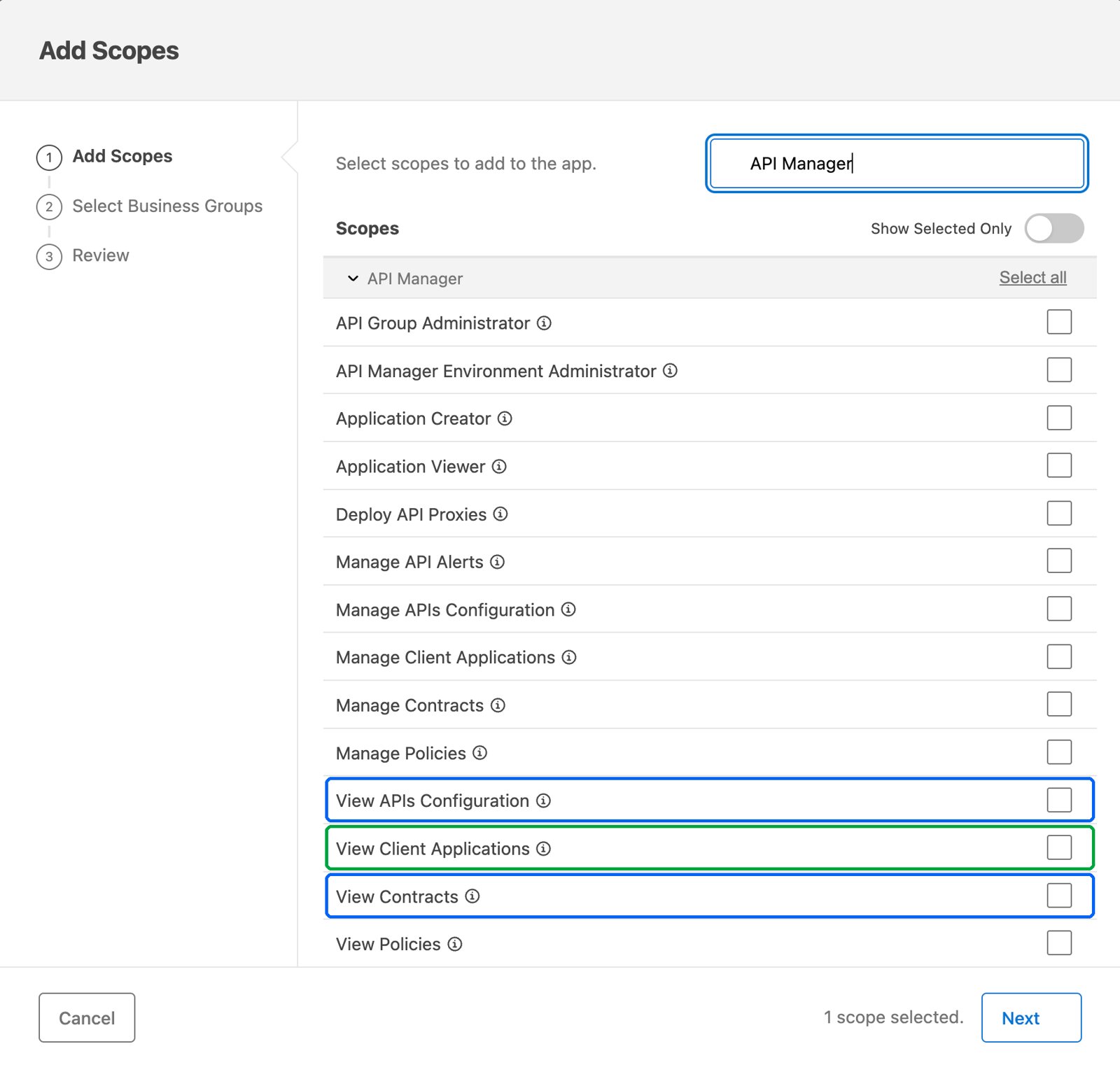
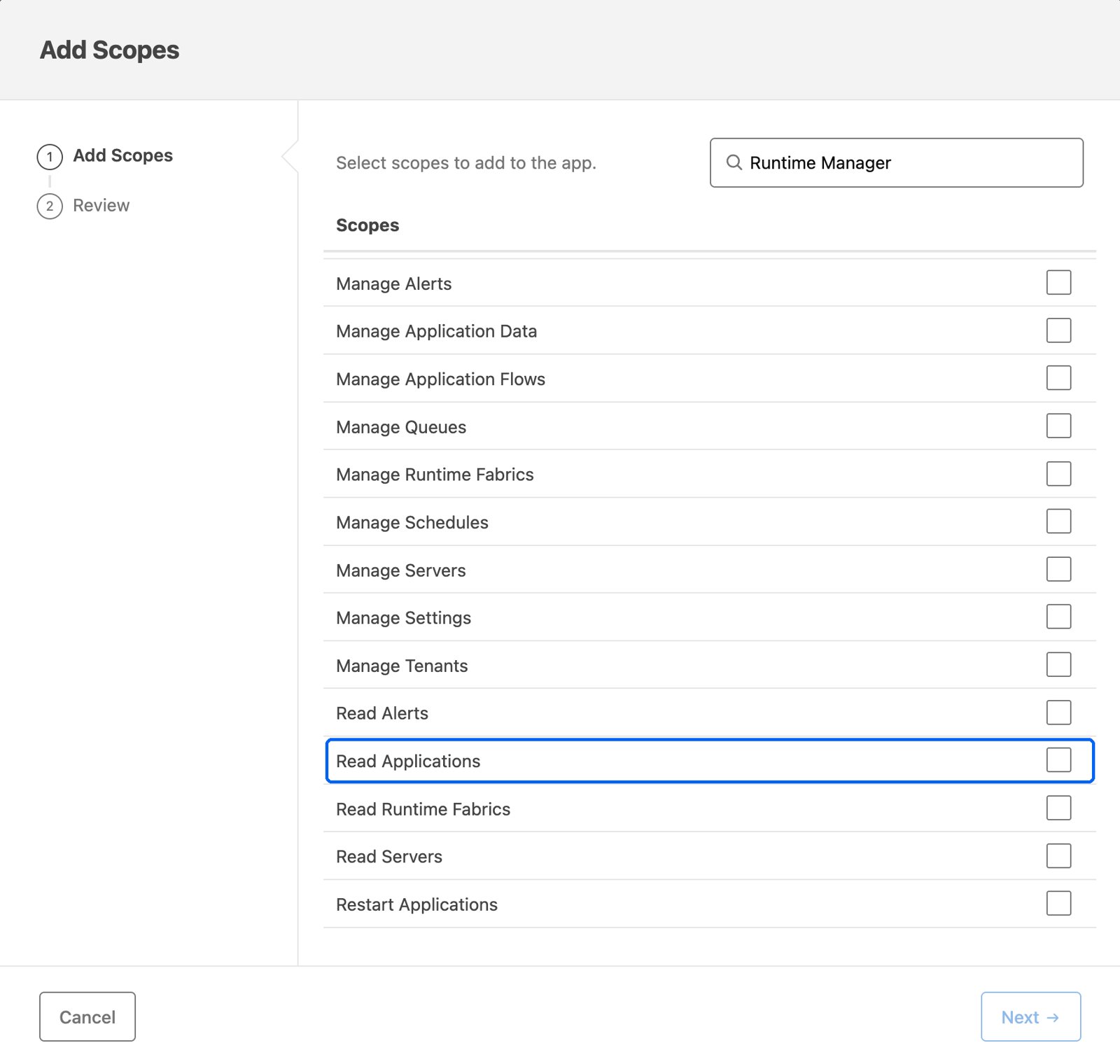
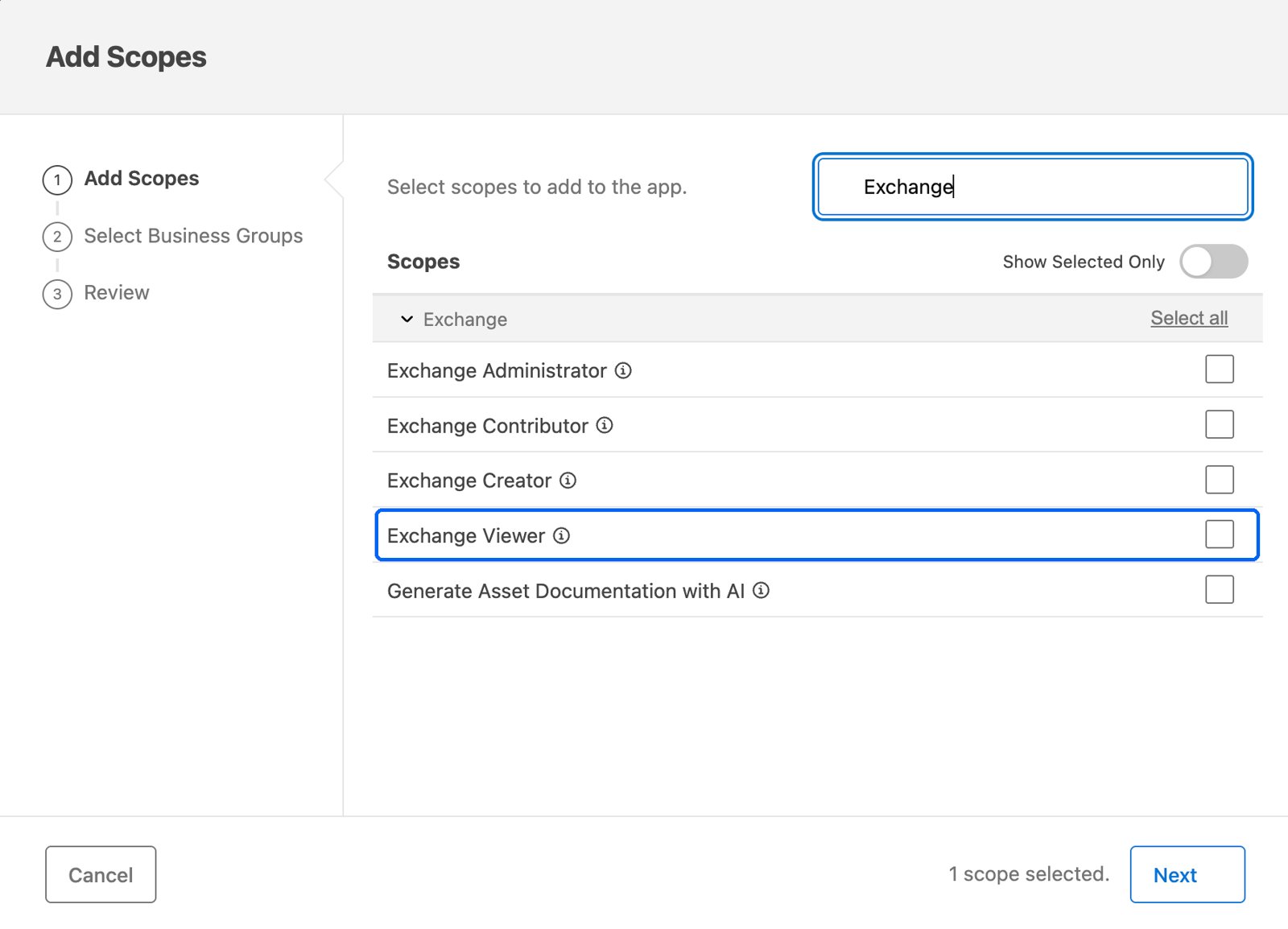
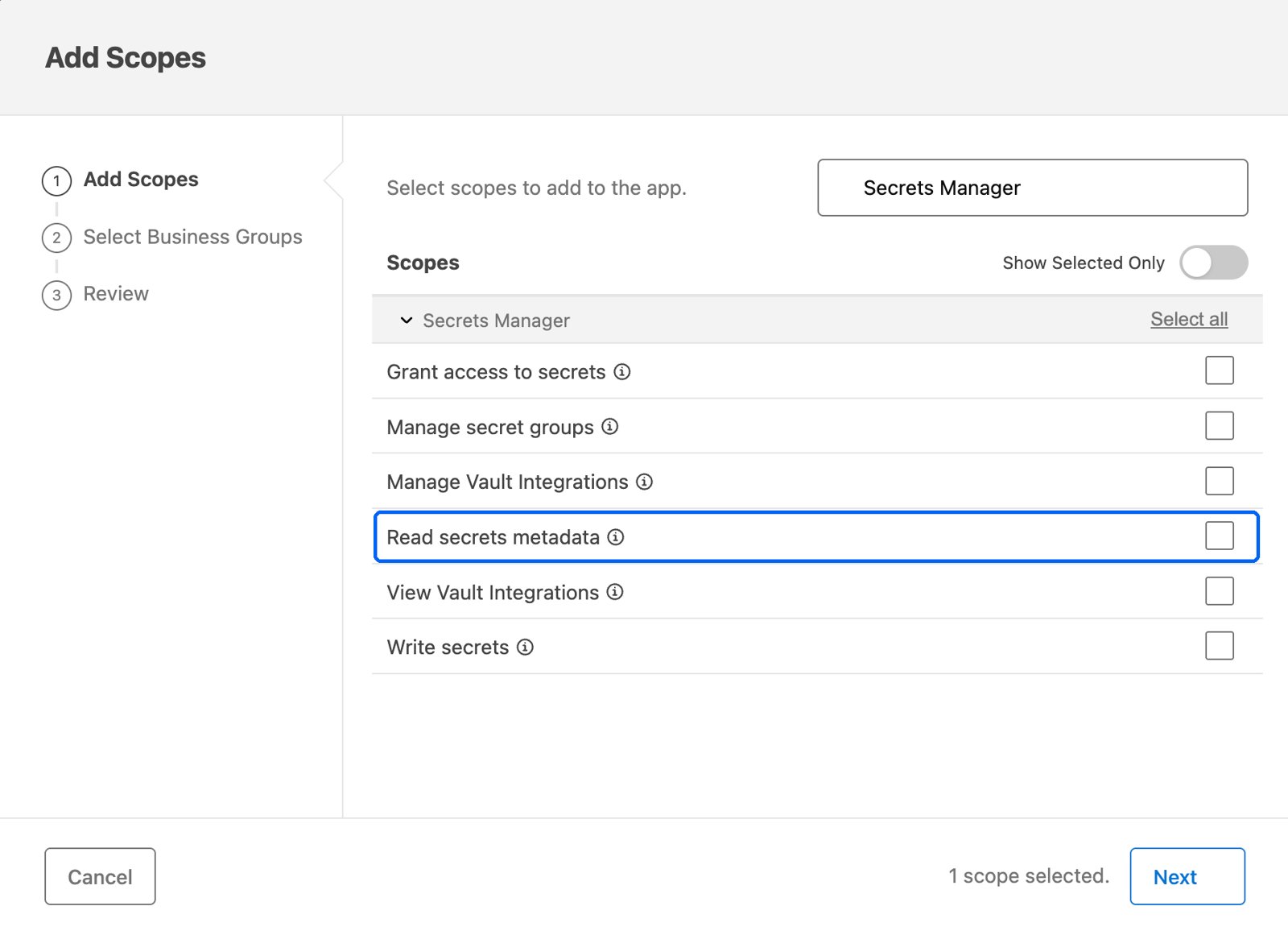
read:secrets. Oleria doesn’t need it, because it never imports secret values.The Add Scopes dialog lists scopes by name, grouped by product. Expand a product group, or type its name in Filter scopes, to find each scope.Where to find each scope in Add Scopes
Where to find each scope in Add Scopes
In these screenshots, green marks required scopes, blue marks optional sync scopes, and orange marks scopes needed only for remediation actions.General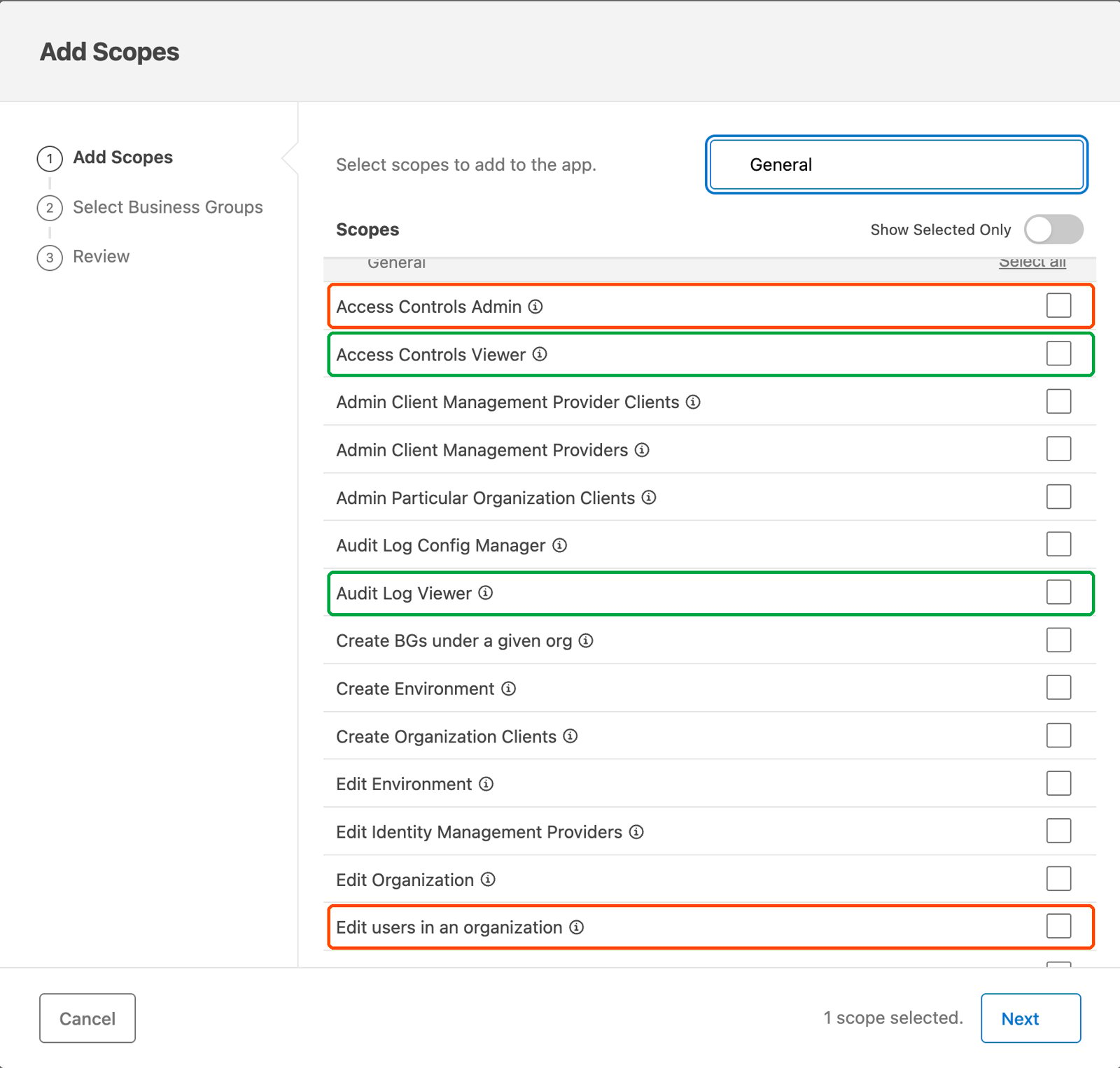
4
Select the business groups
Select your root organization and every business group you want Oleria to govern. If the dialog asks for environments, select all of them. Review the scopes, select Add Scopes, and then select Save.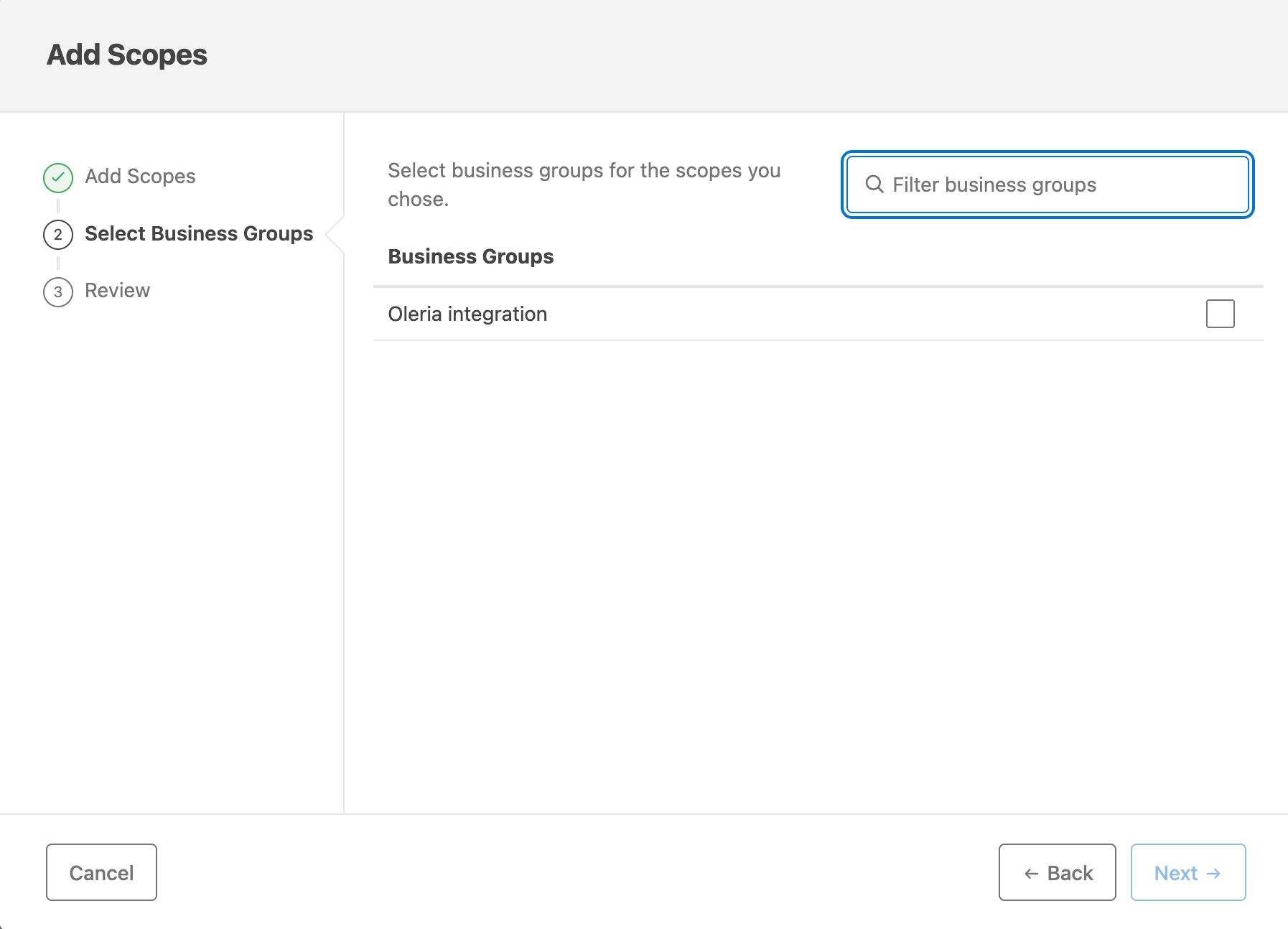
5
Copy the credentials
On the Connected Apps page, select Copy Id and Copy Secret for the app. You need both to connect MuleSoft to Oleria.
The exact location of these settings can change over time. If the steps above don’t match what you see, refer to MuleSoft’s own documentation.
Connect MuleSoft to Oleria
1
Open the integration
Go to your Oleria workspace, select Integrations -> select MuleSoft Anypoint Platform.
2
Complete the connection form
Select Continue and provide the following:
3
Confirm the connection
Select Authenticate. Oleria requests a token, confirms that the organization is a root organization, and checks that the connected app can list users before it saves anything. Find the newly connected organization on the Connected tab of your Oleria Integrations page.
Authenticate checks only that Oleria can list users. It doesn’t check the other sync scopes or the action scopes. Confirm the data after the first sync, as described in Verify the integration.
Verify the integration
Confirm the Anypoint organization appears on the Connected tab of your Oleria Integrations page with a status of Healthy. After the first sync completes, check that users, teams, connected apps, and credentials appear in your Oleria workspace, and that the organization owner and administrators have the right account roles. If you granted the optional scopes, also check that API instances, Exchange assets, Runtime Manager applications, and Secrets Manager secret groups appear.When you edit the integration, you can change the client ID and client secret. Leave Connected app client secret blank to keep the stored secret. The new credentials must belong to the same Anypoint organization. To connect a different organization or control plane, add a new integration.
Remediation actions
Oleria can take these actions in Anypoint Platform. Each one runs with the scopes of the connected app:- Disable a user and enable a user. Requires the
profile,read:organization,read:orgusers, andedit:orgusersscopes. - Add a user to a team and remove a user from a team. These actions change direct team membership. Requires the
profile,read:orgusers,view:access_controls, andadmin:access_controlsscopes.
edit:orgusers and admin:access_controls on your root organization. Oleria doesn’t count them if they’re granted only on a business group.
Keep these limits in mind when you use these actions:
- Oleria reads the user or team before it changes anything. If it’s already in the requested state, Oleria makes no change.
- Reverting an action undoes only the change that action made. Reverting a removal from a team adds the user back with the same membership type, member or maintainer.
- Oleria won’t disable the organization owner or the user who owns Oleria’s connected app, and won’t remove that user from a team.
- Oleria doesn’t change the root team or external teams. It also can’t remove a user whose team membership comes from an identity provider group mapping. Remove them from the group in your identity provider instead.
- Removing a user from a team removes only their direct membership. If they belong to the team only through a child team, or aren’t in the team at all, Oleria makes no change and the action still shows as succeeded. A user who belongs through a child team keeps that access.
- Adding a user to a team adds them as a member, never as a maintainer.
- If a user signs in through single sign-on with just-in-time provisioning, your identity provider may re-enable them the next time they sign in. Disable them in your identity provider as well.
- Oleria can’t disable connected apps, because MuleSoft doesn’t let a connected app manage other connected apps. Disable them in Access Management > Connected Apps instead. Exchange client applications, environment or business group client credentials, Secrets Manager secrets, and certificates can’t be disabled from Oleria either.
- Oleria can’t delete users, create users, or change the permissions a team grants.
Known limitations
- No delegated authorizations. Anypoint Platform doesn’t let a connected app list which users authorized other connected apps to act on their behalf, so Oleria doesn’t show these grants.
- No password policy or expiry. Oleria shows when each user last changed their password, but Anypoint Platform’s API doesn’t report password policy or expiry dates.
- No multi-factor authentication method. Oleria shows whether a user has set up multi-factor authentication, but not which method they use.
- No sign-in sessions or licenses. Anypoint Platform’s API doesn’t report active sessions or per-user licenses.
- No creator for users. Oleria shows who created a connected app when the audit log records it, but not who created a user.
- No status for some credentials. Anypoint Platform doesn’t report whether environment and business group client credentials, single sign-on credentials, or client provider credentials are active.
- Runtime Manager applications are inventory only. Access to an application comes from permissions on its environment, so Oleria shows applications under their environment without separate access.
- Large Exchange catalogs. Oleria imports up to 10,000 Exchange assets per business group.
- API policies aren’t imported. Oleria shows which client applications have an approved contract for an API, but not the policies applied to the API instance.