

What Oleria discovers
Once connected, Oleria continuously discovers and maps the following from your Pipedrive company:- Accounts - every user, whether active or deactivated, including invited users who haven’t joined yet (Pipedrive lists them as active). Each account includes the user’s name, email, phone, admin status, created and last-modified dates, last login, time zone, and which Pipedrive apps they can use. MFA and SSO requirements come from your company’s security settings (2-step verification and single sign-on enforcement). Non-human identities appear as their own accounts:
- Webhooks - each webhook, the user it runs as, its owner, its target address (domain only), and when it last delivered data. Webhook discovery requires the API token connection method.
- The integration’s own credential - the API token or OAuth app that Oleria connects with, linked to the user it acts as. Oleria never reads any token, secret, or webhook password value.
- Permission sets - every permission set (for example Deals admin or Global regular user), the users assigned to each, and what each set allows on deals, leads, contacts, organizations, products, and activities.
- Visibility groups - every visibility group, its parent group and level, and each user’s group.
- Teams - teams, their members, and each team’s manager. Teams are available on Pipedrive Premium and Ultimate plans.
- Pipelines and record types - every pipeline, which visibility groups can see it, and each group’s default visibility for deals, leads, contacts, organizations, and products.
- Activity - changes to deals, contacts, and organizations, attributed to the user who made them, including whether the change came from the web app, the mobile app, or the API.
Prerequisites
- A Pipedrive user with account settings access (the Account settings permission set). Both connection methods act as this user, so its access decides what Oleria can see and do.
- Admin access on the Oleria platform to add a new integration.
Pipedrive has no service accounts. Connect with a dedicated Pipedrive user that isn’t tied to an employee, for example
oleria-integration@yourcompany.com, so the integration keeps working if a person leaves or is deactivated. This user takes a paid Pipedrive seat.Permissions Oleria needs
With the OAuth 2.0 method, your private app needs only these scopes:
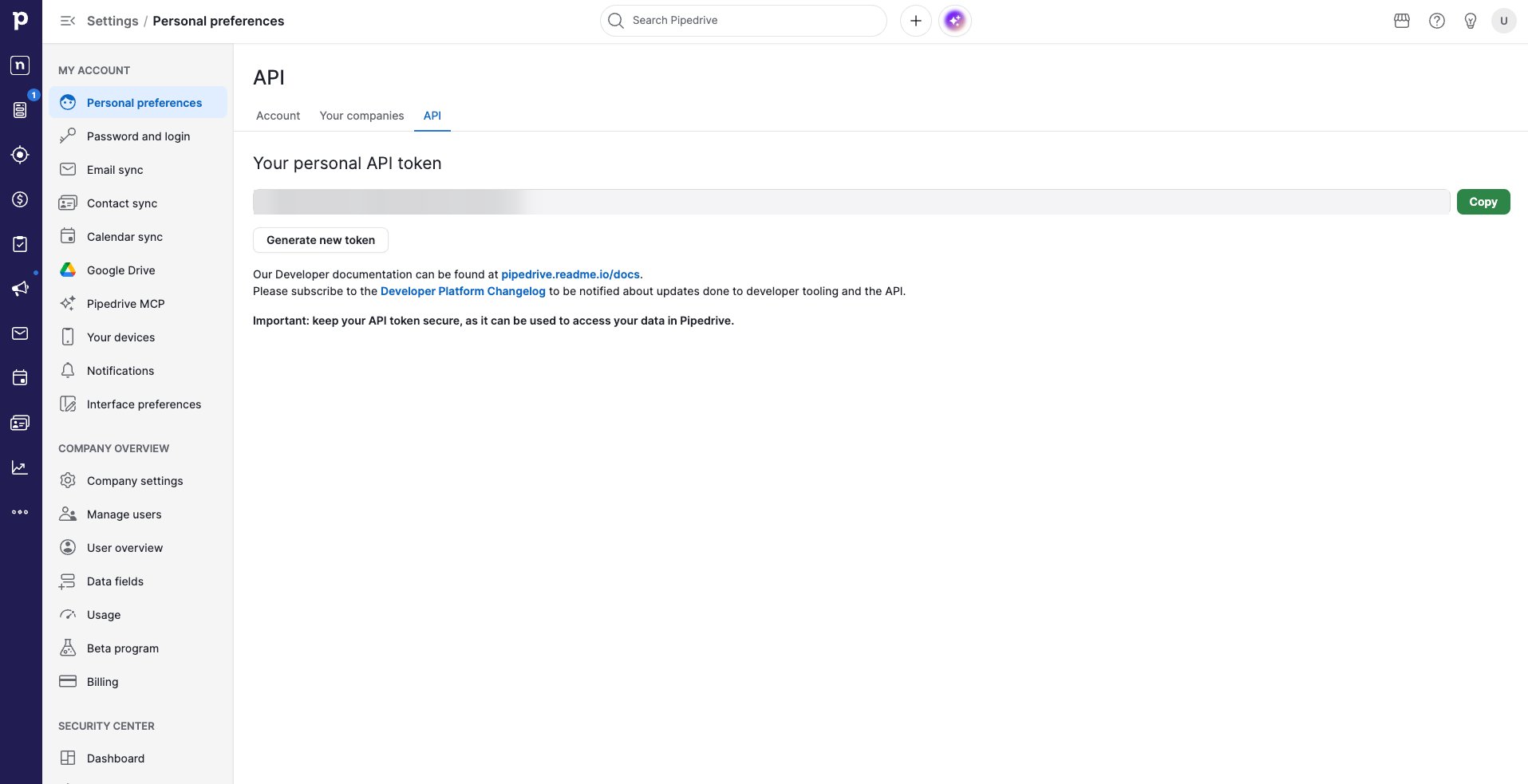
With the API token method there are no scopes. The token’s user needs the Account settings permission set, which covers reading and remediation, and must be allowed to see its own API token.
The exact location of these settings can change over time. If the steps below don’t match what you see, refer to Pipedrive’s documentation on finding your API token and registering a private app.
Connect Pipedrive to Oleria
Choose one method:- OAuth 2.0 (your own Pipedrive app) - you create a private app in Pipedrive and approve it. Access is limited to the scopes above and can be revoked from Pipedrive at any time.
- API token - you paste the API token of the dedicated Pipedrive user. Use this method if you want webhooks discovered.
- OAuth 2.0
- API token
1
Create a private app in Pipedrive
Pipedrive’s Developer Hub is available in Pipedrive developer sandbox accounts. If you don’t have one, request a free developer sandbox account.In the sandbox, open Developer Hub, select Create an app, then select Create private app. Enter an App name, for example 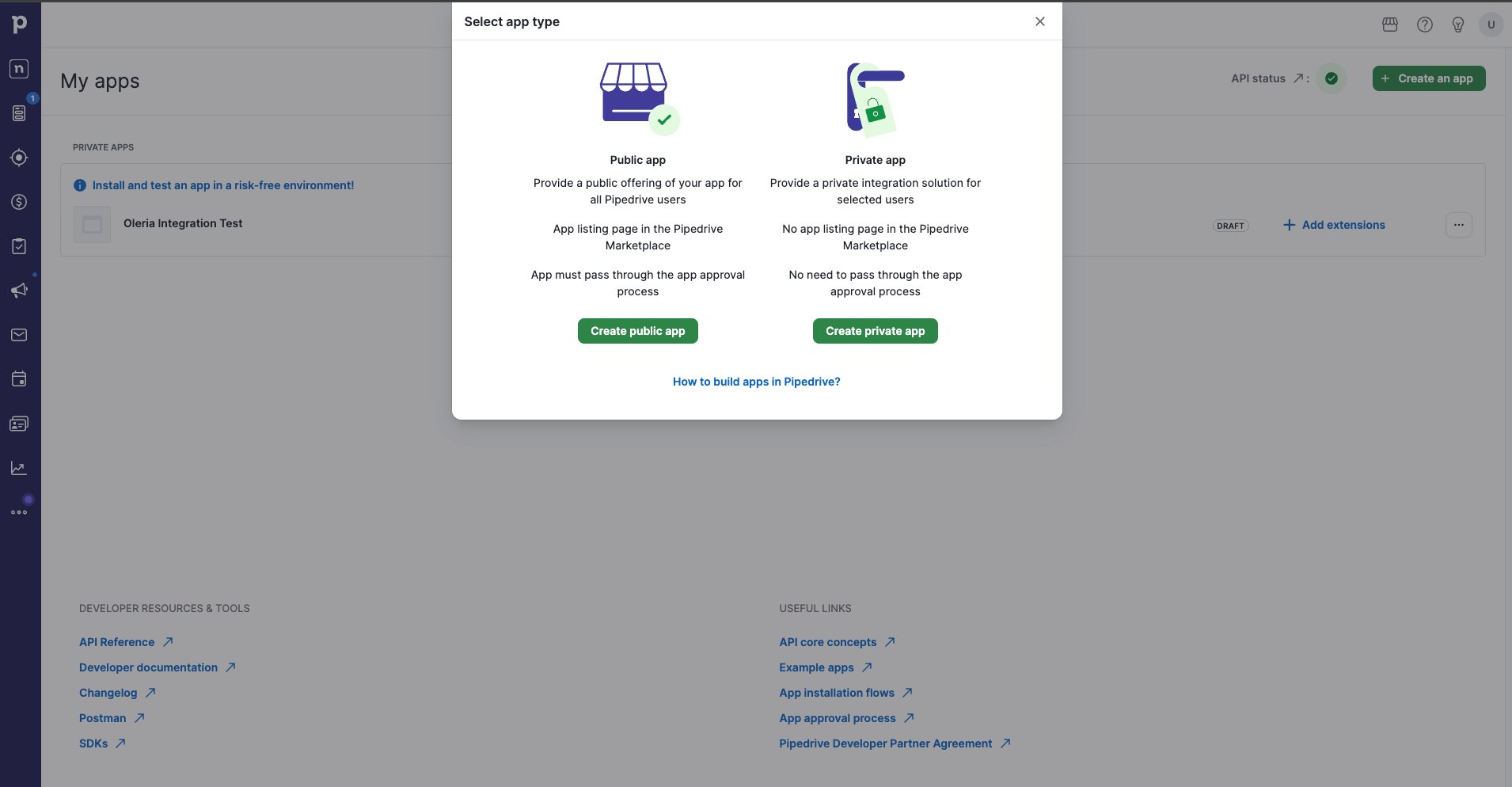
Oleria.2
Copy the callback URL from Oleria
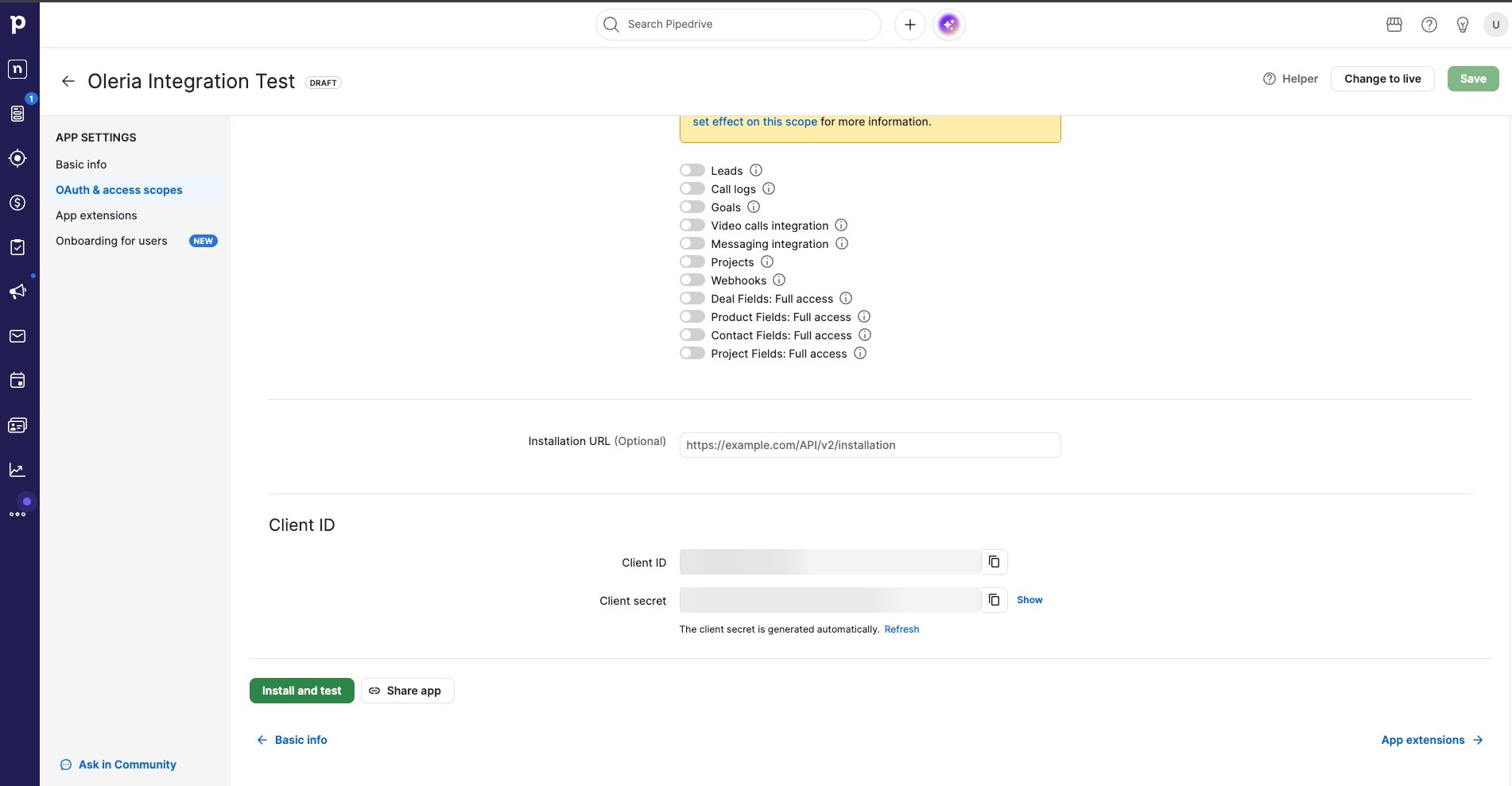
In your Oleria workspace, select Integrations, select the Available tab, search for Pipedrive, and select the card. Choose OAuth 2.0 (your own Pipedrive app) as the Authentication method and copy the Callback URL shown.Paste it into the Callback URL field of your private app in Pipedrive, then select Save.
3
Select the scopes
In your private app, open OAuth & access scopes and turn on only Read users data, See recent account activity, and Administer account. Select Save.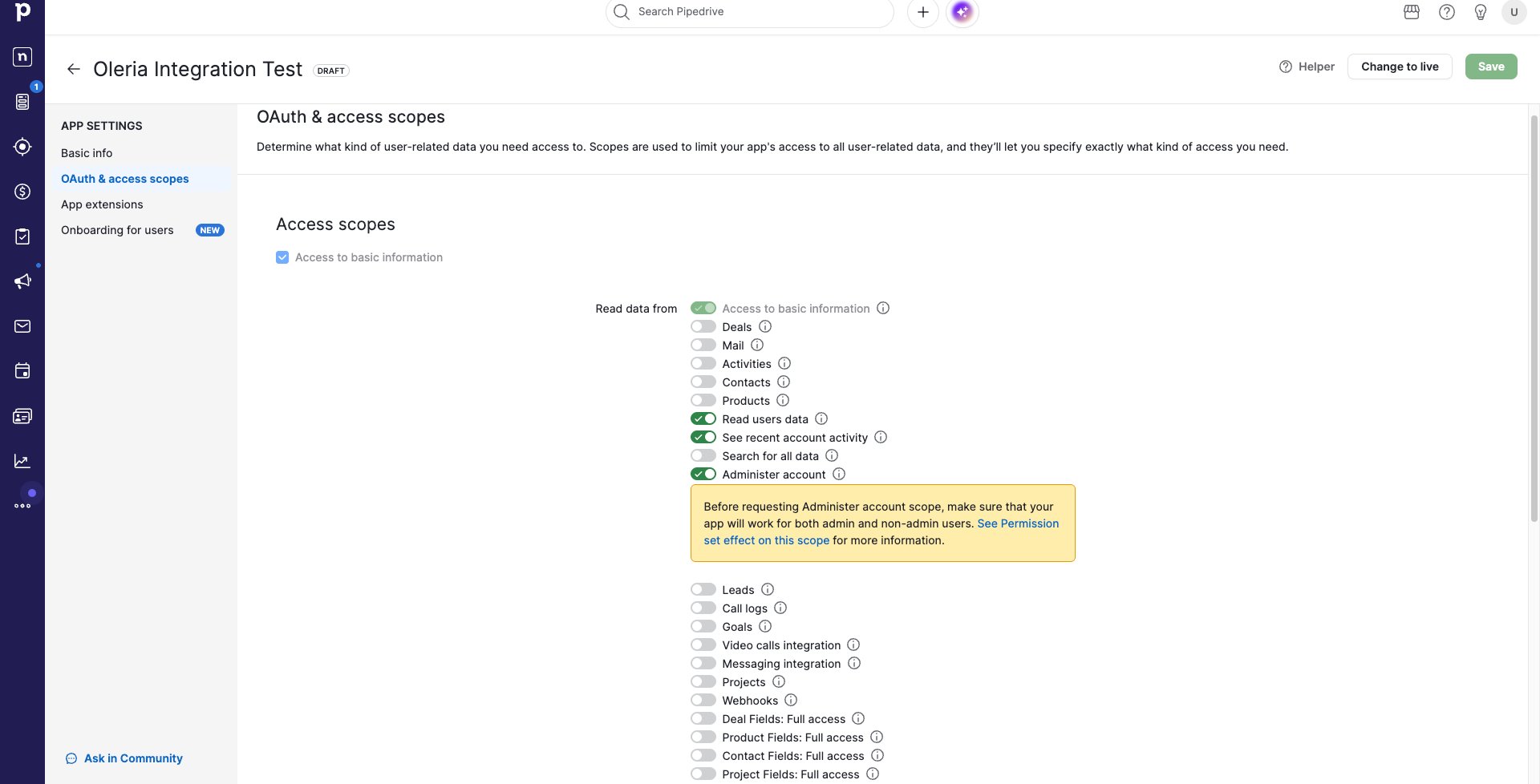
4
Install the app in your company
Select Change to live so that users outside the sandbox can authorize the app. A private app doesn’t need Pipedrive’s app review. You don’t need to open the app’s installation link: connecting in Oleria in the next step installs the app in your company.
5
Connect in Oleria
In the Oleria connection form, enter the Client ID and Client secret, then select Connect. Pipedrive opens in the browser where you created the app, which is usually still signed in to the developer sandbox. Sign out of the sandbox first, or open the authorization page in a private window. Then sign in as the dedicated user of your production company and select Allow. Oleria connects to the company of the user who selects Allow.After you connect, check the integration’s name on the Connected tab. It reads Pipedrive (company name) and must show your production company, not the sandbox.
Verify the integration
Confirm the new instance appears on the Connected tab of your Oleria Integrations page with a status of Healthy. After the first sync completes, you can review the discovered accounts, groups, permission sets, pipelines, and activity in your Oleria workspace.If the connection user doesn’t have account settings access, or the OAuth app is missing the Administer account scope, the integration still connects and syncs users, but Oleria skips teams, permission sets, visibility groups, pipeline access, and webhooks, and refuses every remediation action. If these are missing after the first sync, fix the user’s access or turn on the scope in your private app, then edit the integration and reconnect. Pipedrive applies a new scope only after you authorize the app again.
Pipedrive allows one API token per user. If you select Generate new token in Pipedrive, the old token stops working. Edit the integration in Oleria and enter the new token.
Remediation actions
Beyond discovery, Oleria can act on Pipedrive access to remediate risk. Every remediation action needs the connection user to have account settings access, and with OAuth the Administer account scope. Oleria checks this before running any action.
A few safeguards apply to every action:
- Oleria won’t deactivate the user the integration connects as, or the user who created the Pipedrive company.
- Oleria won’t move the integration’s user to another visibility group, or hide a pipeline from the visibility group it belongs to, because that could narrow what Oleria can see.
- Oleria won’t remove a user from the default visibility group, because every user must belong to one group.
- Hiding a pipeline applies to a whole visibility group. If you target a user, Oleria only proceeds when the user is the group’s only member.
- A reversal only undoes the change Oleria made. If someone changed the same user in Pipedrive in the meantime, Oleria leaves it as is.
Known limitations
- Logins and security events aren’t available. Pipedrive keeps its audit log, login history, and device history in the Security dashboard only (Ultimate plan), with no API. Activity in Oleria covers changes to deals, contacts, and organizations. Last login can lag by up to 30 days for users who stay signed in.
- Activity history is limited. Oleria imports activity from the last 30 days only. If more than 500 deals, contacts, and organizations change between two syncs, Oleria imports changes for 500 of them and skips the rest, to stay within Pipedrive’s API rate limits.
- Webhooks aren’t discovered with OAuth. Pipedrive shows an OAuth app only the webhooks it created itself. Use the API token method to discover webhooks.
- Per-user 2-step verification isn’t available. Pipedrive exposes only whether 2-step verification and SSO are enforced for the whole company, not each user’s enrollment.
- Teams, extra visibility groups, and custom permission sets need Premium or Ultimate. On other plans Pipedrive has one default visibility group and the built-in permission sets.
- Permission sets can’t be changed from Oleria. Pipedrive’s API doesn’t support assigning permission sets, so these remain read-only.
- Other users’ API tokens and installed Marketplace apps aren’t discovered. Pipedrive has no API that lists them.
- Individual deals, contacts, and other records aren’t imported. Oleria reads who can access each pipeline and record type, not the records themselves.