

What Oleria discovers
Once connected, Oleria continuously discovers and maps the following from your Attio workspace:- Accounts - every workspace member, including suspended members, with their name, email, access level (Admin or Member), and the date they joined. Suspended members appear as disabled accounts. On the Enterprise plan, Oleria also discovers pending invites, each member’s last-modified date, and alternate email addresses. Non-human identities appear as their own accounts:
- Webhooks - each webhook, its target address (domain only), its status, the events it subscribes to, and when it was created. Each webhook’s signing secret appears as a credential, without its value.
- The integration’s own access token - the token Oleria connects with, its scopes, and the member who created it.
- Other API tokens, apps, and Attio’s system actor - when they created a list, so the list’s creator is always known.
- Access levels - the Admin and Member levels, and which members hold each. Admins can manage every list and object.
- Teams - teams and their members, on the Attio Enterprise plan.
- Lists and objects - every list and object, including custom objects, with:
- the members who have direct access to each list, and their level (Full access, Read and write, or Read only);
- each list’s workspace access, shown as access for all workspace members (a list with workspace access set to No access is private);
- read access to every object for every member, because Attio objects have no No access level.
- Activity - list creation, attributed to the member, token, or app that created the list.
Prerequisites
- An Attio workspace admin to create the access token.
- Admin access on the Oleria platform to add a new integration.
Attio access tokens belong to the workspace, not to the person who creates them, and they don’t expire. Attio records changes made with the token as made by the token, not by a person.
Permissions Oleria needs
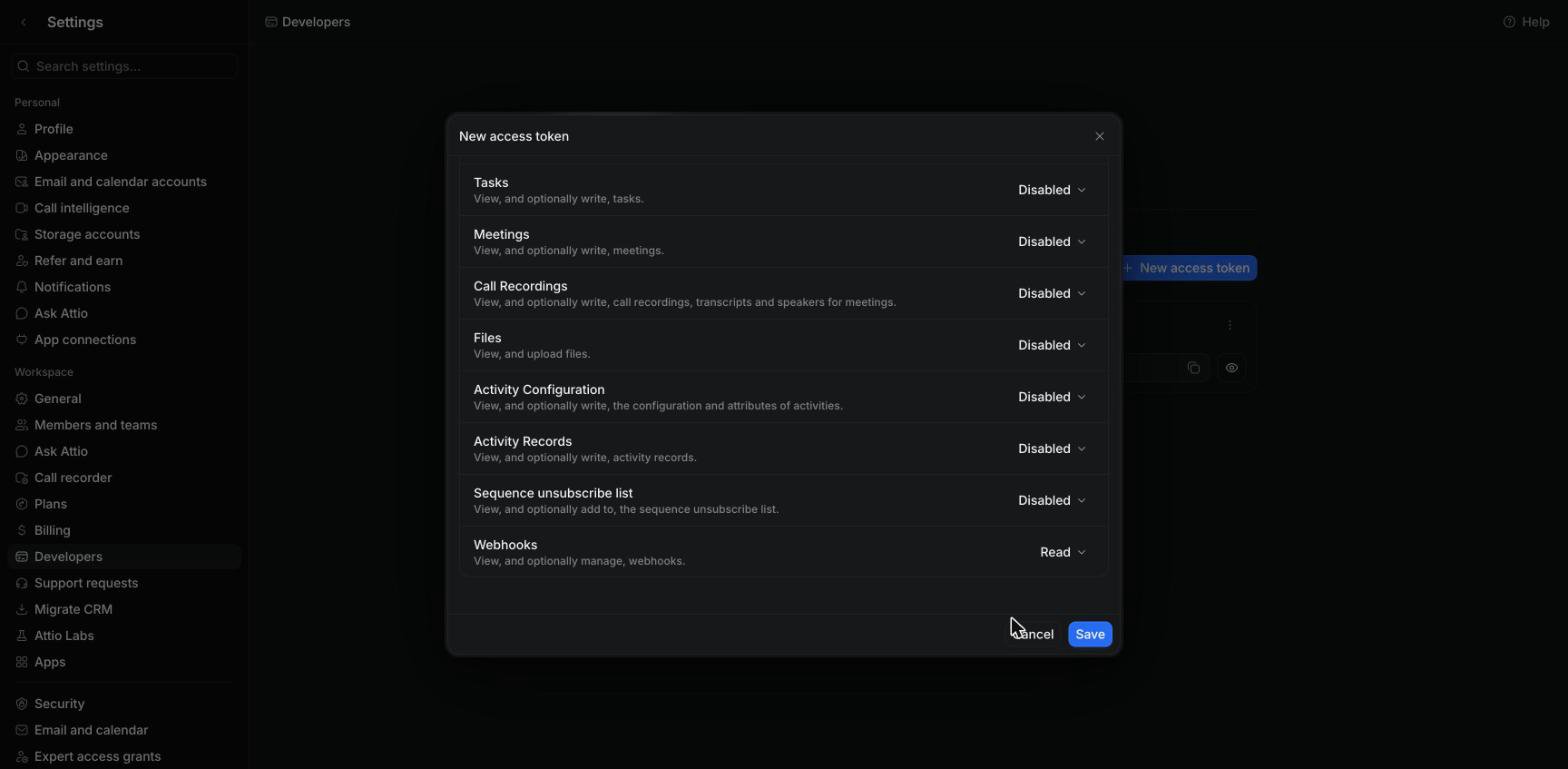
Set these scopes on the access token:
Remediation actions need Read-write instead of Read on the scopes they change:
Leave every other scope set to Disabled.
The exact location of these settings can change over time. If the steps below don’t match what you see, refer to Attio’s documentation on creating an access token.
Connect Attio to Oleria
1
Create an access token in Attio
Sign in to Attio as a workspace admin. Open Workspace settings, select Developers, and on the Access tokens tab select New access token. Name the token, for example 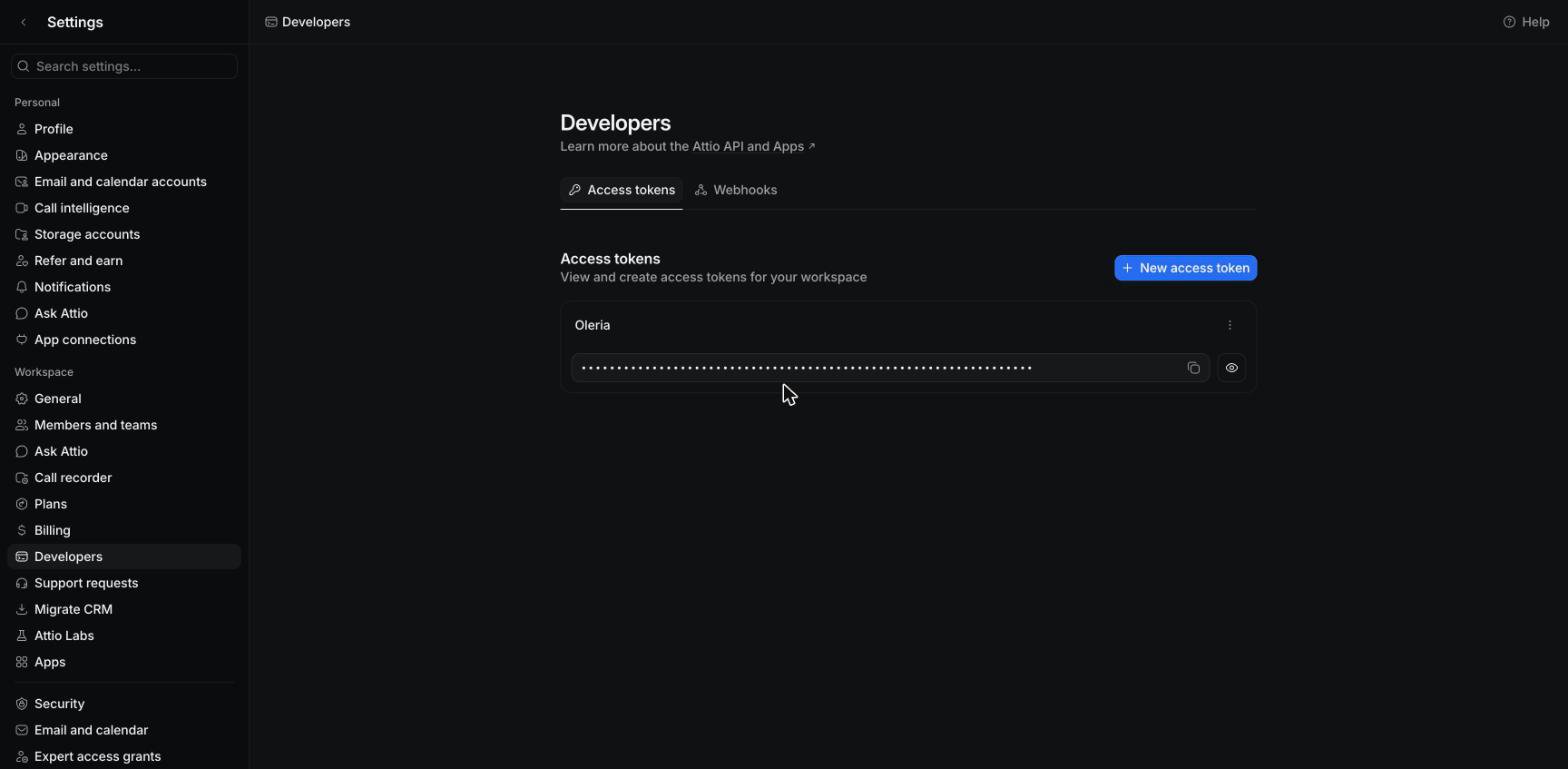
Oleria.2
Set the scopes
In the New access token dialog, set User Management, Object Configuration, and List Configuration to Read.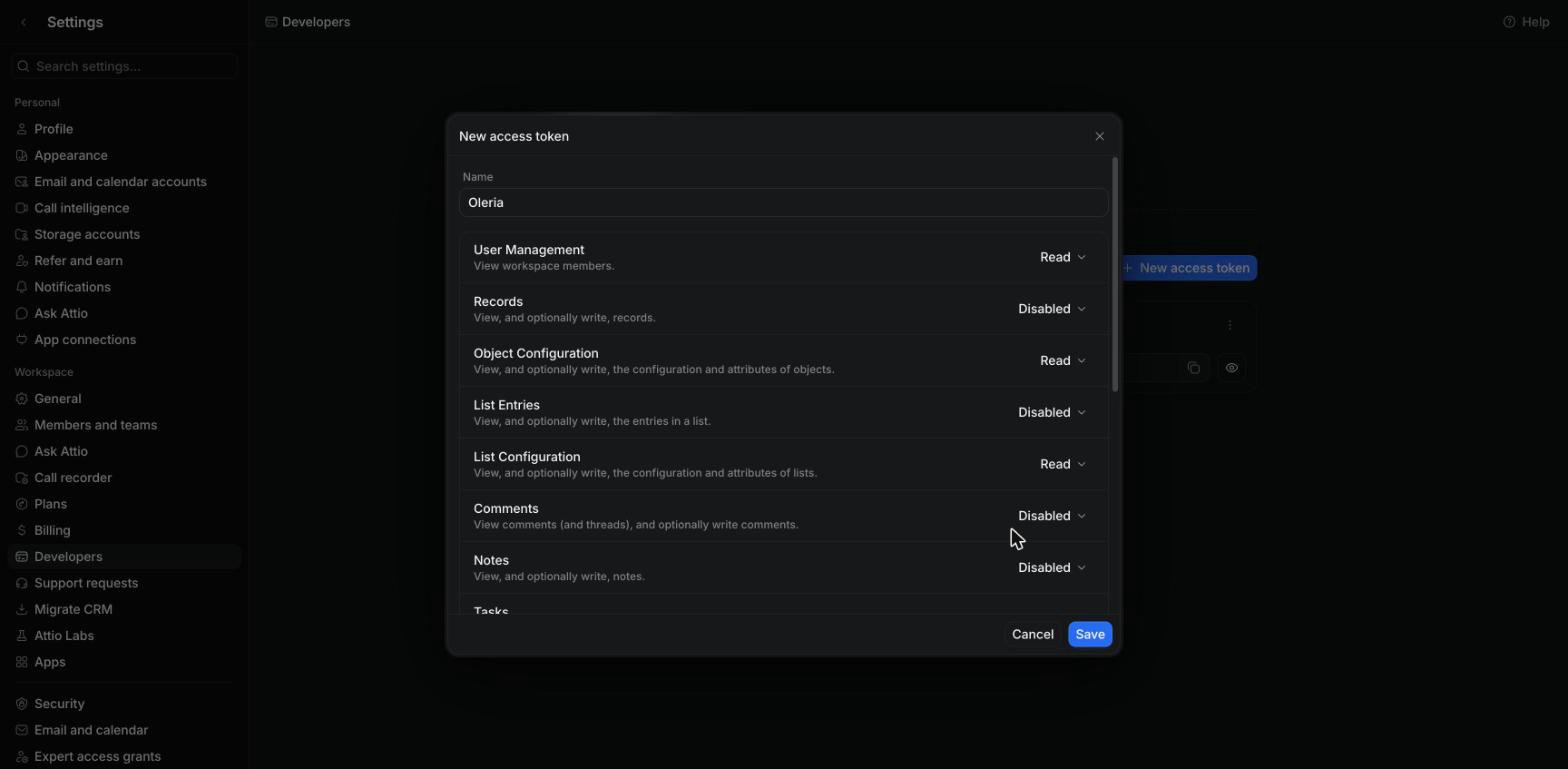
3
Copy the token
Select the copy icon next to the new token.
4
Find Attio in Oleria
Go to your Oleria workspace, select Integrations, select the Available tab, and search for Attio.
5
Connect in Oleria
Select the Attio card, paste the token into Access token, and select Authenticate. Oleria checks the token against Attio before saving the integration.
Verify the integration
Confirm the new instance appears on the Connected tab of your Oleria Integrations page with a status of Healthy. After the first sync completes, you can review the discovered members, access levels, lists, objects, webhooks, and activity in your Oleria workspace.If the token is missing one of the four read scopes, Oleria still saves the integration but reports it as unhealthy and names the missing scopes. Without User Management: Read the sync fails. Without one of the other three, Oleria skips the lists, objects, or webhooks that scope covers.
Remediation actions
Beyond discovery, Oleria can act on Attio access to remediate risk. Oleria checks the token’s scopes and your Attio plan before running any action.
A few safeguards apply to every action:
- Oleria won’t suspend or demote the admin who created the integration’s access token.
- Oleria won’t remove the last member with Full access to a list, or make a list private when no member has direct Full access, because Attio requires at least one.
- Oleria won’t revoke a workspace admin’s access to a list, because admins keep access to every list. Remove the admin level first.
- Oleria won’t revoke a member’s direct access to a list when the list’s workspace access gives the member the same level anyway. Revoke the workspace access instead.
- Oleria won’t delete its own access token, or an API token, app, or system actor that it only knows from list creation.
- A reversal only undoes the change Oleria made. If someone changed the same list or member in Attio in the meantime, Oleria leaves it as is.
Known limitations
- Attio has no audit log API. Logins, sessions, and configuration changes aren’t available, so activity covers list creation only and dormant accounts can’t be detected from Attio.
- MFA, SSO, and sign-in methods aren’t available. Attio signs members in through Google, an emailed one-time password, or SAML SSO on the Enterprise plan, and doesn’t expose which one a member uses.
- Teams, pending invites, and member actions need the Enterprise plan. They use Attio’s SCIM API, which is available on Enterprise only. On other plans Oleria discovers everything else and skips these without failing the sync.
- Team access to lists and objects isn’t available. You can give a team access to a list or object in Attio, but the Attio API doesn’t return it.
- Object access levels aren’t available. Oleria shows read access to every object for every member, which is the minimum Attio allows.
- Other API tokens and installed apps are discovered only when they created a list. Attio has no API that lists them.
- Individual records aren’t imported. Oleria reads who can access each list and object, not the companies, people, and deals in them.