

galaxy_telemetry catalog. It maps each identity, role, and data object in one place, so you can find over-privileged roles, unused service accounts, and risky grants, and act on them directly from Oleria.
What Oleria discovers
Once connected, Oleria continuously discovers and maps the following from your Galaxy account:- Accounts - every user, with their email, creation date, roles, and whether SCIM manages them. A user is an administrator when one of their roles holds the account-level
ManageSecurityprivilege. Non-human identities appear as their own accounts:- Service accounts - each service account, with its default and additional roles. A service account shows as enabled while it has at least one password.
- Service account passwords - each password appears as a credential of its service account, with its description, creation date, and last login. Oleria never reads, stores, or shows a password or its prefix.
- Roles - every role, its members, and role nesting: a role granted to another role passes on its privileges. Every user holds the built-in
publicrole. Oleria also shows which role owns each role. - Groups - SCIM groups (Galaxy Enterprise), their members, and the roles granted to them.
- Resources - clusters, catalogs, schemas, tables and views, and data products, with how they nest and which role owns each catalog, schema, and table. Tags on catalogs, schemas, and tables appear as labels.
- Role privileges - every privilege granted to a role on the account, a cluster, a catalog, a schema, a table, or a data product. Oleria shows whether each privilege is an allow or a deny, and whether the role can grant it to others. A column privilege appears on its table, with the column name.
- Activity - queries from Galaxy query history, attributed to the user or service account that ran them, and linked to the first table they used (or its schema or catalog). Reads, writes, object changes, and grant changes each appear as their own activity type. Oleria never imports the SQL text. Activity needs the optional telemetry connection.
Prerequisites
- A Starburst Galaxy account administrator who can create API clients, roles, and service accounts.
- Admin access on the Oleria platform to add a new integration.
- Optional, for query activity: a cluster in your account’s telemetry region (AWS us-east-1) with the
galaxy_telemetrycatalog attached.
Permissions Oleria needs
Starburst Galaxy API clients have no scopes. An API client acts with the one role you assign when you create it. Assignaccountadmin. Oleria is tested only with accountadmin. A custom role with the privileges below can read users, groups, and roles, but Oleria can’t confirm that it sees every cluster, catalog, schema, table, and role privilege, so resources and access can be incomplete.
CreateUser is needed only for the Create user action.
The Galaxy console shows these privileges as words, for example ManageSecurity appears as Manage security.
For query activity, the telemetry service account’s role needs:
The exact location of these settings can change over time. If the steps below don’t match what you see, refer to Starburst’s documentation on the Galaxy API and service accounts.
Create the API client
1
Open API auth tokens
In Starburst Galaxy, go to Access > API auth token and select Generate new token.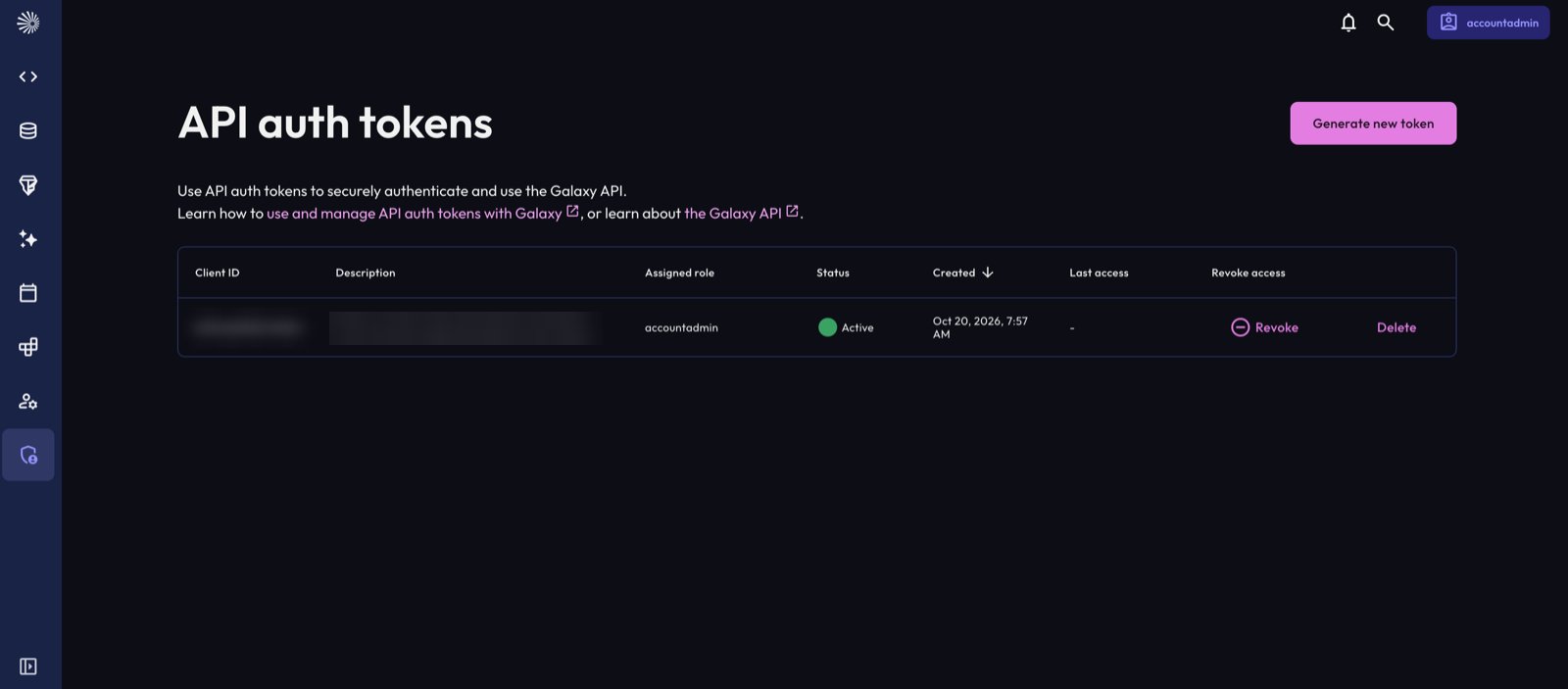
2
Create the token
For Role, choose 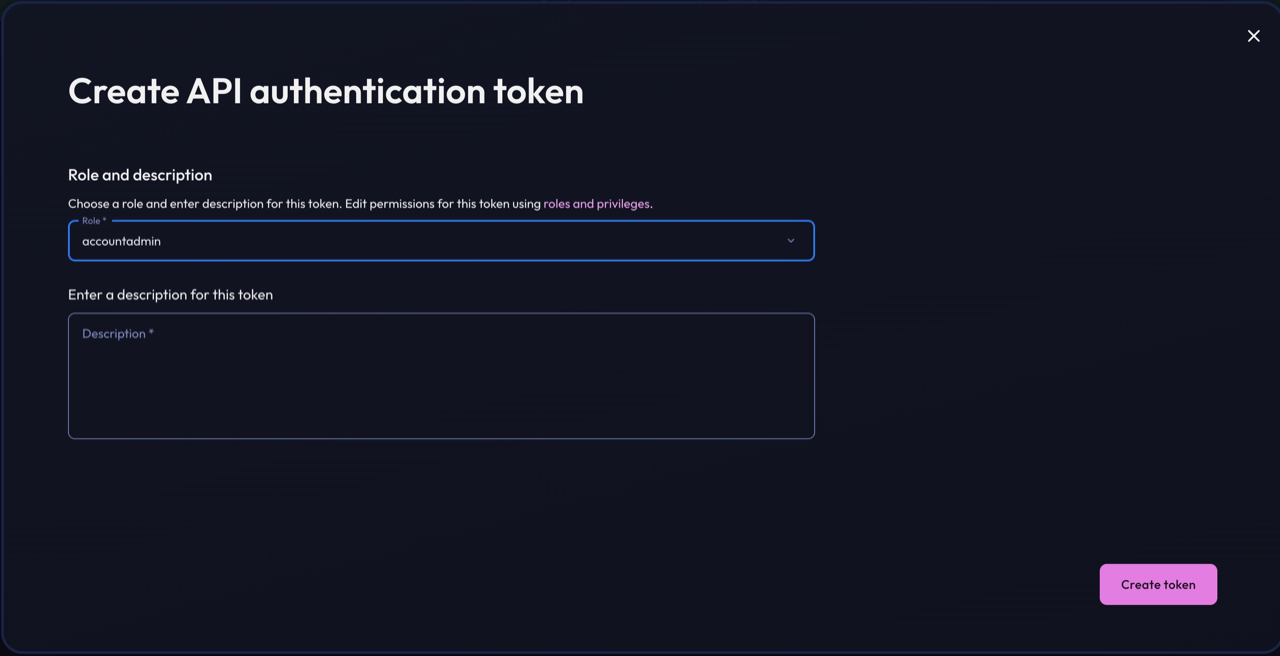
accountadmin. A custom role with the privileges in Permissions Oleria needs also works, but resources and access can be incomplete. Enter a Description, for example Oleria, and select Create token. Copy the client ID and the secret key.Set up query activity (optional)
Galaxy has no audit log API. Oleria reads query activity from thegalaxy_telemetry catalog with a service account. Skip this section if you don’t need activity.
Oleria queries this cluster when you connect and on each sync, which resumes it if it’s suspended. Galaxy bills the cluster while it runs, so use the smallest cluster size and a short auto-suspend time.
1
Create the telemetry cluster
Go to Admin > Clusters and select Create cluster. For the cloud provider region, choose US East (N. Virginia) (AWS us-east-1), and attach the 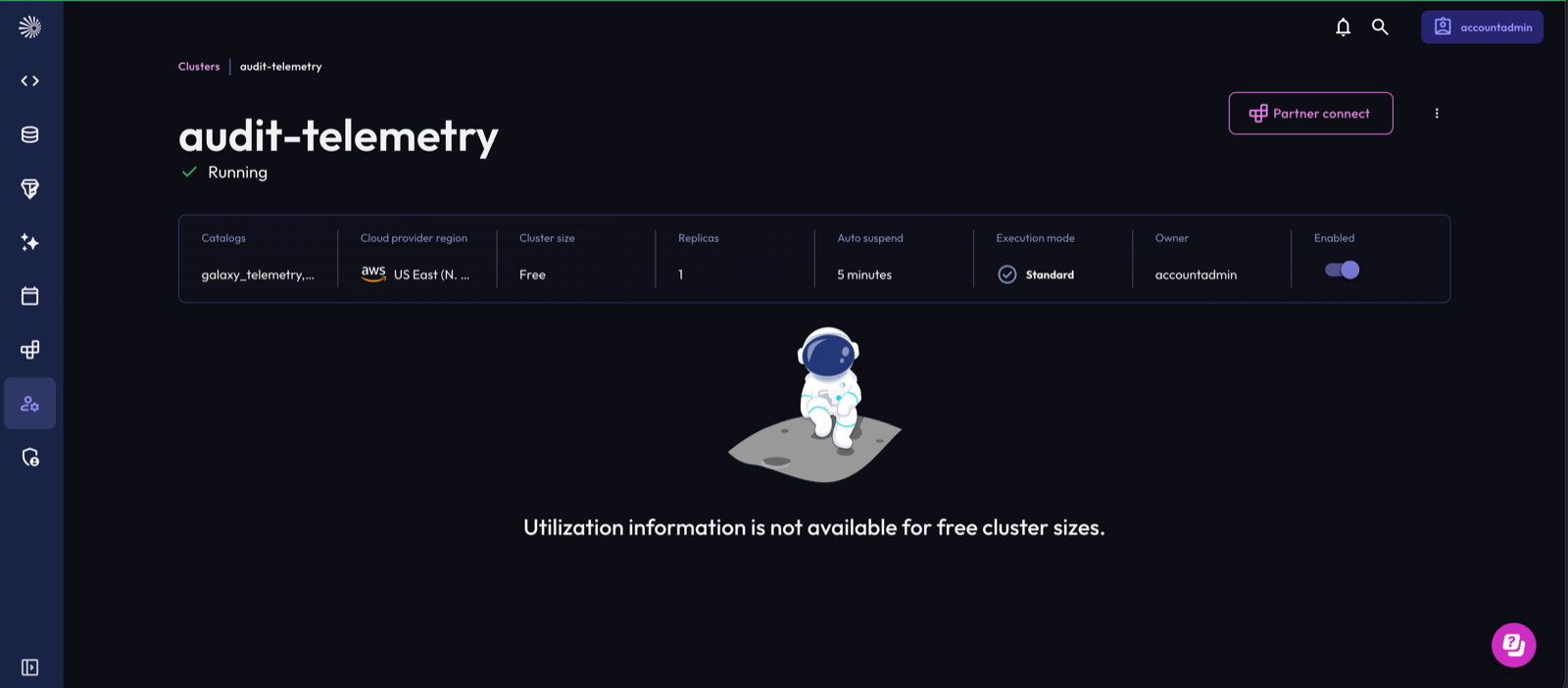
galaxy_telemetry catalog.2
Create the service account
Go to Access > Service accounts and select Create new service account. Enter a User name, for example 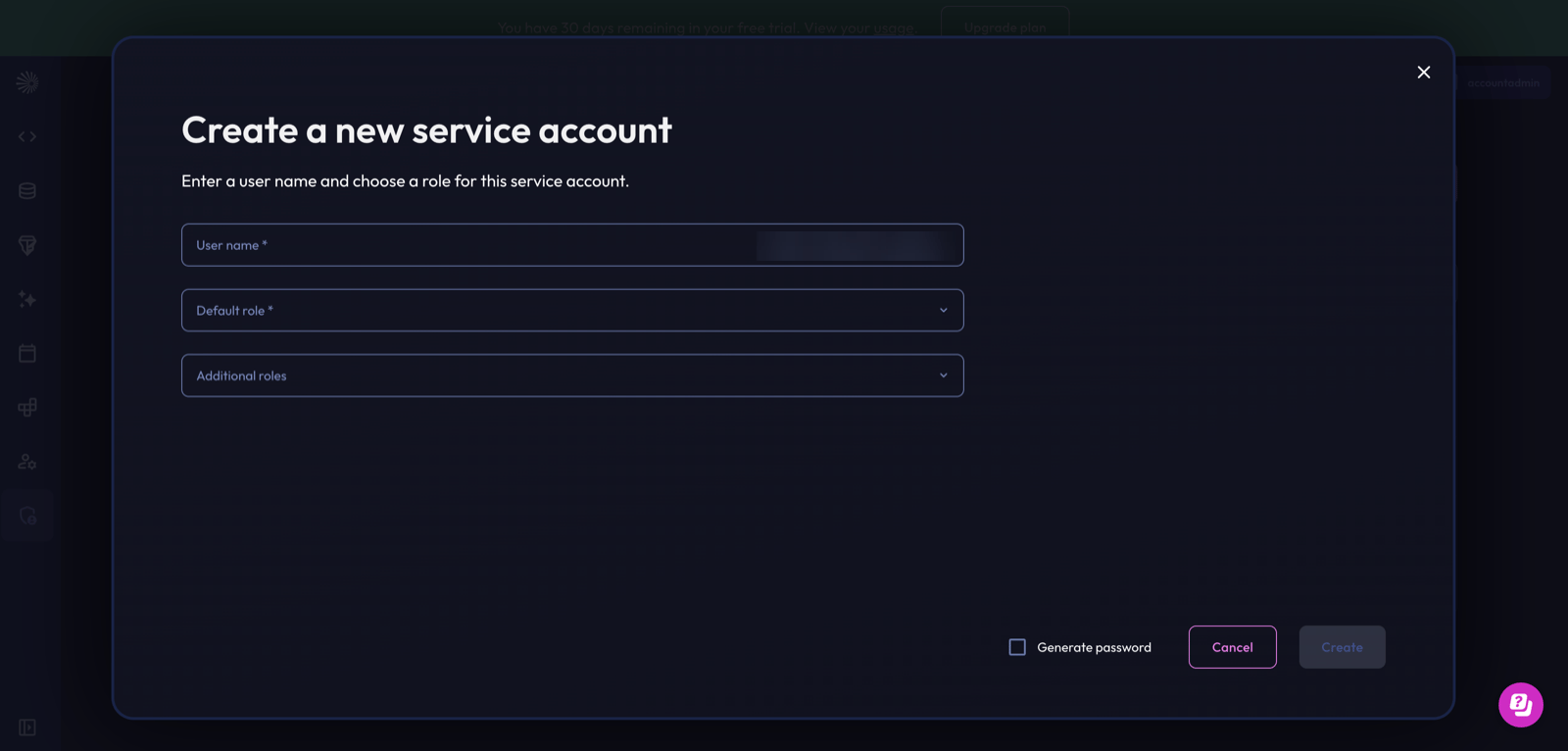
oleria_telemetry. For Default role, choose the role that will hold the telemetry privileges, for example a dedicated role you created in Access > Roles and privileges > Add role. Select Generate password and then Create.Copy the service account’s full user name, for example oleria_telemetry@acme.galaxy.starburst.io, and its password. Starburst Galaxy shows the full password, starting with GXY$, only once.3
Grant the telemetry privileges
Go to Access > Roles and privileges and open the service account’s role. Select Privileges > Add privilege and grant:
-
ViewAllQueryHistoryon the account. -
UseClusteron the telemetry cluster. -
Selecton the tablegalaxy_telemetry.public.query_history. ASelecton the whole catalog isn’t enough.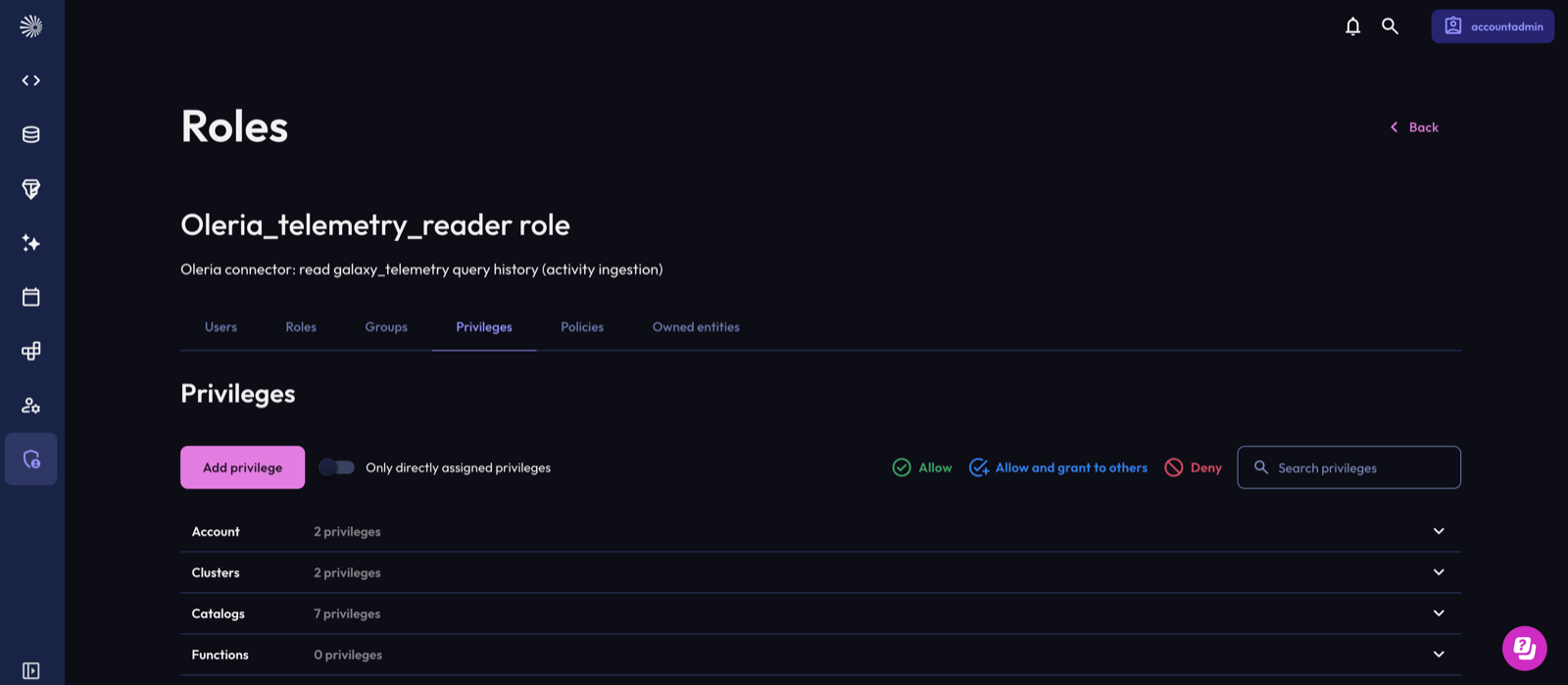
4
Copy the cluster host
Go to Admin > Clusters and open the telemetry cluster. Select Partner connect and open Connection info. Copy the Host, for example 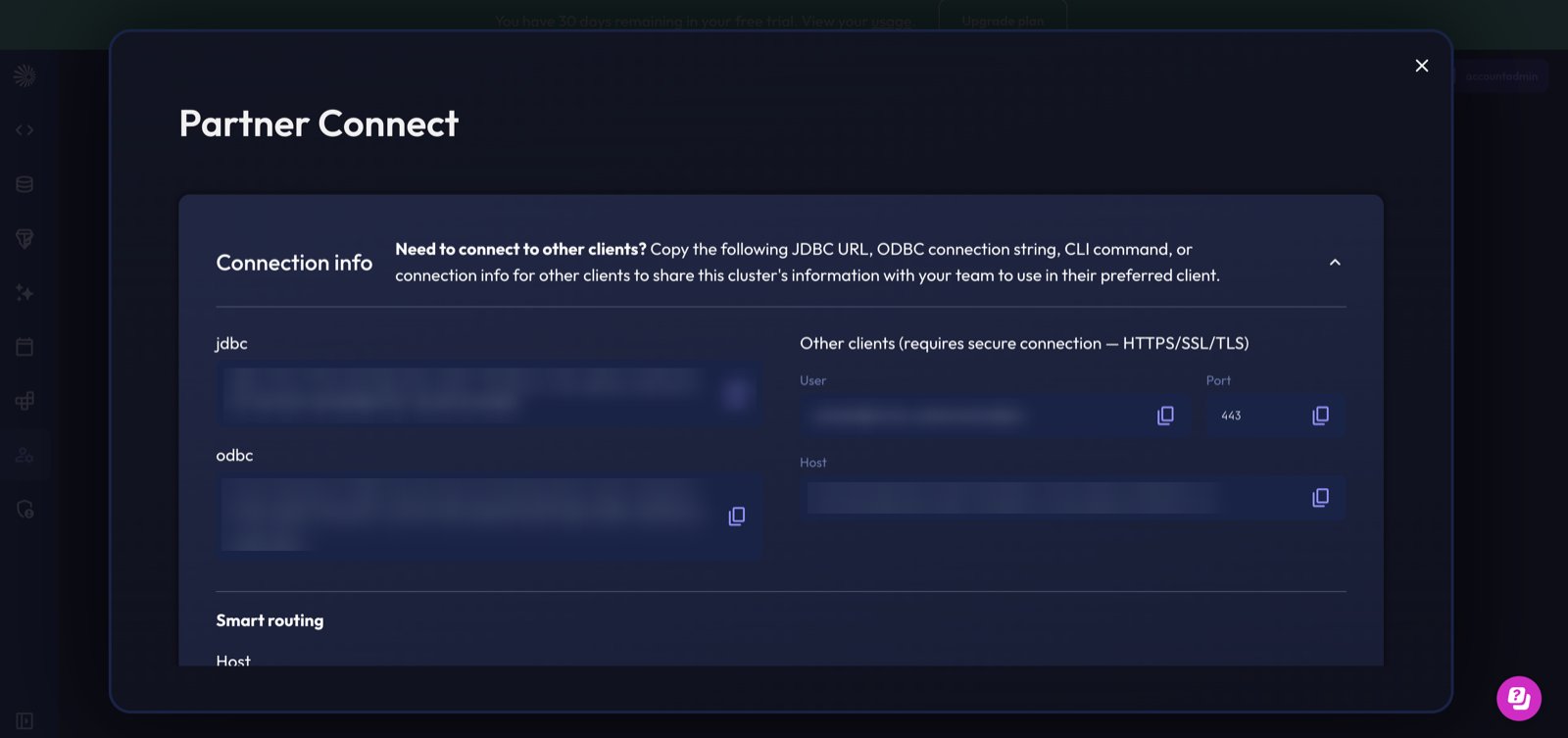
acme-telemetry.trino.galaxy.starburst.io.Connect Starburst Galaxy to Oleria
1
Find Starburst Galaxy in Oleria
Go to your Oleria workspace, select Integrations, select the Available tab, and search for Starburst Galaxy.
2
Connect in Oleria
Select the Starburst Galaxy card and enter the fields below. Then select Authenticate. Oleria checks the API client, and the telemetry login if you entered one, before saving the integration.
Enter all three telemetry fields together, or leave all three blank.
Verify the integration
Confirm the new instance appears on the Connected tab of your Oleria Integrations page with a status of Healthy. After the first sync completes, you can review the discovered accounts, roles, groups, resources, and activity in your Oleria workspace. New queries appear in Oleria after about 6 hours, because Galaxy writes query history some hours after a query runs.You can’t change the account domain after you connect. To connect another Galaxy account, add a new integration. When you edit the integration, leave a secret field blank to keep its stored value. A new API client ID or telemetry login needs its own secret.
Remediation actions
Beyond discovery, Oleria can act on Starburst Galaxy access to remediate risk.
A few safeguards apply:
- Oleria won’t change the roles of, or disable, the service account the integration uses for telemetry.
- Oleria won’t remove a user’s or service account’s default role, or make any role change that would leave the Galaxy account with no administrator (a user or service account holding
accountadminorManageSecurity, directly or inherited). - Oleria won’t remove a role that the account only inherits, through the
publicrole, a SCIM group, or another role. Remove the grant it comes from instead. - Disable NHI refuses a service account whose roles, including inherited ones, are
accountadminor holdManageSecurity. A person must remove an administrative service account. - Create user does nothing if a user with that email already exists. It refuses a request that adds the user to groups or sets a password, because Galaxy groups come from SCIM and the API takes no password.
- A reversal restores the account’s previous roles only if its roles are still exactly what Oleria set. If anyone changed the account’s roles in Galaxy since, Oleria makes no change and the reversal reports that it was skipped. Check the account in Galaxy and undo the change there.
- A reversal of Add user to role is also skipped when the granted role has since become the account’s default role.
Known limitations
- User status, MFA, single sign-on, and last login aren’t available. The Galaxy API has no user status, so every user appears as enabled. MFA is enforced by your identity provider. The Last login column in Galaxy has no API, so with the telemetry connection, Oleria uses each user’s last query as their last activity.
- Activity covers queries only. Galaxy has no audit log API, so configuration, user, role, and grant changes made in the Galaxy console aren’t imported. Activity needs the optional telemetry connection. Query history keeps 30 days.
- API clients and API auth tokens aren’t discovered. Galaxy has no API that lists them.
- Groups come only from SCIM. Galaxy groups are provisioned by your identity provider over SCIM. Oleria reads them but can’t add or remove members or create groups.
- Row filters, column masks, and attribute-based policies aren’t applied. Oleria shows the privileges a role holds, so a
Selecton a filtered or masked table can show more access than the role really has. - Column privileges appear on their table. Oleria doesn’t list columns separately. A column privilege appears on its table with the column name.
- Deny privileges are shown but not yet subtracted. A deny is listed on the role, but a user can still appear to have access granted by another role until deny evaluation is supported.
- Changing a role rewrites the account’s whole role list. Galaxy has no API to add or remove a single role grant, so Oleria reads the roles and writes them all back. A role granted in Galaxy at the same moment could be dropped.
- Service accounts have no creation date or owner. Galaxy doesn’t record when a service account was created or who owns it.