

Pre-requisites
- AWS Admin role
Steps to Integrate AWS Account with Oleria Workspace
Currently Oleria supports two approaches. Follow the one that is most appropriate for your organization.- Integrate AWS Account
- Integrate AWS Organization
Integrate AWS Account
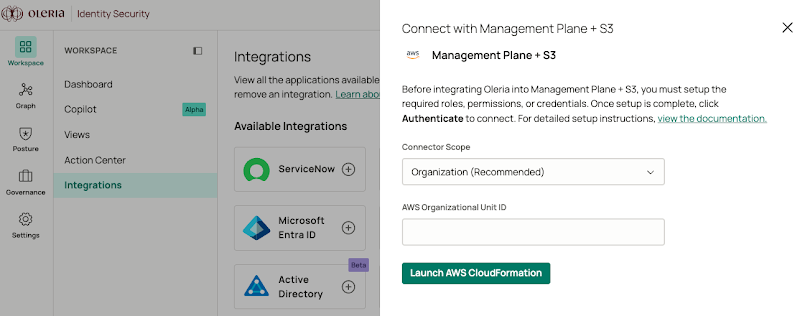
Step 1: Log in as an admin user to the AWS Management Account (also known as the master account) that will be connected to Oleria. This creates a session. Step 2: In the same browser, open a new tab and log in to Oleria workspace. Select Integrations → select AWS Management Plane, and S3. A side page opens, and select Account from the Connector scope dropdown and select Launch AWS CloudFormation.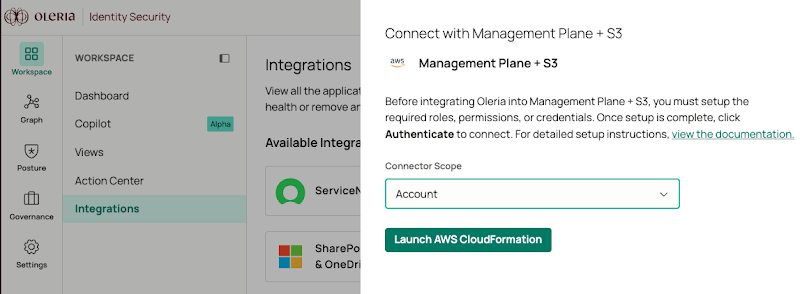
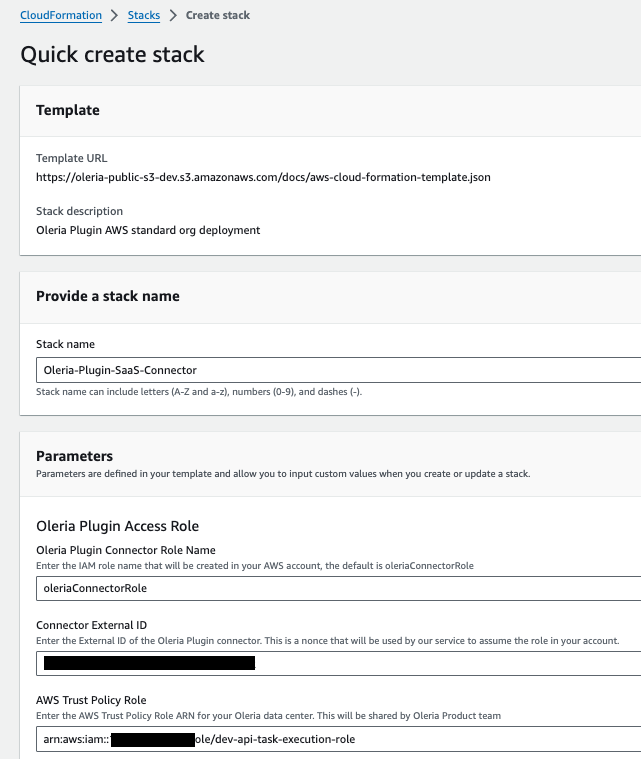
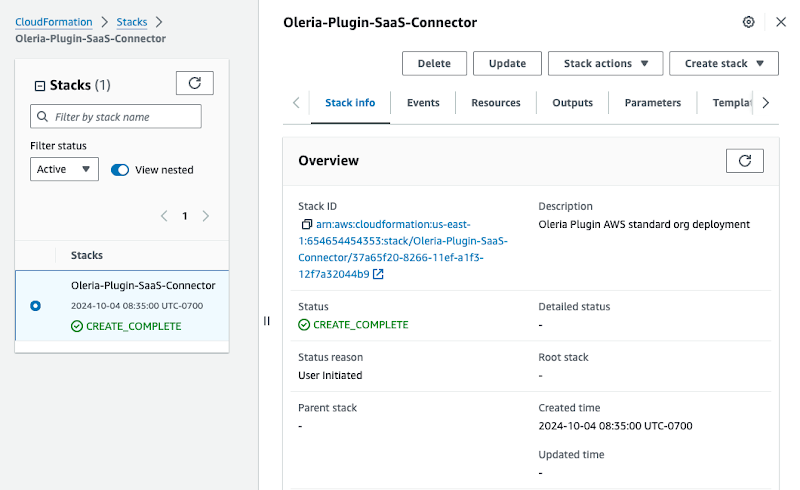
- cloudformation:CreateStack
- cloudformation:CreateUploadBucket
- cloudformation:DescribeStacks
- cloudformation:DescribeStackEvents
- cloudformation:GetStackPolicy
- cloudformation:GetTemplateSummary
- cloudformation:ListStacks
- cloudformation:ListStackResources
- iam:AttachRolePolicy
- iam:CreatePolicy
- iam:CreateRole
- iam:ListRoles
- iam:GetRole
- iam:DeleteRolePolicy
- iam:PutRolePolicy
- s3:GetObject
- s3:CreateBucket
- s3:PutObject
- sns:ListTopics
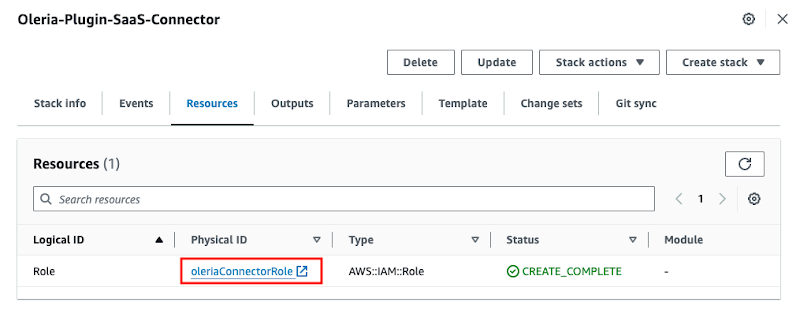
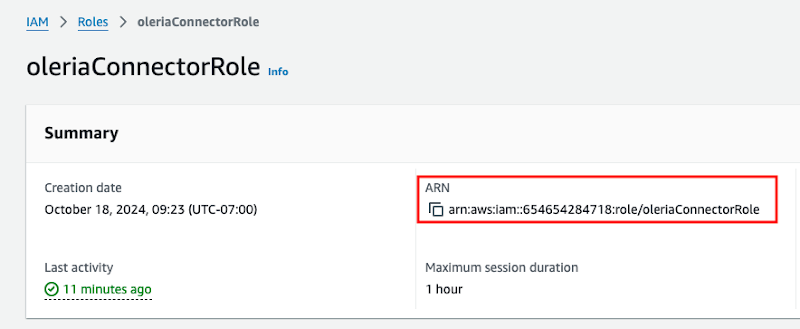
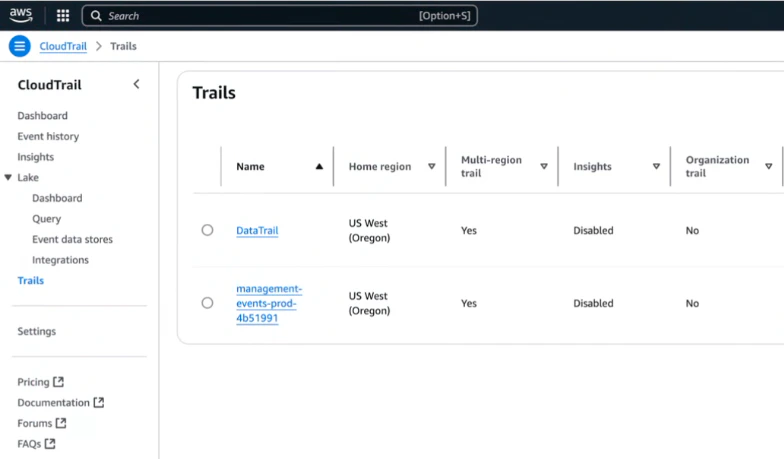
- Search CloudTrail → select Management Events
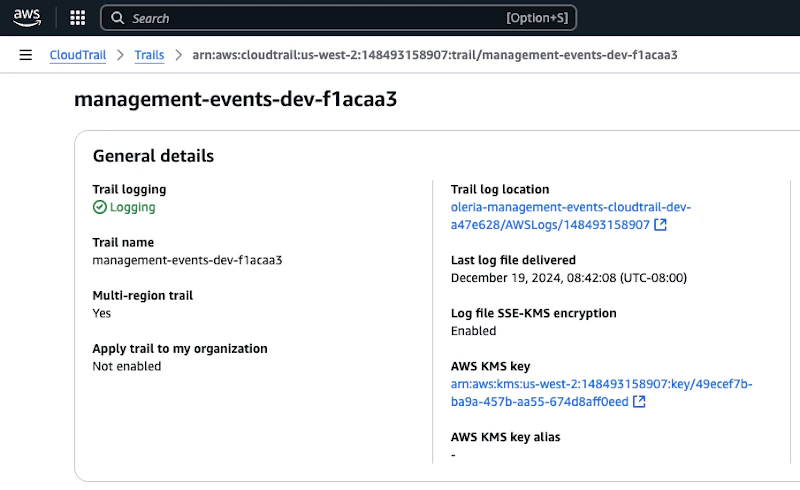
- Select the AWS KMS key link
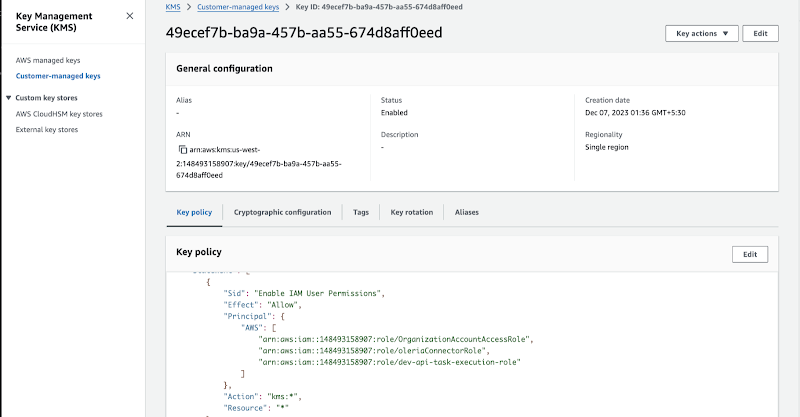
kms:Decrypt and kms:DescribeKey for KMS-encrypted S3 access.
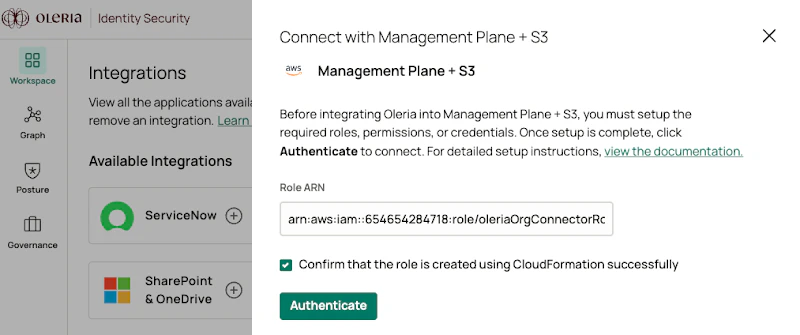
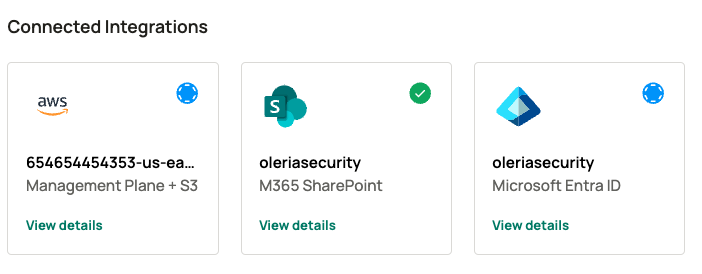
Step 8: Return to your Oleria Workspace, provide Role ARN copied in step 6. Select the checkbox and click Authenticate.
Integrate AWS Organization
Step 1: Log in as an admin user to the AWS Management Account (also known as the master account) that will be connected to Oleria. This creates a session. Select the user on the top right corner, and select Organization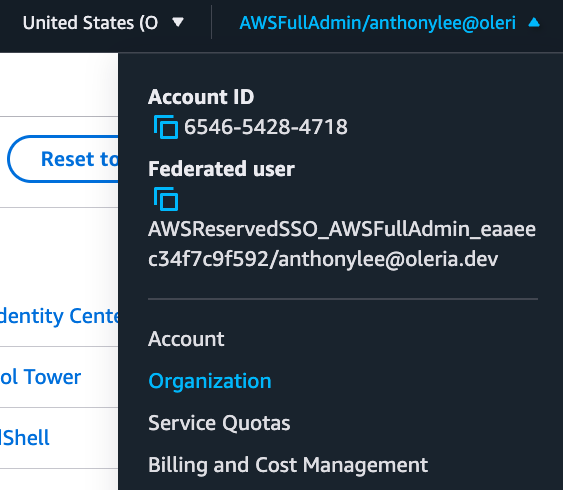

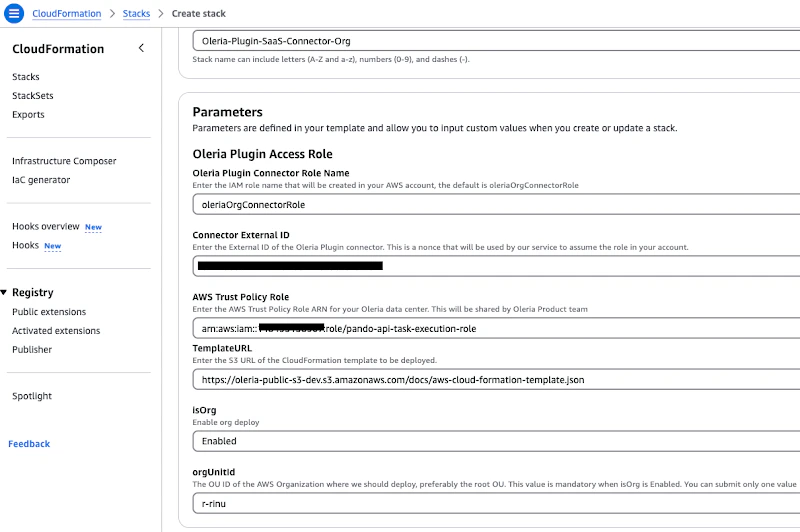
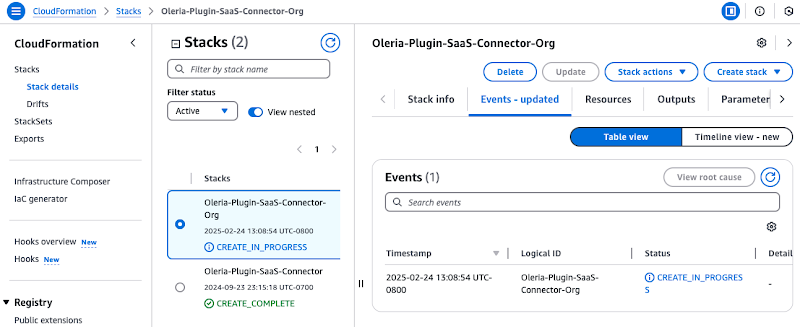
- cloudformation:CreateStack
- cloudformation:CreateUploadBucket
- cloudformation:DescribeStacks
- cloudformation:DescribeStackEvents
- cloudformation:GetStackPolicy
- cloudformation:GetTemplateSummary
- cloudformation:ListStacks
- cloudformation:ListStackResources
- iam:AttachRolePolicy
- iam:CreatePolicy
- iam:CreateRole
- iam:ListRoles
- iam:GetRole
- iam:DeleteRolePolicy
- iam:PutRolePolicy
- s3:GetObject
- s3:CreateBucket
- s3:PutObject
- sns:ListTopics
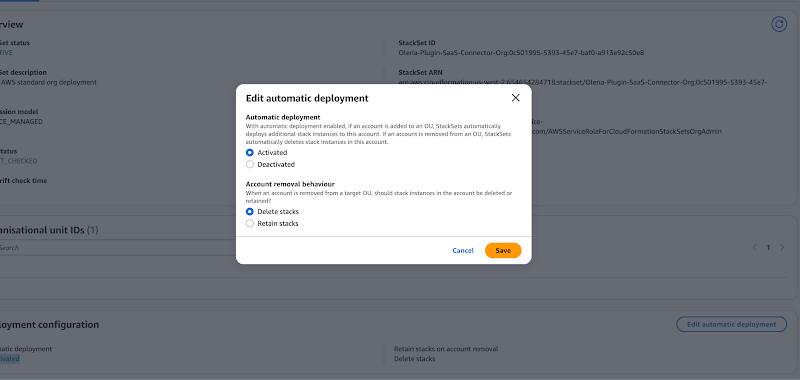
- For the integration to automatically apply to new AWS accounts added to your organization in the future, you should ensure auto-deployment is active.
- *In the CloudFormation console, navigate to StackSets from the left-hand menu. -> Select the Oleria-Plugin-SaaS-Connector-Org StackSet.-> Under the Deployment configuration section, click Edit automatic deployment. Ensure that Automatic deployment is set to *Activated
- Search CloudTrail → select Management Events
- Select the AWS KMS key link
kms:Decrypt and kms:DescribeKey for KMS-encrypted S3 access.
Step 9: Return to your Oleria Workspace and select the region copied in step 6. Select the checkbox and click Authenticate.