

What Oleria discovers
Once connected, Oleria continuously discovers and maps the following from your Sanity organization:- Users - every member of your organization and of the projects Oleria syncs, with their name, email, and login provider. Users who sign in through a SAML provider are shown as using SSO. MFA status isn’t available, because Sanity has no MFA setting.
- Pending invitations - organization and project invitations that haven’t been accepted yet.
- Robot API tokens - each project’s robot tokens as non-human identities, with their label, roles, creation date, and expiry date. Oleria never reads a token’s value.
- Roles - organization and project roles, and which users and robot tokens hold each.
- Activity - events from the Sanity Activity Log. The Activity Log keeps 90 days of events on the Growth plan and 365 days on the Enterprise plan. The Free plan has no Activity Log.
Prerequisites
- A Sanity user who can create API tokens on every project you want to sync.
- Your Sanity organization ID.
- Admin access on the Oleria platform to add a new integration.
A project robot token works on one project only, and each Oleria integration takes one token. To sync several projects, connect one Oleria integration per project, each with its own token and the Project IDs field set to that project. Sanity also has no OAuth connection for this kind of access, so Oleria connects with a robot token only.
Permissions Oleria needs
Sync needs the Developer role, plus Access Manager for the Activity Log. Developer is the robot role that can read the project’s API tokens, and it also covers reading members and roles. Sanity’s Activity Log API needs an Access Manager robot token:
Remediation actions need these permissions as well:
Add Access Manager to collect Activity Log events and to let Oleria change roles, remove users or delete users.
The exact location of these settings can change over time. If the steps below don’t match what you see, refer to Sanity’s documentation on API tokens.
Connect Sanity to Oleria
1
Open the project's API tokens
Sign in to sanity.io/manage and select the project you want to sync. Select API, then Tokens, and select Add API token.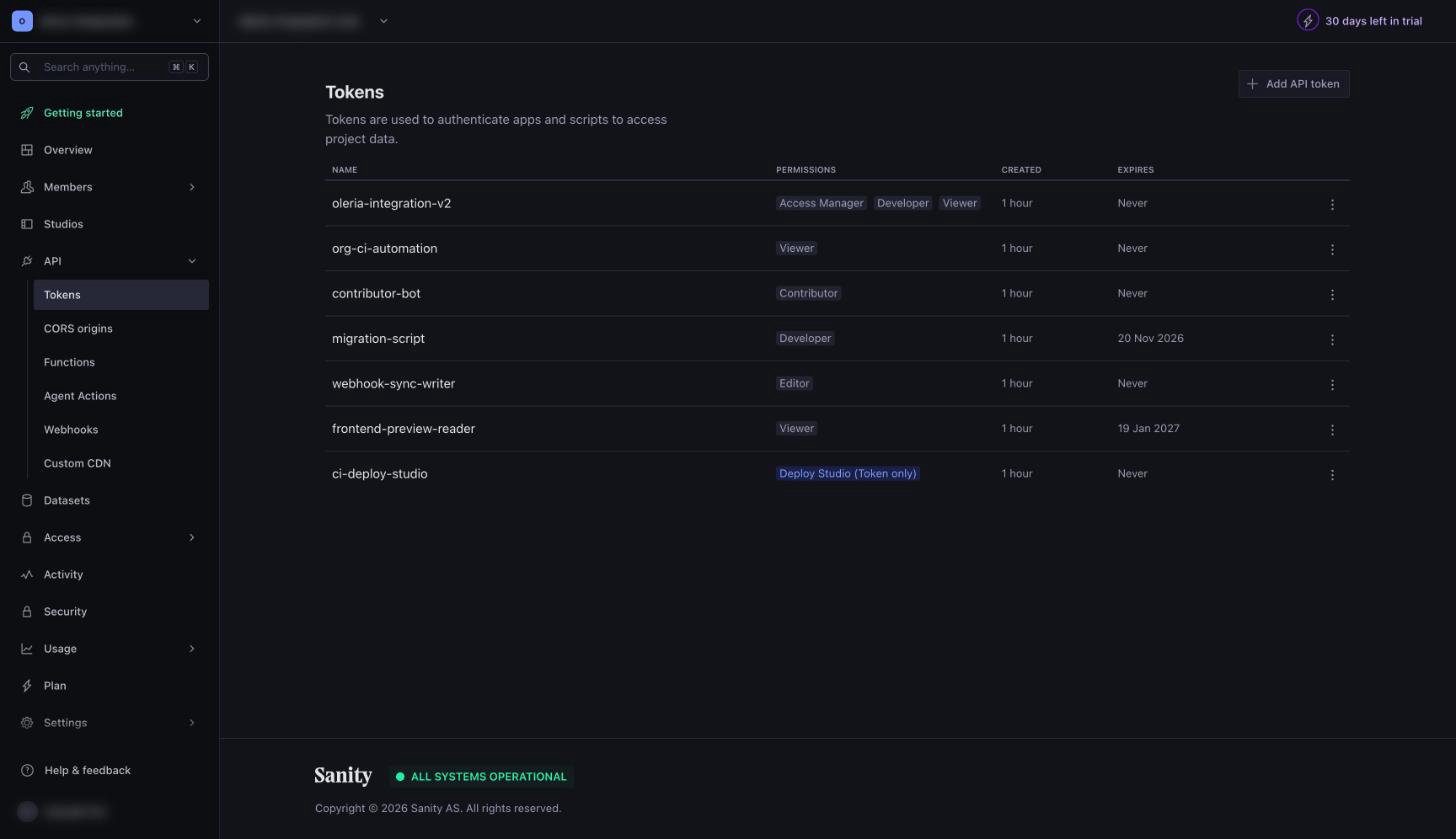
2
Create the robot token
In the Add API token dialog, name the token, for example 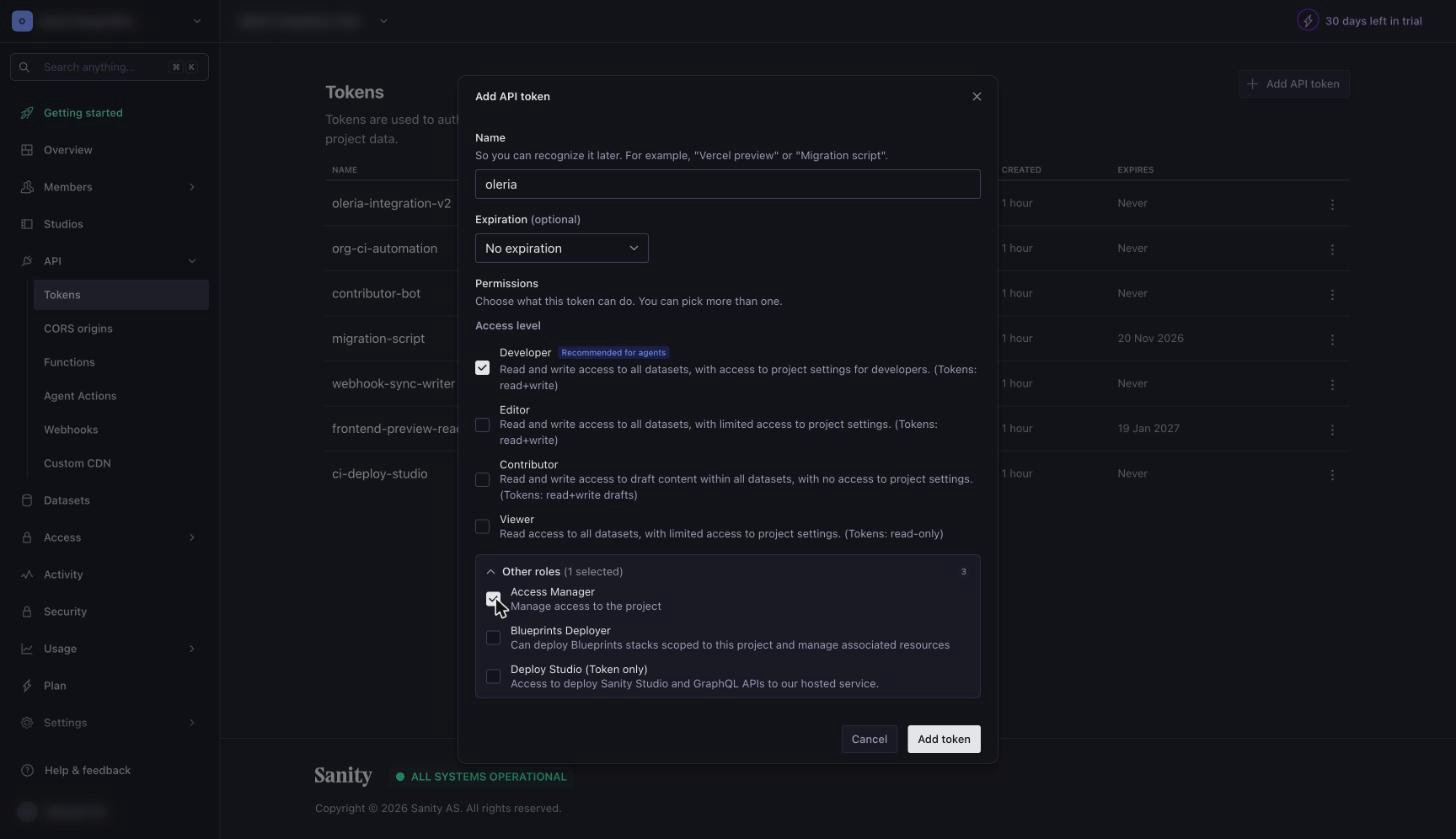
oleria, and set an expiration if your policy needs one. Under Permissions, select Developer. To collect Activity Log events and use the remediation actions that change roles or remove users, open Other roles and select Access Manager too. Select Add token.3
Copy the token
Select the copy icon next to the new token. Sanity shows the token only once, so copy it before you leave the page.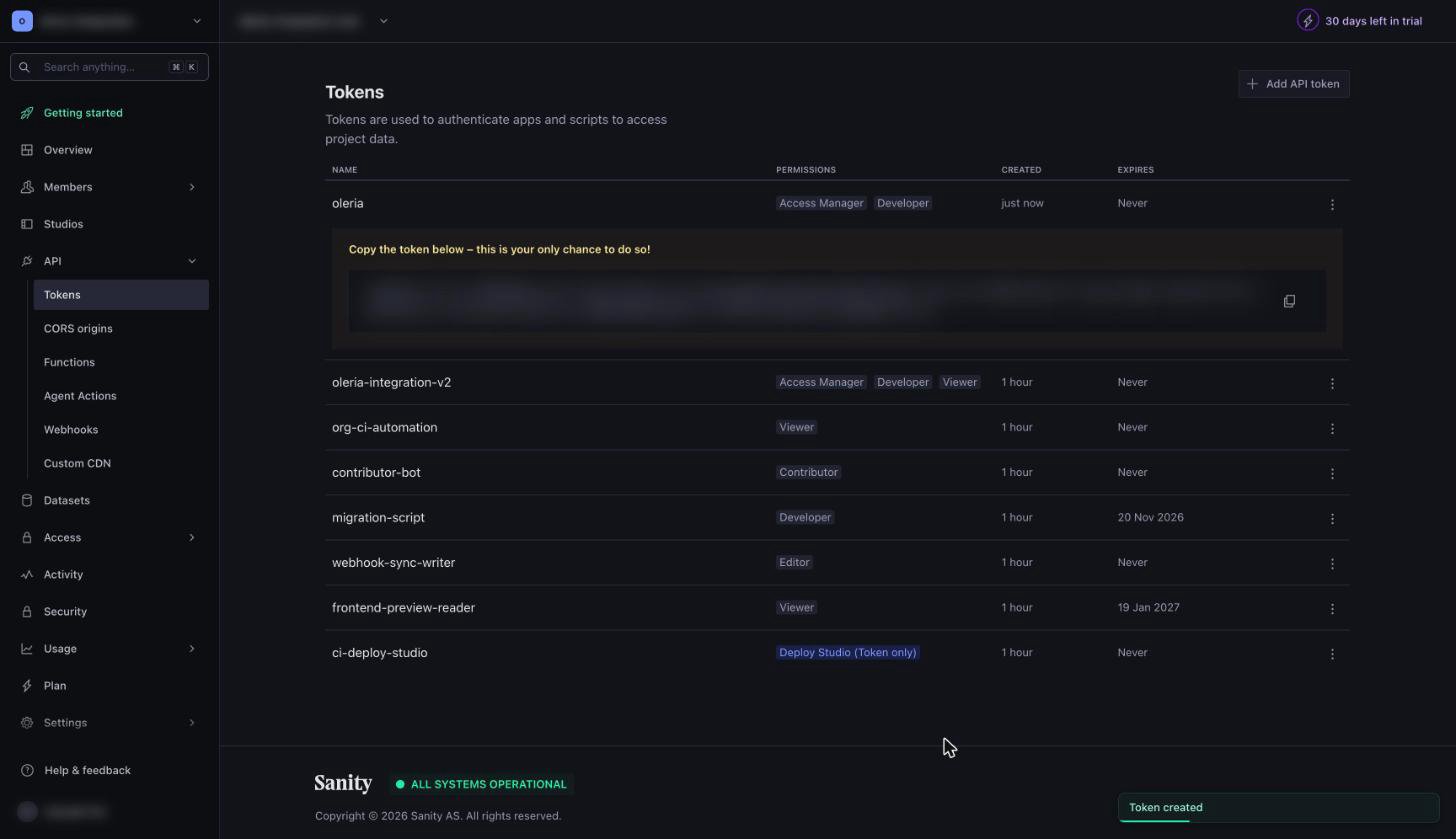
4
Find your organization ID
In sanity.io/manage, select your organization. The organization ID is the part of the address after
organizations/, as in https://www.sanity.io/organizations/<organization-id>/....5
Find Sanity in Oleria
Go to your Oleria workspace, select Integrations, select the Available tab, and search for Sanity.
6
Connect in Oleria
Select the Sanity card and fill in the form:
Select Authenticate.
Verify the integration
Confirm the new instance appears on the Connected tab of your Oleria Integrations page with a status of Healthy. After the first sync completes, you can review the discovered users, invitations, robot tokens, roles, and activity in your Oleria workspace.Remediation actions
Beyond discovery, Oleria can act on Sanity access to remediate risk.Known limitations
- Organization-level roles and robot tokens can’t be listed with a robot token. Oleria infers organization roles from the users’ memberships, and discovers an organization-managed robot token only when it has access to a synced project. Organization invitations are discovered.
- Robot token last-used time isn’t available. The Sanity API doesn’t return when a token was last used.
- SAML and SSO configuration can’t be read. Oleria shows which users sign in through a SAML provider, but the Sanity API doesn’t expose the SSO settings.
- Activity needs a paid plan and Access Manager. The Free plan has no Activity Log, and on Growth or Enterprise the token needs the Access Manager role.
- Datasets and documents aren’t imported. Oleria reads who can access each project, not the content in it.