

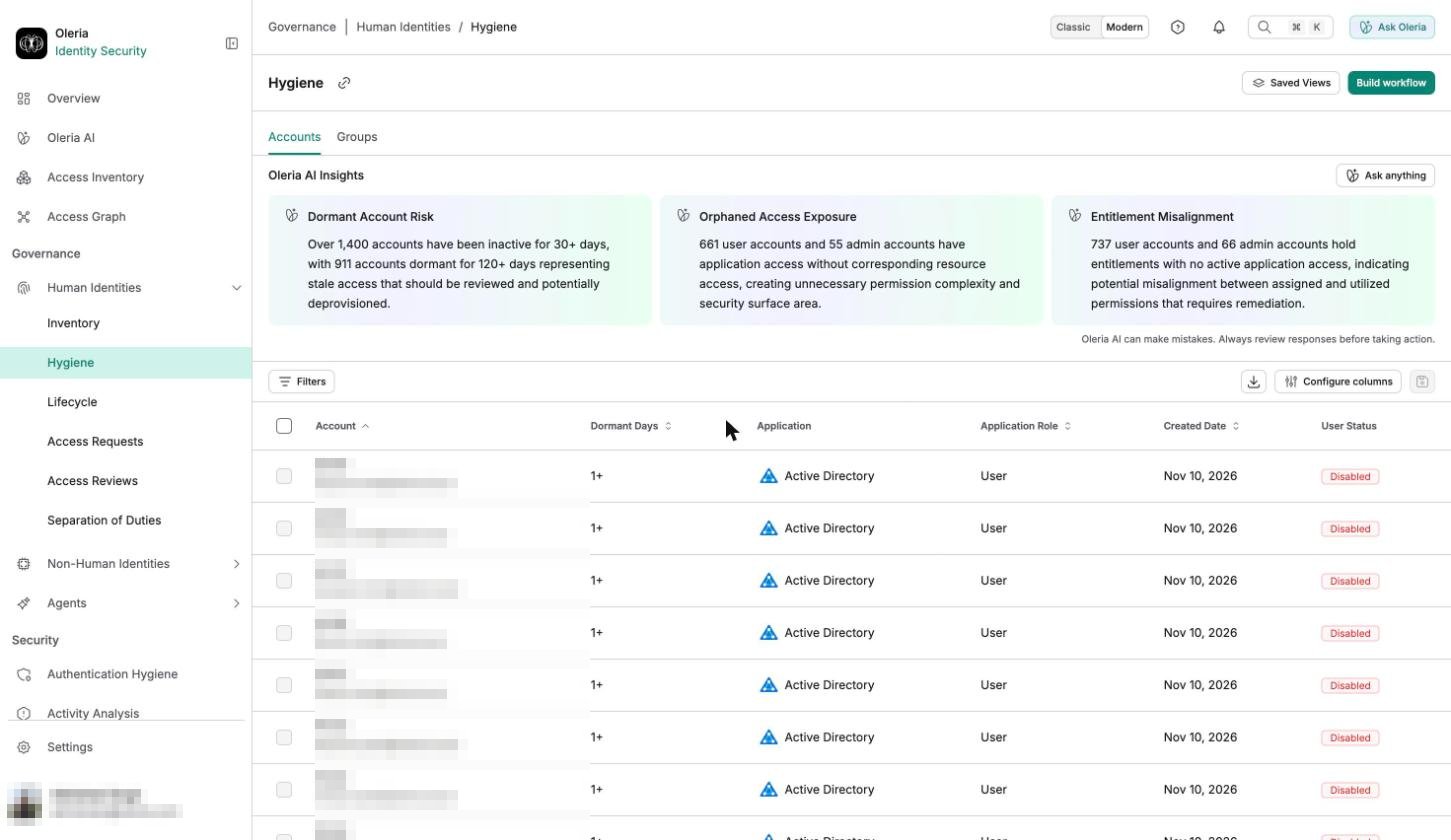
Accounts
- Find and remove dormant access - accounts inactive past your workspace’s dormancy threshold (30 days by default), which accumulate as people change roles or disengage, without anyone removing the access that came with their old one.
- Review standing admin access - who holds administrator-level permissions, and whether continual admin access is still justified for each of them.
- Spot dormant SaaS subscriptions - applications nobody’s using, so you can cut the license cost along with the attack surface.
- Check access against job function - whether what someone can reach still matches what their role requires, which matters most in regulated environments that need to document that reasoning.
- Find stale passwords - accounts whose password hasn’t been rotated in a defined period. See Password age.
Accounts table
The accounts table lists all accounts matching your current filters. The table shows six columns by default. Use Manage columns to show, hide, or reorder columns. Reset to default restores the default set. The Account column can’t be hidden.
To close MFA gaps on a schedule instead of filtering for them manually, see Enforce MFA compliance. Select Build workflow to open the Disable dormant accounts workflow and schedule it.
Filters
No filter is applied when you open Accounts. Filters and the column selection are kept in the page address, so a link you copy opens the same view.Accounts always excludes external and anonymous users, and machine accounts. See External Access for external users.
Each filter offers the operators that fit its values:
Search and sort
Accounts has no search box. Use the filters above to narrow the list. The list opens sorted by Account name, ascending. Select a column heading to sort by it. You can sort by every column except Application, MFA Status, and User Status. The list shows 15 accounts per page. An empty list reads No Data.Details panel
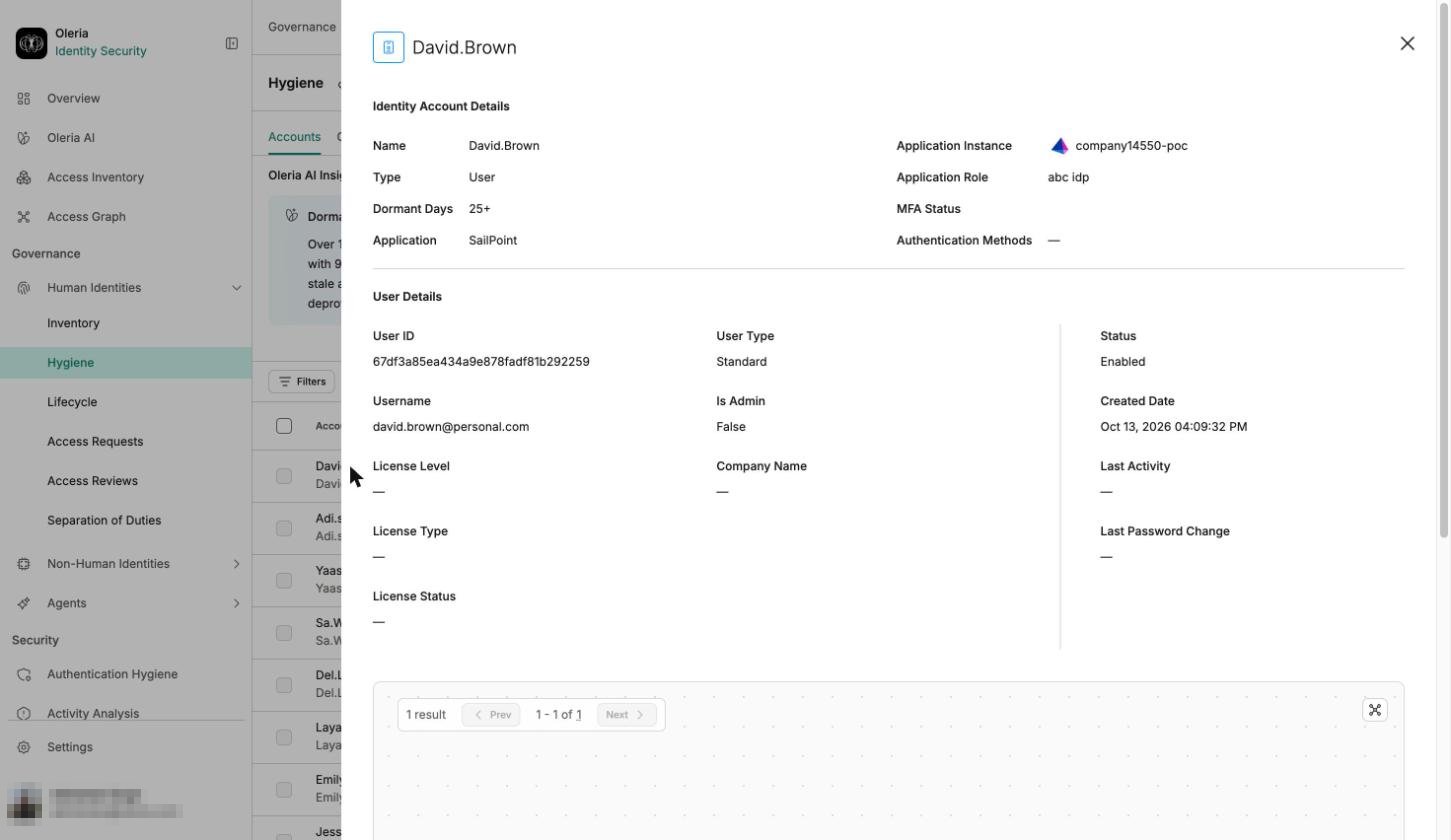
Selecting a row opens a details panel, with a small access graph of the account’s own connections at the bottom - select the expand icon to open the full Access Graph from there. The fields shown depend on the account type.Application accounts
Application account details
User details
Identities
User details
Directory entries
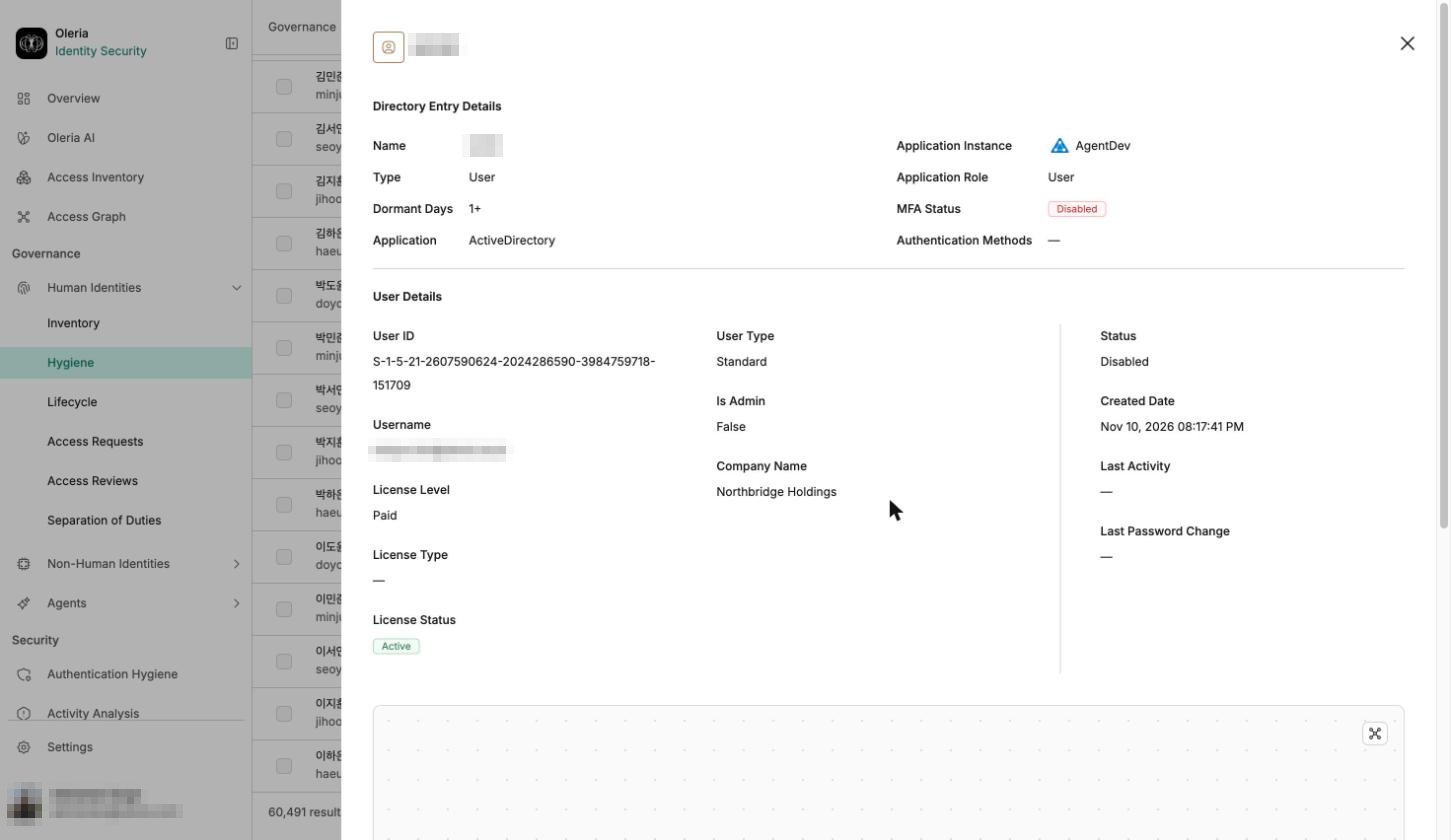
User details
Groups
- Eliminate underutilized groups - identify and act on groups that are no longer needed, reducing your attack surface and simplifying access management.
- Manage inactive group members - identify and adjust access for accounts that have not used their group membership in longer than your workspace’s dormancy threshold (30 days by default).
- Review administrator groups - identify groups used for privileged tasks and tighten permissions where continual admin access is no longer justified.
- Remove unnecessary permissions - surface and clean up permissions accumulated through group membership over time.
Group table
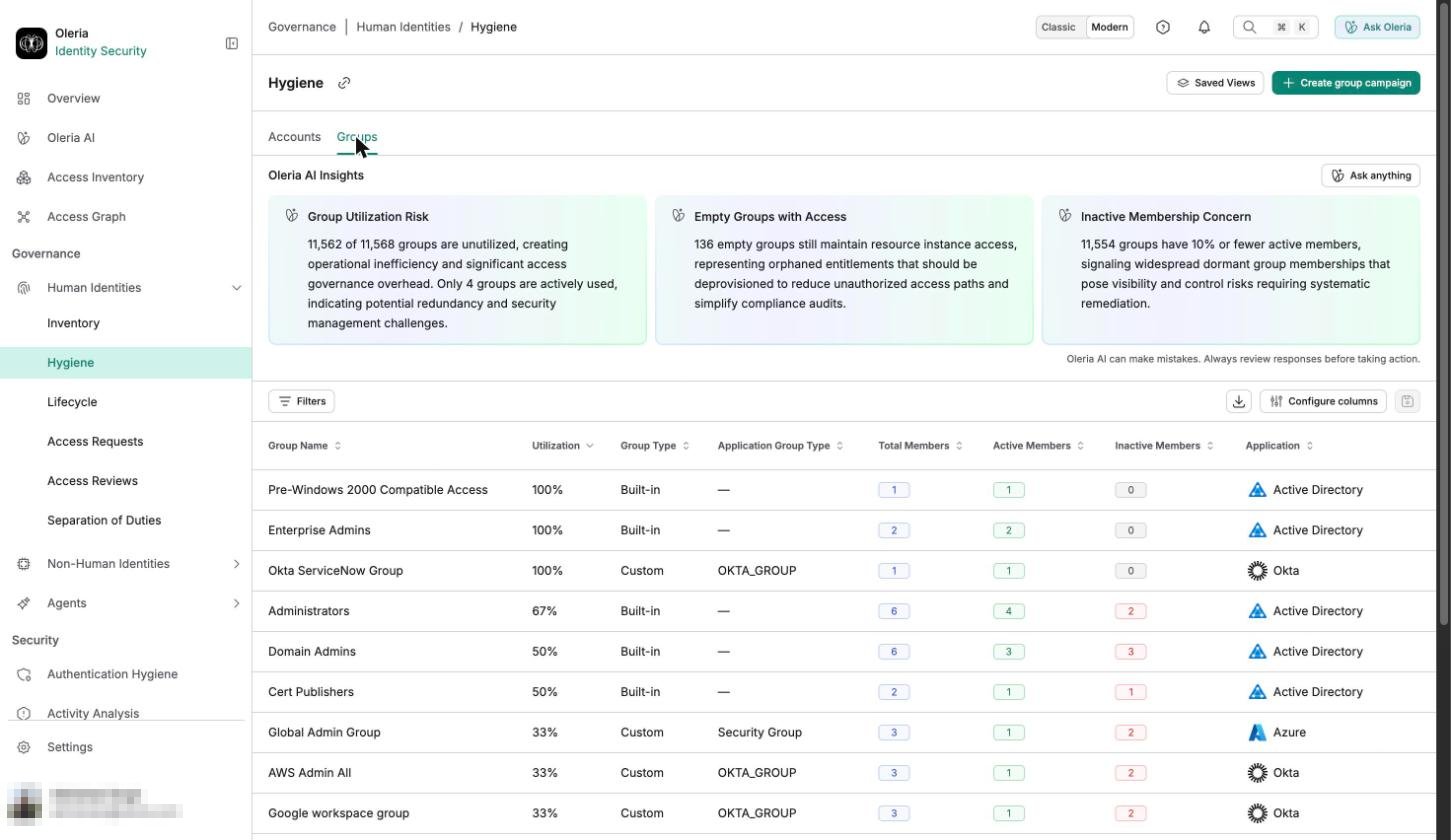
The group table lists all groups matching your current filters. The table shows eight columns by default, or nine when Confidence is enabled for your workspace. Use Manage columns to show, hide, or reorder columns. Reset to default restores the default set. The Group Name column can’t be hidden.
You can export the group table as a CSV file. When a group is exported, its members are also included in the export.
Filters
No filter is applied when you open Groups. Filters and the column selection are kept in the page address, so a link you copy opens the same view.
Each filter offers the operators that fit its values:
Search and sort
Groups has no search box. Use the filters above to narrow the list. The list opens sorted by Utilization, highest first. Select a column heading to sort by it. You can sort by every column. The list shows 15 groups per page. An empty list reads No Data.Group details page
Selecting a group opens the group details page.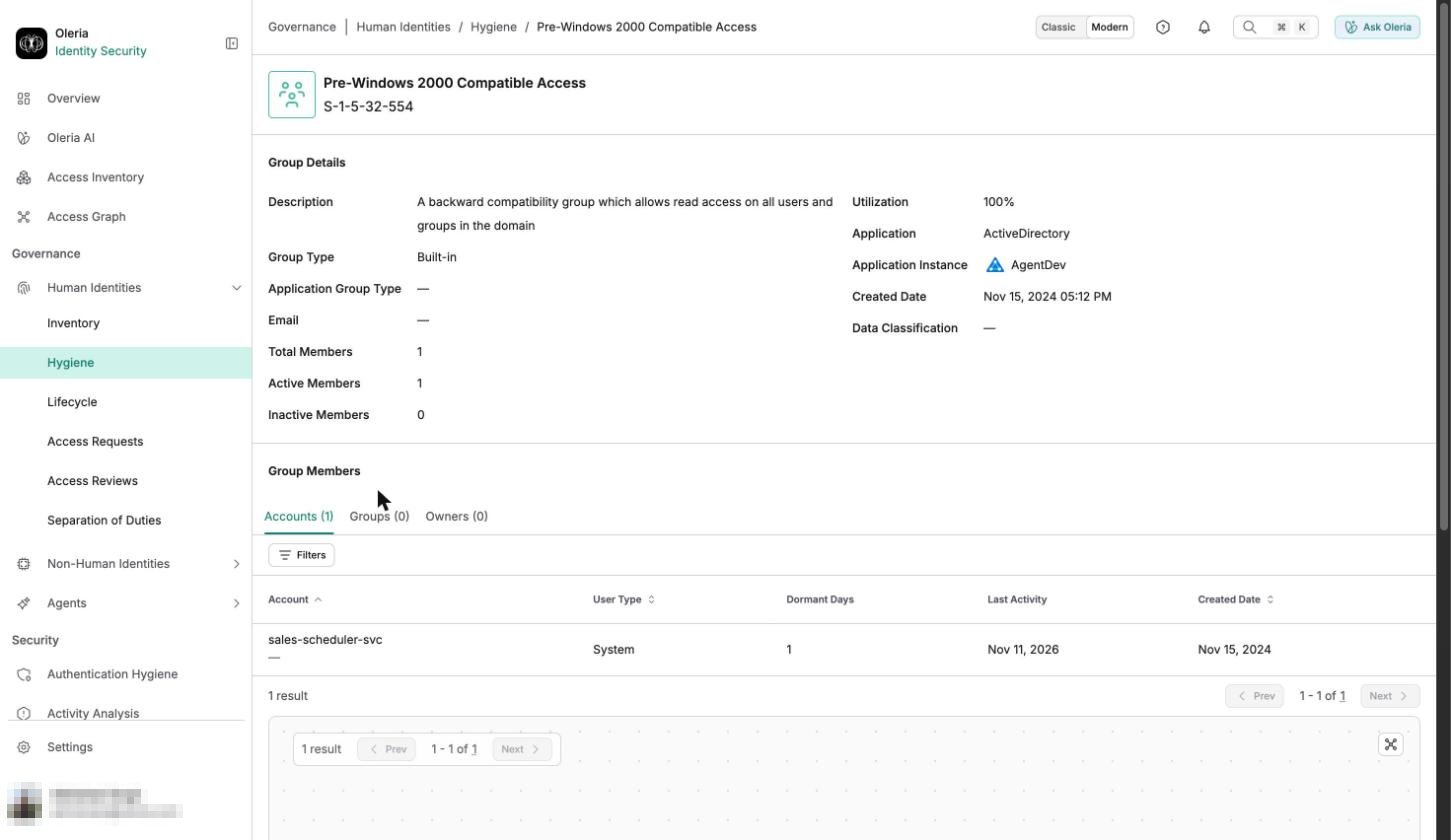
Under Group Members, three tabs break down who and what belongs to the group: