
Non-Human Identities must be enabled for your workspace, and the Ownership page enabled within it. Configuring ownership for an application requires permission to view and manage NHI ownership settings - only Administrators have it by default. Contact us at support@oleria.com if you do not see this page or its settings.
Ownership dashboard
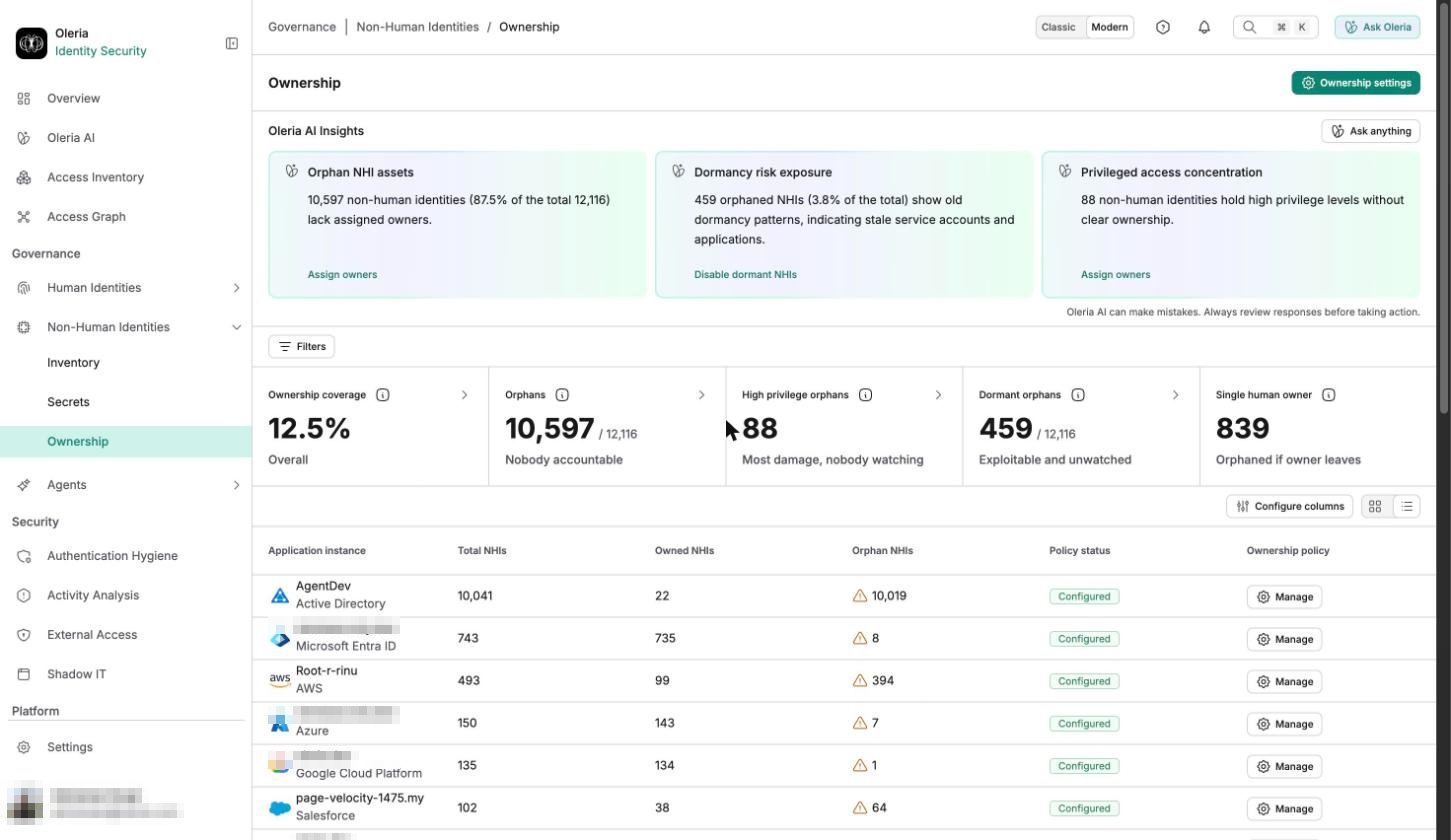
Go to Non-Human Identities -> Ownership for a workspace-wide view:
Below the summary, a table breaks ownership down by application instance - total NHIs, owned NHIs, orphan NHIs, and whether an ownership policy is Configured for that instance, with a button to Manage or Configure it.
Two levels of rule
Oleria checks every NHI daily against two rules, in this order:- App-based rule - if the NHI’s application has its own ownership policy configured, that policy decides.
- Global rule - otherwise, the workspace-wide default applies.
Automatic signal detection
Oleria first looks for direct evidence of ownership in your connected applications. It checks a fixed set of signals in priority order, from strongest to weakest, and stops at the first priority level that identifies an owner - it does not fall back to a weaker guess once a strong signal is found.
Not every signal applies to every application. Signals marked for one provider only run for identities from that provider, and Google Cloud service accounts don’t use “Can act as this user.”
If a signal points to an account that is disabled, or has had no activity for longer than your workspace’s dormant account threshold, Oleria assigns that person’s manager instead. The manager comes from your HR or identity provider data and must have an account that’s enabled, not deleted, and in the same application. If there’s no such manager, that signal doesn’t produce an owner and Oleria moves on to the next signal.
Manual review when no signal is found
If none of the applicable signals identify an owner, what happens next depends on the application. If the application has its own ownership settings, the NHI is routed to the reviewers configured there - a specific reviewer, or an admin, group, or role. If it doesn’t, the NHI stays unowned and Oleria checks it again on its next daily run. If more than one reviewer is assigned, the first decision made resolves the review and closes any other pending reviews for that NHI.Oleria keeps checking for signals in the background while a review is pending. If a clear signal appears before a reviewer acts, the NHI is assigned automatically and the pending review closes on its own.
Fallback assignment when the review period expires
Fallback assignment covers two cases: an NHI with no matched owner at all, and an auto-assigned owner who rejects the assignment. Either way, if you’ve enabled fallback assignment for an application, reviewers have a set number of days to act. If a review isn’t completed within that window, ownership is assigned automatically to the fallback owner configured for that application. This assignment is recorded as a system action, distinct from a human reviewer’s decision, with the reason logged as the review period expiring without a decision. If no fallback owner is configured for an application, the NHI stays unowned rather than being assigned to an arbitrary default.Configure ownership for an application
Go to Non-Human Identities -> Ownership, then select Configure (or Manage, on an application that’s already set up) on an application row to open its Configure Ownership page:1
Enable fallback assignment
Turn on Enable fallback assignment so NHIs with no matched owner, or an auto-assigned owner who rejects it, are reassigned automatically instead of staying unowned.
2
Activate fallback after
Set the number of days reviewers have to act before ownership passes to the fallback owner.
3
Fallback owners
Choose who the fallback owner is: a specific owner, a group, a role, or a specific person who holds an admin role for that application.
4
Reviewers
Under Select reviewers, choose who reviews NHIs that reach this point, using the same options: a specific person, a group, a role, or a specific person who holds an admin role.
5
Notify assigned owners
Choose how assigned owners are notified - by email, always on, and by direct message too if your workspace has Slack or Microsoft Teams connected under Settings -> Messaging.
A workspace-wide global rule, configured under Settings -> Policies -> Ownership, is available when enabled for your workspace. Configuring it needs the permission to update workspace settings, which only Administrators have by default. An older Settings -> NHI Policies link redirects to this same page.When available, that page lists application-specific rules below the global rule, each with the same fields as the Configure Ownership page above but in a different order - Reviewers first, then Fallback owner - and with the assignee options Groups and Roles (plural), not Group and Role. The global rule itself is a simpler form above that list: choose how reviewers and new owners are notified, then select Activate to turn it on workspace-wide - the button reads Save on later visits. It has no fallback or reviewer fields of its own; those live only in the application-specific rules below it.