
Non-Human Identities must be enabled for your workspace, and the Secrets page enabled within it - contact support@oleria.com if you do not see it in your navigation.
Secrets summary
Go to Non-Human Identities -> Secrets for a workspace-wide view: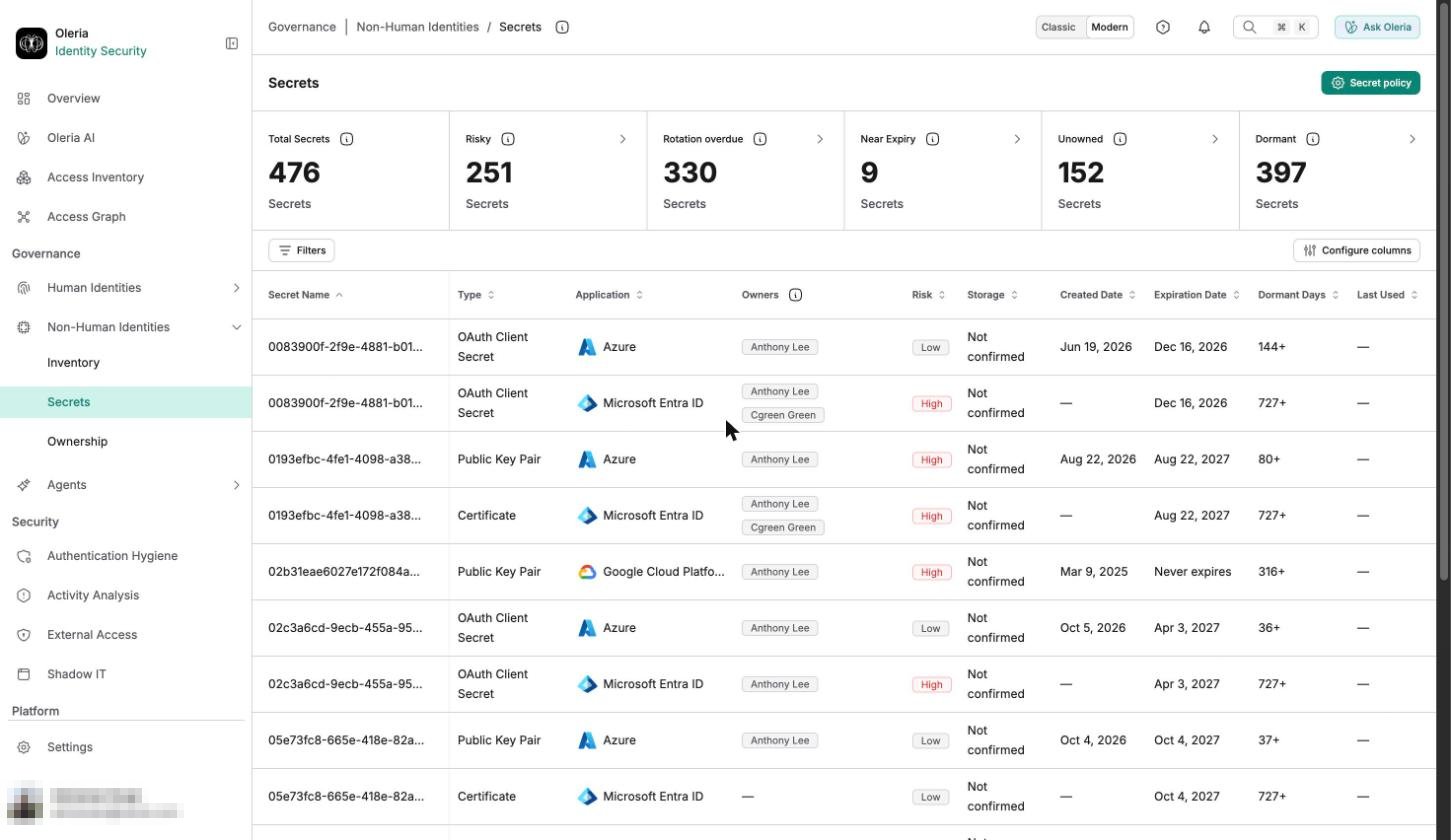
Secrets table
The table shows 10 columns by default. Use Manage columns to show, hide, or reorder columns. Reset to default restores the default set. The Secret Name column can’t be hidden.How to read empty values
Filters
No filter is applied when you open the inventory.
Each filter offers the operators that fit its values:
Three behaviors to know when you filter:
- Not vaulted isn’t offered as a Storage or Risk Reason option yet.
- The Expiration Date filter’s in the last option has no upper bound, so it can also match secrets that haven’t expired yet.
- On any date filter, selecting is doesn’t match a specific date. It matches secrets where Oleria has a value (Available) or doesn’t (Missing).
Search and sort
To find a secret by name, type in the Search secret name box, or use the Secret Name filter with contains or does not contain. The list opens sorted by Secret Name, ascending. Select a column heading to sort by it. You can sort by every column except Application Instance and Owners. The list shows 15 secrets per page. An empty list reads No Data.Secret details
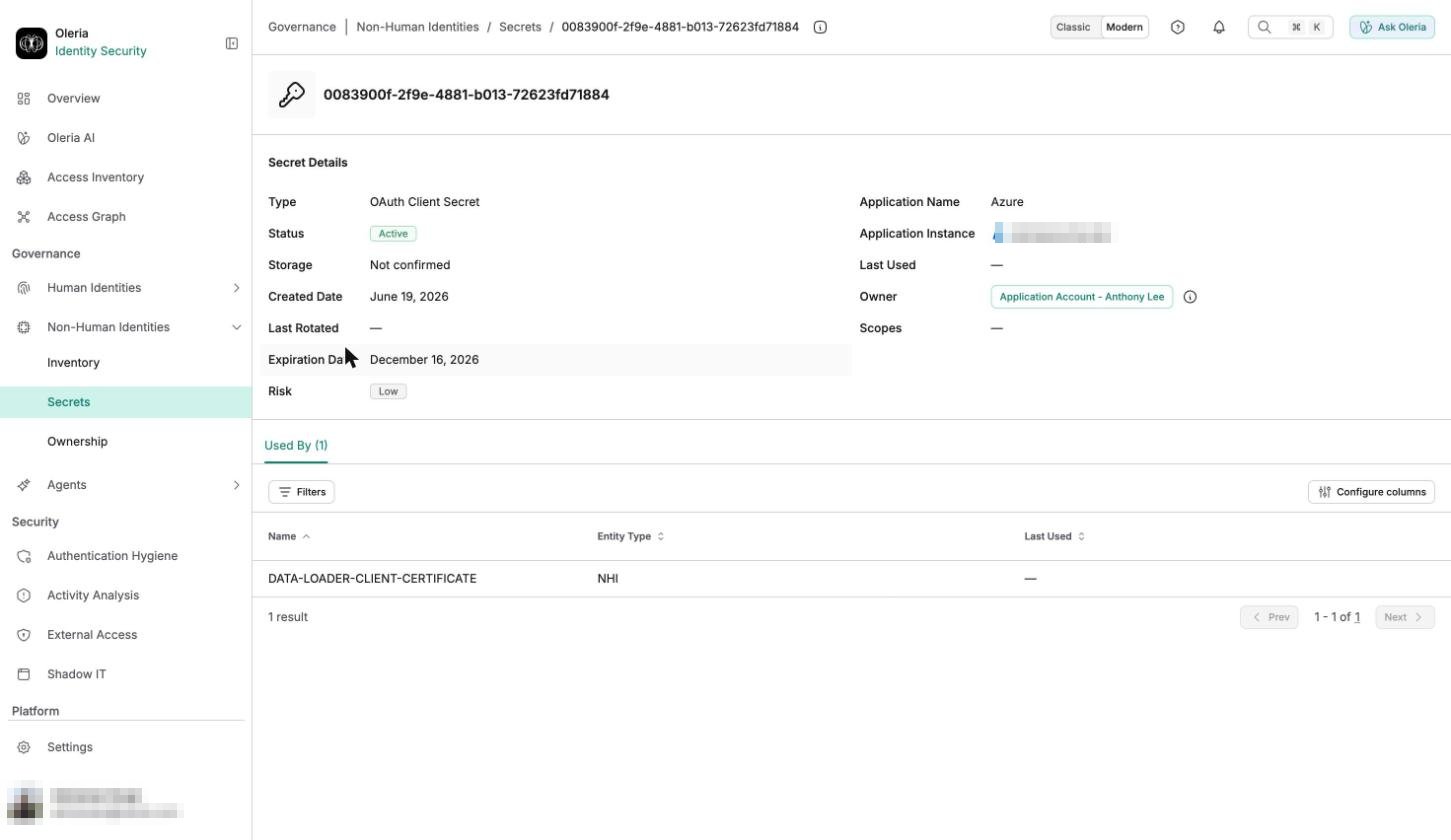
Select a secret to open its record. The Secret Details block repeats the table’s fields plus Status, the application instance, and the secret’s scopes.
The Used By tab lists every account that authenticates with this secret, each with its entity type (Account, NHI, Role, or Group) and when it was last used - useful for telling a single-purpose secret from one several identities share. It opens sorted by name, ascending, and shows 10 consumers per page.