

Action Center tracks what already ran, one-off or scheduled. To configure the schedules themselves, see Workflows.
See role permissions for the full matrix.
Action card fields
Each action card in Action Center contains the following information: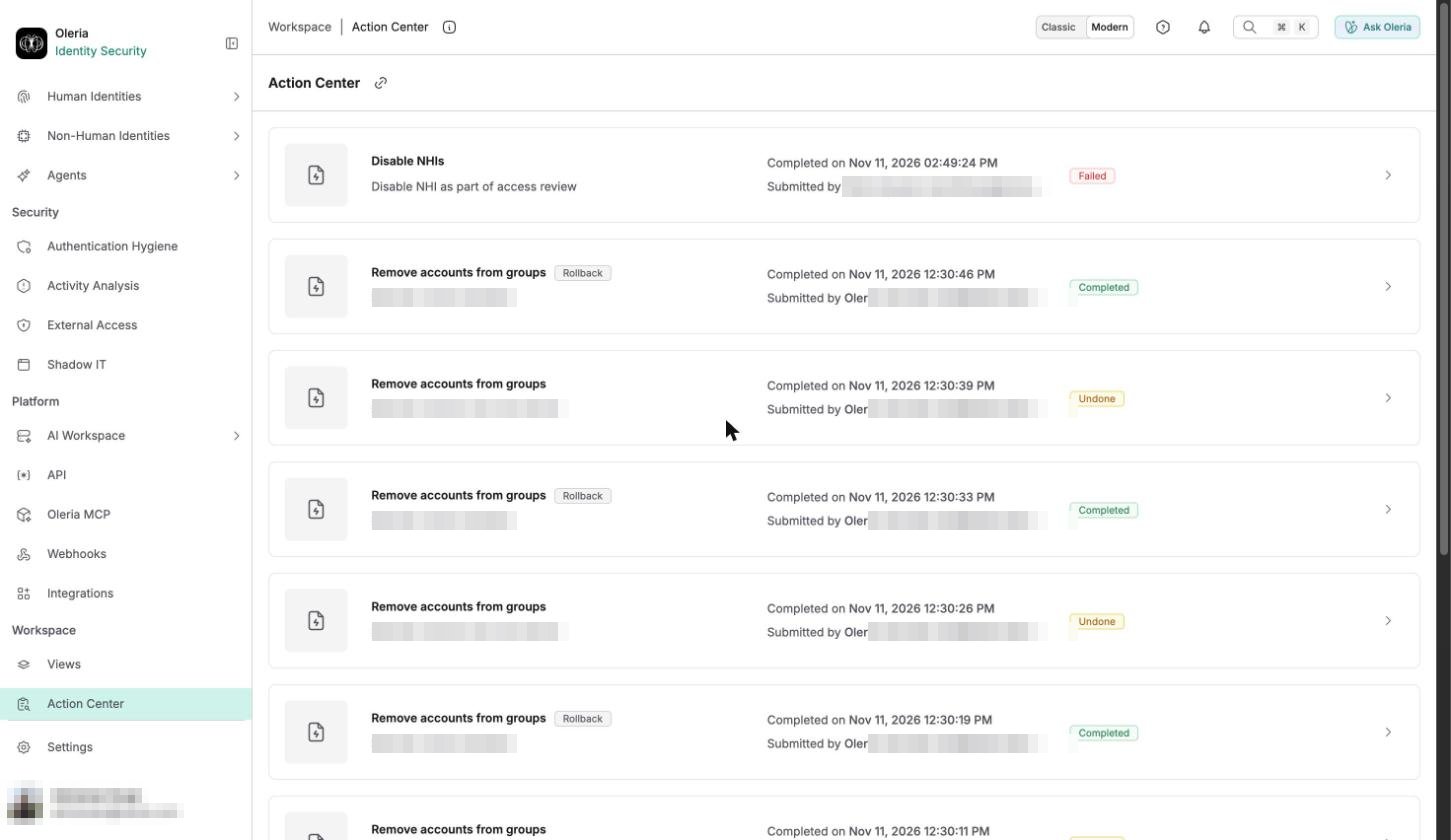
View action detail
Select an action in Action Center to open its detail panel, with the full list of items the action touched and the status of each one. The Action Detail header includes all fields from the action card, plus: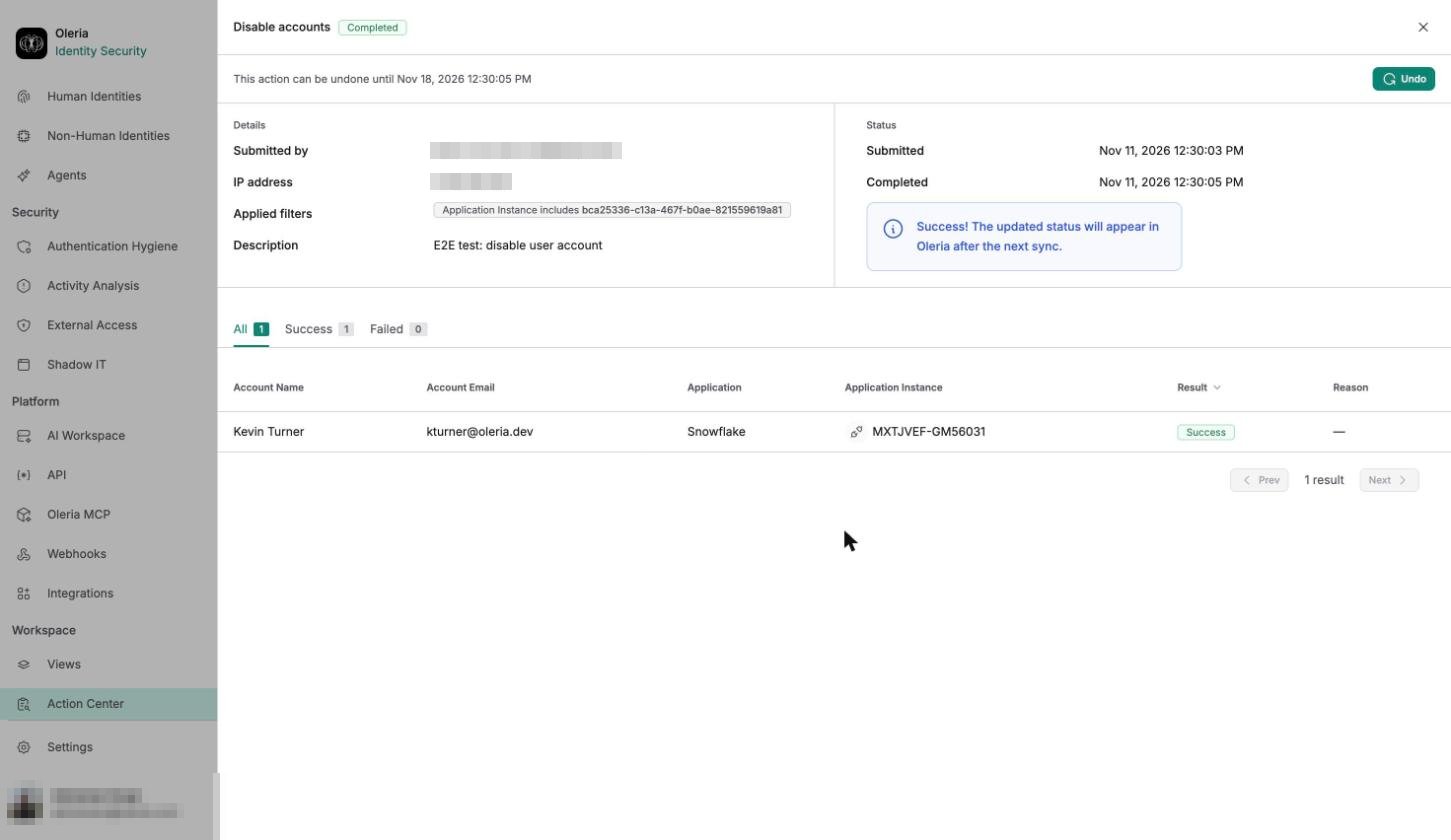
- Human accounts (Disable accounts): Account Name, Account Email, Application, Application Instance, Result, Reason.
- Revoke access: Resource Name, Resource Type, Account Name, Account Email, Application, Application Instance, Result, Reason.
- Groups (Remove accounts from groups): Account Name, Account Email, Application Instance, Result, Reason, plus Group Name, Group Type, and Group ID.
- Non-human identities (Disable NHIs): NHI, NHI Type, Privilege, Application, Application Instance, Result, Reason - no Account Name or Email.
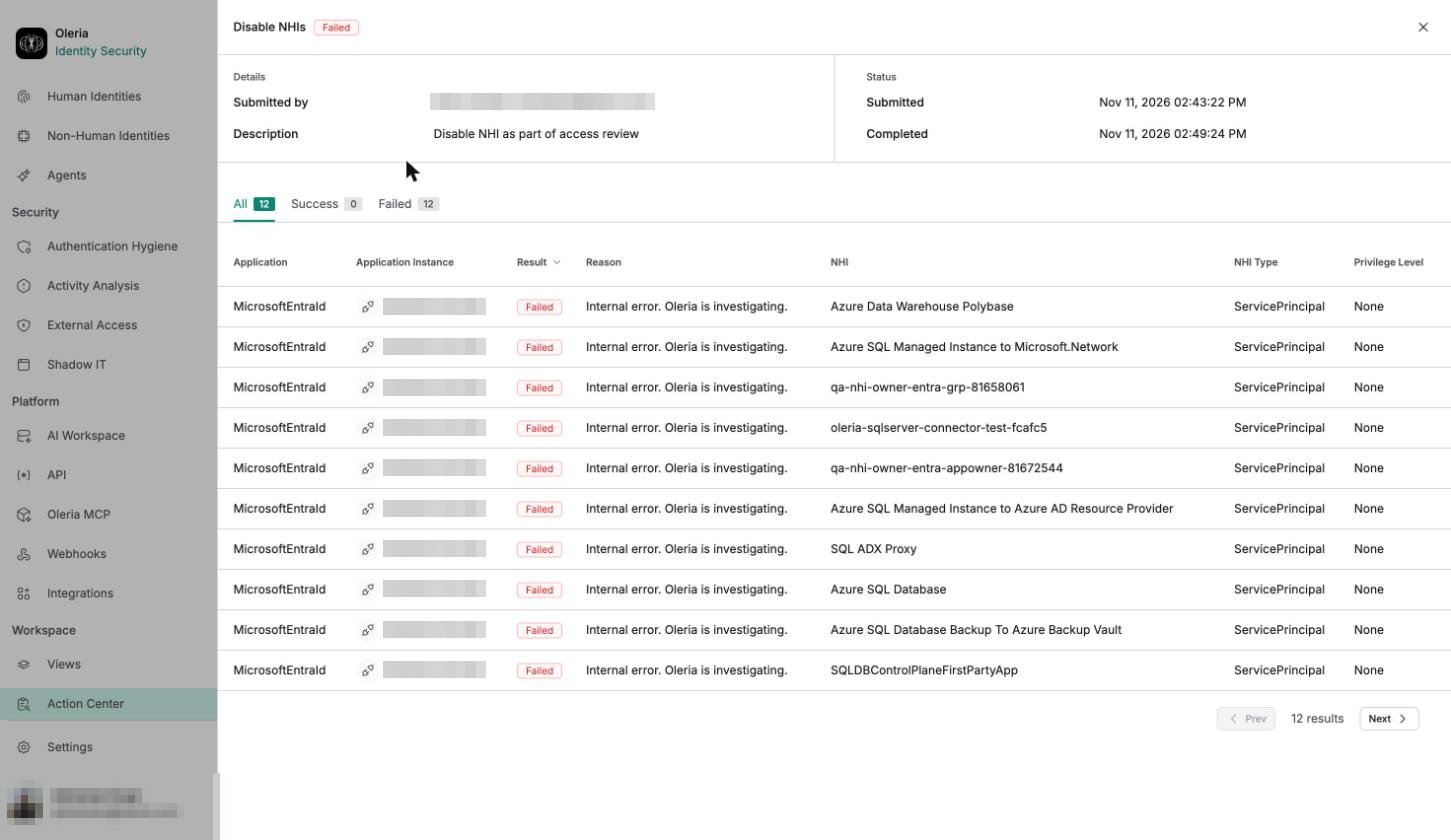
Until all items in the Action Detail table complete, the action status shows In progress. After it changes to Completed, it may take additional time for the data to reflect in Oleria after the next data sync with the integrated application.
Undo an action
Undo is available only for these action types: Disable accounts, Disable NHIs, Remove accounts from groups, Revoke access, Remove app entitlement for group, and Remove app entitlement for user. Revoke anonymous access, Revoke sessions, Revoke SharePoint site access, Remove accounts from roles, Activate accounts, Create user, Add user to group, and Assign application entitlement can’t be undone - once Oleria submits one of these, there’s no rollback action for it. For an action that supports undo, select Undo on its Action Detail panel while it shows Completed, or Failed with at least one item succeeded, and within the 7-day window - the exact expiry shows alongside the button. Undo only reverts the items that succeeded in the original action; any item that failed is left as is. Only Administrators can select Undo. Optionally enter a description in the Undo dialog, then confirm. A toast message links to the new rollback action, and the original action’s detail panel updates with a View rollback details link so you can track it from either side.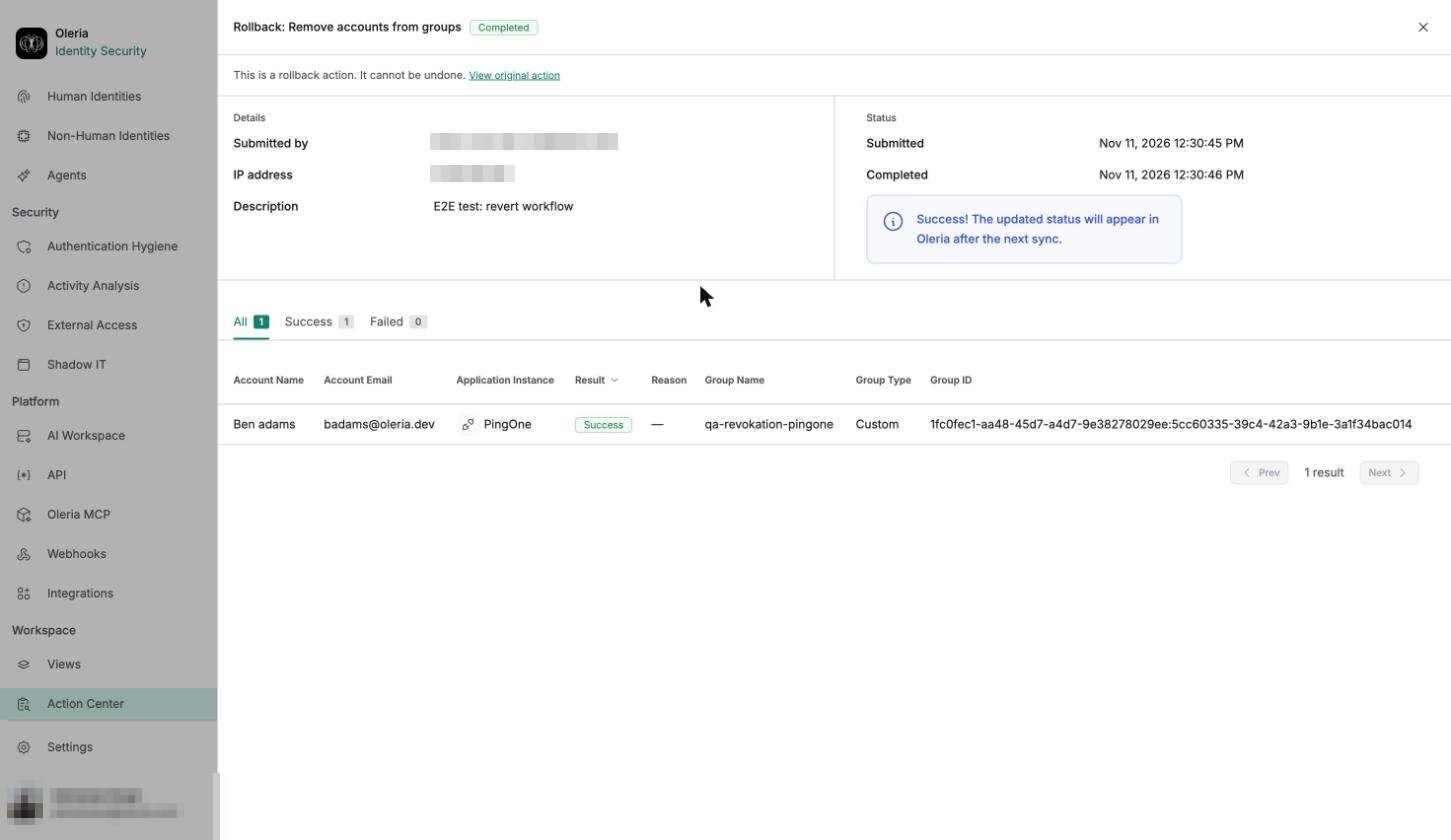
Common failures
The most common reasons a remediation action fails:- Missing write permissions in the integrated application to perform the remediation action.
- The impacted item (account or resource instance) no longer exists.
- The action limit for the request was reached.