

NHI summary
Go to Non-Human Identities -> Inventory for a workspace-wide view. Selecting Orphan, Elevated privilege, Dormant, or Password based filters the table to match. NHIs and Expired aren’t filters - they only report a count.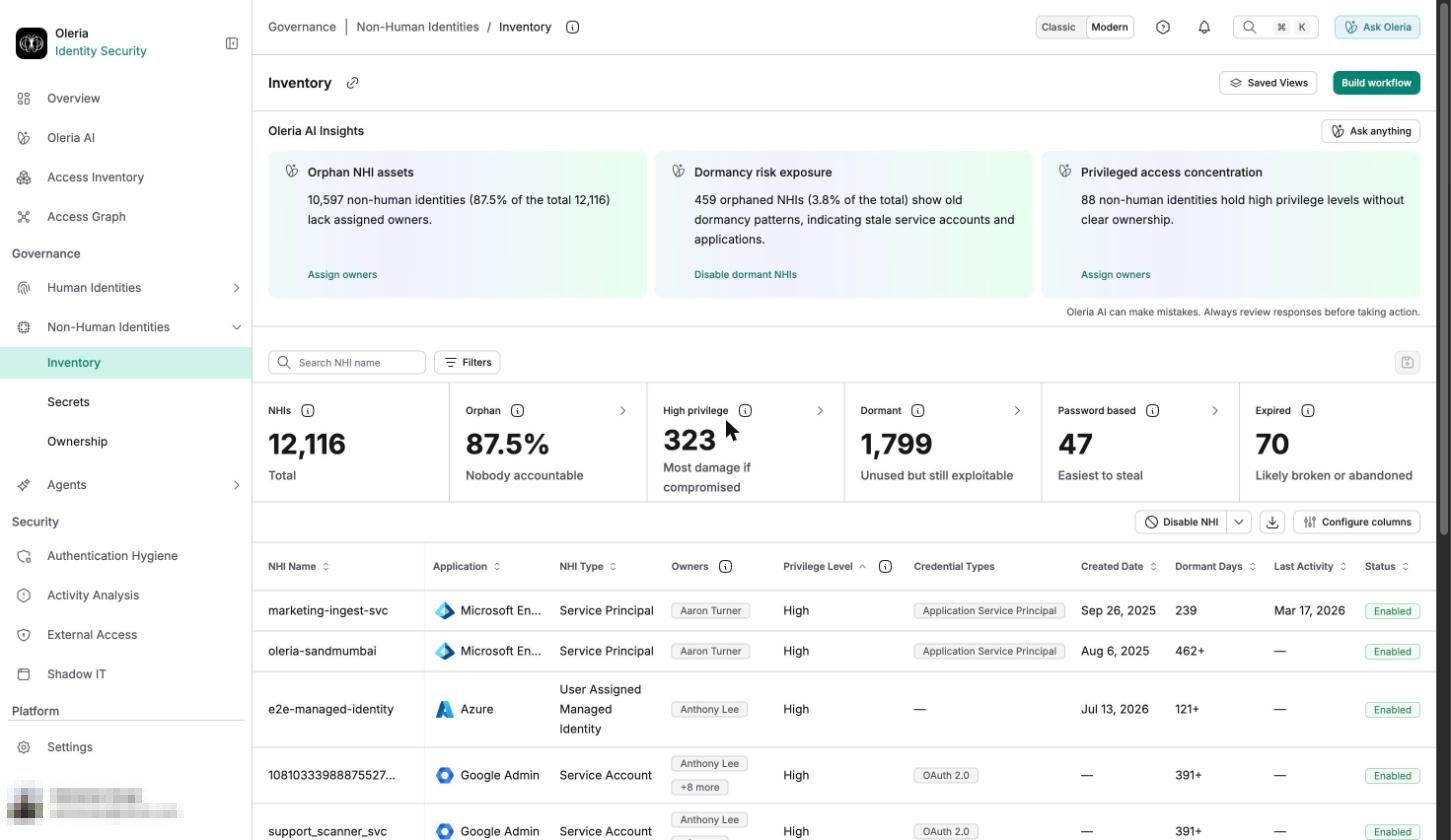
Inventory table
The table shows ten columns by default. Use Manage columns to show, hide, or reorder columns, and Reset to default to restore the default set.Resource Instances is enabled per workspace. To turn it on, contact us at support@oleria.com. User Accounts isn’t gated - it’s just hidden by default, like most columns in this table.
An NHI with no assigned owner shows a dash in the classic interface and None in the refreshed interface. Either way, it counts toward the Orphan card - see Ownership below.
How to read empty values
When Oleria knows how long an NHI has been dormant but not its exact last activity date, Dormant Days shows a trailing
+, for example 45+, meaning at least that many days.
Filters
No filter is applied when you open the inventory. Filters and the column selection are kept in the page address, so a link you copy opens the same view.When your workspace has Resource Instances turned on, a seventeenth filter, Resource Instances, appears, matching NHIs by a number comparison against their Resource Instances column.
Two behaviors to know when you filter:
- Permission Level and Scope Level filter by the NHI’s own rollup rating - the same shape as Privilege - but neither one is a column on this table.
- NHI Type doesn’t offer Not Applicable as a filter value, even though it’s part of the current type set. See NHI Type below.
Search and sort
The Filter by NHI name box matches the NHI’s name, the same as the NHI Name filter. The list opens unsorted. Select a column heading to sort by it. You can sort by every column except Owners, Source Owner, and Credential Types. The list shows 15 NHIs per page. An empty list reads No Data.Ownership
The Orphan summary card, and the Owners column’s underlying count, both key off owners assigned directly in Oleria - not owners the source application itself reports. An NHI can carry two separate kinds of owner:- Source owners - whoever the connected application itself names as the owner or manager of record, for example a service account tagged to a team in GCP.
- Assigned owners - whoever has been assigned ownership directly in Oleria, through NHI ownership assignment.
A source owner doesn’t assign itself. Until NHI ownership assignment is configured and resolves it - automatically, from the source-owner signal, or through review - the NHI still counts toward Orphan.
NHI record
Select an NHI to open its record. The NHI Details block shows its type, status, created date, last activity, and expiration date, alongside its application, application instance, owner, credential types, and last credential rotation.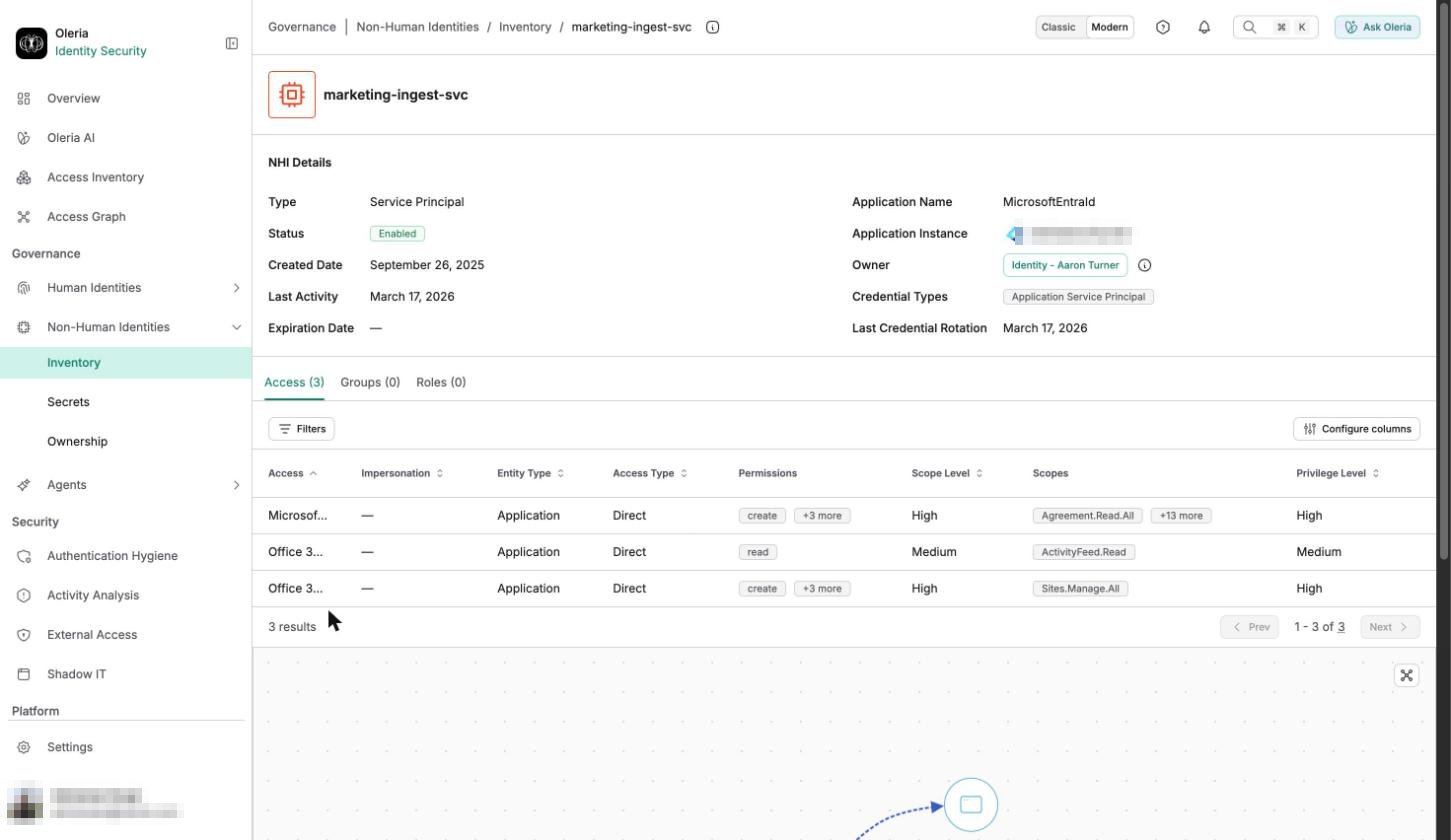
Access
Every resource the NHI can reach directly, whether as itself or by impersonating another account.
The Access tab has its own filters, separate from the ones on the inventory table above:
Groups
The groups the NHI belongs to.Roles
The roles assigned to the NHI.
The record also includes an embedded relationship graph of the NHI’s access, so you can trace a path instead of reading rows one at a time.
The embedded relationship graph on Access, Groups, and Roles is enabled per workspace. To turn it on, contact us at support@oleria.com.
Field values
These fields record what the connected application reports, or what Oleria computes from the NHI’s access grants. Privilege can also show None or Unknown, in addition to Elevated, Standard, and Limited - see NHI privilege for how each tier is set.NHI Type
The NHI Type filter offers these 18 values:Older NHI records can still carry nine deprecated, credential-shape type values - Access Key, API Token, Certificate, Federated Credential, HMAC Key, PAT, Secret, Service Account Key, and SSH Key. The NHI Type column can show them for existing records, but the filter doesn’t offer them going forward, and it also leaves out Not Applicable.