> ## Documentation Index
> Fetch the complete documentation index at: https://docs.oleria.com/llms.txt
> Use this file to discover all available pages before exploring further.
# Microsoft Teams
> Connect Microsoft Teams to Oleria to receive security alerts and notifications directly in your Teams channels.
Connect Microsoft Teams to Oleria to receive security alerts and notifications directly in your Teams channels. This guide is split into two parts:
1. **Prerequisites** - a one-time setup in Microsoft Entra ID and the Teams Admin Center to grant Oleria the permissions and bot deployment it needs.
2. **Integration** - connecting Microsoft Teams in the Oleria console using the credentials produced in the prerequisites.
## Roles required
| Role | What they do |
| ------------------------------------------------------------ | --------------------------------------------------------------------------------------- |
| **Azure/Entra ID Admin** (Global Admin or Application Admin) | Creates or configures the App Registration and grants admin consent for API permissions |
| **Microsoft Teams Admin** | Deploys the Oleria bot app and configures app availability policies |
| **Oleria Workspace Admin** | Completes the configuration in the Oleria management console |
***
## Prerequisites
Complete the following two prerequisites before connecting Microsoft Teams in the Oleria console.
### Entra ID App Registration
Choose the path that matches your situation: create a new dedicated App Registration *(recommended)*, or reuse an existing one.
A dedicated App Registration follows the principle of least privilege. It only has the 6 read-only permissions Oleria needs, making it easy to audit, rotate secrets independently, and revoke access cleanly if needed.
**Who:** Azure/Entra ID Admin
Sign in to the [Microsoft Entra admin center](https://entra.microsoft.com) and navigate to **Entra ID → App registrations → New registration**. Configure the application with these settings, then select **Register**:
| Field | Value |
| ----------------------- | ------------------------------------------------------------------ |
| Name | `Oleria Messaging Integration` (or your preferred name) |
| Supported account types | **Accounts in this organizational directory only (Single tenant)** |
| Redirect URI | Leave blank - not required |
In the new App Registration, navigate to **Certificates & secrets**, then select **Client secrets → New client secret**. Configure the secret with these settings:
| Field | Value |
| ----------- | -------------------------------------------------------------------------- |
| Description | `Oleria integration` |
| Expires | 12 months or 24 months *(set a calendar reminder to rotate before expiry)* |
Select **Add**, then **copy the secret `Value` immediately** - it will not be displayed again after you leave this page.
The secret value is only visible at the time of creation. If you lose it, you will need to generate a new one.
Navigate to **API permissions → Add a permission**, then select **Microsoft Graph → Application permissions**. Search for and add each of the following permissions:
| Permission | Description | Why Oleria needs it |
| -------------------------------------- | ------------------------------------------------------------------------------------------------------------------------ | ---------------------------------------------------------------------------------------------------------- |
| `Channel.ReadBasic.All` | Read the names and descriptions of all channels | List available channels during setup and for notification routing |
| `Team.ReadBasic.All` | Get a list of all teams | List your teams during setup configuration |
| `User.Read.All` | Read all users' full profiles *(Oleria reads only email/userPrincipalName and AAD ObjectID - no profile data is stored)* | Resolve user email addresses to AAD Object IDs for direct message delivery |
| `TeamsAppInstallation.ReadForTeam.All` | Check if apps are installed in teams | Verify the bot is installed before sending channel messages |
| `TeamsAppInstallation.ReadForUser.All` | Check if apps are installed for users | Resolve the bot's installation in each user's personal scope to deliver direct messages |
| `Organization.Read.All` | Read the basic profile of your organization (display name and verified domains) | Identify and display your tenant's friendly name in the Oleria console after setup, instead of a long GUID |
After adding all **6 permissions**, select **Grant admin consent for \[Your Organization]** and confirm by clicking **Yes**. Verify all 6 permissions show a **green checkmark** under the **Status** column.
Collect the following values - you will need them in the Integration section of this guide:
| Credential | Where to find it |
| --------------------------- | ------------------------------------------------- |
| **Application (client) ID** | App Registration → Overview page |
| **Client secret value** | From the previous step (copy at time of creation) |
| **Directory (tenant) ID** | App Registration → Overview page |
Proceed to **Deploy the Oleria Bot App** below.
Use this path if your organization already has an Entra App Registration (for example, for another Oleria integration or a shared integration app) and you prefer to reuse it rather than create a new one.
Ensure the existing App Registration is not shared with services that have conflicting lifecycle requirements (e.g., different secret rotation schedules or different decommissioning timelines).
**Who:** Azure/Entra ID Admin
Sign in to the [Microsoft Entra admin center](https://entra.microsoft.com) and navigate to **Entra ID → App registrations**. Find and select your existing App Registration, then on the **Overview** page confirm the supported account types:
| Field | Required Value |
| ----------------------- | ----------------------------------------------------------------------------------------------------------------------- |
| Supported account types | Must include **Accounts in this organizational directory** *(Single tenant or Multi-tenant both work - see note below)* |
"Multi-tenant" here refers to the Entra App Registration only. The Oleria bot itself is a separate Microsoft Bot Service registration, which Oleria manages and configures as Single Tenant per Microsoft's 2025+ guidance.
Navigate to **API permissions** and check whether the following Application permissions are already granted:
| Permission | Status needed |
| -------------------------------------- | ------------- |
| `Channel.ReadBasic.All` | Granted |
| `Team.ReadBasic.All` | Granted |
| `User.Read.All` | Granted |
| `TeamsAppInstallation.ReadForTeam.All` | Granted |
| `TeamsAppInstallation.ReadForUser.All` | Granted |
| `Organization.Read.All` | Granted |
If any permission is missing:
* Select **Add a permission → Microsoft Graph → Application permissions**.
* Search for and add the missing permission(s).
* Select **Grant admin consent for \[Your Organization]**.
* Verify all required permissions show a green checkmark.
Navigate to **Certificates & secrets → Client secrets**.
You may either:
* **Use an existing secret** - if you have the value and it has sufficient remaining validity (at least 3 months recommended).
* **Create a new secret** - select **New client secret**, set description to `Oleria integration`, choose an expiry, select **Add**, and copy the value immediately.
If the existing App Registration already has other permissions beyond the 6 listed above, those extra permissions are not used by Oleria's Teams messaging integration. They will not interfere, but you may want to review them for your own security posture.
Collect the following values - you will need them in the Integration section of this guide:
| Credential | Where to find it |
| --------------------------- | -------------------------------- |
| **Application (client) ID** | App Registration → Overview page |
| **Client secret value** | From the previous step |
| **Directory (tenant) ID** | App Registration → Overview page |
Proceed to **Deploy the Oleria Bot App** below.
### Deploy the Oleria Bot App
**Who:** Microsoft Teams Admin
The Oleria bot app is a pre-built Teams application provided by Oleria. It is **separate** from the Entra App Registration configured above. The bot handles the delivery of notification messages to your Teams channels and direct messages.
* Your Oleria account team will provide the bot app package as a `.zip` file.
* If you have not received this, contact your Oleria representative.
1. Sign in to the [Teams Admin Center](https://admin.teams.microsoft.com).
2. Navigate to **Teams apps → Manage apps**.
3. Select **Upload new app → Upload**.
4. Select the Oleria `.zip` package and confirm the upload.
5. The app appears in the **Manage apps** list once uploaded. Per Microsoft's guidance, the uploaded app may take a few hours to become available to org users.
1. In **Manage apps**, search for the Oleria app.
2. Click on the app name to open its details.
3. Ensure the **Status** is set to **Allowed**.
Allowing the app in the previous step only **permits** it; it does not **install** it for users. Direct messages from Oleria require the app to be installed in each recipient's personal scope. The setup policy below performs that install automatically - without it, DMs will fail.
Choose one of the following deployment strategies based on your organization's needs.
*All users should receive Oleria notifications.*
1. In **Teams Admin Center**, go to **Teams apps → Setup policies**.
2. Edit the **Global (Org-wide default)** policy.
3. Under **Installed apps**, select **Add apps**.
4. Search for Oleria, select **Add**, then **Save**.
*Only specific teams or groups should receive notifications.*
1. In **Teams Admin Center**, go to **Teams apps → Setup policies**.
2. Select **Add** to create a new policy.
3. Under **Installed apps**, add the Oleria app and select **Save**.
4. Assign the policy to the relevant users or groups.
The bot can send direct messages to any user whose setup policy includes the Oleria app under **Installed apps** (not just **Allowed**). When configured this way, users do not need to install the app themselves. Per Microsoft's guidance, setup-policy changes can take a **few hours** to propagate, so wait before testing.
**Using app centric management?** If your tenant has migrated to **app centric management** (Microsoft's newer app-governance model), preinstall the Oleria app from **Teams admin center → Teams apps → Manage apps**: select the Oleria app, select **Edit installs**, choose the users or groups, and select **Apply**. In this mode, app setup policies become read-only for new installs. See Microsoft's [Preinstall Teams apps](https://learn.microsoft.com/en-us/microsoftteams/install-teams-apps) guide.
1. Open Microsoft Teams as a user covered by the setup policy.
2. Go to **Apps** in the left sidebar.
3. Search for "Oleria" - the app should appear and show as available.
4. *(Optional sanity check)* Open the app's icon in the left rail. If you can see it as a pinned app or in the **Chat** list, the personal-scope install has succeeded.
***
## Integration
**Who:** Oleria Workspace Admin
With the prerequisites complete, you can now connect Microsoft Teams in the Oleria console using the credentials recorded in the Entra ID App Registration step.
### Connecting Microsoft Teams with Oleria
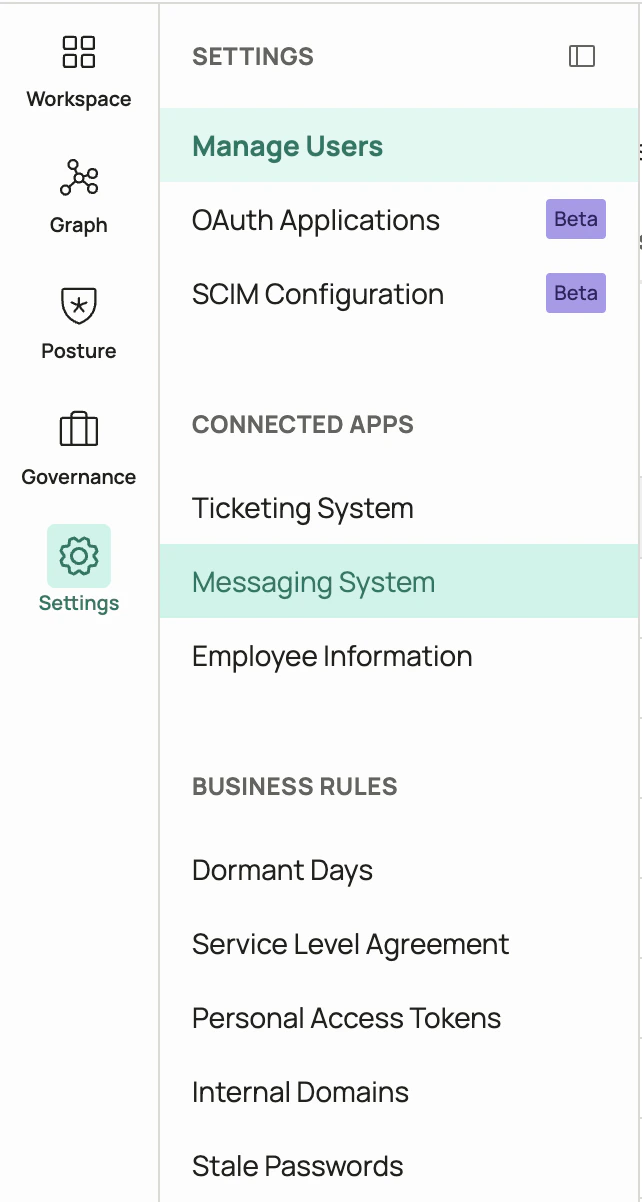
Select **Messaging System** under the **Settings** window.
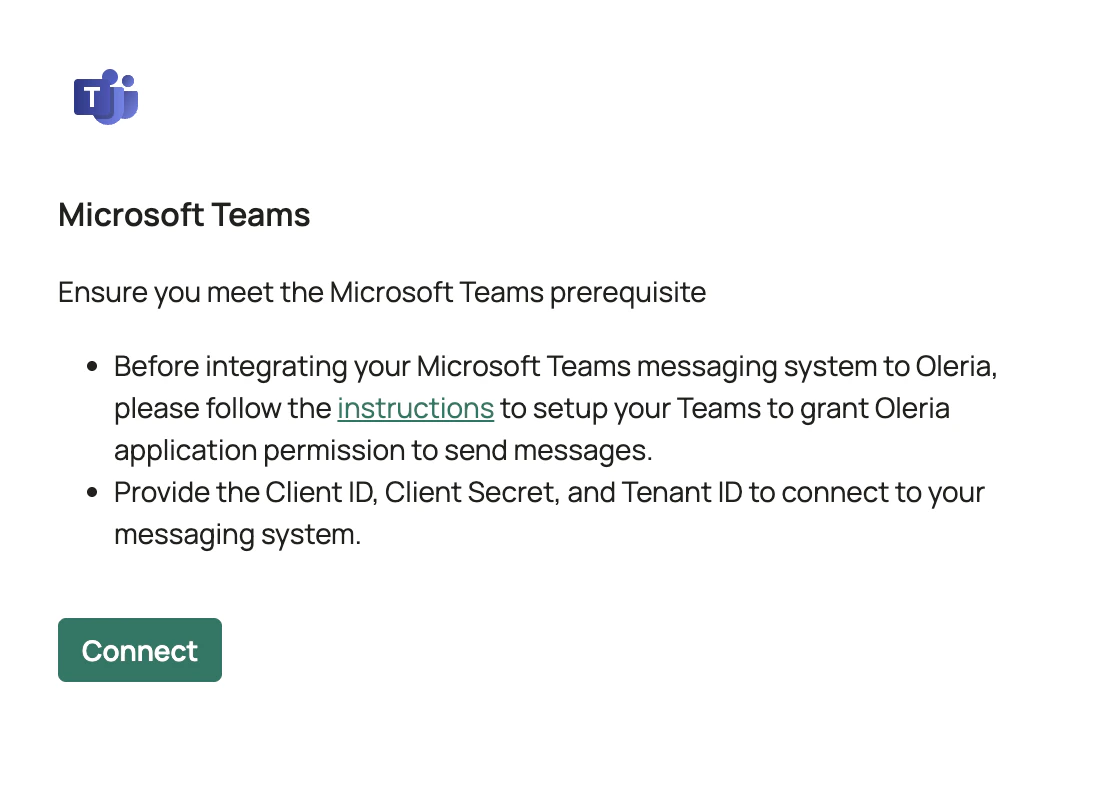
 Select **Connect** under the **Microsoft Teams** application in the messaging system.
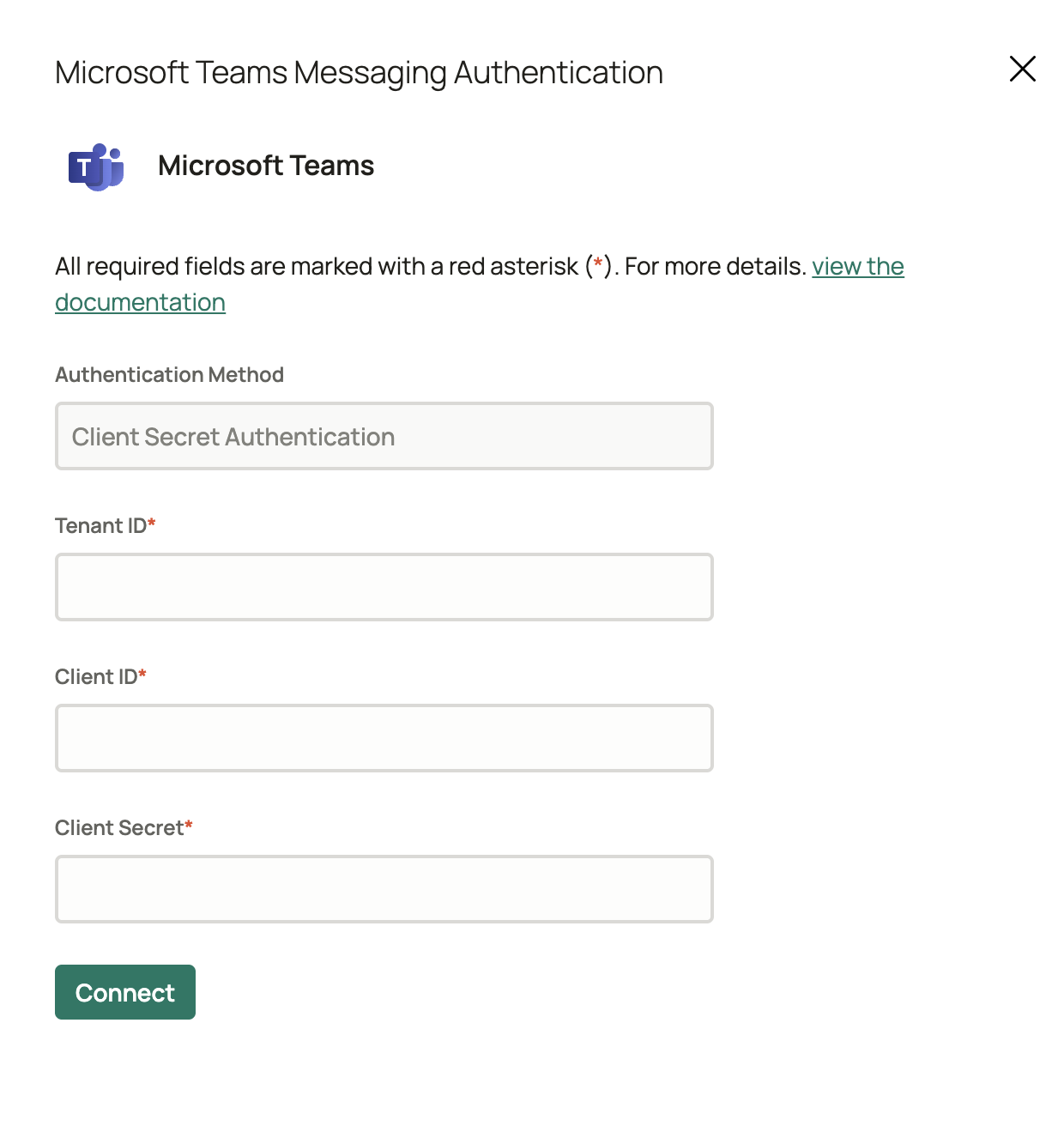
 In the **Microsoft Teams Messaging Authentication** overlay, enter the following details and select **Connect**.
* **Authentication Method** - **Client Secret Authentication** is selected by default.
* **Tenant ID** - Directory (tenant) ID from your Entra App Registration.
* **Client ID** - Application (client) ID from your Entra App Registration.
* **Client Secret** - Client secret value generated under **Certificates & secrets** in your Entra App Registration.
In the **Microsoft Teams Messaging Authentication** overlay, enter the following details and select **Connect**.
* **Authentication Method** - **Client Secret Authentication** is selected by default.
* **Tenant ID** - Directory (tenant) ID from your Entra App Registration.
* **Client ID** - Application (client) ID from your Entra App Registration.
* **Client Secret** - Client secret value generated under **Certificates & secrets** in your Entra App Registration.
 For Oleria to deliver direct messages to a user, the Oleria bot app must be installed in that user's personal scope via a Teams setup policy. Channel messages require the bot to be available to the team where the channel lives.
Select **View Details** from the messaging system to verify the integration status. A connected Microsoft Teams integration will show that messaging has been configured and Oleria will be able to send messages.
***
## Security Summary
### Entra App Registration *(Your Organization)*
| Permission | Type | Access Level |
| -------------------------------------- | ----------- | ------------------------------------------------------------------------------------------- |
| `Channel.ReadBasic.All` | Application | Read-only: channel names and descriptions |
| `Team.ReadBasic.All` | Application | Read-only: team names and descriptions |
| `User.Read.All` | Application | Read-only: user profiles *(Oleria uses only email and AAD ObjectID for message addressing)* |
| `TeamsAppInstallation.ReadForTeam.All` | Application | Read-only: verify bot installation in teams |
| `TeamsAppInstallation.ReadForUser.All` | Application | Read-only: resolve bot installation in user personal scope (for DM delivery) |
| `Organization.Read.All` | Application | Read-only: organization display name and verified domains (for tenant identification) |
**Total permissions: 6 - all read-only.** No write access to any Teams or directory data. No access to mail, calendar, files, sites, or message content.
### Oleria Bot App
| Capability | Description |
| -------------------------------- | ------------------------------------------------------------------ |
| Send channel messages | Delivers notifications to the configured Teams channel |
| Send direct messages | Delivers 1:1 notifications to individual users by email |
| **Cannot read messages** | The bot has no access to read existing channel or chat messages |
| **Cannot modify Teams settings** | The bot cannot rename, create, or delete teams, channels, or users |
***
## Credential Rotation
| Credential | Managed By | Rotation Process |
| ----------------------- | ----------------- | ------------------------------------------------------------------------------------------------------------ |
| Entra App Client Secret | Your organization | Generate a new secret in the Microsoft Entra admin center → update in Oleria console → delete the old secret |
| Oleria Bot credentials | Oleria | Managed centrally by Oleria - rotated on a regular cadence and on any incident; no customer action required |
Set a calendar reminder 30 days before your client secret expiry date to allow time for rotation.
***
## Contact us
For questions, contact us at [support@oleria.com](mailto:support@oleria.com).
For Oleria to deliver direct messages to a user, the Oleria bot app must be installed in that user's personal scope via a Teams setup policy. Channel messages require the bot to be available to the team where the channel lives.
Select **View Details** from the messaging system to verify the integration status. A connected Microsoft Teams integration will show that messaging has been configured and Oleria will be able to send messages.
***
## Security Summary
### Entra App Registration *(Your Organization)*
| Permission | Type | Access Level |
| -------------------------------------- | ----------- | ------------------------------------------------------------------------------------------- |
| `Channel.ReadBasic.All` | Application | Read-only: channel names and descriptions |
| `Team.ReadBasic.All` | Application | Read-only: team names and descriptions |
| `User.Read.All` | Application | Read-only: user profiles *(Oleria uses only email and AAD ObjectID for message addressing)* |
| `TeamsAppInstallation.ReadForTeam.All` | Application | Read-only: verify bot installation in teams |
| `TeamsAppInstallation.ReadForUser.All` | Application | Read-only: resolve bot installation in user personal scope (for DM delivery) |
| `Organization.Read.All` | Application | Read-only: organization display name and verified domains (for tenant identification) |
**Total permissions: 6 - all read-only.** No write access to any Teams or directory data. No access to mail, calendar, files, sites, or message content.
### Oleria Bot App
| Capability | Description |
| -------------------------------- | ------------------------------------------------------------------ |
| Send channel messages | Delivers notifications to the configured Teams channel |
| Send direct messages | Delivers 1:1 notifications to individual users by email |
| **Cannot read messages** | The bot has no access to read existing channel or chat messages |
| **Cannot modify Teams settings** | The bot cannot rename, create, or delete teams, channels, or users |
***
## Credential Rotation
| Credential | Managed By | Rotation Process |
| ----------------------- | ----------------- | ------------------------------------------------------------------------------------------------------------ |
| Entra App Client Secret | Your organization | Generate a new secret in the Microsoft Entra admin center → update in Oleria console → delete the old secret |
| Oleria Bot credentials | Oleria | Managed centrally by Oleria - rotated on a regular cadence and on any incident; no customer action required |
Set a calendar reminder 30 days before your client secret expiry date to allow time for rotation.
***
## Contact us
For questions, contact us at [support@oleria.com](mailto:support@oleria.com).