> ## Documentation Index
> Fetch the complete documentation index at: https://docs.oleria.com/llms.txt
> Use this file to discover all available pages before exploring further.
# Slack
> Connect Slack to Oleria to receive security alerts and notifications directly in your Slack channels.
Connect Slack to Oleria to receive security alerts and notifications directly in your Slack channels. Follow the prerequisites and the steps below to complete the integration.
## Prerequisites
1. Admin access on Oleria platform
2. You must be a Slack workspace owner or admin to add apps
## Connect Slack to Oleria
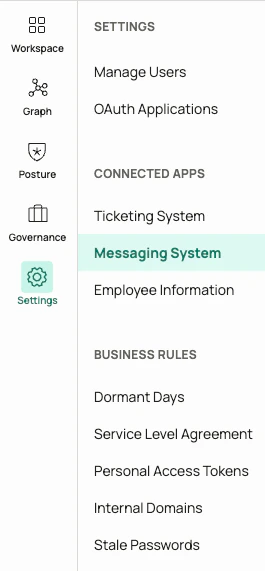
Select **Messaging Systems** under the Settings window.
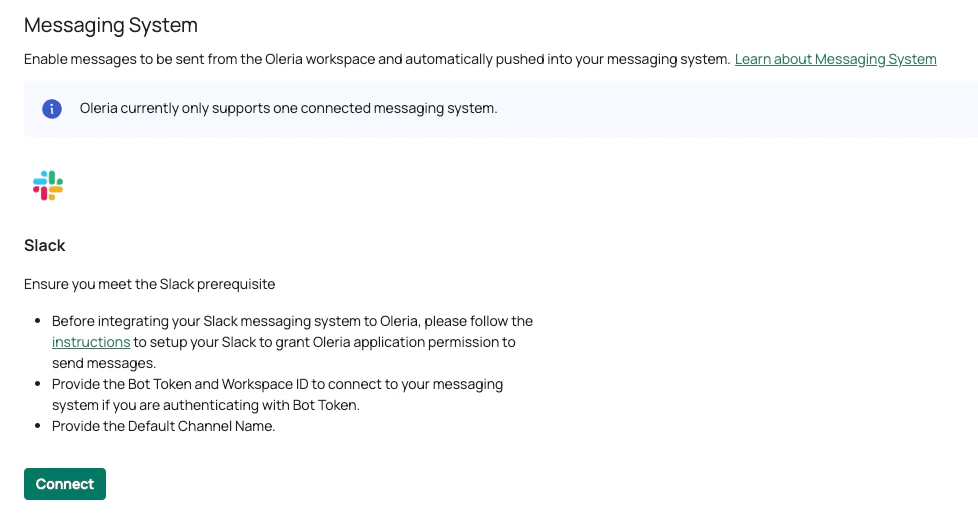
 Select **Connect** under the Slack application in Messaging Systems.
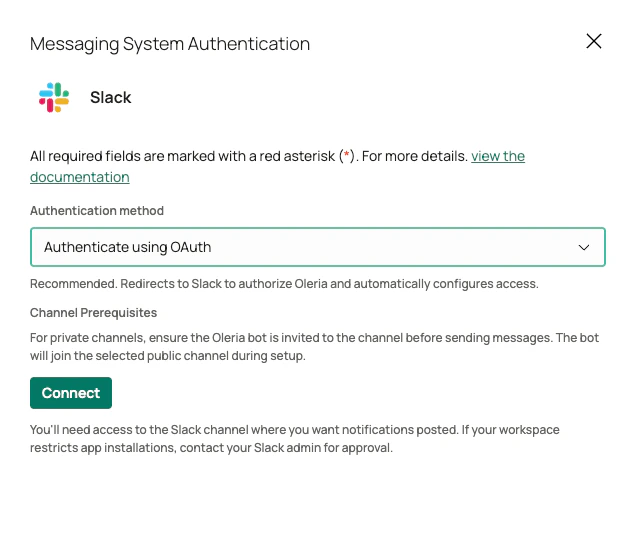
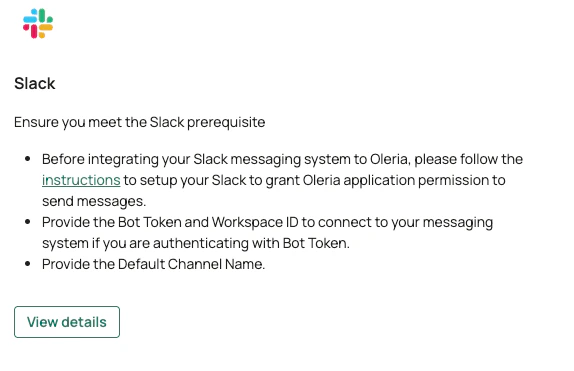
 Select **Connect** in the overlay. We recommend integrating Slack using OAuth.
* This will redirect you to Slack where you will see the permissions Oleria will get after authorization.
* You'll also need to select the default channel where Oleria can send messages unless a different channel is configured later.
Select **Connect** in the overlay. We recommend integrating Slack using OAuth.
* This will redirect you to Slack where you will see the permissions Oleria will get after authorization.
* You'll also need to select the default channel where Oleria can send messages unless a different channel is configured later.
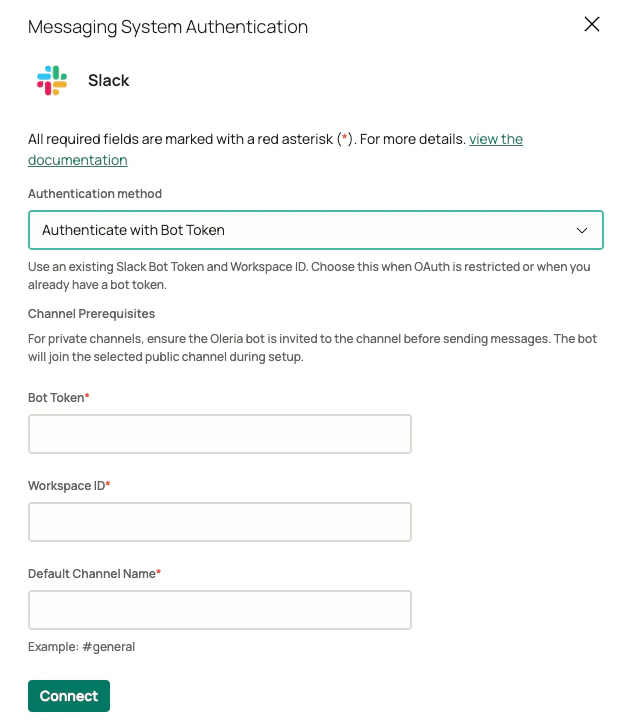
 For private channels, ensure the Oleria bot is invited to the channel. Without this, Oleria will not be able to send messages to the selected private channel.
If OAuth is restricted or you want to use an existing token, you can use a Bot Token instead.
* Enter your workspace ID ([instructions](https://slack.com/help/articles/221769328-Locate-your-Slack-URL-or-ID) to locate workspace ID).
* Enter the name of the default channel where Oleria will send messages unless a different channel is configured later.
For private channels, ensure the Oleria bot is invited to the channel. Without this, Oleria will not be able to send messages to the selected private channel.
If OAuth is restricted or you want to use an existing token, you can use a Bot Token instead.
* Enter your workspace ID ([instructions](https://slack.com/help/articles/221769328-Locate-your-Slack-URL-or-ID) to locate workspace ID).
* Enter the name of the default channel where Oleria will send messages unless a different channel is configured later.
 ## Verify the Slack integration
Select **View Details** on the Slack integration in the Messaging Systems page. A connected Slack integration will confirm that messaging has been configured and Oleria will be able to send messages.
## Verify the Slack integration
Select **View Details** on the Slack integration in the Messaging Systems page. A connected Slack integration will confirm that messaging has been configured and Oleria will be able to send messages.
 ## Contact us
For questions, contact us at [support@oleria.com](mailto:support@oleria.com).
## Contact us
For questions, contact us at [support@oleria.com](mailto:support@oleria.com).