> ## Documentation Index
> Fetch the complete documentation index at: https://docs.oleria.com/llms.txt
> Use this file to discover all available pages before exploring further.
# Jira
> Connect Jira to Oleria to create tickets directly from risks and posture findings, automatically populated with risk details and routed to your assignment group.
Connect Jira to Oleria to create tickets directly from risks and posture findings. Oleria automatically populates each ticket with the risk details and routes it to your configured assignment group.
## Prerequisites
* A user with create permissions
* The Jira base URL
* The Jira project where tickets should be created
## Create an API Token in Jira
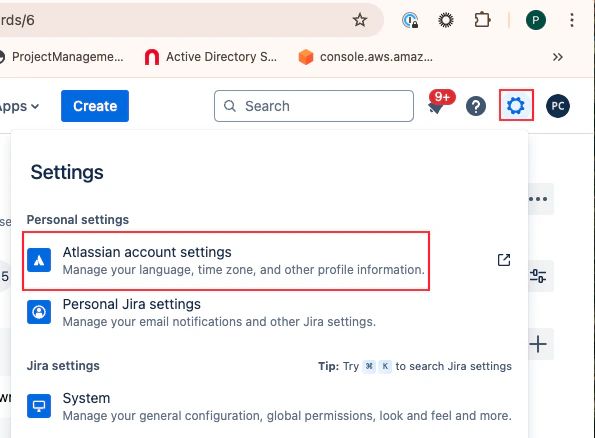
Navigate to your Jira instance, select **Settings**, and select **Atlassian account settings**.
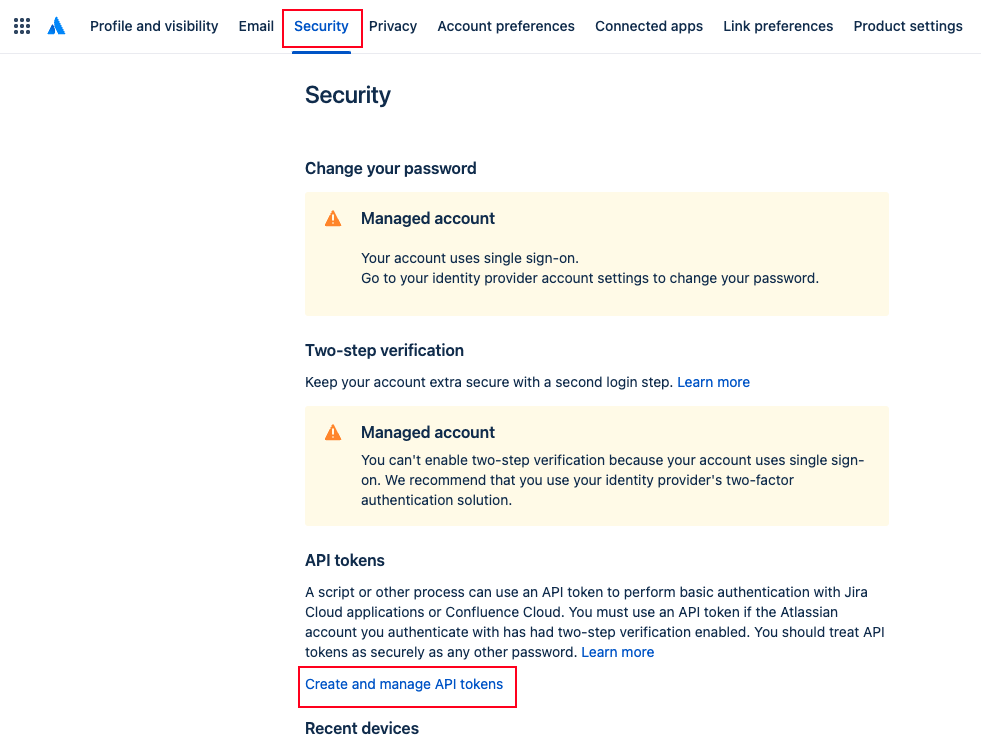
 Select **Security** and select **Create and manage API tokens**.
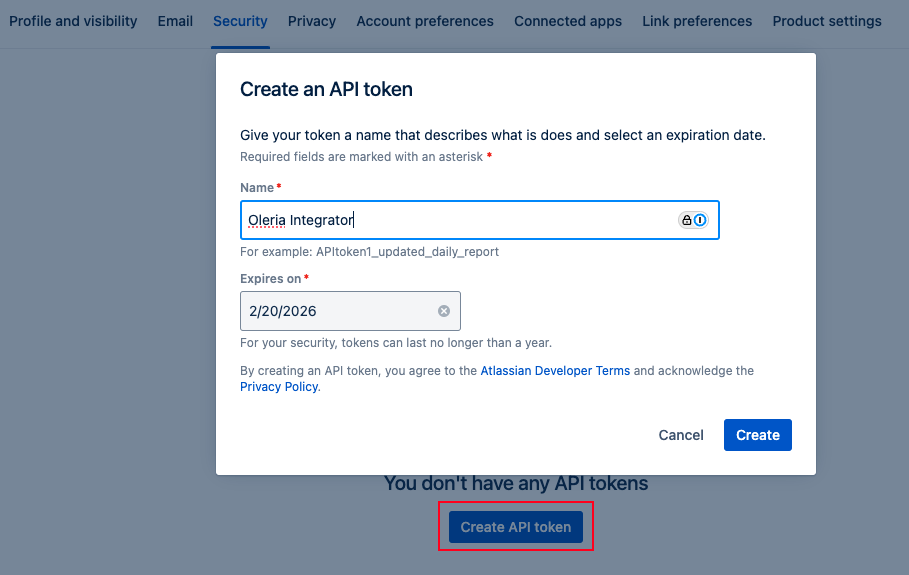
 Select **Create API token**, give it a name (for example, **Oleria integrator**), and set an expiration date.
When the token expires or you decide to revoke it, you must remove the Jira ticketing integration from Oleria and re-add it with a new API token. Token updates are supported in upcoming releases.
Select **Create API token**, give it a name (for example, **Oleria integrator**), and set an expiration date.
When the token expires or you decide to revoke it, you must remove the Jira ticketing integration from Oleria and re-add it with a new API token. Token updates are supported in upcoming releases.
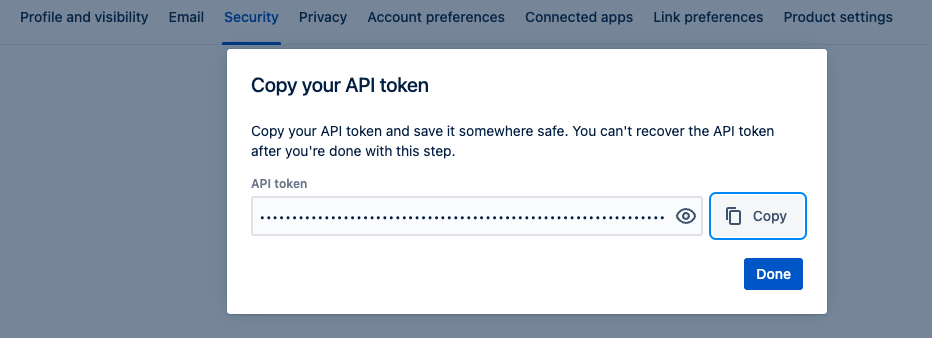
 Copy the generated token.
 ## Connect Jira to Oleria
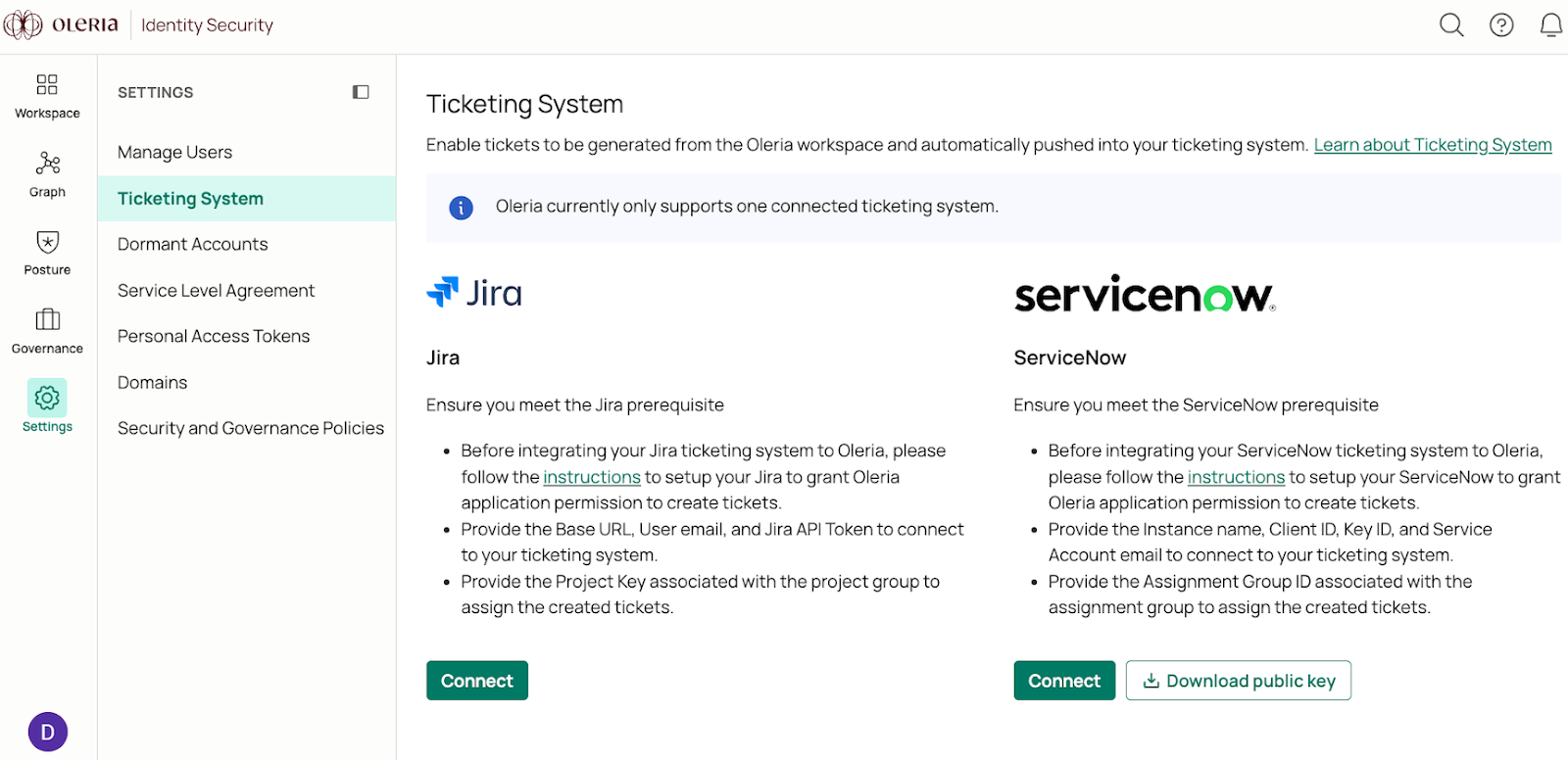
Go to your Oleria workspace, navigate to **Settings** → select **Ticketing System** → select **Jira Connect**.
## Connect Jira to Oleria
Go to your Oleria workspace, navigate to **Settings** → select **Ticketing System** → select **Jira Connect**.
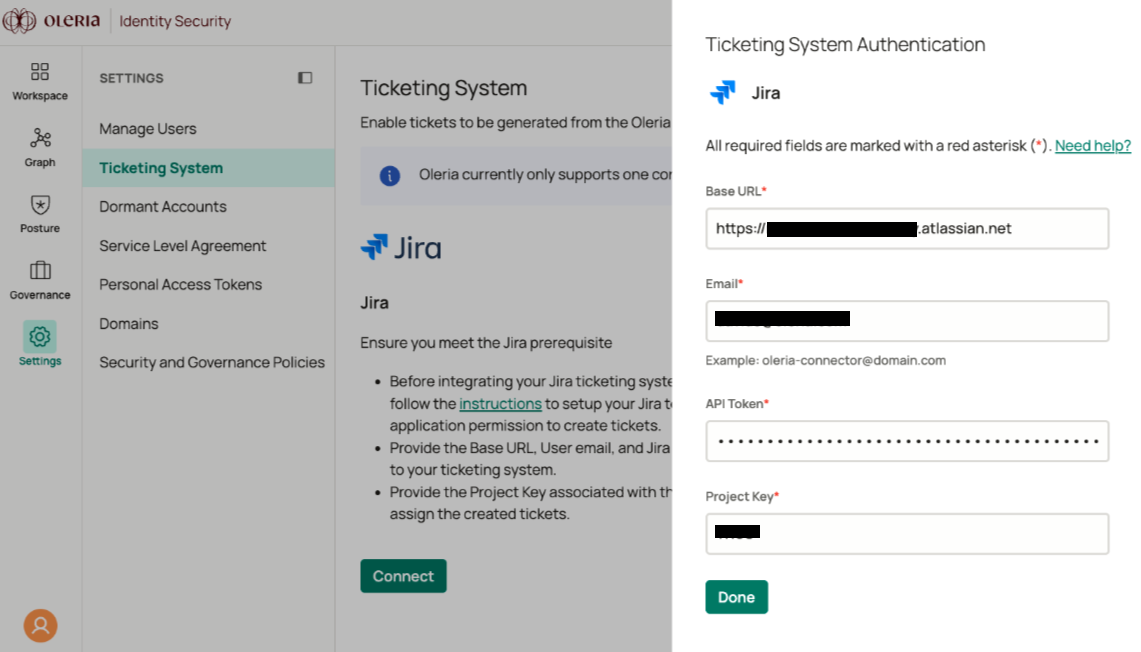
 A side panel opens. Provide the following details:
* **Base URL** - your Jira instance URL
* **Email** - the user email with create permissions
* **API token** - the token copied in the previous section
* **Project key** - your Jira project name
A side panel opens. Provide the following details:
* **Base URL** - your Jira instance URL
* **Email** - the user email with create permissions
* **API token** - the token copied in the previous section
* **Project key** - your Jira project name
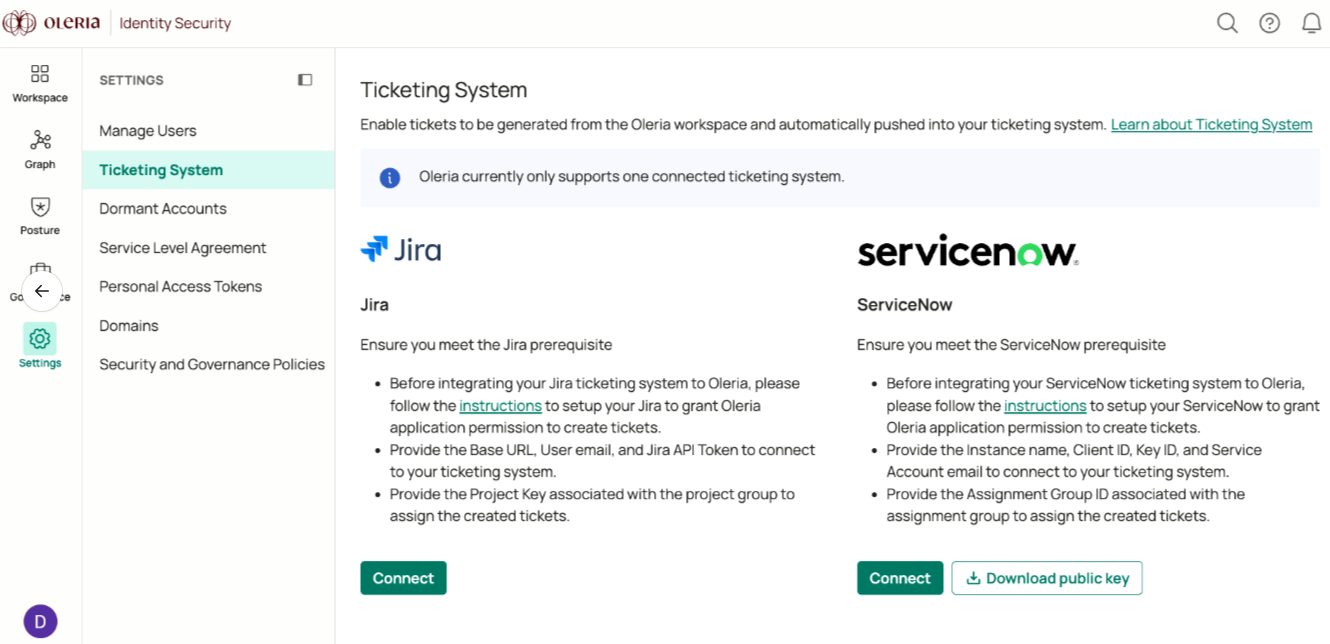
 You will see the Jira integration in your Oleria workspace. Select **View Details** to view the Jira integration status.
 ## Contact us
For questions, contact us at [support@oleria.com](mailto:support@oleria.com).
## Contact us
For questions, contact us at [support@oleria.com](mailto:support@oleria.com).