> ## Documentation Index
> Fetch the complete documentation index at: https://docs.oleria.com/llms.txt
> Use this file to discover all available pages before exploring further.
# Search the Access Graph
Access Graph search lets you find identities, application accounts, or resource instances by account email or resource instance name, then build a graph from the results.
Access Graph currently shows the top 5 search results. To see all results, select **View all results** to open the Access Inventory page.
## Search by accounts
In the search bar, select **Accounts** from the dropdown menu.
Type the account email address. A list of matching application account nodes displays.
If the email address contains reserved characters, wrap it in double quotes. Example: `"demo-salesforce-group+anthonylee@oleria.com"`
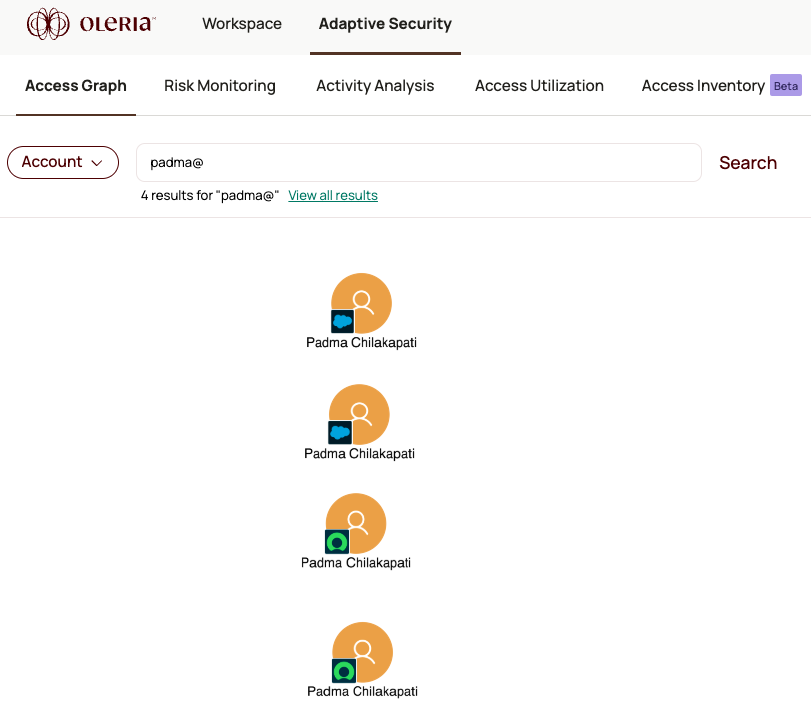
Select an account from the results to build the graph. If the account exists in multiple application instances (for example, Salesforce Production and Salesforce Dev), the graph shows a separate node for each.
## Search by resource instances
In the search bar, select **Resource Instances** from the dropdown menu.
Type the resource instance name. A list of matching resource instance nodes displays.
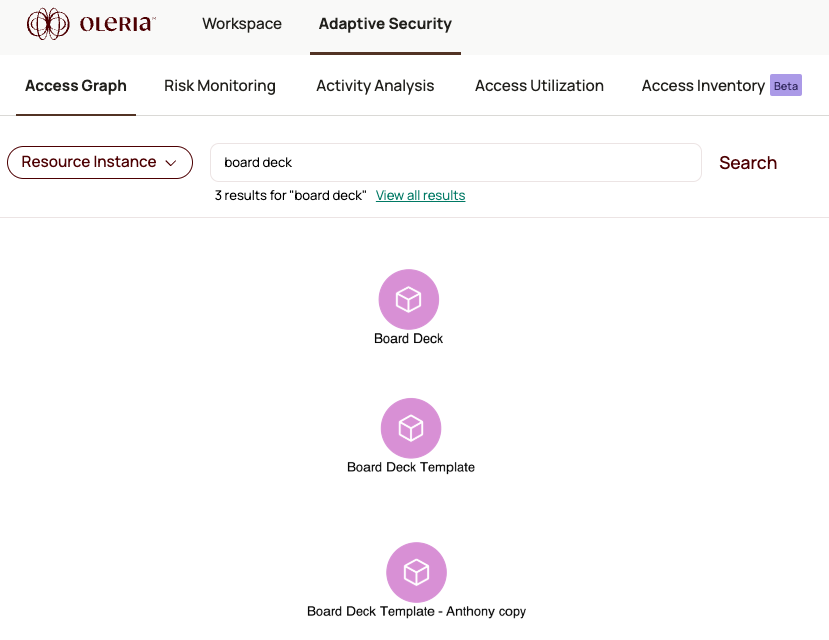
Select a resource instance from the results to build the graph. If the instance exists in multiple applications or environments, the graph shows a separate node for each.
## View all results
If there are more than 5 matches, select **View all results** to open the full list in the Access Inventory page.
## Contact us
For questions, contact us at [support@oleria.com](mailto:support@oleria.com).