> ## Documentation Index
> Fetch the complete documentation index at: https://docs.oleria.com/llms.txt
> Use this file to discover all available pages before exploring further.
# Workday
Oleria's Trustfusion platform offers a central place to continuously monitor and manage access for all identities - human, non-human, and AI - across all systems: on-prem, in the cloud, or custom. It provides adaptive and autonomous access security that sets your business free. As part of that promise, we integrate your Workday into the Oleria platform.
This document provides step-by-step guidance for integrating Workday with your Oleria workspace.
## Prerequisites
* Administrator permission on the Oleria workspace
* Workday admin credentials
Use a service account (and not an employee account) with the suggested privileges for the integration to ensure continuity.
## Create an Integration System User in Workday
Create an Integration System User and grant View Only permissions.
Log in to Workday. Type **Create integration system user** in the search window and select the task.
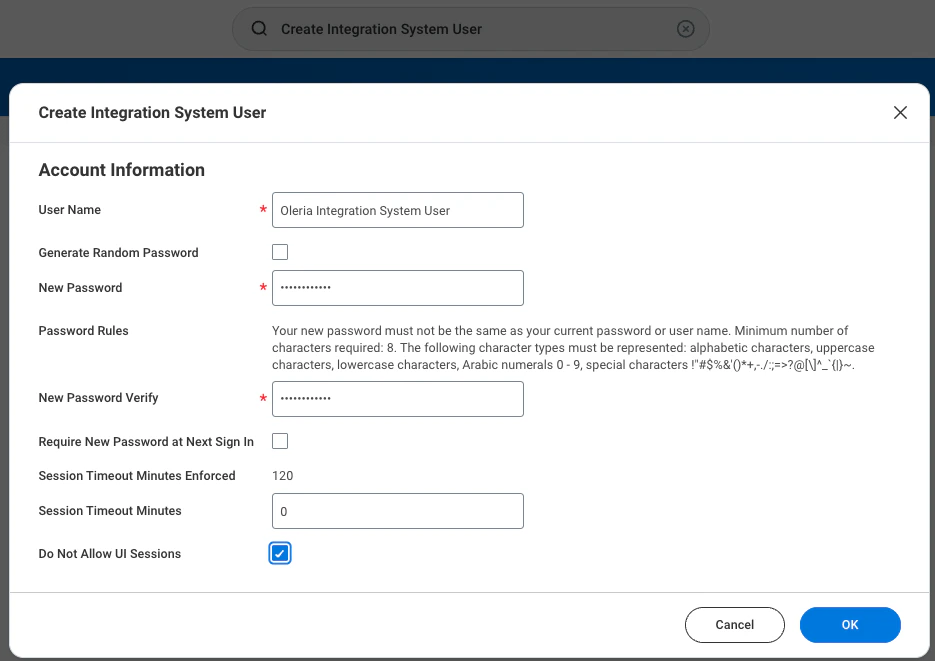
The Create Integration System User window opens. Provide the following:
* **User Name**
* **Password**
* Set **Session timeout minutes** to `0`
* Select the **Do Not Allow UI Sessions** checkbox
 In the search window, type **Maintain Password Rules** and select the task.
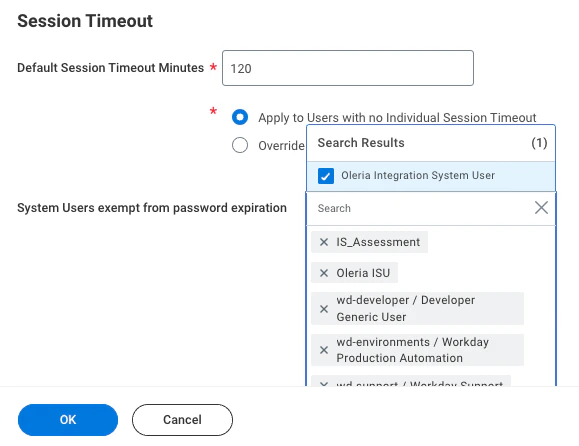
Under **System Users exempt from password expiration**, search and add the **Oleria Integration System User**.
In the search window, type **Maintain Password Rules** and select the task.
Under **System Users exempt from password expiration**, search and add the **Oleria Integration System User**.
 In the search window, type **Create security group** and select the task.
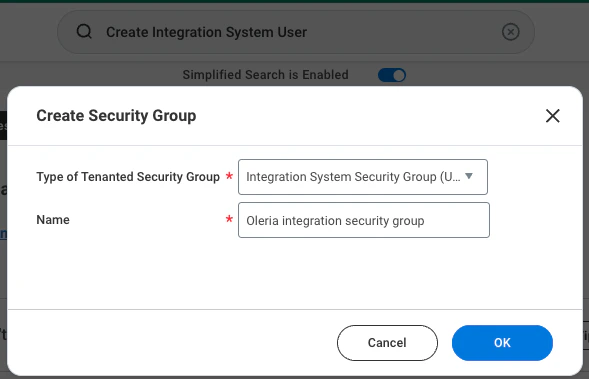
From the **Type of Tenanted Security Group** dropdown, select **Integration System Security Group (Unconstrained)** and give it a name, for example, **Oleria Integration Security Group**.
In the search window, type **Create security group** and select the task.
From the **Type of Tenanted Security Group** dropdown, select **Integration System Security Group (Unconstrained)** and give it a name, for example, **Oleria Integration Security Group**.
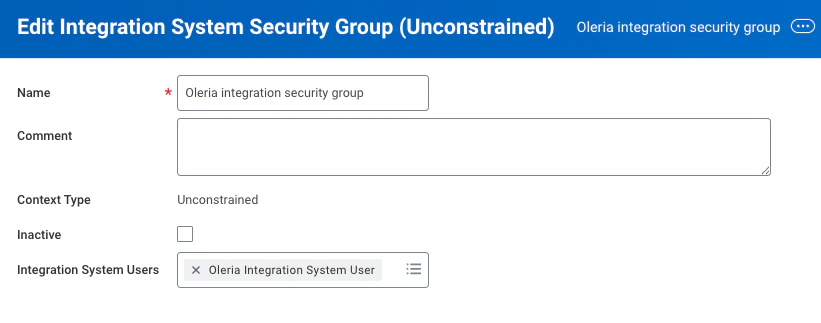
 From the **Integration System User** field, search and select the **Oleria Integration System User** created in the previous step.
 In the search window, type **Maintain permissions for Security Group** and select the task.
Search and add the **Oleria Integration Security Group** in the **Source Security Group** field. Select **Ok**.
In the search window, type **Maintain permissions for Security Group** and select the task.
Search and add the **Oleria Integration Security Group** in the **Source Security Group** field. Select **Ok**.
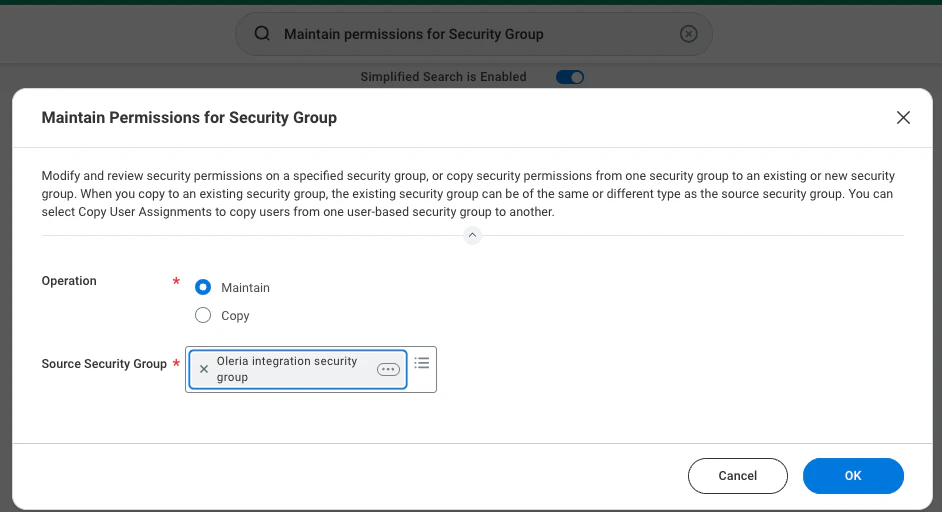 In **Maintain Permissions for Security Group** → **Domain Security Policy Permissions**, add the following permissions:
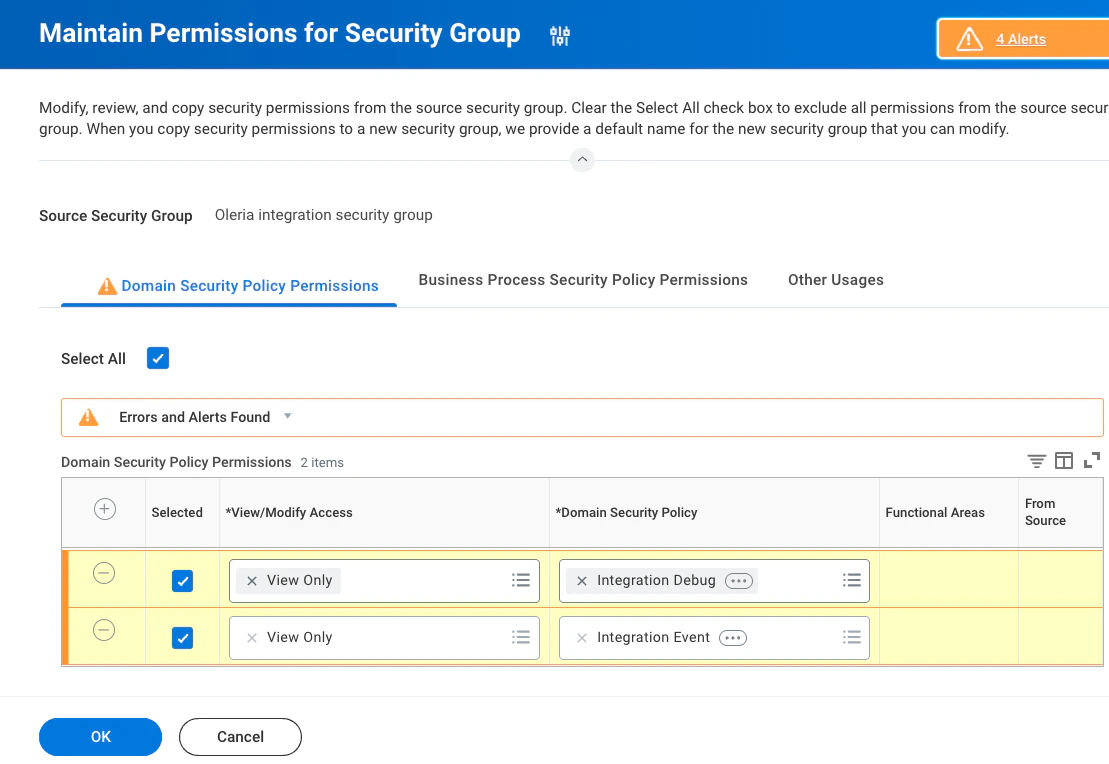 1. *("View Only", "Integration Event", "Integration")*
2. *("View Only", "Integration Debug", "Integration")*
3. *("View Only", "Integration Process", "Integration")*
4. *("View Only", "Integration Build", "Integration")*
5. *("View Only", "Worker Data: Workers", "Staffing")*
6. *("View Only", "Person Data: Personal Data", "Personal Data")*
7. *("View Only", "Worker Data: Employment Data", "Staffing")*
8. *("View Only", "Worker Data: Staffing", "Staffing")*
9. *("View Only", "Worker Data: Public Worker Reports", "Staffing")*
10. *("View Only", "Worker Data: Organization information", "Staffing")*
11. *("View Only", "Person Data: Personal information", "Personal Data")*
12. *("View Only", "Person Data: Name", "Contact information")*
13. *("View Only", "Person Data: Person Reports", "Personal Data")*
14. *("View Only", "Worker Data: Service Dates", "Staffing")*
15. *("View Only", "Worker Data: Current Staffing Information", "Staffing")*
16. *("View Only", "Person Data: Public Work Email Address Integration", "Contact information")*
17. *("View Only", "Person Data: Private Work Email Integration", "Contact information")*
18. *("View Only", "View: Supervisory Organization", "Organizations and Roles")*
19. *("View Only", "Person Data: Private Home Email Integration", "Contact information")*
20. *('View Only', 'Person Data: Public Home Email Address Integration', 'Contact Information')*
21. *('View Only', 'Person Data: Home Contact Information', 'Contact Information')*
22. *('View Only', 'Worker Data: Employee Contracts', 'Staffing')*
23. *('View Only', 'Worker Data: All Positions', 'Staffing')*
24. *('View Only', 'National ID Identification', 'Personal Data')*
25. *('View Only', 'Manage: Supervisory Organization', 'Organizations and Roles')*
26. *('View Only', 'Indexed Data Source: Workers', 'Staffing')*
27. *('View Only', 'Reports: Organization', 'Organizations and Roles')*
28. *('View Only', 'Worker Position: View', 'Staffing')*
29. *('View Only', 'Person Data: Work Contact Information', 'Contact Information')*
30. *('View Only', 'Person Data: ID Information', 'Personal Data')*
31. *('View Only', 'Job Information', 'Jobs and Positions')*
32. *('View Only', 'Staffing Actions: Additional Job Classifications', 'Staffing')*
33. *('View Only', 'Staffing Actions: Primary Job', 'Staffing')*
34. *('View Only', 'Worker Data: Job Family on Worker Profile', 'Staffing')*
35. *('View Only', 'Worker Data: Directory', 'People Experience')*
36. *('View Only', 'Worker Data: General Staffing Information', 'Staffing')*
37. *('View Only', 'Worker Data: Job Details', 'Staffing')*
38. *('Get Only', 'Worker Data Current Job Profile Information', 'Staffing')*
39. *('View Only', 'Worker Data: Active and Terminated Workers', 'Staffing')*
40. *('View Only', 'Worker Data: Business Title on Worker Profile', 'Staffing')*
41. *('View Only', 'Worker Data: Current Job Profile Information', 'Staffing')*
42. *('View Only', 'Staffing Actions: Job Profile', 'Jobs & Positions')*
43. *('View Only', 'Job Profile: View', 'Integration')*
44. *('Get Only', 'Integration Event', 'Integration')*
45. *('Get Only', 'Integration Build', 'Integration')*
46. *('Get Only', 'Integration Process', 'Integration')*
47. *('Get Only', 'Integration Debug', 'Integration')*
48. *('Get Only', 'Worker Data: Organization Information', 'Staffing')*
49. *('Get Only', 'Worker Data: Public Worker Reports', 'Staffing')*
50. *('Get Only', 'Worker Data: Current Staffing Information', 'Staffing')*
51. *('Get Only', 'User-Based Security Group Administration', 'System')*
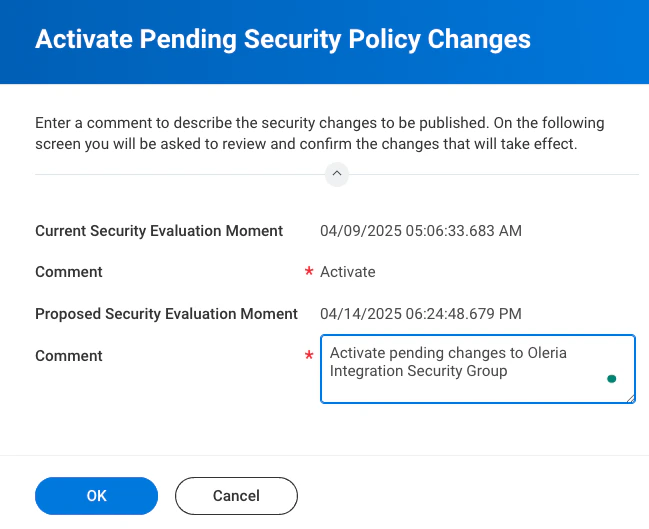
Type **Activate Pending Security Policy Changes** in the search window and select the task.
Provide a comment and select **OK**.
1. *("View Only", "Integration Event", "Integration")*
2. *("View Only", "Integration Debug", "Integration")*
3. *("View Only", "Integration Process", "Integration")*
4. *("View Only", "Integration Build", "Integration")*
5. *("View Only", "Worker Data: Workers", "Staffing")*
6. *("View Only", "Person Data: Personal Data", "Personal Data")*
7. *("View Only", "Worker Data: Employment Data", "Staffing")*
8. *("View Only", "Worker Data: Staffing", "Staffing")*
9. *("View Only", "Worker Data: Public Worker Reports", "Staffing")*
10. *("View Only", "Worker Data: Organization information", "Staffing")*
11. *("View Only", "Person Data: Personal information", "Personal Data")*
12. *("View Only", "Person Data: Name", "Contact information")*
13. *("View Only", "Person Data: Person Reports", "Personal Data")*
14. *("View Only", "Worker Data: Service Dates", "Staffing")*
15. *("View Only", "Worker Data: Current Staffing Information", "Staffing")*
16. *("View Only", "Person Data: Public Work Email Address Integration", "Contact information")*
17. *("View Only", "Person Data: Private Work Email Integration", "Contact information")*
18. *("View Only", "View: Supervisory Organization", "Organizations and Roles")*
19. *("View Only", "Person Data: Private Home Email Integration", "Contact information")*
20. *('View Only', 'Person Data: Public Home Email Address Integration', 'Contact Information')*
21. *('View Only', 'Person Data: Home Contact Information', 'Contact Information')*
22. *('View Only', 'Worker Data: Employee Contracts', 'Staffing')*
23. *('View Only', 'Worker Data: All Positions', 'Staffing')*
24. *('View Only', 'National ID Identification', 'Personal Data')*
25. *('View Only', 'Manage: Supervisory Organization', 'Organizations and Roles')*
26. *('View Only', 'Indexed Data Source: Workers', 'Staffing')*
27. *('View Only', 'Reports: Organization', 'Organizations and Roles')*
28. *('View Only', 'Worker Position: View', 'Staffing')*
29. *('View Only', 'Person Data: Work Contact Information', 'Contact Information')*
30. *('View Only', 'Person Data: ID Information', 'Personal Data')*
31. *('View Only', 'Job Information', 'Jobs and Positions')*
32. *('View Only', 'Staffing Actions: Additional Job Classifications', 'Staffing')*
33. *('View Only', 'Staffing Actions: Primary Job', 'Staffing')*
34. *('View Only', 'Worker Data: Job Family on Worker Profile', 'Staffing')*
35. *('View Only', 'Worker Data: Directory', 'People Experience')*
36. *('View Only', 'Worker Data: General Staffing Information', 'Staffing')*
37. *('View Only', 'Worker Data: Job Details', 'Staffing')*
38. *('Get Only', 'Worker Data Current Job Profile Information', 'Staffing')*
39. *('View Only', 'Worker Data: Active and Terminated Workers', 'Staffing')*
40. *('View Only', 'Worker Data: Business Title on Worker Profile', 'Staffing')*
41. *('View Only', 'Worker Data: Current Job Profile Information', 'Staffing')*
42. *('View Only', 'Staffing Actions: Job Profile', 'Jobs & Positions')*
43. *('View Only', 'Job Profile: View', 'Integration')*
44. *('Get Only', 'Integration Event', 'Integration')*
45. *('Get Only', 'Integration Build', 'Integration')*
46. *('Get Only', 'Integration Process', 'Integration')*
47. *('Get Only', 'Integration Debug', 'Integration')*
48. *('Get Only', 'Worker Data: Organization Information', 'Staffing')*
49. *('Get Only', 'Worker Data: Public Worker Reports', 'Staffing')*
50. *('Get Only', 'Worker Data: Current Staffing Information', 'Staffing')*
51. *('Get Only', 'User-Based Security Group Administration', 'System')*
Type **Activate Pending Security Policy Changes** in the search window and select the task.
Provide a comment and select **OK**.
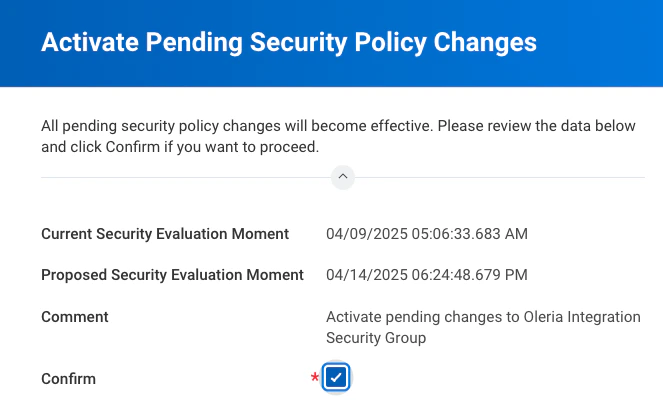
 On the next screen, select the **Confirm** checkbox and select **OK**.
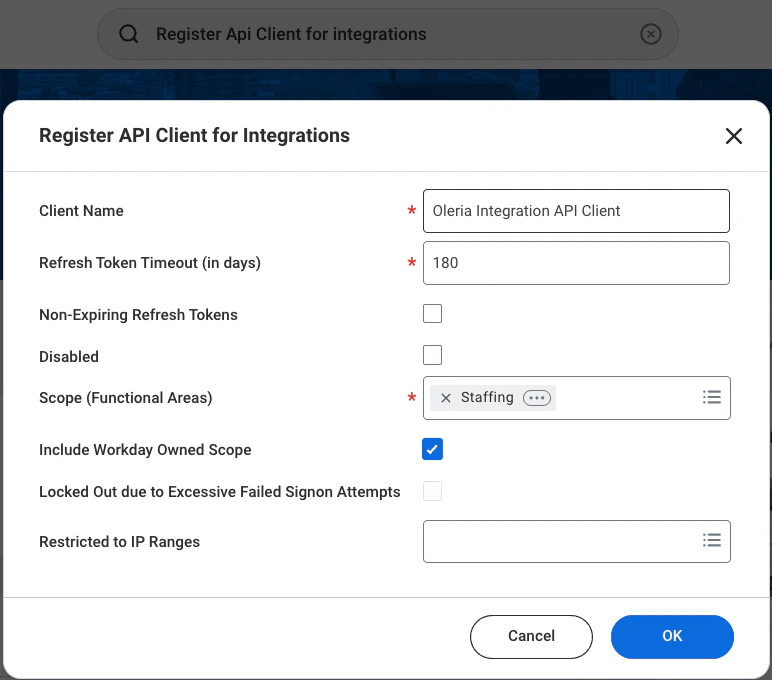
 Type **Register API Client for integrations** in the search window and select the task.
* Enter a name for your API client in the **Client Name** field.
* Unselect the **Non-Expiring Refresh tokens** checkbox.
* Add **180** in the **Refresh Token Timeout (in days)** field.
* Search and add the following scopes in the **Scope (Functional Areas)** field:
* Integration
* Jobs & Positions
* Organizations and Roles
* Personal Data
* Public Data
* Staffing
* System
* Tenant Non-Configurable
* Worker Profile and Skills
* Contact Information
* Select the **Include Workday Owned Scope** checkbox.
Type **Register API Client for integrations** in the search window and select the task.
* Enter a name for your API client in the **Client Name** field.
* Unselect the **Non-Expiring Refresh tokens** checkbox.
* Add **180** in the **Refresh Token Timeout (in days)** field.
* Search and add the following scopes in the **Scope (Functional Areas)** field:
* Integration
* Jobs & Positions
* Organizations and Roles
* Personal Data
* Public Data
* Staffing
* System
* Tenant Non-Configurable
* Worker Profile and Skills
* Contact Information
* Select the **Include Workday Owned Scope** checkbox.
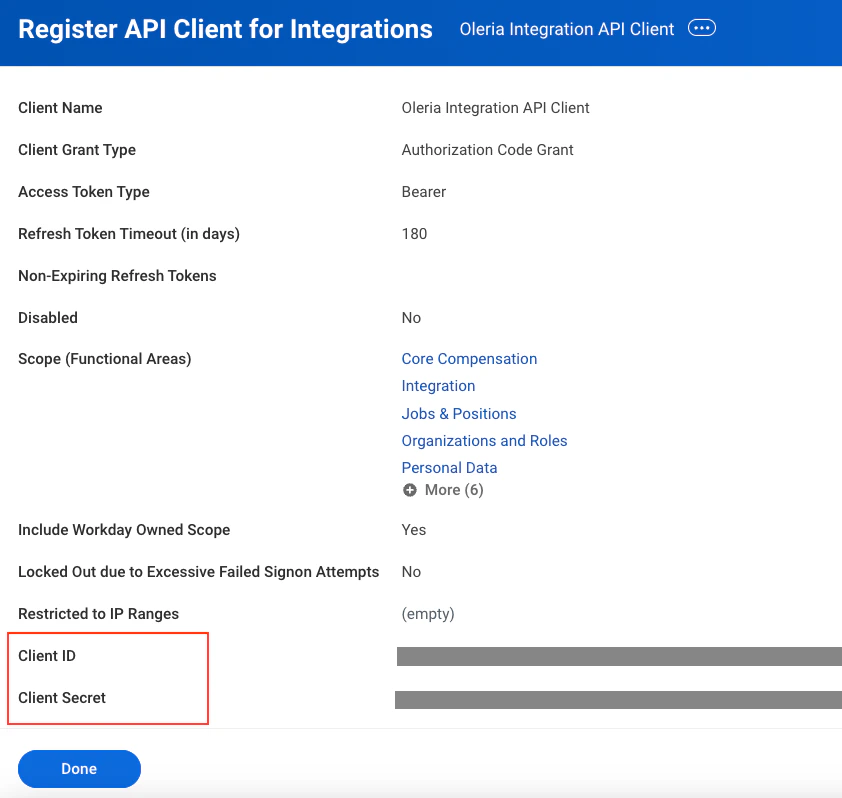
 Copy the **Client ID** and **Client Secret** shown on the next page.
 Type **View API Clients** in the search window and select the task.
Select **API Client for Integrations**.
Type **View API Clients** in the search window and select the task.
Select **API Client for Integrations**.
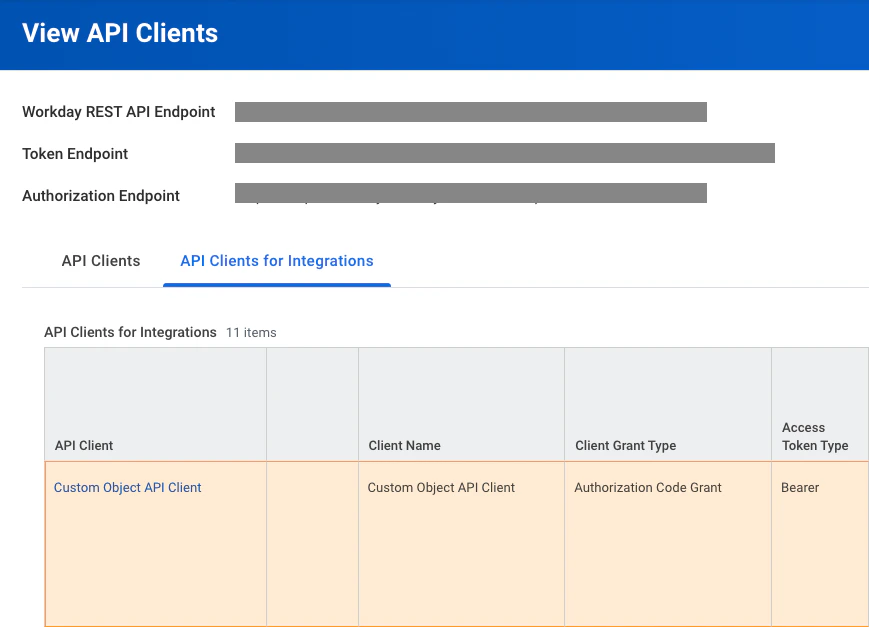 Select the API client registered in the previous step.
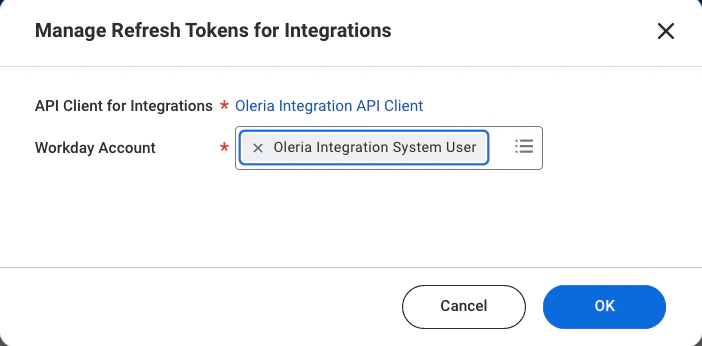
Select the ellipsis → **API client** → **Manage Refresh Tokens for Integrations**.
Select the API client registered in the previous step.
Select the ellipsis → **API client** → **Manage Refresh Tokens for Integrations**.
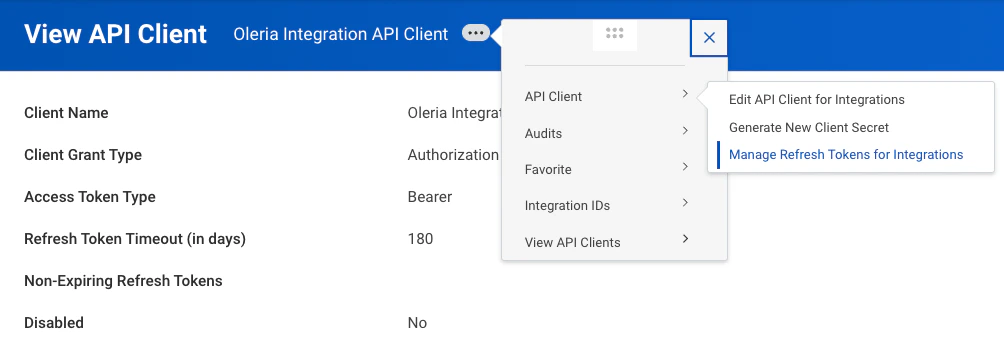 Search and select the **Oleria Integration System User** created above. Select **Ok**.
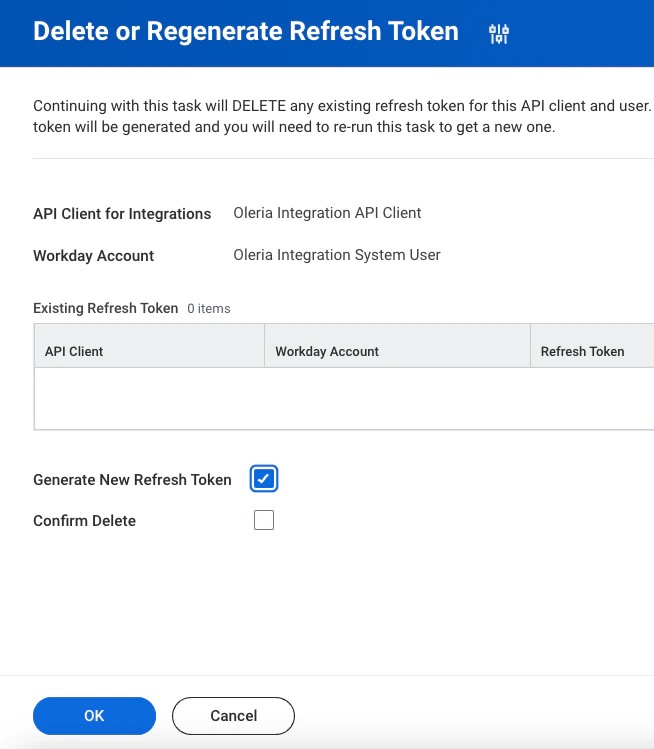
 The **Delete or Regenerate Refresh Token** dialog opens. Select the **Generate New Refresh Token** checkbox.
 ## Connect Workday to Oleria
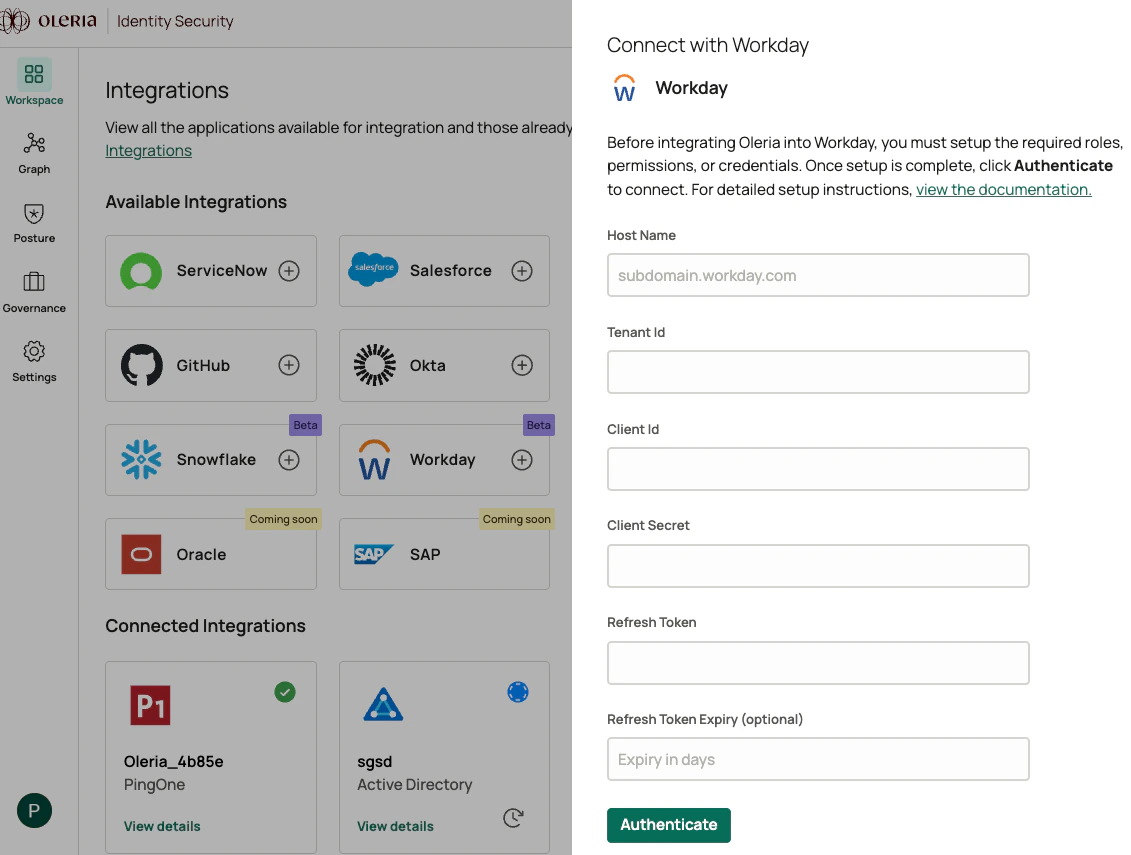
Go to your Oleria workspace, select **Integrations** → select **Workday**, and provide the following:
* **Host Name** - your Workday home URL
* To find it: log in to Workday, search for **View API clients**, and the **Workday REST API endpoint** will be visible at the top of the page
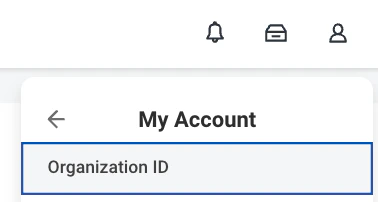
* **Tenant ID** - select your account and the organization ID
* **Client ID** - captured in the previous section
* **Client Secret** - captured in the previous section
* **Refresh Token** - captured in the previous section
* **Refresh Token Expiry** (optional) - leave empty if a non-expiring refresh token was set up
## Connect Workday to Oleria
Go to your Oleria workspace, select **Integrations** → select **Workday**, and provide the following:
* **Host Name** - your Workday home URL
* To find it: log in to Workday, search for **View API clients**, and the **Workday REST API endpoint** will be visible at the top of the page
* **Tenant ID** - select your account and the organization ID
* **Client ID** - captured in the previous section
* **Client Secret** - captured in the previous section
* **Refresh Token** - captured in the previous section
* **Refresh Token Expiry** (optional) - leave empty if a non-expiring refresh token was set up
 Find the newly integrated Workday instance in your Oleria workspace connected integrations.
Select **Connected Integrations** → **Workday** → select **View Details** to open the side pane and view the agent health status.
## Contact us
For questions about this integration, contact us at [support@oleria.com](mailto:support@oleria.com).
Find the newly integrated Workday instance in your Oleria workspace connected integrations.
Select **Connected Integrations** → **Workday** → select **View Details** to open the side pane and view the agent health status.
## Contact us
For questions about this integration, contact us at [support@oleria.com](mailto:support@oleria.com).