> ## Documentation Index
> Fetch the complete documentation index at: https://docs.oleria.com/llms.txt
> Use this file to discover all available pages before exploring further.
# UKG Pro
> Connect UKG Pro to Oleria to bring employees, people, departments, manager relationships, and UKG Pro logins into your identity and access graph as the authoritative worker record.
Connect UKG Pro to Oleria to use your HR system as the source of truth for who works for you. Oleria reads employees, people, departments, manager relationships, and UKG Pro user logins. It then compares identity provider (IdP) and SaaS access against that worker record. A leaver who still holds access somewhere else becomes visible.
To set it up, you create a UKG Pro **web service account** and grant it three Web Services. You then enter the Web Services hostname, the account's username and password, and the tenant's Customer API Key in Oleria.
One Oleria connection maps one UKG Pro tenant, across every company in that tenant.
This integration is for **UKG Pro** (Human Capital Management). It does not apply to UKG Ready or UKG Dimensions. For an HR system without a live API, use [Custom Application](/integrations/custom-application).
## What Oleria discovers
Once connected, Oleria continuously discovers and maps the following from UKG Pro:
* **Employees** - every employee across the tenant's companies, including employee number, name, work email, job title, job code, employment type, company, country, hire date, termination date, and last day worked. If an employee was rehired after a termination, Oleria treats them as current.
* **People** - the person record for each employee, including name and alternate (personal) email.
* **Users (accounts)** - UKG Pro user logins that belong to an employee, including username, status (active or inactive), last login, and last password change.
* **Departments** - your UKG Pro org levels (levels 1 to 4), by code and description.
* **Manager relationships** - each employee's supervisor, used to build your reporting hierarchy.
* **Department assignments** - each employee's org level 1 department.
UKG Pro is the system of record for the worker, not for application access. See [Known limitations](#known-limitations).
## Prerequisites
* Administrator permission on the Oleria workspace.
* A UKG Pro administrator who can open **System Configuration** -> **Security** in UKG Pro.
* A UKG Pro **web service account** for Oleria, not an interactive employee login.
* **View** access for that account to the following three Web Services:
| Web service | Used for |
| :- | :- |
| Personnel Integration | Employees, employment details, and UKG Pro user logins |
| Employee Person Details | Person details for each employee, including the work email used for employees and accounts |
| Company Configuration Integration | Companies and org levels (departments) |
Do not grant compensation or extra personally identifiable information (PII) views. Oleria never requests Social Security number (SSN), date of birth, or salary data.
## Create a web service account in UKG Pro
Oleria connects as a dedicated web service account. UKG Pro manages the account and the Customer API Key on two separate pages under **System Configuration** -> **Security**.
In UKG Pro, open **System Configuration** -> **Security** -> **Service Account Administration**. Create a web service account for Oleria. Save its **Username** and **Password** - you'll need both when connecting in Oleria.
UKG Pro does not show an existing account's password again. If you reuse an account reserved for Oleria, you must reset its password. Any other connection that uses that account stops authenticating until you update it.
On the same account in **Service Account Administration**, grant the Web Services listed in [Prerequisites](#prerequisites).
Open **System Configuration** -> **Security** -> **Web Services**. Copy the Web Services hostname (for example `service.ultipro.com`) and the tenant's **Customer API Key**. Do not include `https://` or a path in the hostname.
The hostname depends on your UKG Pro data center and environment, such as production or test. Use the host shown for the environment you want Oleria to inventory.
## Connect UKG Pro to Oleria
Go to your Oleria workspace, select **Integrations** -> select **UKG Pro**.
Fill in the connection form. All four fields are required:
| Field | Notes |
| :- | :- |
| Hostname | Web Services hostname with no `https://` or path, for example `service.ultipro.com`. |
| Username | The web service account username. |
| Password | The web service account password. |
| Customer API Key | From the UKG Pro **Web Services** page. |
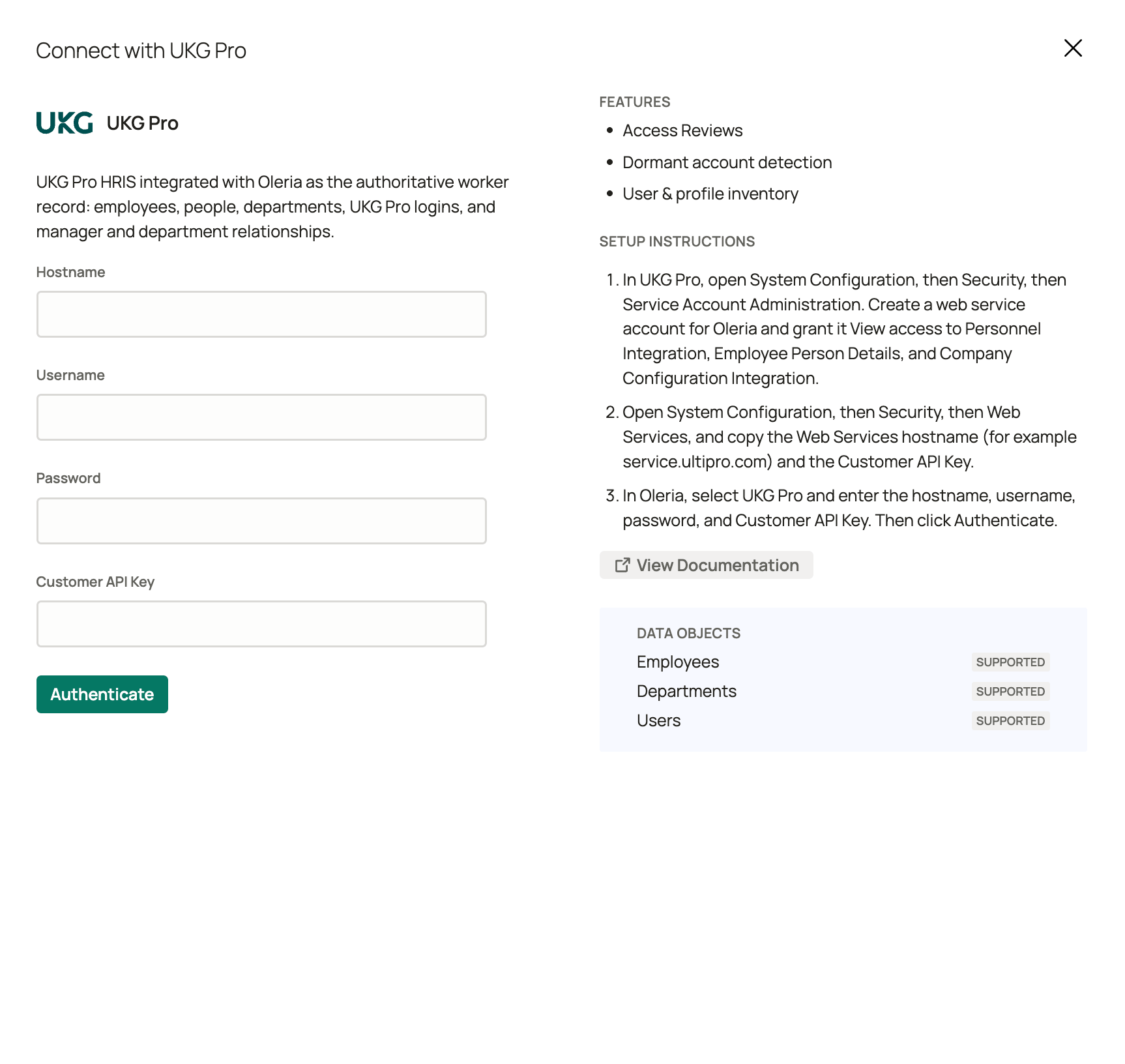 Select **Authenticate**. Oleria validates the username, password, and Customer API Key against UKG Pro before saving.
## Verify the integration
Confirm the UKG Pro instance appears on the **Connected** tab of your Oleria **Integrations** page with a status of **Healthy**. To see more detail about its health, select **View Details** on the UKG Pro instance to open the side pane.
After the first sync completes, go to **Posture** -> **Access Inventory** -> **Employees** to review the UKG Pro employees. Oleria shows HR employee records there when UKG Pro is your employee source of truth. To select it, go to **Settings** -> **Employee Information**.
If you rotate the web service account password or the Customer API Key, edit the integration in Oleria, paste the new values, and select **Update**. The next sync runs with the new credentials.
## Troubleshooting
* **Authenticate fails** - check that the hostname matches the UKG Pro environment that issued the credentials, with no `https://` or path. Then re-enter the username, password, and Customer API Key. Also confirm the web service account has **Company Configuration Integration**, which Oleria reads to validate the connection.
* **The sync fails, or no employees or accounts appear** - confirm the web service account has **Personnel Integration** and **Employee Person Details**. Oleria needs both to build employees and accounts.
After you fix a grant in UKG Pro, the next sync picks up the missing data.
## Known limitations
* **Groups and roles** - UKG Pro does not provide group or role assignments through this integration. Your IdP and SaaS integrations supply them.
* **Activity** - UKG Pro does not provide an activity or audit log through this integration.
* **MFA and SSO** - Oleria does not discover multi-factor authentication (MFA) or single sign-on (SSO) settings for UKG Pro logins.
* **Non-employee logins** - UKG Pro logins that aren't linked to an employee record, such as guest logins, are not discovered.
* **Web service accounts as NHIs** - UKG Pro has no API to list service accounts, so Oleria does not discover them as non-human identities (NHIs).
* **Department hierarchy** - Oleria lists org levels but does not show parent and child relationships between them. Department assignments use org level 1 only.
## Contact us
For questions about this integration, contact us at [support@oleria.com](mailto:support@oleria.com).
This documentation is built and hosted on [Mintlify](https://mintlify.com), a developer documentation platform.
Select **Authenticate**. Oleria validates the username, password, and Customer API Key against UKG Pro before saving.
## Verify the integration
Confirm the UKG Pro instance appears on the **Connected** tab of your Oleria **Integrations** page with a status of **Healthy**. To see more detail about its health, select **View Details** on the UKG Pro instance to open the side pane.
After the first sync completes, go to **Posture** -> **Access Inventory** -> **Employees** to review the UKG Pro employees. Oleria shows HR employee records there when UKG Pro is your employee source of truth. To select it, go to **Settings** -> **Employee Information**.
If you rotate the web service account password or the Customer API Key, edit the integration in Oleria, paste the new values, and select **Update**. The next sync runs with the new credentials.
## Troubleshooting
* **Authenticate fails** - check that the hostname matches the UKG Pro environment that issued the credentials, with no `https://` or path. Then re-enter the username, password, and Customer API Key. Also confirm the web service account has **Company Configuration Integration**, which Oleria reads to validate the connection.
* **The sync fails, or no employees or accounts appear** - confirm the web service account has **Personnel Integration** and **Employee Person Details**. Oleria needs both to build employees and accounts.
After you fix a grant in UKG Pro, the next sync picks up the missing data.
## Known limitations
* **Groups and roles** - UKG Pro does not provide group or role assignments through this integration. Your IdP and SaaS integrations supply them.
* **Activity** - UKG Pro does not provide an activity or audit log through this integration.
* **MFA and SSO** - Oleria does not discover multi-factor authentication (MFA) or single sign-on (SSO) settings for UKG Pro logins.
* **Non-employee logins** - UKG Pro logins that aren't linked to an employee record, such as guest logins, are not discovered.
* **Web service accounts as NHIs** - UKG Pro has no API to list service accounts, so Oleria does not discover them as non-human identities (NHIs).
* **Department hierarchy** - Oleria lists org levels but does not show parent and child relationships between them. Department assignments use org level 1 only.
## Contact us
For questions about this integration, contact us at [support@oleria.com](mailto:support@oleria.com).
This documentation is built and hosted on [Mintlify](https://mintlify.com), a developer documentation platform.