> ## Documentation Index
> Fetch the complete documentation index at: https://docs.oleria.com/llms.txt
> Use this file to discover all available pages before exploring further.

# ServiceNow

Oleria provides adaptive and autonomous access security that sets your business free. As part of that promise, we provide deep integration of your ServiceNow application into the Oleria platform. This document provides step-by-step guidance for integrating your ServiceNow application instance with your Oleria workspace.

## Prerequisites

* Admin user role
* Oleria ServiceNow application Update Set

## Elevate Role to Admin

Log in to your ServiceNow instance and elevate your role to Admin.
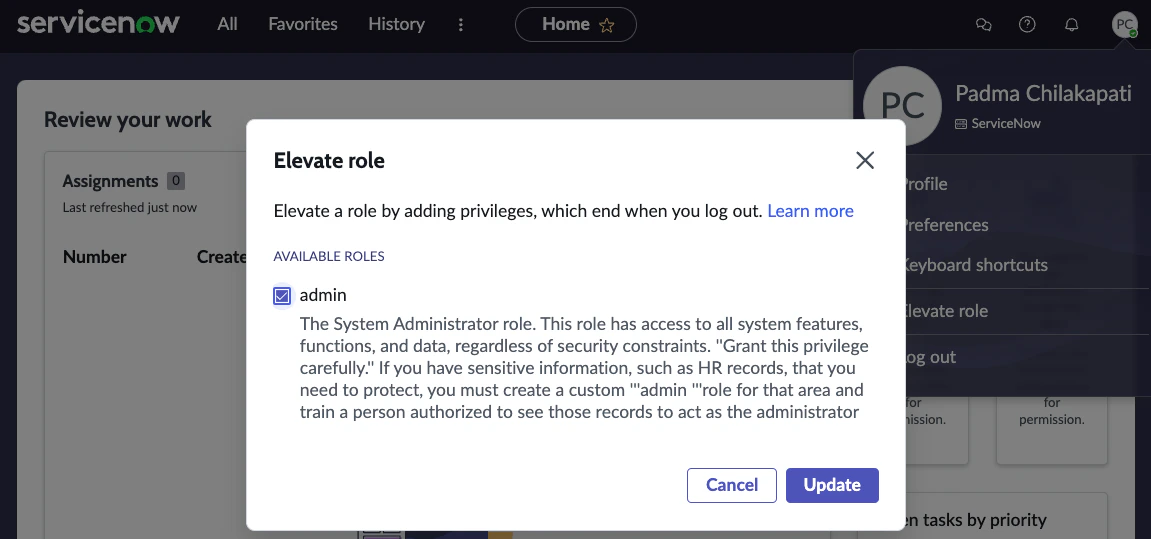
<img src="https://mintcdn.com/oleria/qn6A7RIhybLn0JXz/images/integrations/servicenow/step-1.png?fit=max&auto=format&n=qn6A7RIhybLn0JXz&q=85&s=94f2f7b4f477baa7f886a92535b9e728" alt="Integrate ServiceNow with Oleria Workspace" width="1151" height="539" data-path="images/integrations/servicenow/step-1.png" />

## Upload the Oleria Update Set

<Steps>
  <Step title="Open Retrieved Update Sets">
    Navigate to **All** → search and select **Retrieved Update Sets**.
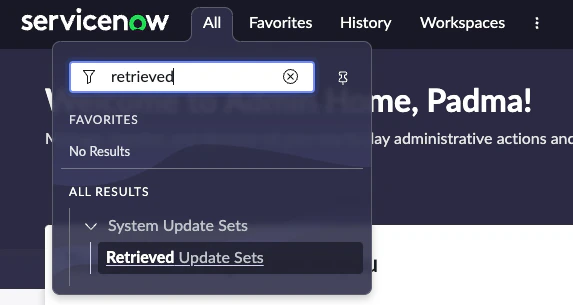
    <img src="https://mintcdn.com/oleria/qn6A7RIhybLn0JXz/images/integrations/servicenow/step-2.png?fit=max&auto=format&n=qn6A7RIhybLn0JXz&q=85&s=7cb5093085e041af82564ba84de8cb77" alt="Navigate to All → search and select  Retrieved Update Sets" width="573" height="305" data-path="images/integrations/servicenow/step-2.png" />
  </Step>

  <Step title="Import the update set">
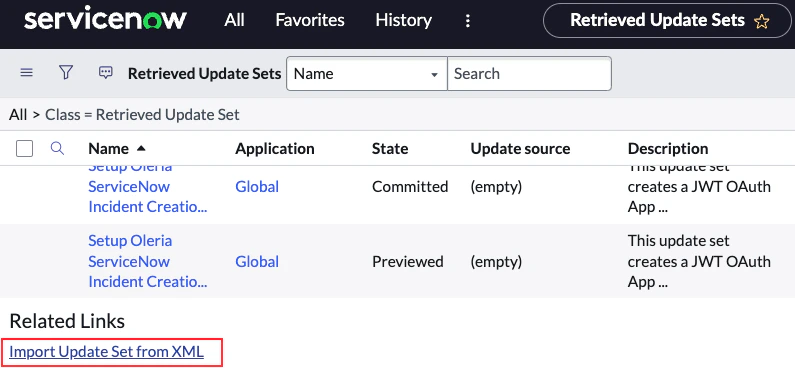
    Select **Import Update Set from XML**.
    <img src="https://mintcdn.com/oleria/qn6A7RIhybLn0JXz/images/integrations/servicenow/step-3.png?fit=max&auto=format&n=qn6A7RIhybLn0JXz&q=85&s=7114513da7d3e440e6eeba3be31b7487" alt="Select Import Update Set from XML" width="795" height="368" data-path="images/integrations/servicenow/step-3.png" />
  </Step>

  <Step title="Upload the Oleria update set">
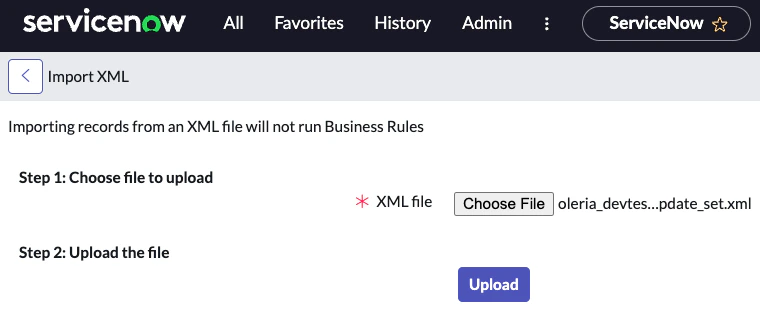
    Upload the Oleria update set by selecting **Choose file** and **Upload**.
    <img src="https://mintcdn.com/oleria/qn6A7RIhybLn0JXz/images/integrations/servicenow/step-4.png?fit=max&auto=format&n=qn6A7RIhybLn0JXz&q=85&s=199a2c3500ee2cd67bc4989c0379b3dd" alt="Upload Oleria Update set by selecting Choose file and Upload" width="760" height="312" data-path="images/integrations/servicenow/step-4.png" />
  </Step>

  <Step title="Select the uploaded update set">
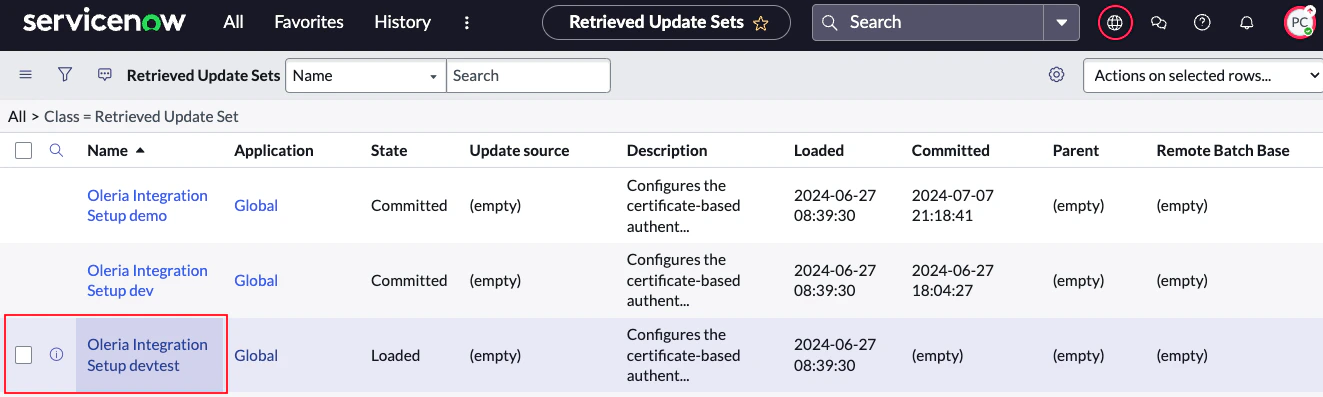
    A successful file upload will take you to the **Retrieved Update Sets** page. Select the uploaded Oleria update set file.
    <img src="https://mintcdn.com/oleria/qn6A7RIhybLn0JXz/images/integrations/servicenow/step-5.png?fit=max&auto=format&n=qn6A7RIhybLn0JXz&q=85&s=daef0fcf1a7b15a7d53897ec99cfdbc9" alt="ServiceNow Retrieved Update Sets page with uploaded Oleria update set listed" width="1323" height="397" data-path="images/integrations/servicenow/step-5.png" />
  </Step>

  <Step title="Preview the update set">
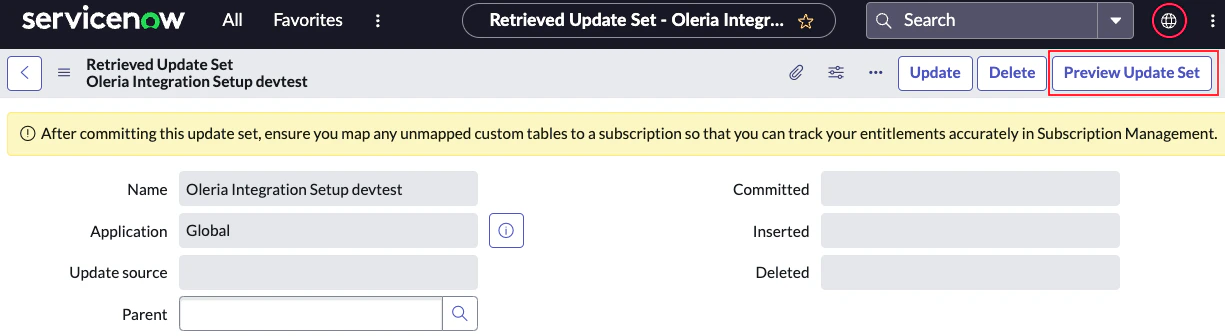
    Select **Preview Update Set**.

    <img src="https://mintcdn.com/oleria/qn6A7RIhybLn0JXz/images/integrations/servicenow/step-6.png?fit=max&auto=format&n=qn6A7RIhybLn0JXz&q=85&s=ac97710842344b53faa1780136f24027" alt="Select Preview Update Set" width="1225" height="336" data-path="images/integrations/servicenow/step-6.png" />
  </Step>

  <Step title="Confirm the preview">
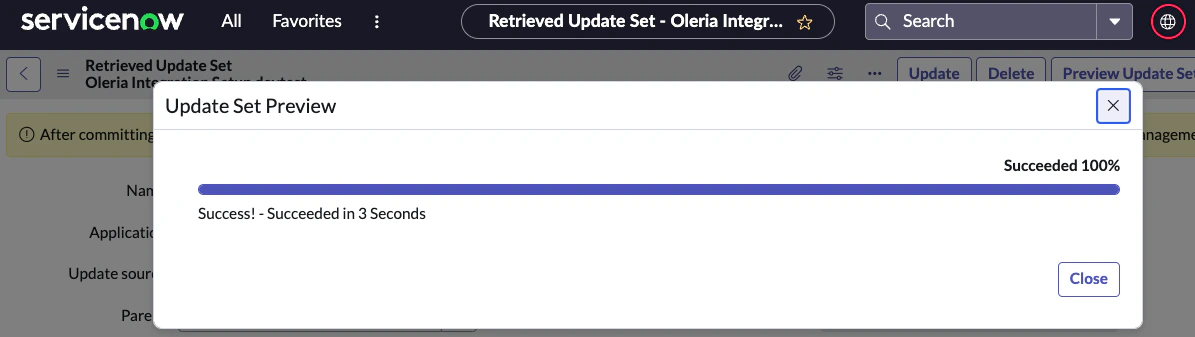
    The update set preview should run successfully. Close the Update Set Preview window.
    <img src="https://mintcdn.com/oleria/qn6A7RIhybLn0JXz/images/integrations/servicenow/step-7.png?fit=max&auto=format&n=qn6A7RIhybLn0JXz&q=85&s=f9f9d1cf3d20b92de08d3262f10ae849" alt="ServiceNow Update Set Preview showing successful run with no errors" width="1195" height="337" data-path="images/integrations/servicenow/step-7.png" />
  </Step>

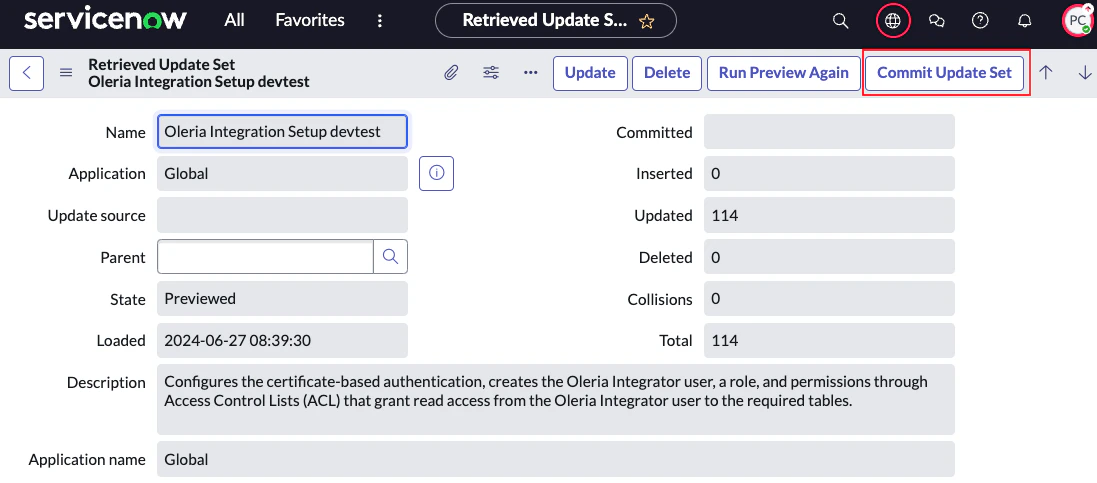
  <Step title="Commit the update set">
    Select **Commit Update Set** and ensure it runs successfully.
    <img src="https://mintcdn.com/oleria/qn6A7RIhybLn0JXz/images/integrations/servicenow/step-8.png?fit=max&auto=format&n=qn6A7RIhybLn0JXz&q=85&s=04d2b7d6be16817b8a1c71f713c19acb" alt="Select Commit Update Set and ensure it runs successfully" width="1097" height="483" data-path="images/integrations/servicenow/step-8.png" />
  </Step>

  <Step title="Verify customer updates">
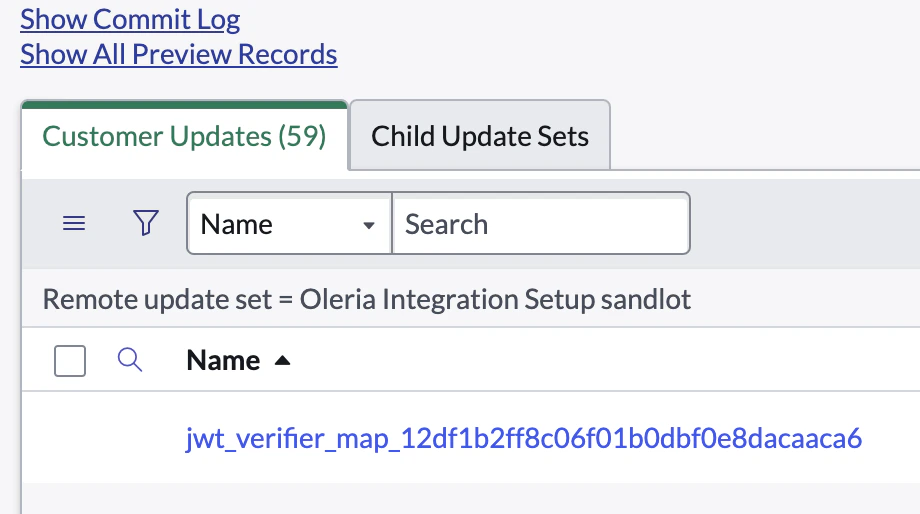
    You should find 55 customer updates.

    <img src="https://mintcdn.com/oleria/qn6A7RIhybLn0JXz/images/integrations/servicenow/step-9.png?fit=max&auto=format&n=qn6A7RIhybLn0JXz&q=85&s=9902efcfea1d28645218a0be9fcc078e" alt="You should find 55 customer updates." width="920" height="514" data-path="images/integrations/servicenow/step-9.png" />

    <Note>Reach out to the Oleria team if you don't see 55 customer updates.</Note>
  </Step>

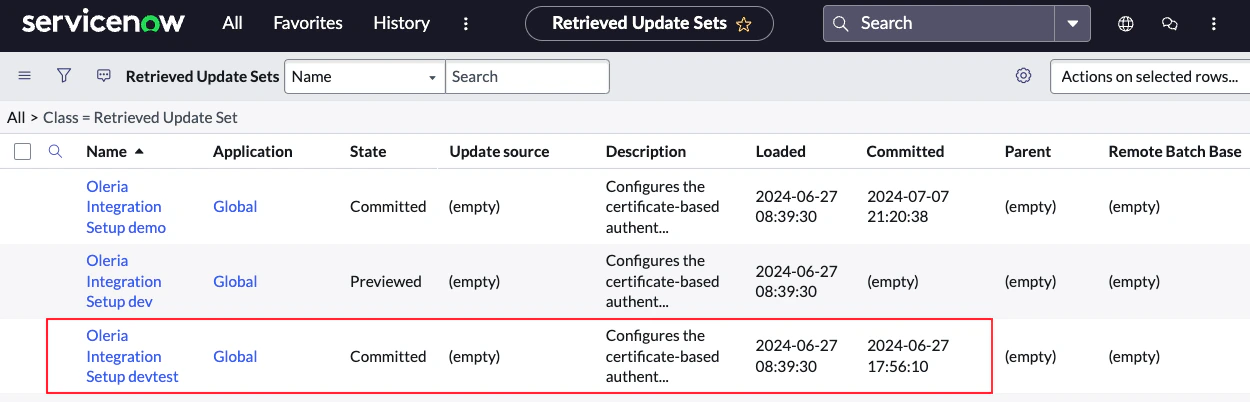
  <Step title="Confirm the commit">
    A successful update set commit shows a timestamp in the committed column.
    <img src="https://mintcdn.com/oleria/qn6A7RIhybLn0JXz/images/integrations/servicenow/step-10.png?fit=max&auto=format&n=qn6A7RIhybLn0JXz&q=85&s=1d1c7a52b8ca68aff15a662f81f88ad4" alt="A successful update set commit shows a timestamp in the committed column" width="1250" height="402" data-path="images/integrations/servicenow/step-10.png" />
  </Step>
</Steps>

## Connect ServiceNow to Oleria

<Steps>
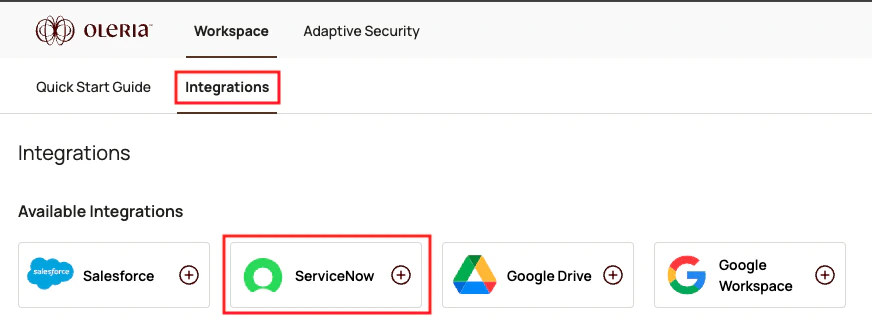
  <Step title="Open the integration">
    Go to your Oleria workspace, select **Integrations** → select **ServiceNow**.
    <img src="https://mintcdn.com/oleria/qn6A7RIhybLn0JXz/images/integrations/servicenow/step-11.png?fit=max&auto=format&n=qn6A7RIhybLn0JXz&q=85&s=8a8bee4faf53395c0c3427a877e47e6b" alt="Go to your Oleria workspace, select Integrations → select ServiceNow" width="872" height="327" data-path="images/integrations/servicenow/step-11.png" />
  </Step>

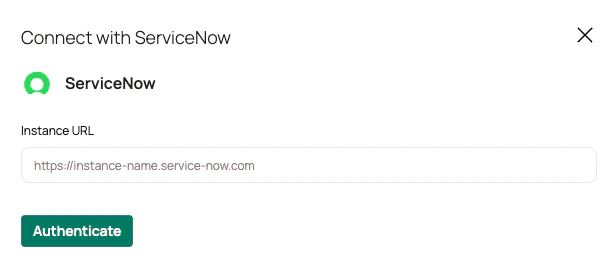
  <Step title="Authenticate">
    Provide your ServiceNow instance URL and select **Authenticate**.
    <img src="https://mintcdn.com/oleria/qn6A7RIhybLn0JXz/images/integrations/servicenow/step-12.png?fit=max&auto=format&n=qn6A7RIhybLn0JXz&q=85&s=947ca5694dab7ecf659adbf2793e1e17" alt="Provide your ServiceNow instance URL and click Authenticate." width="616" height="262" data-path="images/integrations/servicenow/step-12.png" />
  </Step>

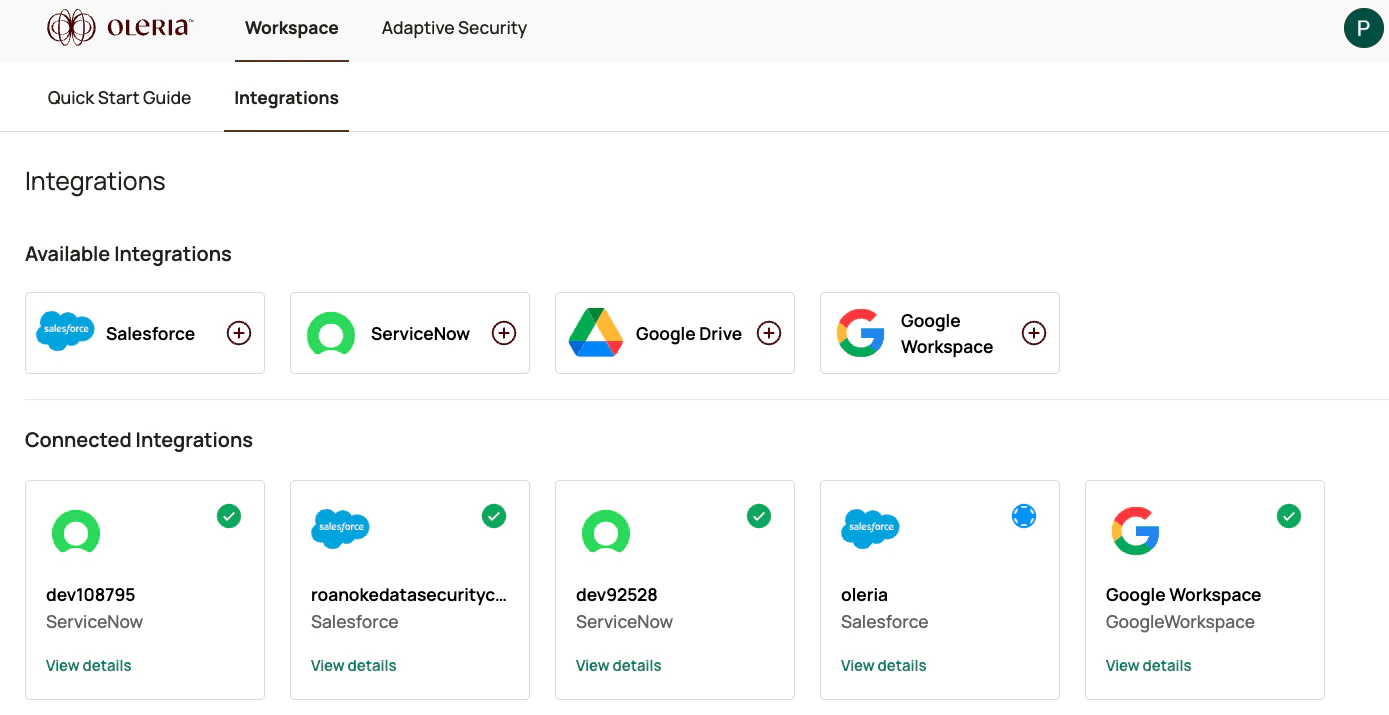
  <Step title="Confirm the connection">
    A newly integrated ServiceNow instance will be available in your Oleria workspace connected integrations.
    <img src="https://mintcdn.com/oleria/qn6A7RIhybLn0JXz/images/integrations/servicenow/step-13.png?fit=max&auto=format&n=qn6A7RIhybLn0JXz&q=85&s=1481161b30019f0ab44e3b7d95e21448" alt="Oleria workspace Connected Integrations showing newly added ServiceNow instance" width="1389" height="715" data-path="images/integrations/servicenow/step-13.png" />
  </Step>
</Steps>

## Contact us

For questions about this integration, contact us at [support@oleria.com](mailto:support@oleria.com).