> ## Documentation Index
> Fetch the complete documentation index at: https://docs.oleria.com/llms.txt
> Use this file to discover all available pages before exploring further.
# SCIM-Based Integration
Oleria's SCIM-Based Integration lets you connect any application that supports the SCIM 2.0 standard to Oleria - without a dedicated, application-specific integration. If your application exposes a SCIM endpoint and issues a bearer token, you can connect it to Oleria in minutes and use it for user and group lifecycle management.
## Prerequisites
* Admin access in the application you want to connect, with permission to create or view its SCIM endpoint and credentials.
* The application's **SCIM Base URL** (the HTTPS endpoint where Oleria will send SCIM requests).
* A valid **Authentication Token** (typically an OAuth bearer token or API key) issued by the application for SCIM access.
* Any application-specific entitlements required to enable SCIM (for example, a paid tier, an admin add-on, or a verified domain). Check your application's documentation if you are unsure.
The exact location of the SCIM endpoint and the way to mint a token vary by application. Refer to your application's own SCIM provisioning documentation for where to find these values.
## Get SCIM Credentials from Your Application
Sign in to the application as an admin and locate its SCIM or user provisioning settings. This is commonly found under **Security**, **Directory**, **Identity**, or **Provisioning** in the admin console.
From the application's SCIM settings, capture the following two values - you will paste them into Oleria in the next section:
* **SCIM Base URL** - the full HTTPS endpoint exposed by the application (for example, `https://api.example.com/scim/v2`). Do not include a trailing slash - Oleria appends resource paths (`/Users`, `/Groups`) directly.
* **Authentication Token** - the bearer token, API key, or secret the application issues for SCIM requests.
Many applications display the token only once at the time it is generated. Copy and store it securely before leaving the screen, and rotate it per your organization's security policy.
## Connect the Integration in Oleria
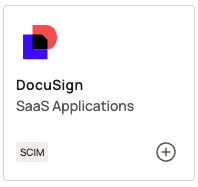
Go to your Oleria workspace and select **Integrations**. Locate the tile for the application you want to connect (for example, **DocuSign**, **Figma**) - SCIM-enabled applications are marked with a **SCIM** tag in the lower-left corner of the tile. Select the tile to start the connection.
 Select **Continue** and fill in the connection form:
| Field | Notes |
| :------------------- | :----------------------------------------------------------------------------------------------------------------------------------------------------------------------------------------------------------------------------------------------------------------------- |
| Instance name | User-defined label used only inside Oleria to differentiate this connection from any other connections you have for the same application (for example, a production vs. sandbox tenant). Use a short, recognizable name (for example, `docusign-prod`, `figma-sandbox`). |
| SCIM Base URL | The full HTTPS SCIM endpoint copied from your application. |
| Authentication token | The bearer token or API key issued by your application for SCIM access. |
Select **Connect** to validate the credentials and save the integration.
## Verify the Integration
Confirm the new instance appears in your Oleria workspace under **Connected Integrations**. The instance should show a status of **Healthy** once Oleria has validated the credentials and completed the initial sync. Once connected, Oleria will begin syncing users and groups from the application on the standard SCIM provisioning schedule.
If your application rotates the SCIM token, update the **Authentication token** in Oleria by editing the integration. The Instance name and SCIM Base URL can also be edited if they change.
## Contact us
For questions about this integration, contact us at [support@oleria.com](mailto:support@oleria.com).
Select **Continue** and fill in the connection form:
| Field | Notes |
| :------------------- | :----------------------------------------------------------------------------------------------------------------------------------------------------------------------------------------------------------------------------------------------------------------------- |
| Instance name | User-defined label used only inside Oleria to differentiate this connection from any other connections you have for the same application (for example, a production vs. sandbox tenant). Use a short, recognizable name (for example, `docusign-prod`, `figma-sandbox`). |
| SCIM Base URL | The full HTTPS SCIM endpoint copied from your application. |
| Authentication token | The bearer token or API key issued by your application for SCIM access. |
Select **Connect** to validate the credentials and save the integration.
## Verify the Integration
Confirm the new instance appears in your Oleria workspace under **Connected Integrations**. The instance should show a status of **Healthy** once Oleria has validated the credentials and completed the initial sync. Once connected, Oleria will begin syncing users and groups from the application on the standard SCIM provisioning schedule.
If your application rotates the SCIM token, update the **Authentication token** in Oleria by editing the integration. The Instance name and SCIM Base URL can also be edited if they change.
## Contact us
For questions about this integration, contact us at [support@oleria.com](mailto:support@oleria.com).