> ## Documentation Index
> Fetch the complete documentation index at: https://docs.oleria.com/llms.txt
> Use this file to discover all available pages before exploring further.
# SAP SuccessFactors
> Connect SAP SuccessFactors to Oleria to bring employee and organizational data into your identity security posture.
Connect SAP SuccessFactors to Oleria to bring employee and organizational data into your identity security posture. Follow these steps to complete the integration.
## Prerequisites
1. Admin access on Oleria platform
2. Integration service user with admin privileges in Success Factors for connecting with Oleria
## Generate an API Key in SAP SuccessFactors
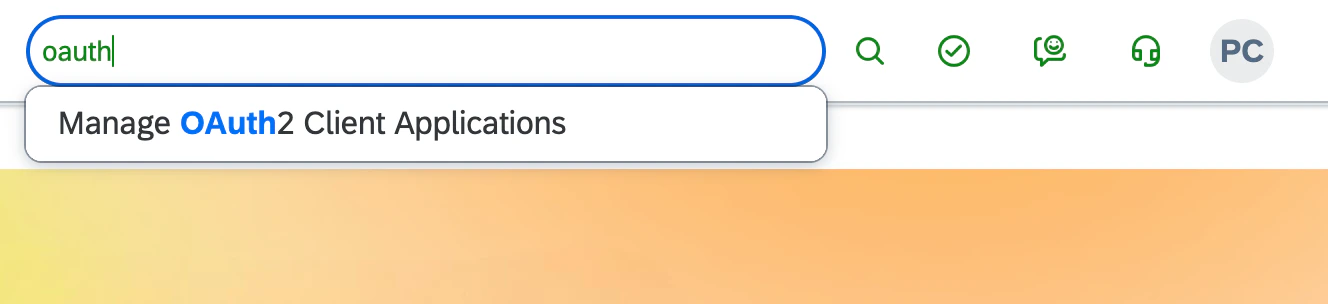
Go to **Admin Center** → **API Center** → **OAuth configuration for OData**. You can also search for **Manage OAuth2 Client applications** from the search box.
 Select **Register client application**. The registration form will appear.
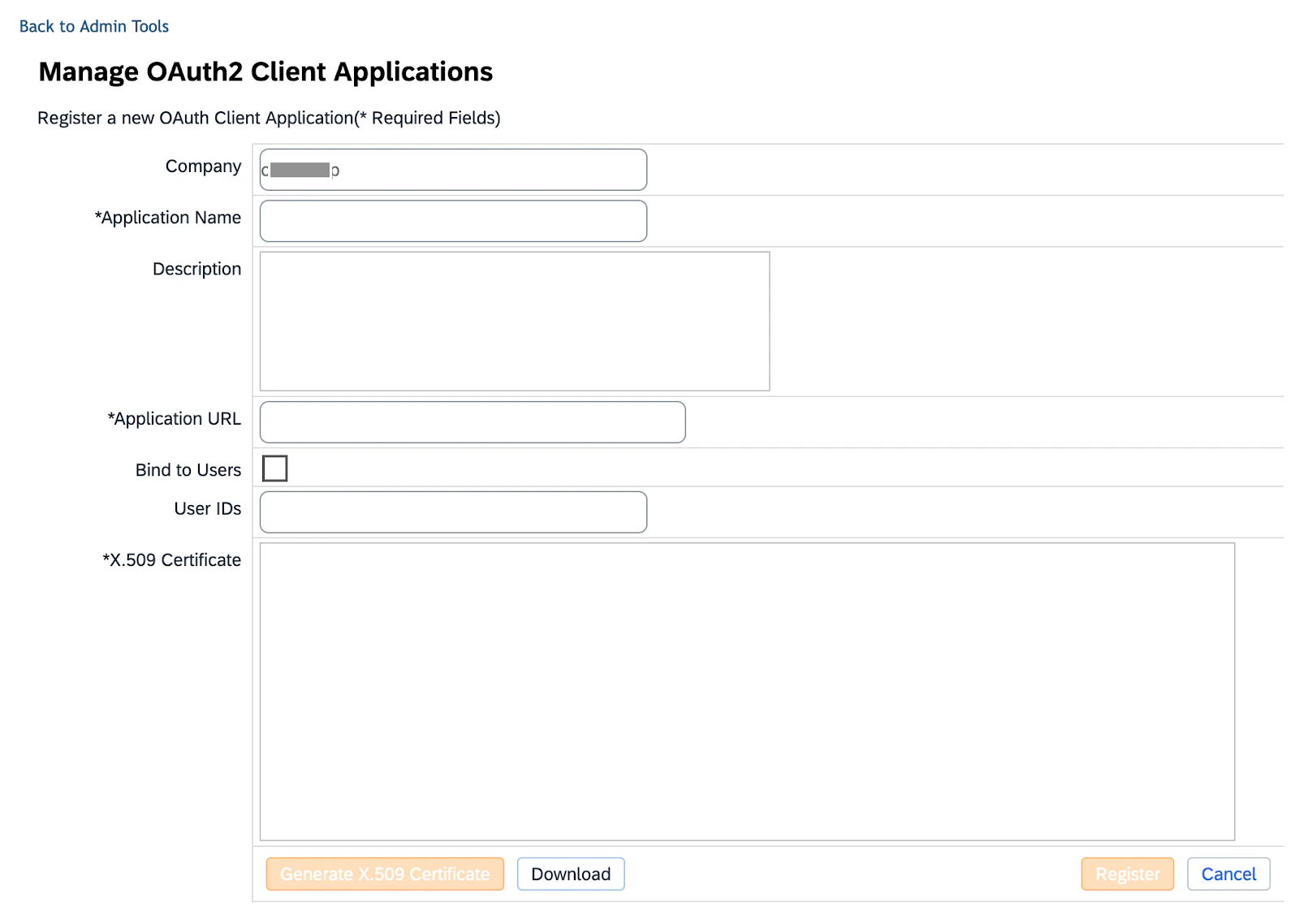 Enter `http://oleria.com/` in the **Application URL** field. This URL is used for identification purposes only, not for connection.
Select **Bind to User**, then enter the ISU user ID. This restricts OAuth token requests to the specified user only.
Create an X.509 certificate by following the steps [on this guide](https://help.sap.com/docs/successfactors-platform/sap-successfactors-api-reference-guide-odata-v4/creating-x-509-certificate-using-your-own-tools).
Enter the public key generated in the previous step in the **X.509 certificate** field.
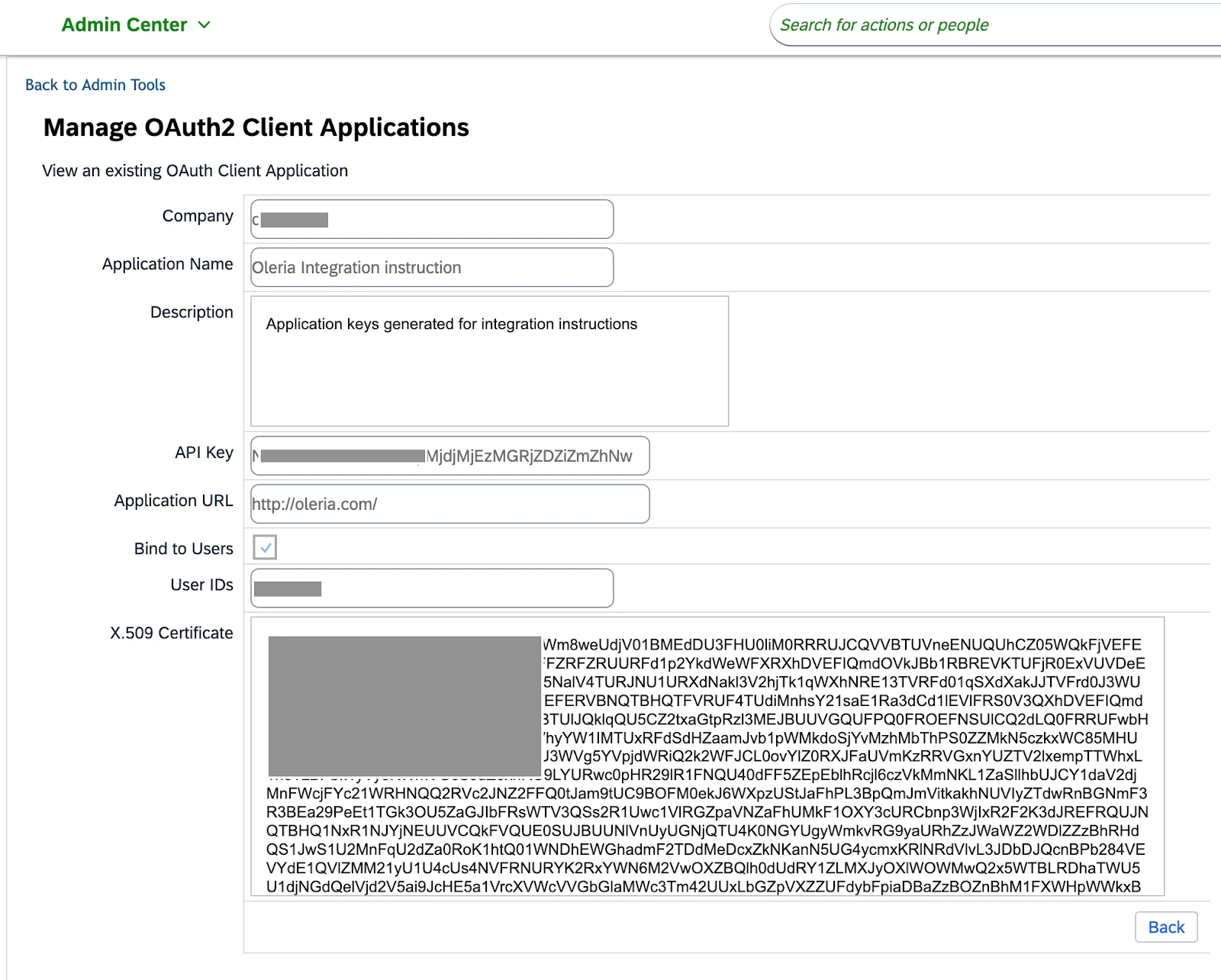
Select **Register** to save your registration. Save the **API key** - this is the Client ID for integration with Oleria.
Enter `http://oleria.com/` in the **Application URL** field. This URL is used for identification purposes only, not for connection.
Select **Bind to User**, then enter the ISU user ID. This restricts OAuth token requests to the specified user only.
Create an X.509 certificate by following the steps [on this guide](https://help.sap.com/docs/successfactors-platform/sap-successfactors-api-reference-guide-odata-v4/creating-x-509-certificate-using-your-own-tools).
Enter the public key generated in the previous step in the **X.509 certificate** field.
Select **Register** to save your registration. Save the **API key** - this is the Client ID for integration with Oleria.
 ## Connect SAP SuccessFactors to Oleria
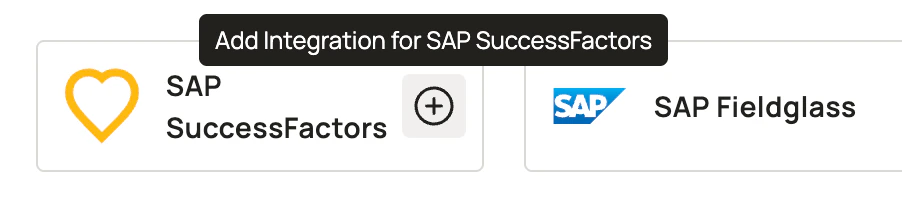
Select **Add Integration** for SAP Success Factors.
## Connect SAP SuccessFactors to Oleria
Select **Add Integration** for SAP Success Factors.
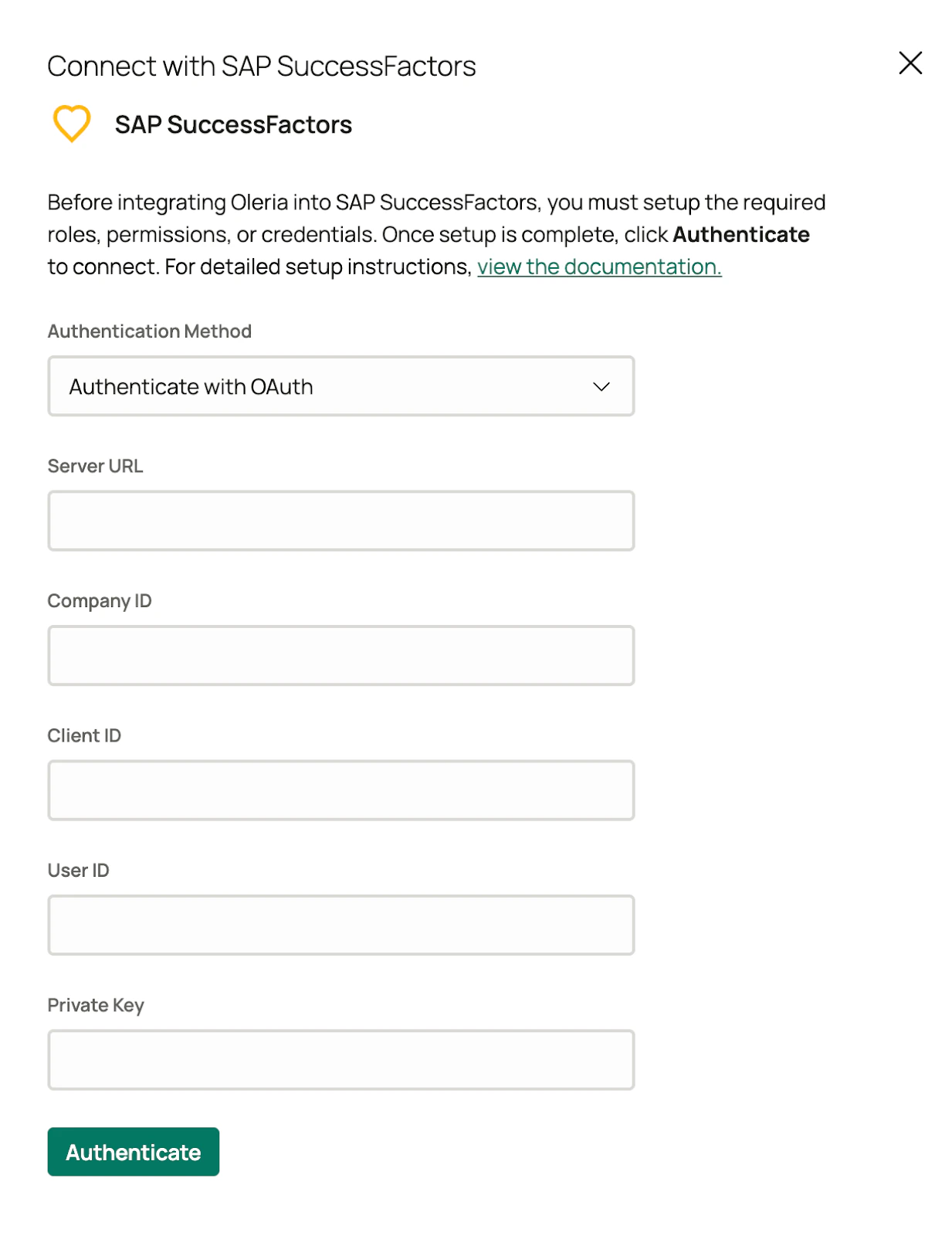
 Enter the server URL. You can find your server URL from this [link](https://help.sap.com/docs/successfactors-employee-central/implementing-service-center-in-employee-central/list-of-data-center-urls-for-bizx-odata-destination-configuration), or contact SAP technical support.
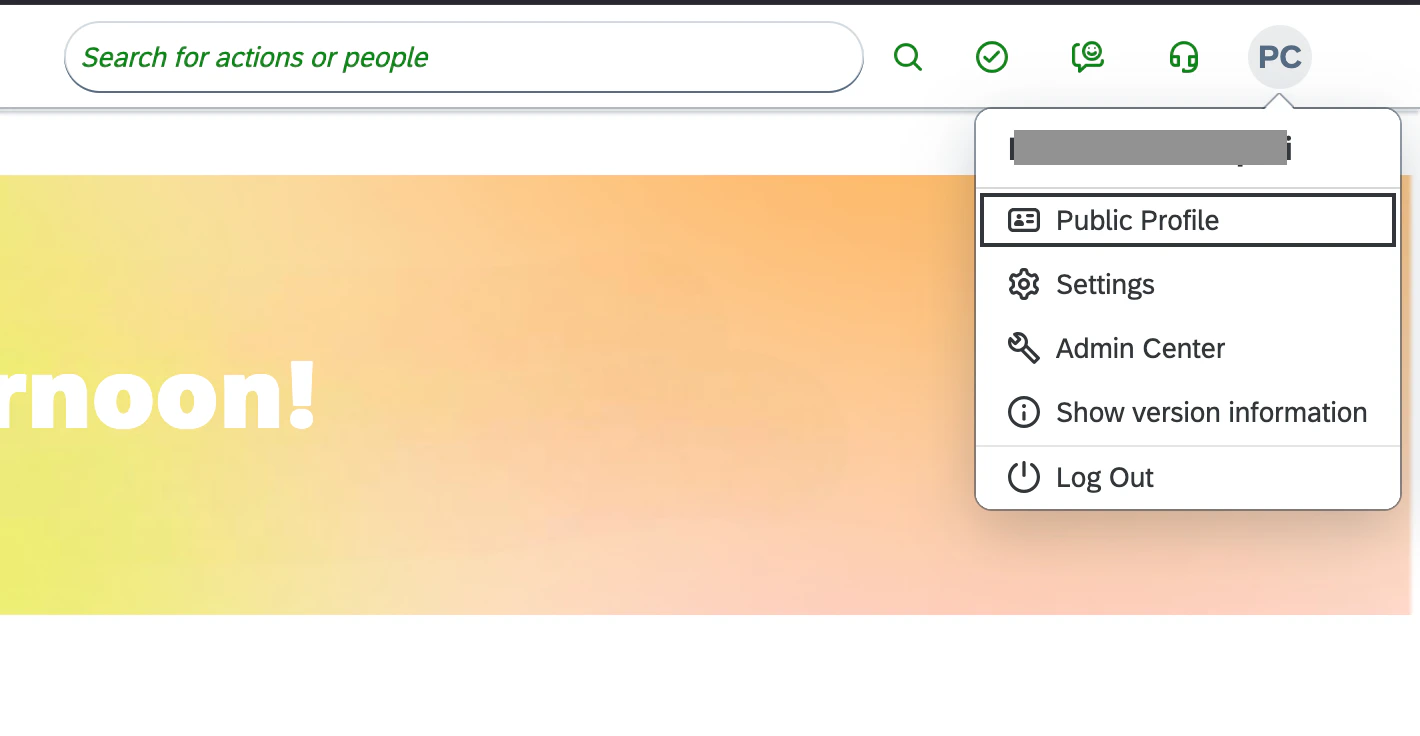
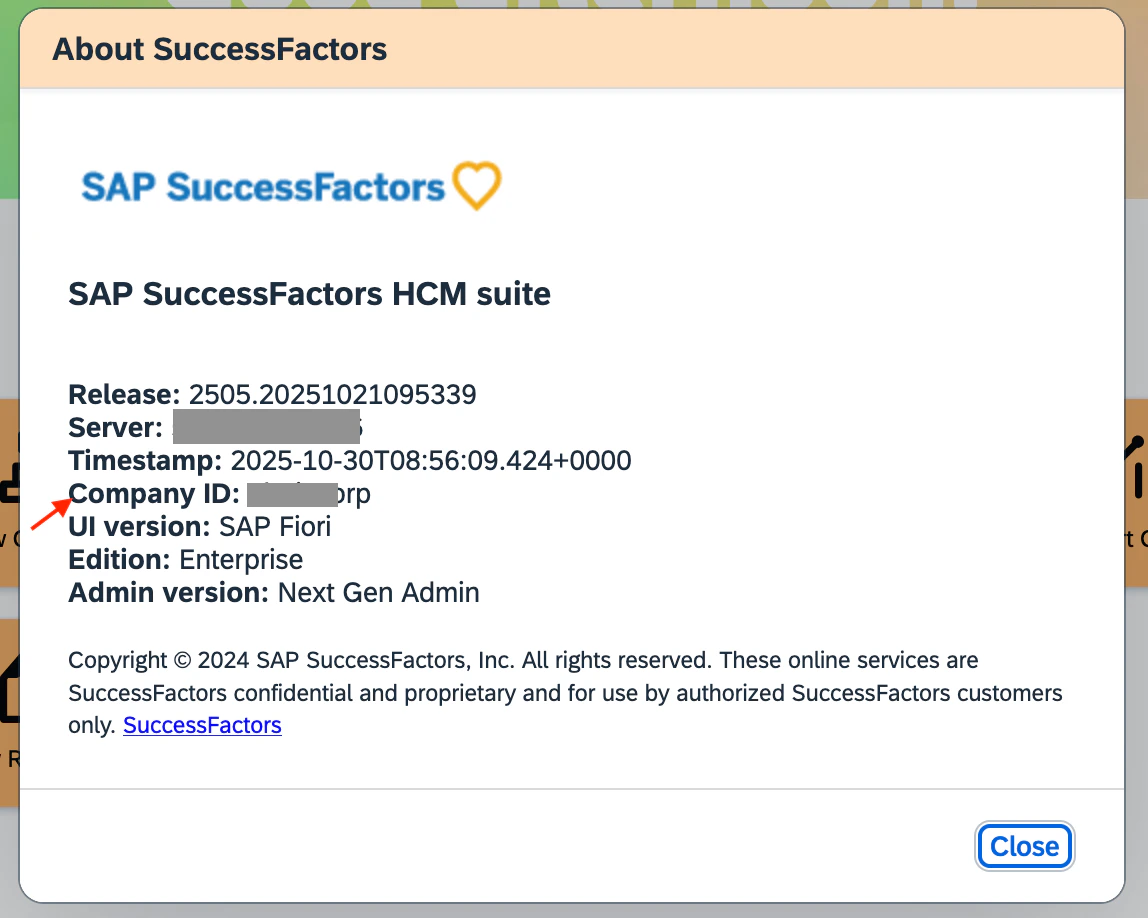
 Enter the Company ID. You can find it by clicking **Show version information** from the profile dropdown menu.
 Enter the following:
* **ISU user ID**
* **Client ID** - generated in the previous section
* **Private key** - generated in the previous section
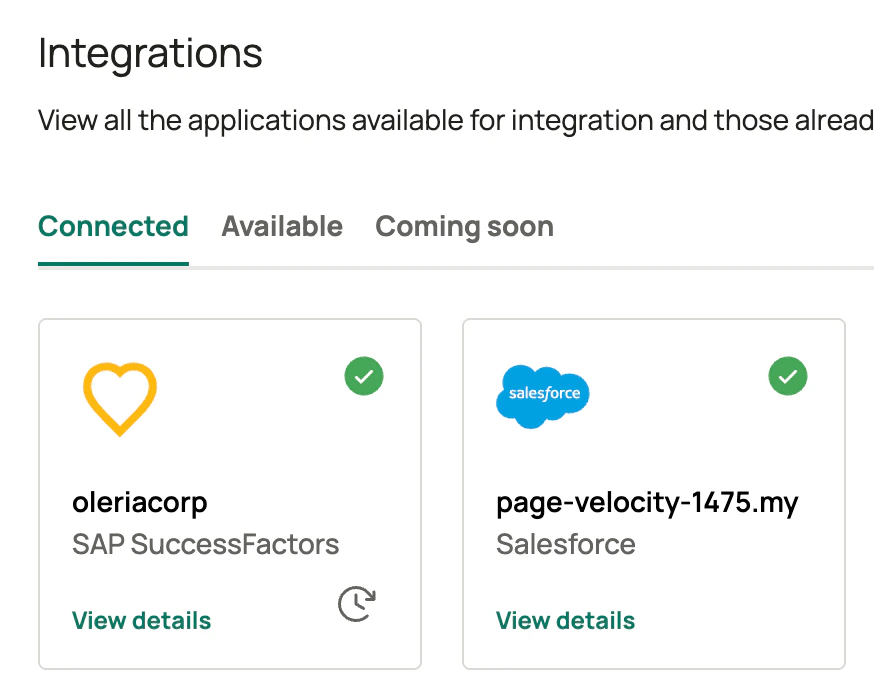
Select **Authenticate**. On successful authentication, you'll find the newly integrated Success Factors instance in your connected integrations.
Enter the following:
* **ISU user ID**
* **Client ID** - generated in the previous section
* **Private key** - generated in the previous section
Select **Authenticate**. On successful authentication, you'll find the newly integrated Success Factors instance in your connected integrations.
 ## Verify the Integration
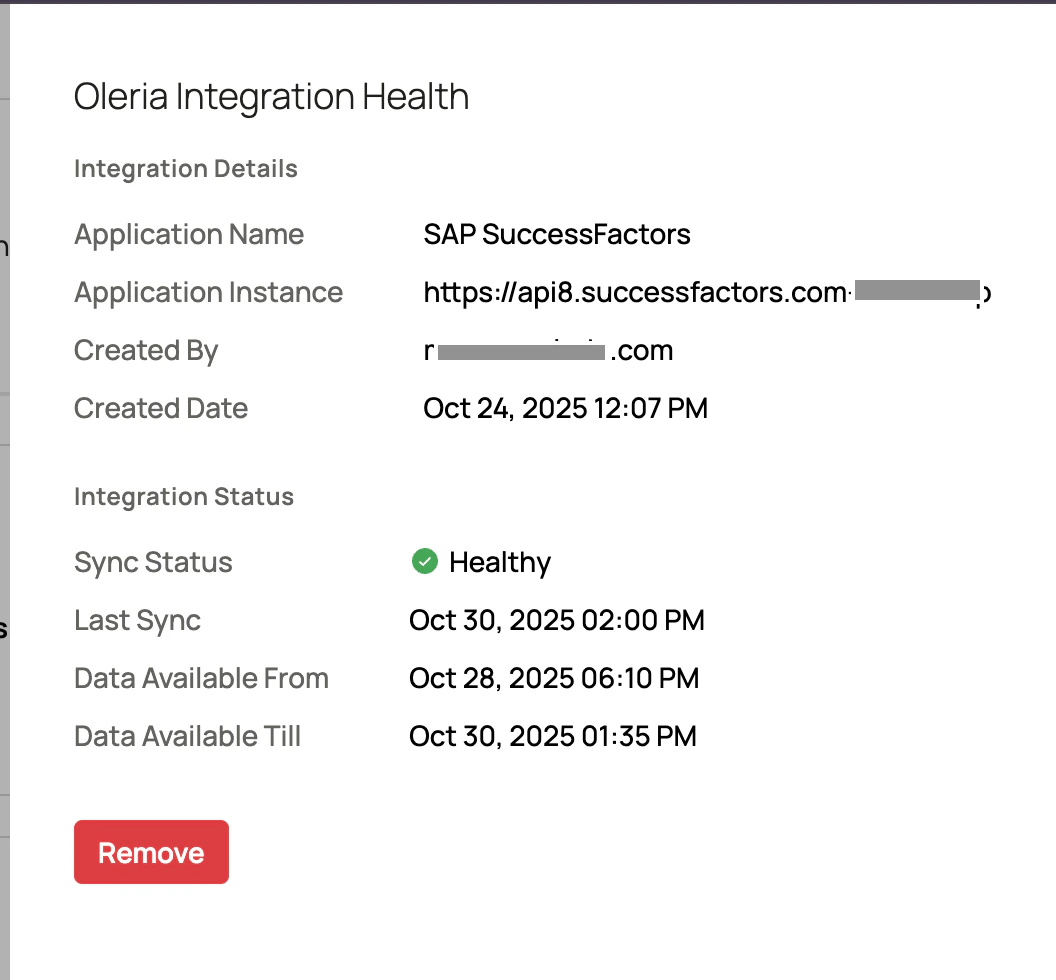
Select **View Details** on the SuccessFactors integration in your connected integrations page to view the integration health status.
## Verify the Integration
Select **View Details** on the SuccessFactors integration in your connected integrations page to view the integration health status.
 ## Contact us
For questions, contact us at [support@oleria.com](mailto:support@oleria.com).
## Contact us
For questions, contact us at [support@oleria.com](mailto:support@oleria.com).