> ## Documentation Index
> Fetch the complete documentation index at: https://docs.oleria.com/llms.txt
> Use this file to discover all available pages before exploring further.
# SAP Fieldglass
Oleria provides identity security and access management teams with visibility and intelligence into who has access to what, where they got that access, how they use it, and whether they should even have it. As part of that promise, we deeply integrate your SAP Fieldglass into the Oleria platform. Follow these steps to integrate SAP Fieldglass with your Oleria workspace.
## Prerequisites
1. Administrator permission on the Oleria workspace
2. Fieldglass service account for integration with Oleria (username and password are required to integrate)
## Generate an API Key in Fieldglass
Sign in to your SAP Fieldglass instance.
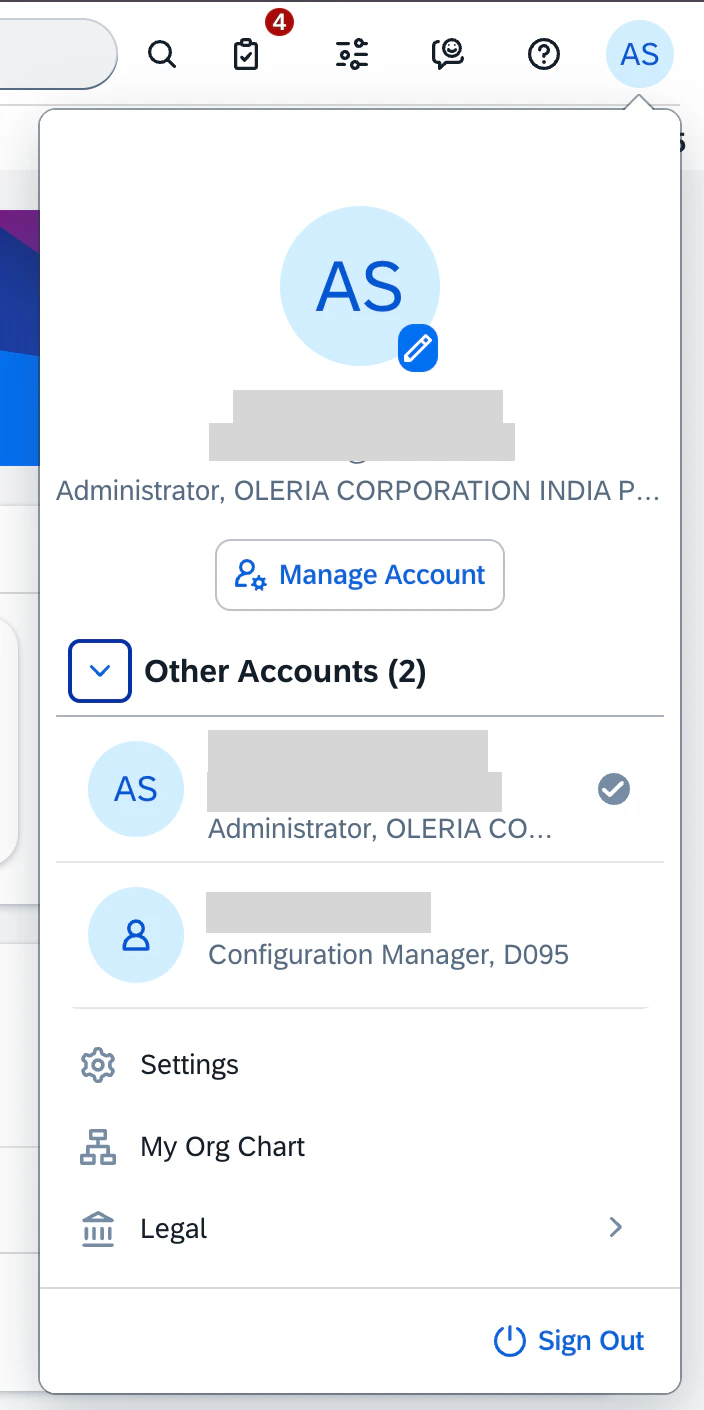
From the linked accounts, select **Configuration Manager**.
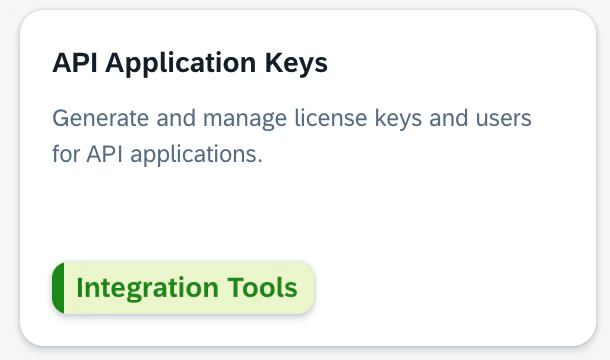
 Select **API application keys** from the self service dashboard.
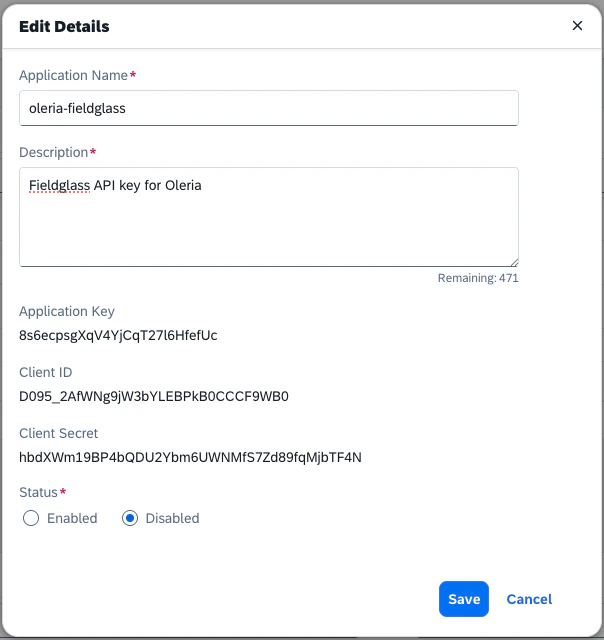
 Create a new API application key for integration with Oleria. Note the generated credentials shown after creation.
 ## Connect SAP Fieldglass to Oleria
Log in to your Oleria workspace, navigate to **Integrations**, and select **SAP Fieldglass**.
## Connect SAP Fieldglass to Oleria
Log in to your Oleria workspace, navigate to **Integrations**, and select **SAP Fieldglass**.
 A side panel opens. Enter the following details:
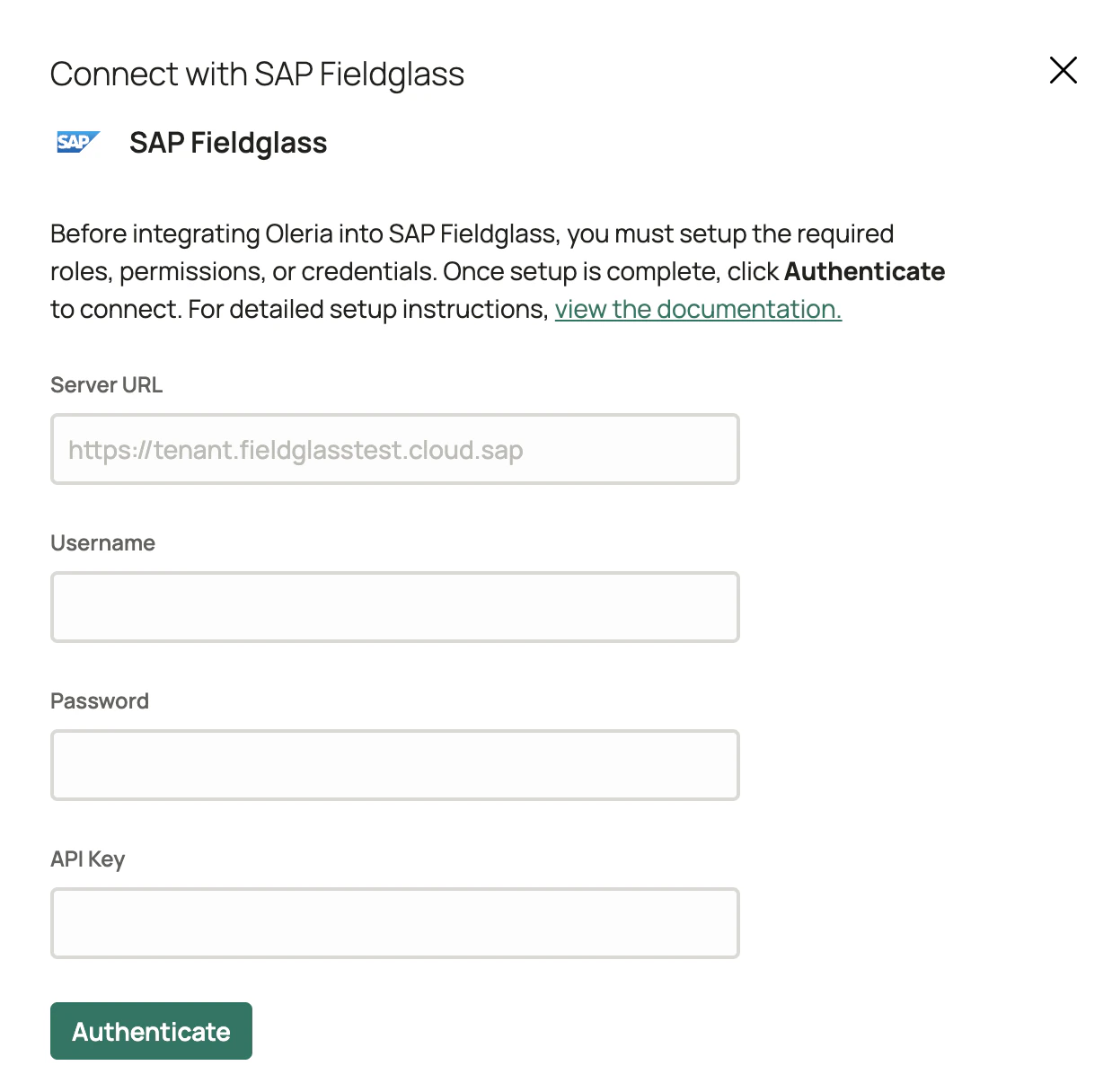 * **Server URL** - the URL of your Fieldglass instance
* **Username** and **Password** - of the user you created for Oleria integration
* **API Key** - the application key generated in the previous section
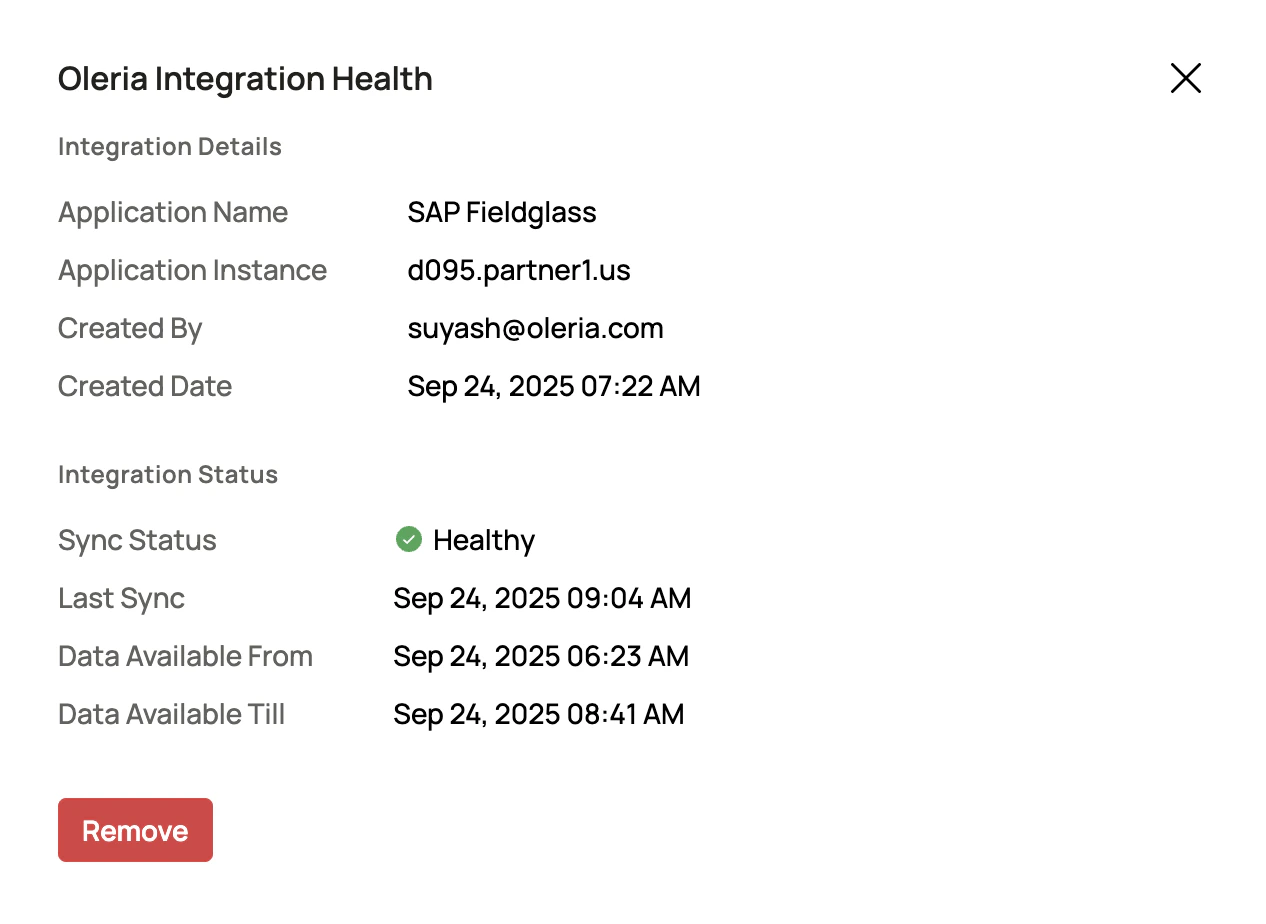
Verify the Fieldglass integration status from the connected integrations page.
* **Server URL** - the URL of your Fieldglass instance
* **Username** and **Password** - of the user you created for Oleria integration
* **API Key** - the application key generated in the previous section
Verify the Fieldglass integration status from the connected integrations page.
 ## Contact us
For questions about this integration, contact us at [support@oleria.com](mailto:support@oleria.com).
## Contact us
For questions about this integration, contact us at [support@oleria.com](mailto:support@oleria.com).