> ## Documentation Index
> Fetch the complete documentation index at: https://docs.oleria.com/llms.txt
> Use this file to discover all available pages before exploring further.
# Sage Intacct Integration
Oleria provides identity security and access management teams with visibility and intelligence into who has access to what, where they got that access, how they use it, and whether they should even have it. As part of that promise, we integrate your Sage Intacct application into the Oleria platform. Follow these steps to integrate Sage Intacct with your Oleria workspace.
## Prerequisites
1. A Sage Intacct account with access to the Developer Portal
2. An Intacct Web Services License Username
3. Admin privileges on Okta
### Create a Web Services User
If the company already has a Web Services user defined for your application, you can skip this section.
1. Have an admin user log in to the company and navigate to **Company** → **Admin** → **Web Services Users** → **Add**.
2. [Create a new Web Services user](https://www.intacct.com/ia/docs/en_US/help_action/Administration/Users/web-services-only-users.htm#AddaWebServicesuser) and assign the necessary privileges.
The username must be in the format `@` in order to work properly with the REST API.
### View a Web Services User
1. Go to **Company** → **Admin** → **Users, roles, and groups** → **Web Services users**.
2. To view the details of a Web Services user, select **View** along the same row as the record.
## Create an App in the Sage Developer Portal
Go to the [Sage Developer Console](https://developer.sage.com/console/).
Select **Applications** in the navigation menu, then select **Create new application** to start setting up your app.
Select **API - REST** as the API type for your application.
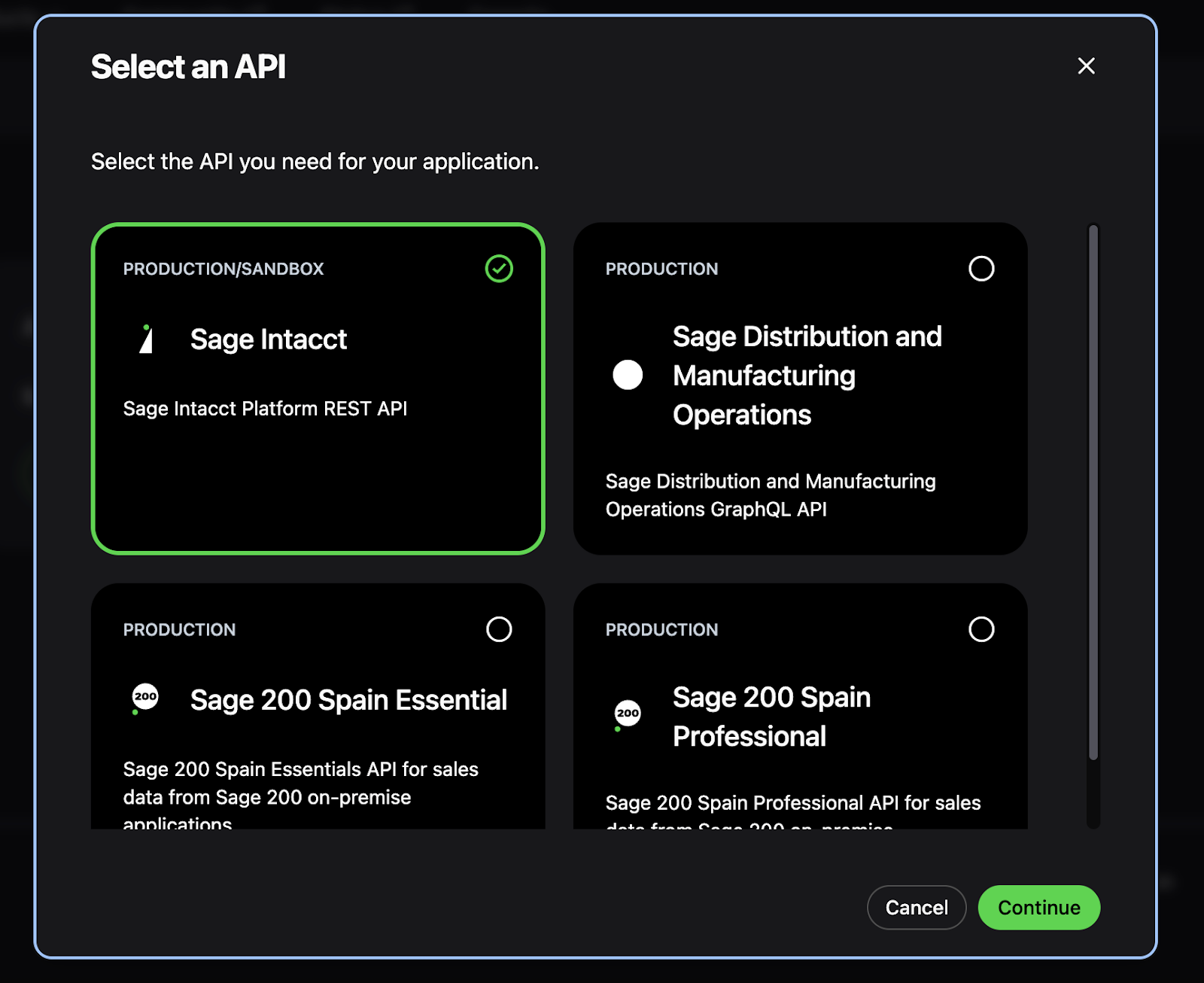 Fill out the basic information for your app:
* **Name** - a descriptive name (e.g., "Oleria Integration")
* **Intacct Web Services License Password/Key** - required for authentication with Sage Intacct
* **Client Scope** - select **Production** for live environments or **Non-production** for testing
After creating your application, you'll see your app credentials:
* **Client ID**
* **Secret Key**
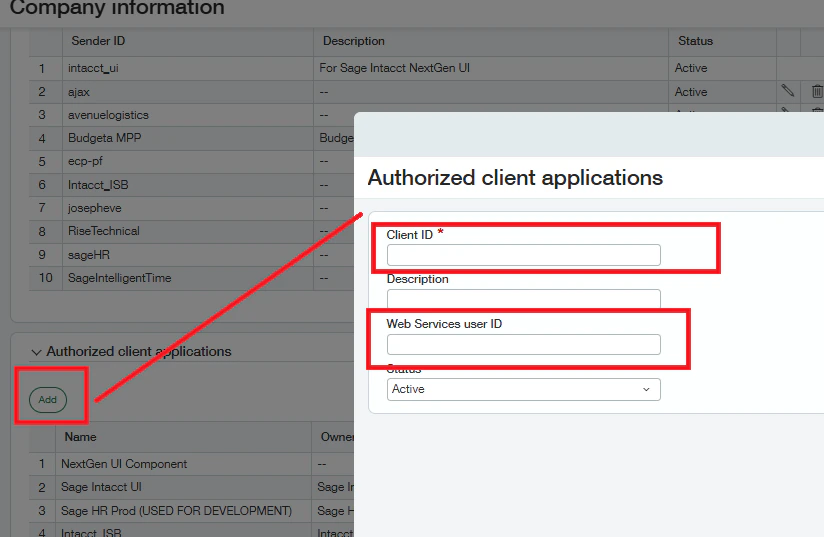
Navigate to **Company** → **Setup** → **Company** → **Security** → **Authorized Client Applications** → **Add**.
* Enter the **Client ID** for your application.
* Enter the **Web Services User ID**. This field is case-sensitive - enter it exactly as it was created.
Fill out the basic information for your app:
* **Name** - a descriptive name (e.g., "Oleria Integration")
* **Intacct Web Services License Password/Key** - required for authentication with Sage Intacct
* **Client Scope** - select **Production** for live environments or **Non-production** for testing
After creating your application, you'll see your app credentials:
* **Client ID**
* **Secret Key**
Navigate to **Company** → **Setup** → **Company** → **Security** → **Authorized Client Applications** → **Add**.
* Enter the **Client ID** for your application.
* Enter the **Web Services User ID**. This field is case-sensitive - enter it exactly as it was created.
 ## Connect Sage Intacct to Oleria
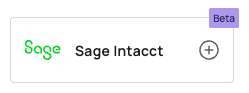
Log in to your Oleria workspace, navigate to **Integrations**, and select **Sage Intacct**.
## Connect Sage Intacct to Oleria
Log in to your Oleria workspace, navigate to **Integrations**, and select **Sage Intacct**.
 A side pane will open. Enter the following details:
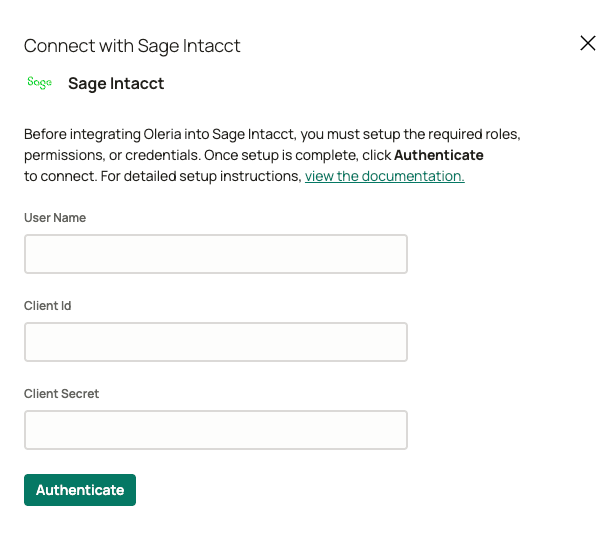 * **User Name** - the username of the service user created for integration with Oleria
* **Client ID** - generated in the previous section
* **Client Secret** - the Secret Key generated in the previous section
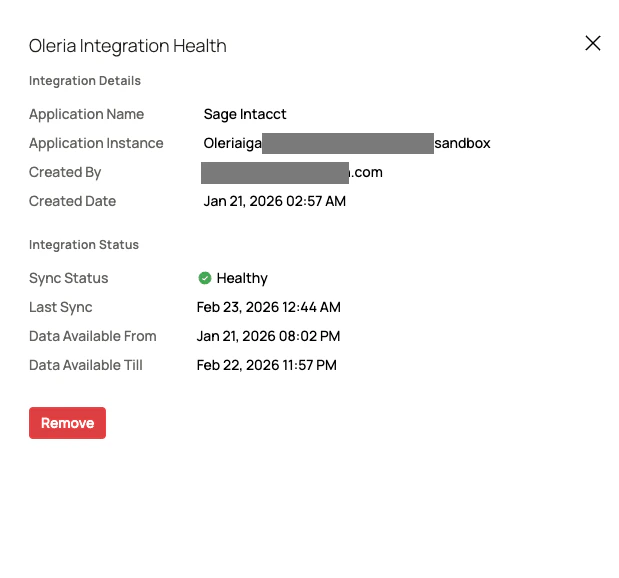
Verify the Sage Intacct integration status from the connected integrations page.
* **User Name** - the username of the service user created for integration with Oleria
* **Client ID** - generated in the previous section
* **Client Secret** - the Secret Key generated in the previous section
Verify the Sage Intacct integration status from the connected integrations page.
 ## Contact us
For questions about this integration, contact us at [support@oleria.com](mailto:support@oleria.com).
## Contact us
For questions about this integration, contact us at [support@oleria.com](mailto:support@oleria.com).